

Export and Import Release Bundles (v1) in the UI
The following topics describe how to use the platform UI to export and import Release Bundles v1:
Export a Release Bundle (v1) Version in the UI
In Distribution, you export the Release Bundle version as a downloadable .zip file and then proceed to download the archived Release Bundle from the Actions list on the Distributable page.
Release Bundle Export Rules and Guidelines
- Only a signed Release Bundle labeled as Ready can be exported.
- Only a single Export archived file can be exported as Release Bundles are immutable.
- Exporting Release Bundles requires the Distribute Bundles Permission.
To export a Release Bundle version from the Source Artifactory instance:
-
From the Application module, navigate to Distribution > Release Bundles > Distributable.
-
Create and sign a Release Bundle.
Wait for the Release Bundle state to change to Ready.
-
Navigate to the Release Bundle version you wish to export, and select Export Version from the Version Actions list.
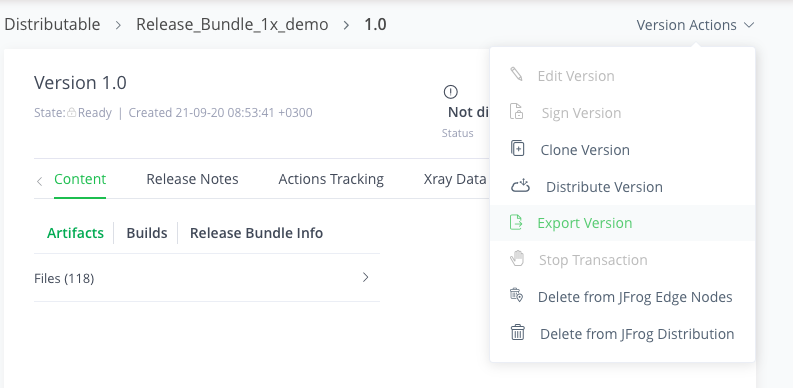
Note that this process may take a few minutes.
-
From the Version Actions list, select Download Version.
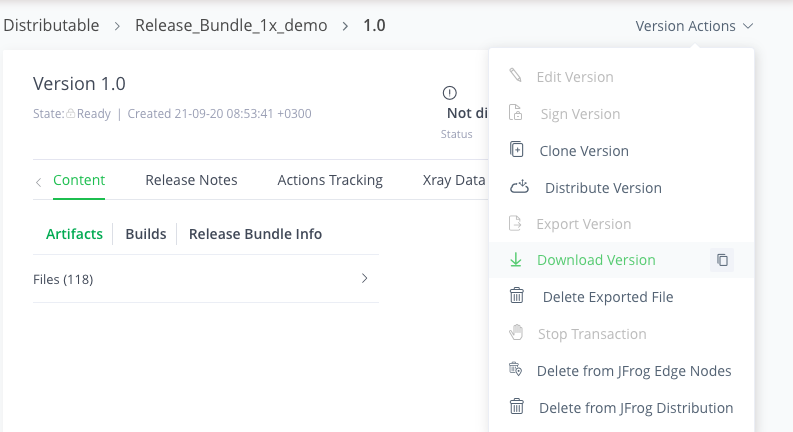
You can download the
<Release Bundle Name>.zipfile to your local drive.
Deleting an Exported Version
After the Export process has completed, the Delete Exported File action is displayed in the Version Actions list.
- Copy the download
<Release Bundle Name>.zipfile to an external device (such as a hard drive or USB flash drive).
Import a Release Bundle (v1) Version in the UI
Note
Importing Release Bundles requires Admin permissions.
To import a Release Bundle on the target Artifactory instance:
-
Access the target Artifactory and copy the
<Release Bundle Name>.zipto the local machine. -
From the Application module, navigate to the Release Bundles > Distribution > Received.
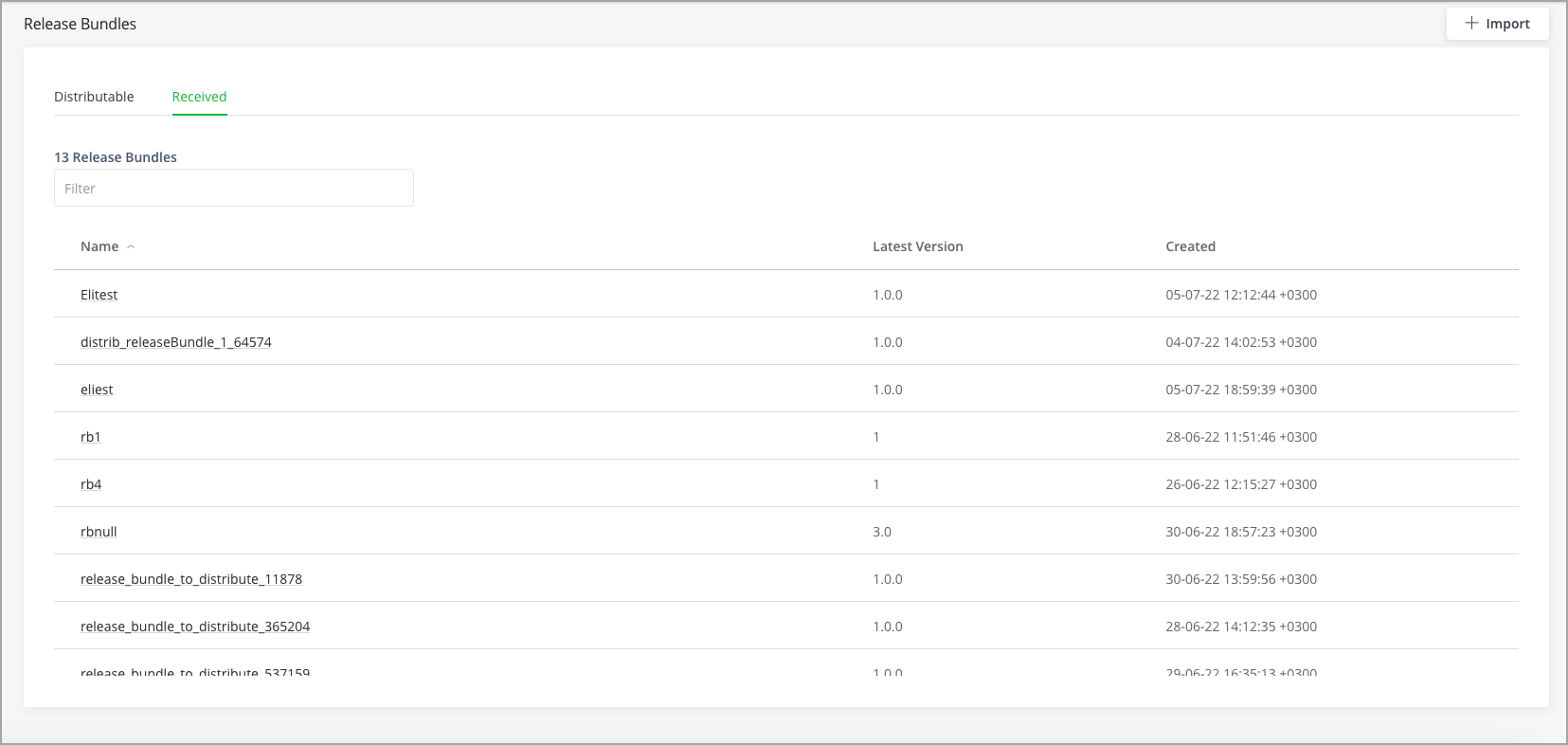
-
Click + Import.
This displays the Import Release Bundle dialog.
-
You can now select an import file using one of the following methods:
-
Import directly from your local drive using the Files option.
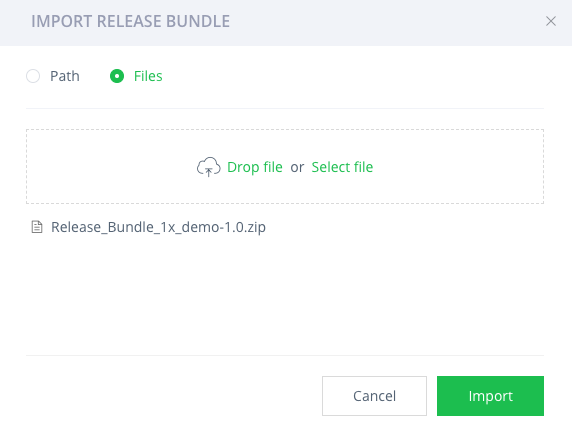
-
Import the Release Bundle from a predefined path location.
Prerequisite: Save your Release Bundle in the root of your user-defined
ARTIFACTORY_HOME/var/data/artifactory/import/folder.Note that as part of storage optimization, the file will automatically be deleted from the /imports folder after the Release Bundle has been successfully imported.
-
Importing Release Bundles in an HA Cluster Environement
In an HA environment, you have an option to save the exported Release Bundle on a different node in the cluster as long as the Release Bundle is saved in the root of the
/importfolder.
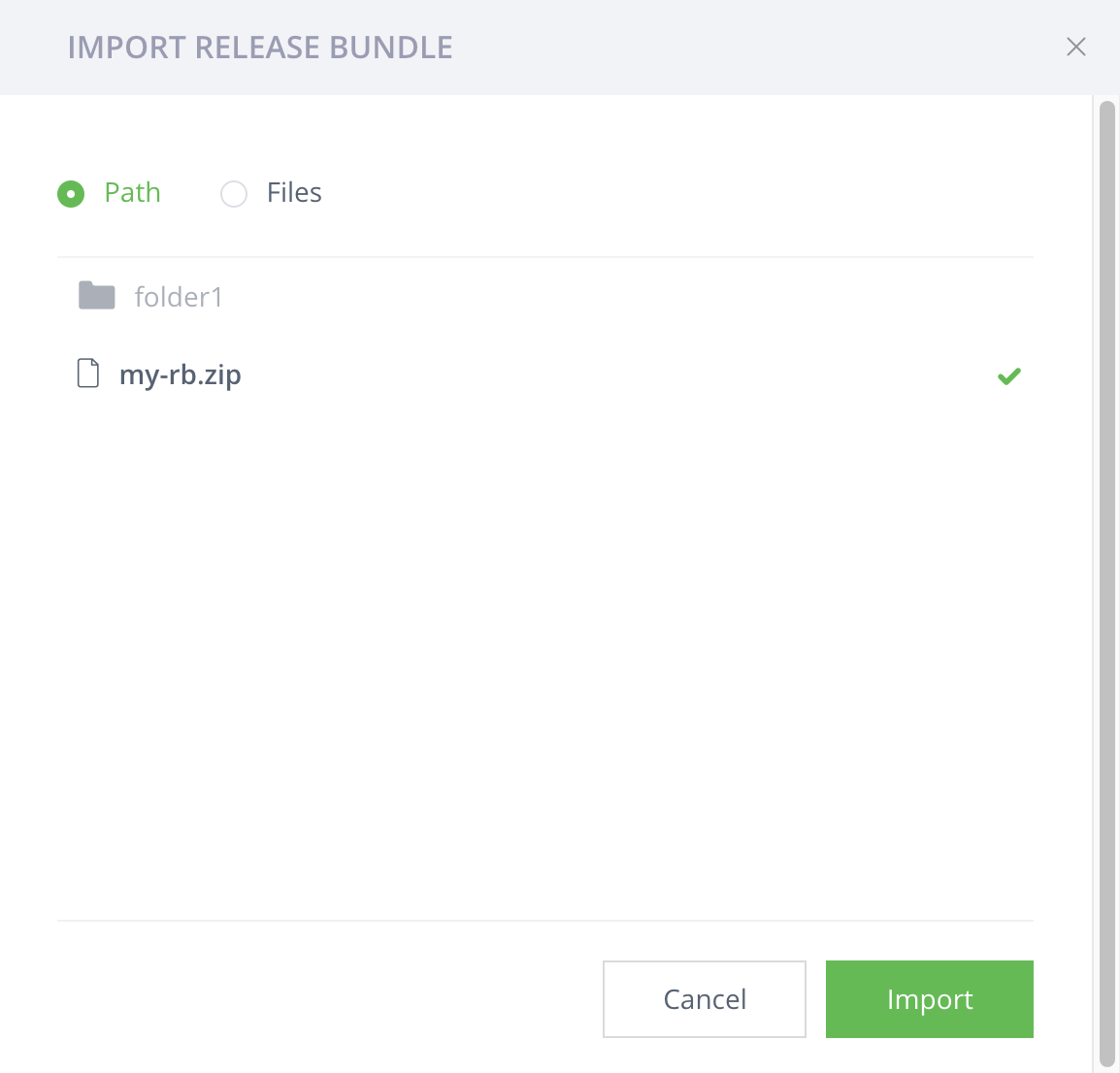
- Click Import. A progress bar displays the import process.
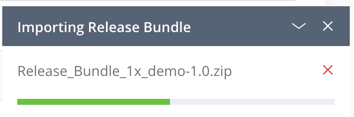
The imported Release Bundle is added to the Received tab.
Updated 9 months ago