

Distribute a Release Bundle (v1)
Important
This section describes how to distribute Release Bundles v1. For information about distributing Release Bundles v2, which were introduced in Artifactory 7.63.2 and Distribution 2.19.1, see Distribute Release Bundles (v2).
After you have created your Release Bundle v1, you can distribute it to the Distribution Edges to which you have distribution permissions. Distribution can be performed using the JFrog Platform UI or the Distribute Release Bundle v1 Version REST API.
Distribution is responsible for triggering the replication process that happens from the source Artifactory to the Distribution edges. First, it replicates the Release Bundle info to each Edge node, and then initiates the replication process in the source Artifactory. For more details, see The Distribution Flow.
Warning
When a JPD is offline a Release Bundle can not be distributed to an Edge node. This will be a critical error as before every distribution the system checks with Mission Control for available Edges.
Prerequisites
Use one of the following methods to connect Artifactory and the Edge nodes:
- Using Scope Tokens (Pairing Tokens): Connect the source Artifactory and the Edge nodes using the JFrog Platform scoped tokens function. This function is available from Artifactory version 7.29.7 with the release of the Distribution Edges Add-on and is the default option used for connecting the source and node (if you are unable to upgrade your self-hosted instance, or need to continue using the Circle of Trust, see next method).
- Circle of Trust: Establish a circle of trust between your source Artifactory and Artifactory Edge nodes. This should be applied to both the source and target Artifactory nodes.
Distribute Release Bundle Versions to Targets
To distribute Release Bundle versions to targets (in Distribution version 2.14.1 and later):
-
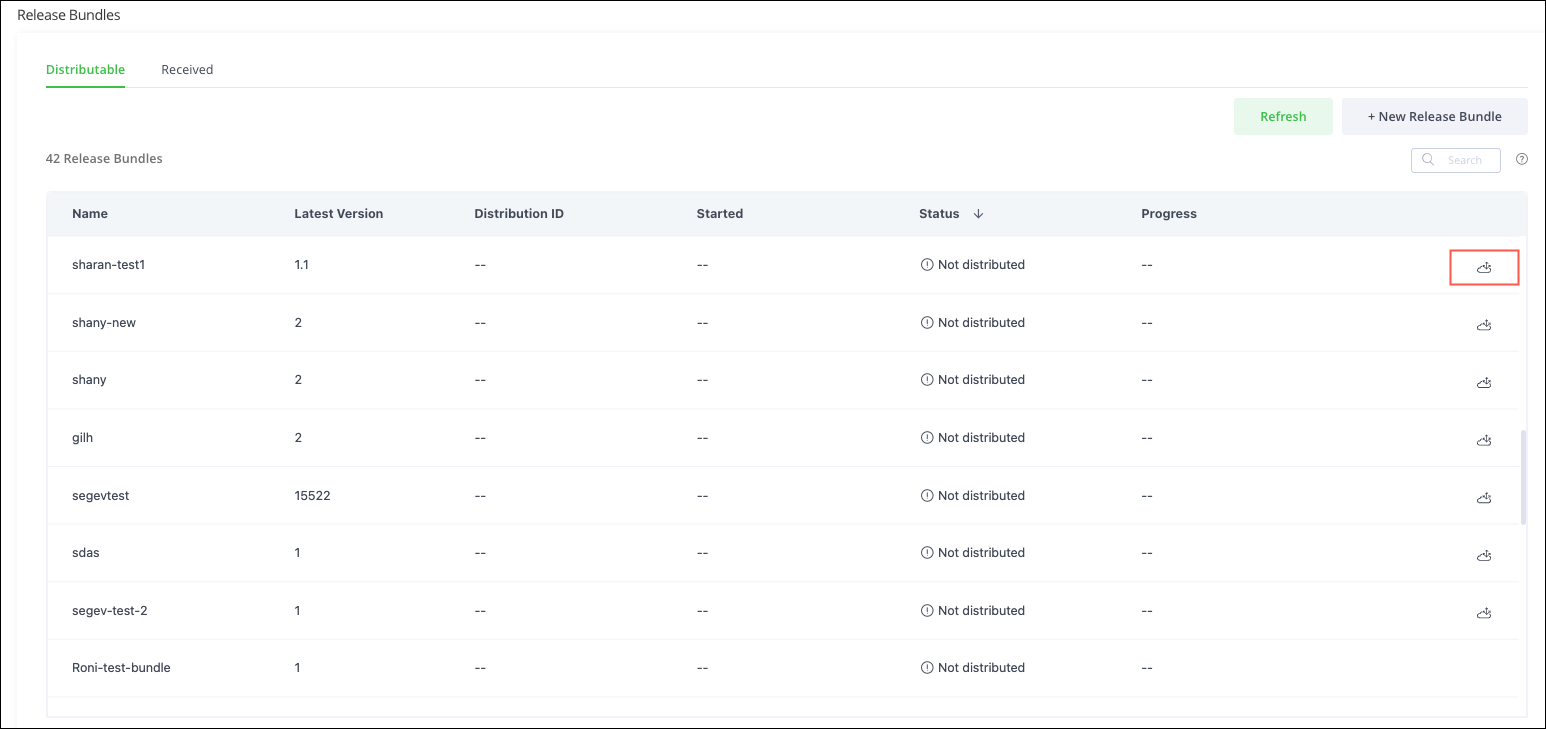
In the Application module, select Distribution > Release Bundles > Distributable.
-
Locate the Release Bundle to distribute, and click the Distribute icon. Distribution fetches the available Edge Nodes from Mission Control, and displays a list of the available Edge Nodes according to the specific user permissions.
-
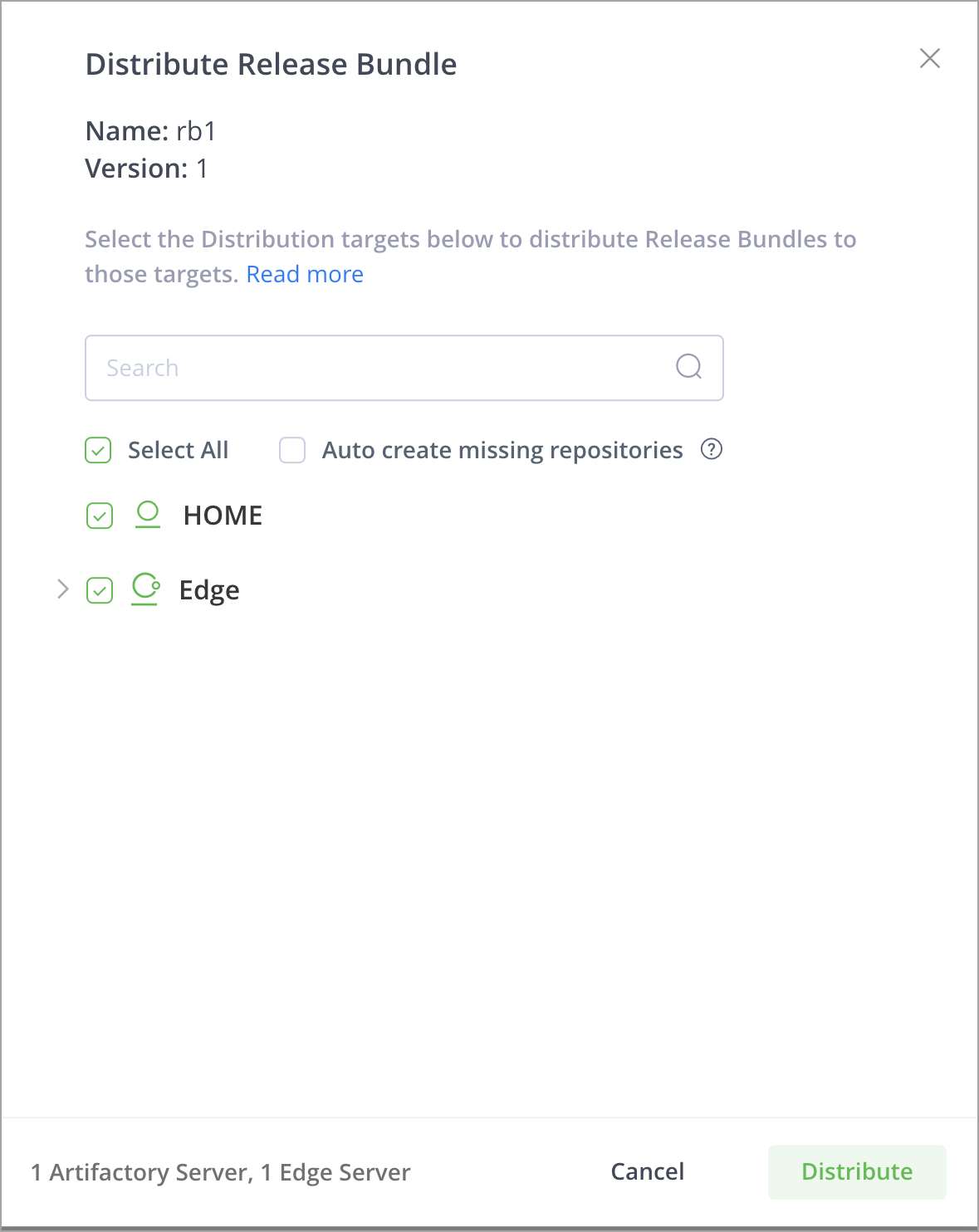
In the Distribute Release Bundle window, the targets are displayed in a list:
-
To distribute to one or more specific targets, select them from the list. As you select targets, your selections appear at the bottom of the window.
-
To distribute to all targets, select the Select All checkbox.
-
Tip
You can also search for specific targets in the search field.
- [optional] Select the Auto create missing repositories checkbox to ensure you do not attempt to distribute to repositories that do not exist, which will cause distribution to fail. Leave this option unselected if there is a need for greater control over the creation of repositories in the Edge nodes.
- Click Distribute to distribute the Release Bundle version.
Note
If the distribution operation included multiple targets, and one or more targets did not receive the Release Bundle version successfully, users will still be able to download the artifacts from those targets that successfully received it.
Distribute Older Release Bundle Versions
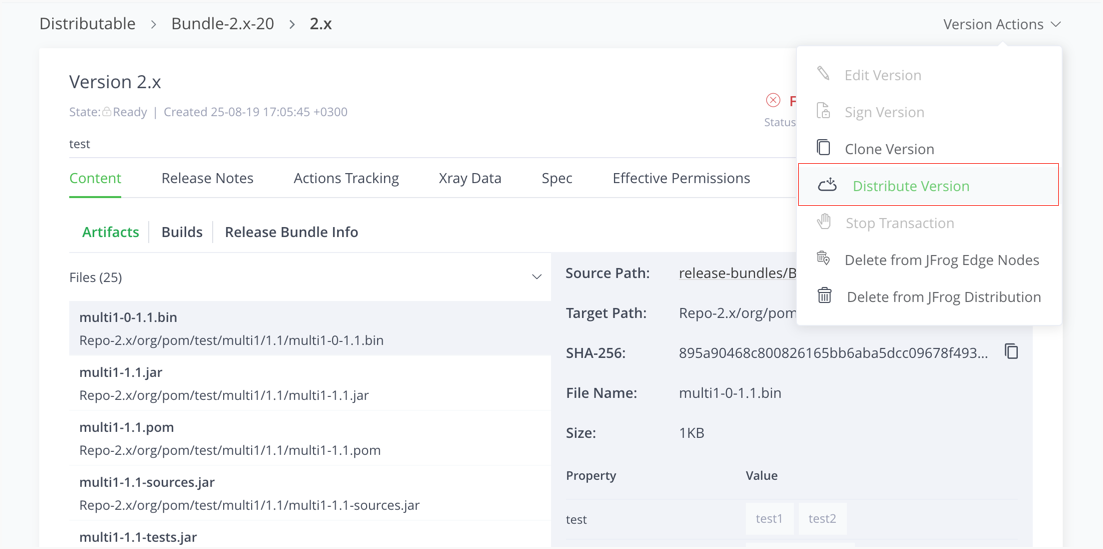
To distribute an older version of your Release Bundle, click it from the Release Bundle module, select the version you want to distribute, and click Distribute.
Redistribute a Release Bundle
Distributing a Release Bundle may fail for different reasons such as network issues or outage of a target Artifactory service. Once you have remediated the problem preventing distribution, you can redistribute the Release Bundles to the services where distribution failed.
To redistribute Release Bundles, first select them. Distribution presents a Redistribute icon for each distribution selected. Click that icon to redistribute each Release Bundle individually to the specified target service, or select the Redistribute button at the top of the list to redistribute the Release Bundle to all target services selected in a batch process.
Tip
Use the filter to display only those distributions that have failed.
Automatically Create Missing Repositories
Distribution fails when the target Edge node or source Artifactory does not contain any repositories. From JFrog Distribution release 2.8.1, Distribution enables you to create missing target repositories automatically on the target Edge nodes or source Artifactory when distributing Release Bundles to expedite the distribution flow.
Note
This feature requires Artifactory version 7.38.8 or later.
How does it work?
During the distribution flow, select the Auto create missing repositories checkbox to create missing repositories automatically (prior to release 2.14.1, this checkbox was called Target Repository Auto-Creation).
Automatic creation of missing repositories is particularly useful when you first begin using Distribution. By default this function is not selected to give you better control of the targets where you are distributing Release Bundles.
This feature works according to the path mapping that exists from the source to the target. If advanced path mapping was detected, the target repository cannot be auto-created. To enable automatic creation, set thedistribute.auto-create-target-repo-advance flag to true in the Distribution Application Config YAML File.
| Repositories | Without Path Mapping | With Path Mapping |
|---|---|---|
| One Repository | If the target repository name and type are the same as the source repository, the repository is created automatically. | If there is a one-to-one path mapping between the source repository and target repository, the target repository type will be the same as the source repository type. |
| Multiple Repositories | If the target repositories names and types are the same as the source repositories, the repositories are created automatically. |
|
Examples
Example 1: From source to target repository without path mapping
A Docker image from a Docker repository in the source will be mapped to the Docker repository in the target.
Example 2: From source to target repository with path mapping
A Docker image from a Docker repository named docker-local in the source will be mapped to a Docker repository named mapped-docker-loca in the target.
Example 3: Multiple repositories on the source to one target repository with path mapping
Multiple Docker images from multiple Docker repositories in the source are mapped to a single Docker repository in the target.
Example 4: Multiple repository types on the source to one target repository with path mapping
A Docker image from a Docker repository and a Helm chart from a Helm repository in the source will be mapped to one generic repository.
Distribution Target Troubleshooting
If you receive the message, No distribution targets are available when attempting to distribute a Release Bundle (v1 or v2), check the following possible causes:
- No distribution targets, in particular Edge nodes, have been installed. For more information, see Installing Artifactory Edge.
- Edge nodes have been installed but have not been added to your JPD. To perform this procedure, see Register a Platform Deployment.
- You do not have the required permissions to view the available Edge nodes and other distribution targets. In that case, contact your platform administrator.
- There are connectivity issues between your JPD and the Edge nodes.
Updated 6 months ago