

Viewing Packages
The Packages list provides easy access to information about all the packages stored in all repositories in Artifactory. You have quick access to the most important summary information about the latest package versions and you can easily drill down for more details about previous versions. From the Packages list, you can create filters to focus on the packages that interest you according to a broad range of criteria, create customized views of filters for reuse and later reference, and view a list of the most recently viewed packages.
For some package types, you can download packages and copy installation commands when drilling down into a package.
To display the Packages list, select the Platform tab and go to Artifactory| Packages.
The Packages list is shown below. When you initially display the Packages view, Recently Viewed and All Packages tabs appear at the top left of the screen, and filter options appear on the right of the screen.
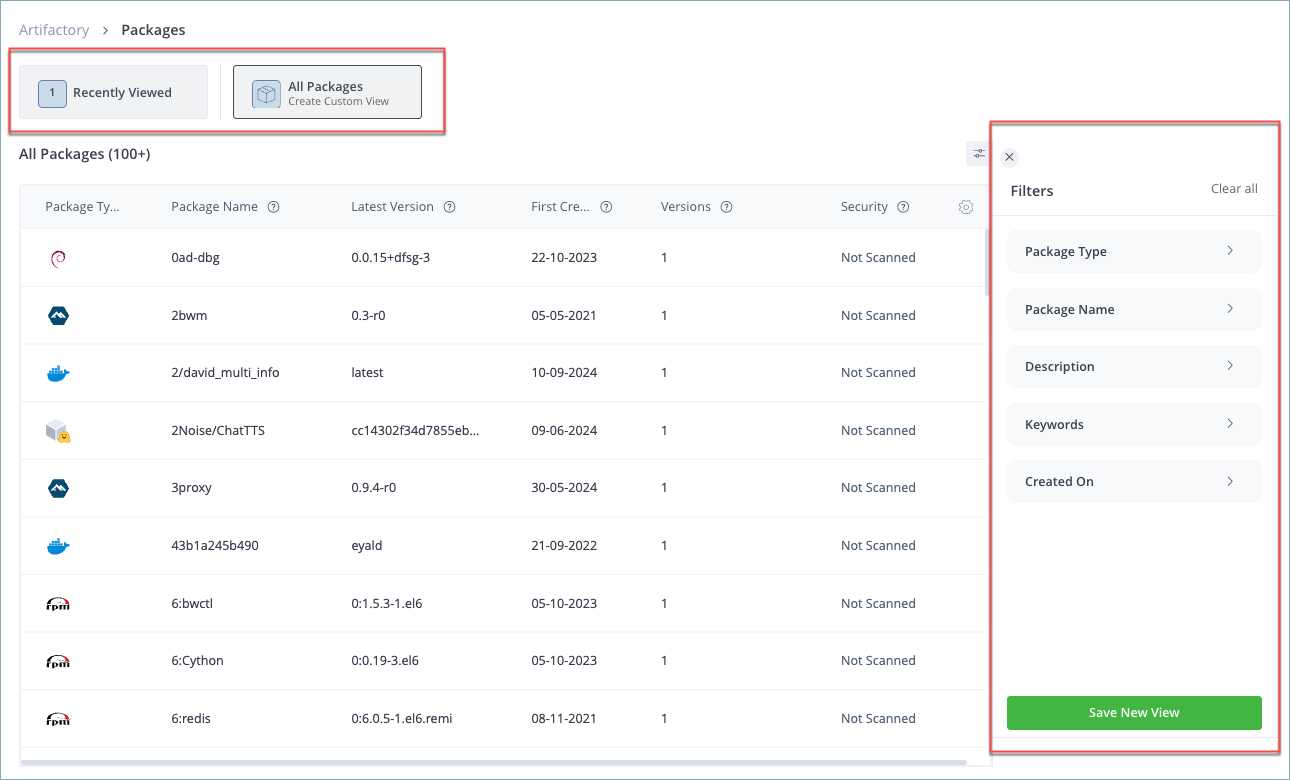
When you initially display the Packages list, all packages stored on Artifactory are listed, sorted lexicographically.
- For instructions on how to filter the packages list, click here.
- For instructions on how to create customized views of package filters, click here.
Filtering the Packages List
The initial Packages list displays all packages stored on Artifactory. To make use of this list, you need to use the filtering option to focus on the packages that you want to examine. You can use the filtering option to filter packages based on package types, package names, and other criteria to display only the packages that you want to view.
To filter the packages list:
-
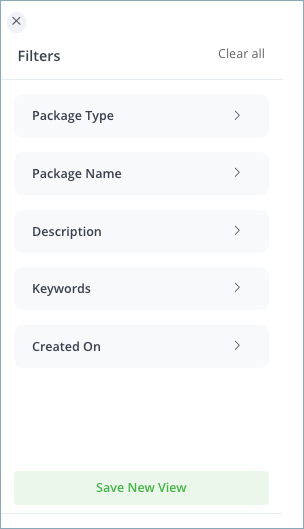
In the All Packages list, go to the Filters section on the right side of the screen.
-
Filter the Packages list according to the following:
-
Package Type: You can choose multiple package types. For example, if you choose Docker and Maven, the filter will list all Docker and Maven packages stored on Artifactory.
-
Package Name: Enter a full or partial name. Wildcard search is applied to both the prefix and suffix of the text you enter. For example, if you enter thon and there is a package with the full name is Python, the filter will list the package.
-
Description: The filter will search for the text that you enter here in the metadata descriptions of all packages and will list those packages where the text is found in any part of the metadata description.
-
Keywords: If you are looking for packages that have keywords, enter the keyword here. Only one keyword is allowed.
-
Created On: Choose from one of the following:
- Last 7 Days: The filter will list packages created in the last 7 days.
- Last 30 Days: The filter will list packages created in the last 30 days.
- Last 90 Days: The filter will list packages created in the last 90 days.
- Custom: The filter will list packages created between the start and end dates that you choose here.
-
Note
This filter applies only to the creation date of the first version of the package.
When you apply any of the filter options above, a green dot appears by the option to indicate that this option is applied
Saving Filters for Reuse
Once you have filtered the Packages list to display the packages you want to review, you can save the filtered list and come back to it at a later point in time.
To save a filtered list of packages:
-
At the bottom of the Filters section, click Save New View.
The View Name prompt appears.
-
In the View Name prompt, enter a descriptive name for the view and click Save. A short name is recommended since the name space in the UI is limited.
The view is saved, and appears at the top of the Packages list next to the Recently Viewed and All Packages tabs.
Once you have saved a view, there are further actions you can perform on it such as renaming the view, deleting it, or making it your default view. See the following section for instructions on managing Custom Views.
Note
- You can create up to 8 Custom Views.
- Once you have created a Custom View, you can update it by displaying the view and clicking Update Custom View in the Filters section.
- Clicking on a package in the list to view it's details will cause that package to be added to the Recently Viewed list, described below.
- Custom Views can only be created from the All Packages tab.
- Custom Views are saved on the browser cache level.
Managing Custom Views
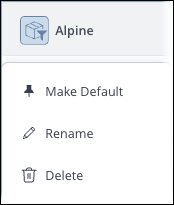
Once you have created a Custom View, there are further actions you can perform on it such as renaming the view, deleting it, or making it your default view.
To perform an action on a Custom View:
-
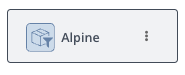
Hover over the Custom View with your mouse so that 3 vertical dots appear to the right of the view name.
-
Click the 3 dots.
A drop-down menu appears.
-
From the drop-down, choose the action that you want to perform on the view.
Recently Viewed
After you have started to use the Packages list and display information on specific packages, you can view those packages again by clicking Recently Viewed at the top left of the screen, which displays up to the 10 most recently viewed packages.
The Package Details User Interface
The Package Details user interface displays valuable information about package versions in a user-friendly format, including:
-
A native developer experience, using native terminology based on the context (for example, tags for Docker/OCI packages, versions for other package types).
-
When the Package Details view is initially displayed, details on the latest version or tag of the package are displayed.
-
There are two ways to select a package version:
- Quick Package Version selection
- An option to view all package versions, their vulnerabilities, and where they are stored for impact analysis and easy version selection
-
Multi-client install commands: Installation commands are provided for every package version, and can be copied and used to install the package. For packages with multiple clients, installation commands are provided for every client. If the package version exists in more than one repository, the installation command can be generated and copied according to the repository.
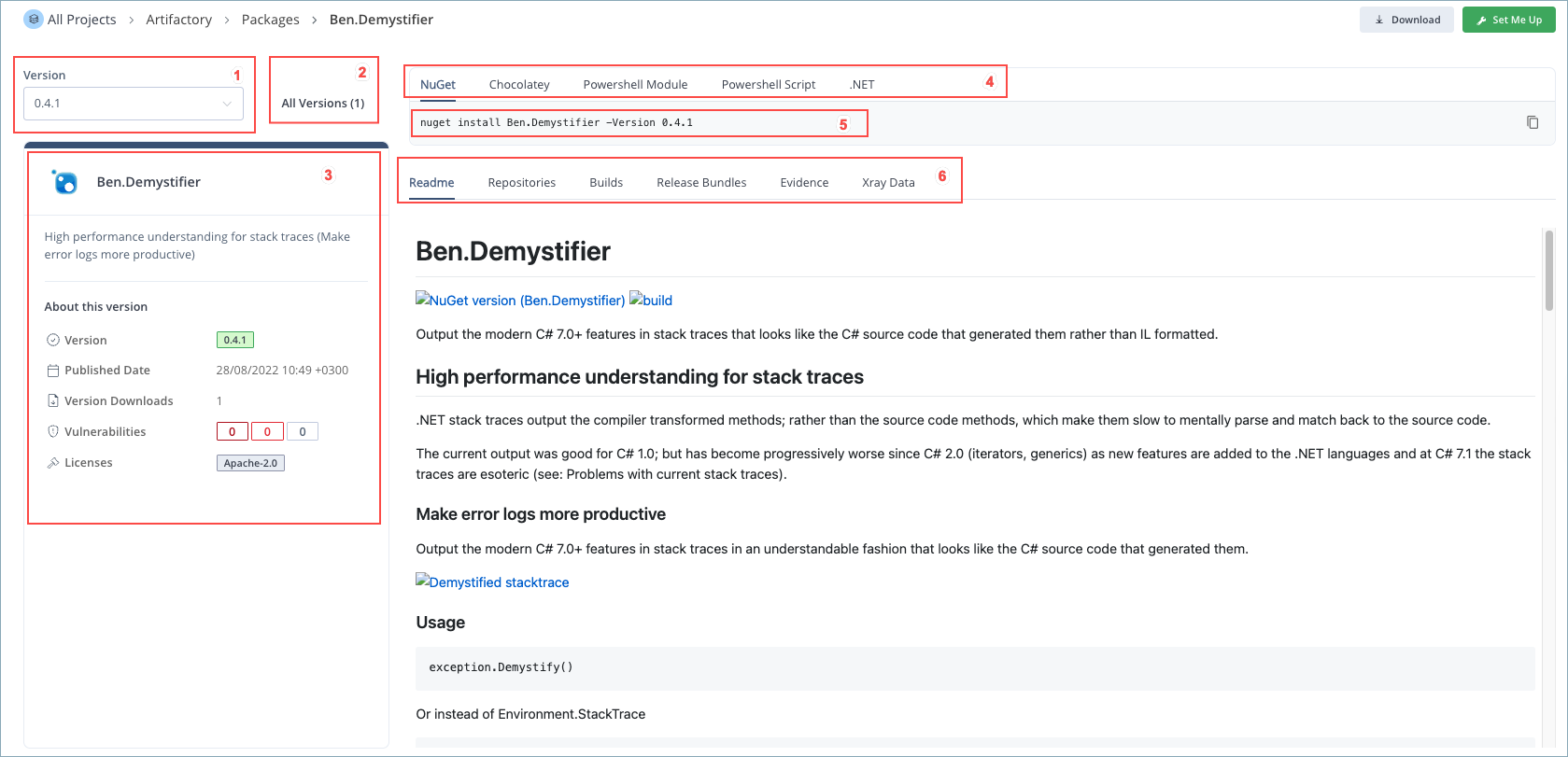
Legend
- Quick Version Selector
- All Versions Selector
- Details on the currently displayed package version
- Client Selection
- Install Command
- Information tabs
View Package Details
To view details on a package, click anywhere on the row of that package in the Packages List page. The Package Details screen appears, as shown below, and initially displays details on the latest version/tag of the package:
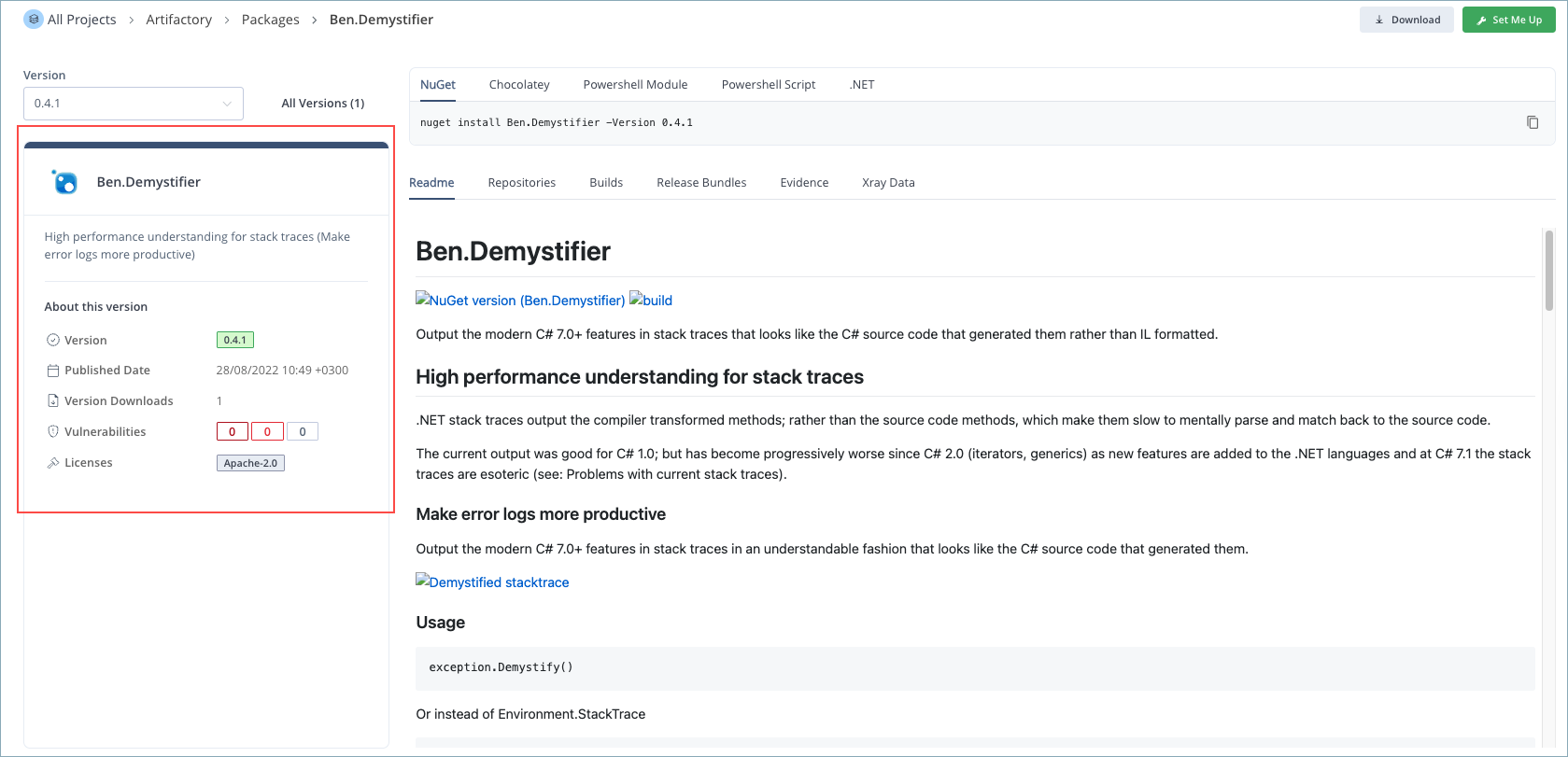
The left side of the Package Details screen displays the following information on the currently displayed package version:
| Field | Description |
|---|---|
| Version/Tag | The version number or Tag ID of the currently displayed package version. |
| Published Date | The date that this package version was published. |
| Version Downloads | The number of times the currently displayed package version or tag has been downloaded. For Docker and OCI packages, this count is per tag. When shared-digest download statistics are enabled, pulling any tag or digest that shares a manifest digest updates download statistics for all tags you can read that reference that digest in the same repository and image name. |
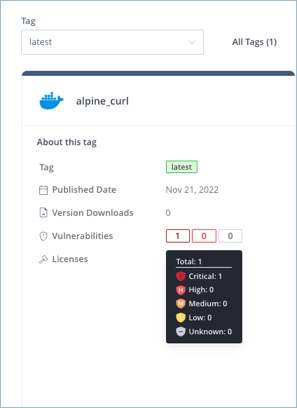
| Vulnerabilities | If the package version has been scanned by Xray, the results of the security scan are displayed here. To display more information on the package vulnerabilities, hover over one of the vulnerability rectangles with your mouse, and a legend appears, as shown below.
For more information on the Xray security scan, see Xray. |
| Licenses | The names of the license(s) covering the package. |
Select a Package Version or Tag
There are two ways to select a specific package version or tag:
- Quick Package Version selection
- Select from All Package Versions
Quick Package Version Selection
Use the quick package version selection to quickly find a package version and display its relevant details. Click the down arrow by the currently displayed version or enter search text in the text box. A dropdown list of all versions/tags appears, as shown below.
If the package has release versions, select the checkbox by Release versions only if you want only release versions to appear in the list.
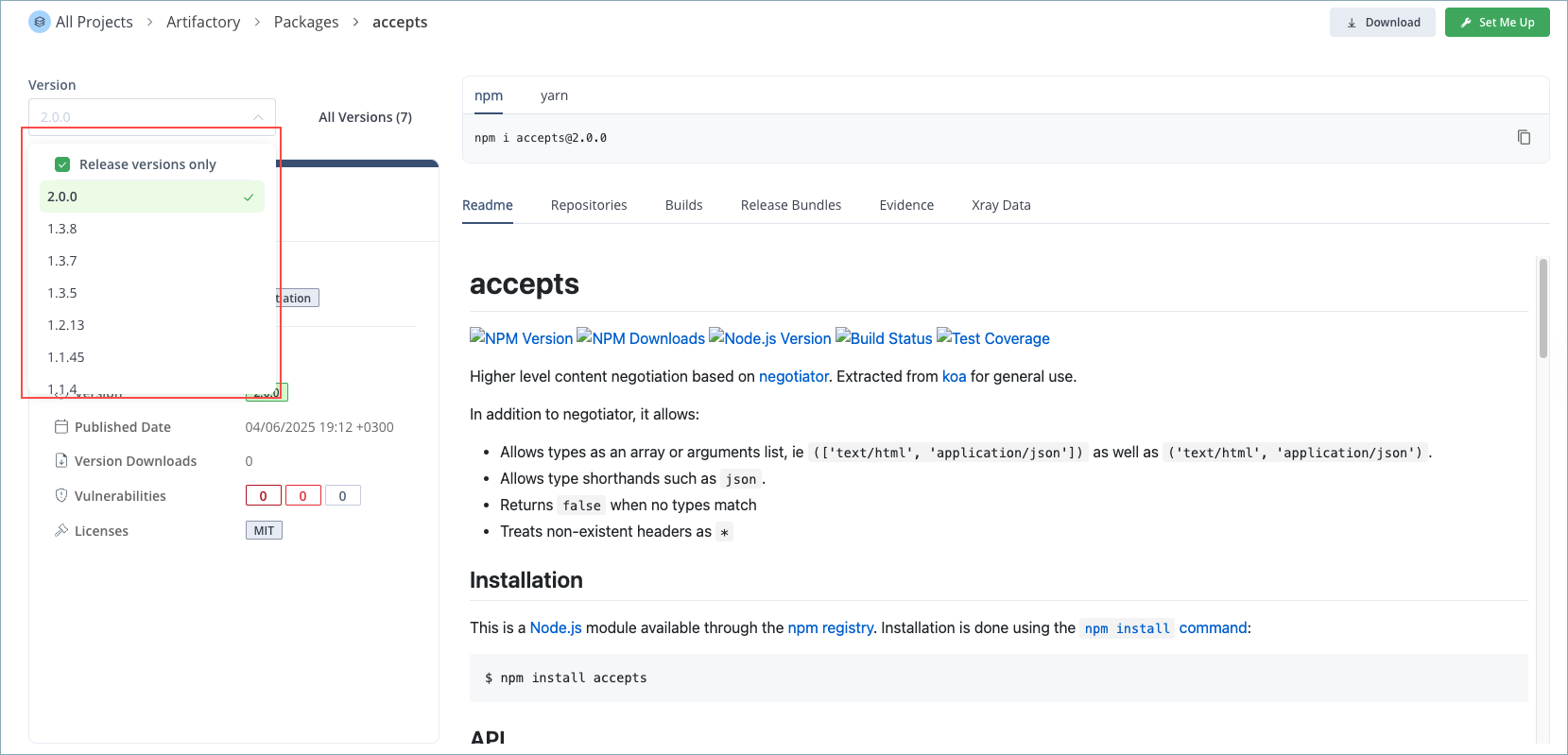
After selecting a version/tag from the list, the details for that version/tag are displayed in the UI.
Select from All Package Versions
If you click All Versions, a screen appears showing a list of all the package versions with their main details, as shown below. If the package has release versions, select the checkbox by Release versions only if you want only release versions to appear in the list.
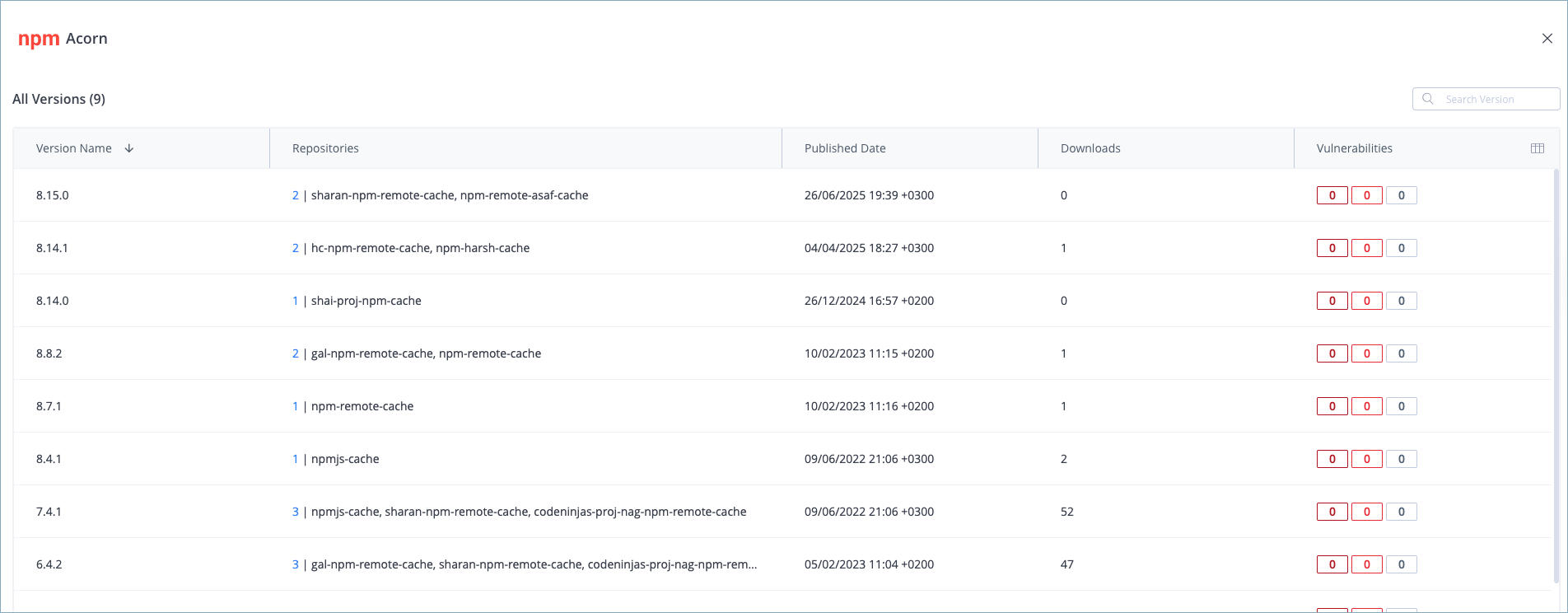
If you click a version in this list, the screen closes and that version appears in the package details screen.
Multi-Client Install Command
If the package you are viewing has more than one client, this will be indicated in the package details screen. In the example below, this Docker package has two clients, Docker and Podman. Note the installation command, which is set for the currently selected client and repository. You can copy the installation command by clicking the copy icon on the right and use it to install your package.
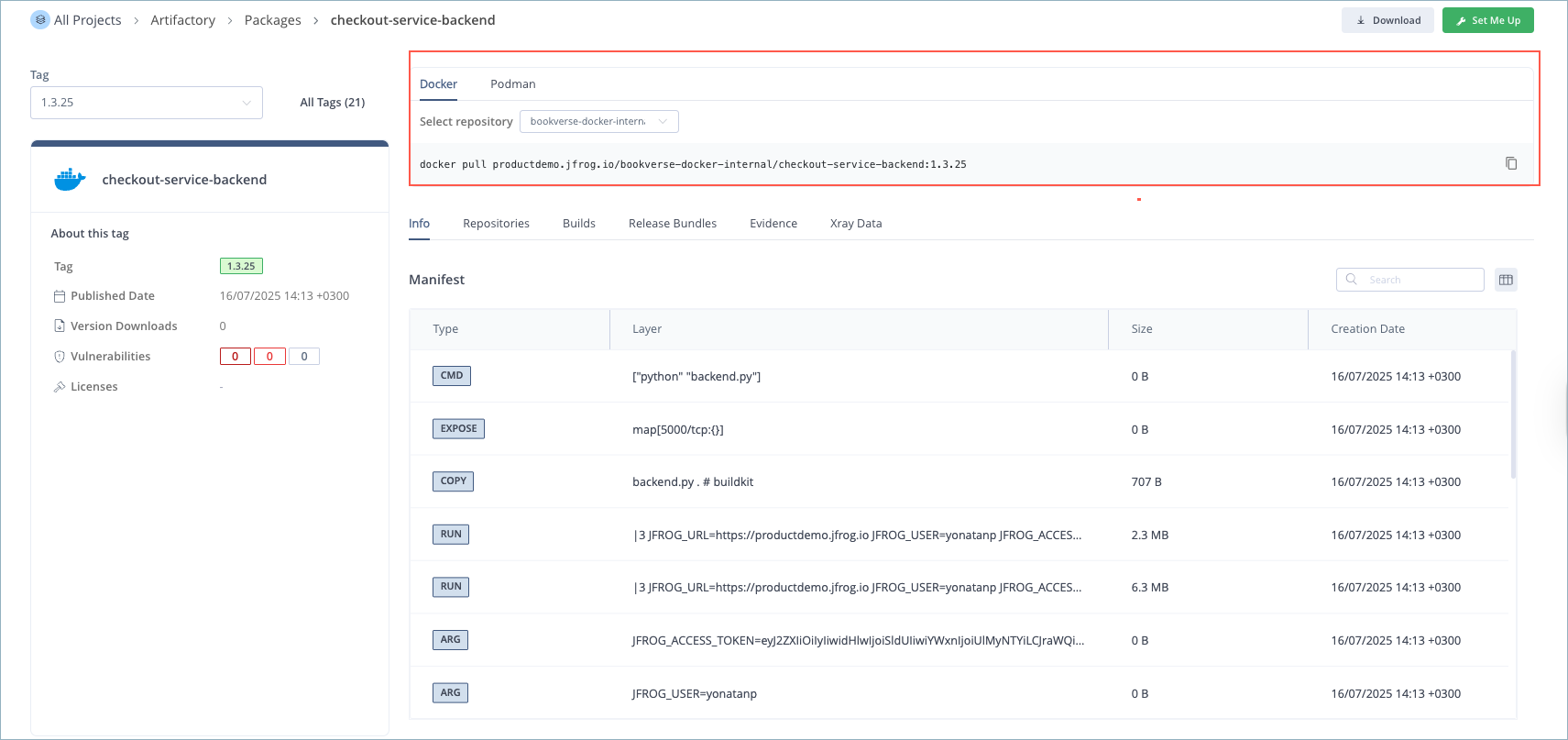
Change the Client and/or Repository
If you change the client, the installation command is updated for that client. And if the package exists in more than one repository, you can select another repository, and the command updates for that repository. The example below shows the same package as in the previous example, but with a different client and repository selected. Note the change in the installation command.

Multi-Line Install Command
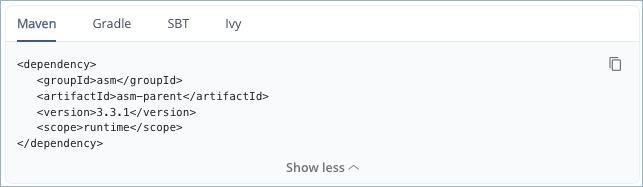
Some package types will have an installation command that is two or more lines. In this case, only the first line will initially appear, as shown below.

To display the full command, click Show more. The full command is displayed, as shown below.
Token Generation for Clients Using Explicit Authentication
Some package types with clients using explicit authentication require generating a token that is used in the installation command. For these package types, a Generate Token prompt appears before the installation command is displayed, as shown below.
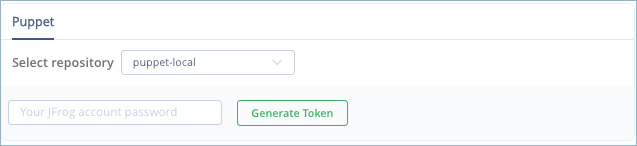
To generate the token, enter your JFrog account password and click Generate Token. The command is then displayed, including the authentication token.
Additional Package Information
The following additional information is displayed on the right side of the Package Details screen:
-
Info: This tab shows information relevant to the package version. For Docker, Helm OCI, and OCI package versions, it shows the Manifest or List Manifest for Docker and OCI images.
-
Readme: This tab shows the Readme documentation for the package version, if available.
-
Repositories: Lists the Artifactory repositories where the package version exists. You can display the location of the package version in the Artifactory Tree view by clicking on the 3 dots at the end of the row and selecting Show in Artifacts Tree.
-
Builds: In this tab, select one of the following views to display build information about the package version:
- Produced By: Displays information about the builds that produced the package version.
- Used By: Displays information about the builds that use the package version as dependencies.
The information includes the name, number, and creation date of each build. Click on the build name to open the Build page with full information on the build.
-
Release Bundles: Displays the Release Bundles containing the package version, the Release Bundle Distribution status, and when they were last updated. Click the Release Bundle name to view the Bundle in the Distribution page.
-
Evidence: This tab lists the external evidence files associated with the package version. For more information, see View the Package Evidence Table.
-
Xray Data: This tab lists Xray security data related to the package version. For more information on the Xray security scan, see Xray.
Updated about 1 month ago