

NVIDIA NIM Repositories
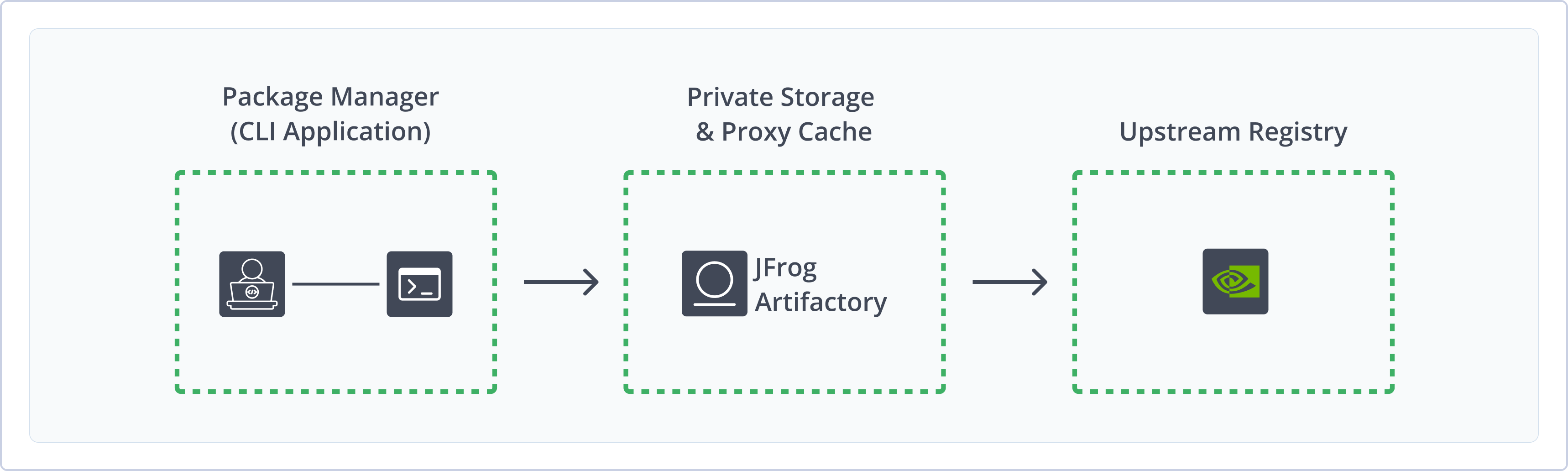
The JFrog Artifactory integration with NVIDIA NIM allows you to cache NVIDIA NIM GPU-optmized containers in Artifactory via the remote repository.
NVIDIA NIM is a set of easy-to-use microservices for accelerating the deployment of foundation models on any cloud or data center and helps keep your data secure. NIM has production-grade runtimes, including ongoing security updates. Run your business applications with stable APIs backed by enterprise-grade support.
A NIM consists of a dedicated container, an optimization profile, and a model. To manage your NIMs using JFrog, you need to configure both a NIM repository and a container repository as described in this document.
To learn more about NVIDIA NIM GPU-optmized containers, refer to Deploy Generative AI With NVIDIA NIM.
Get Started with NVIDIA NIM
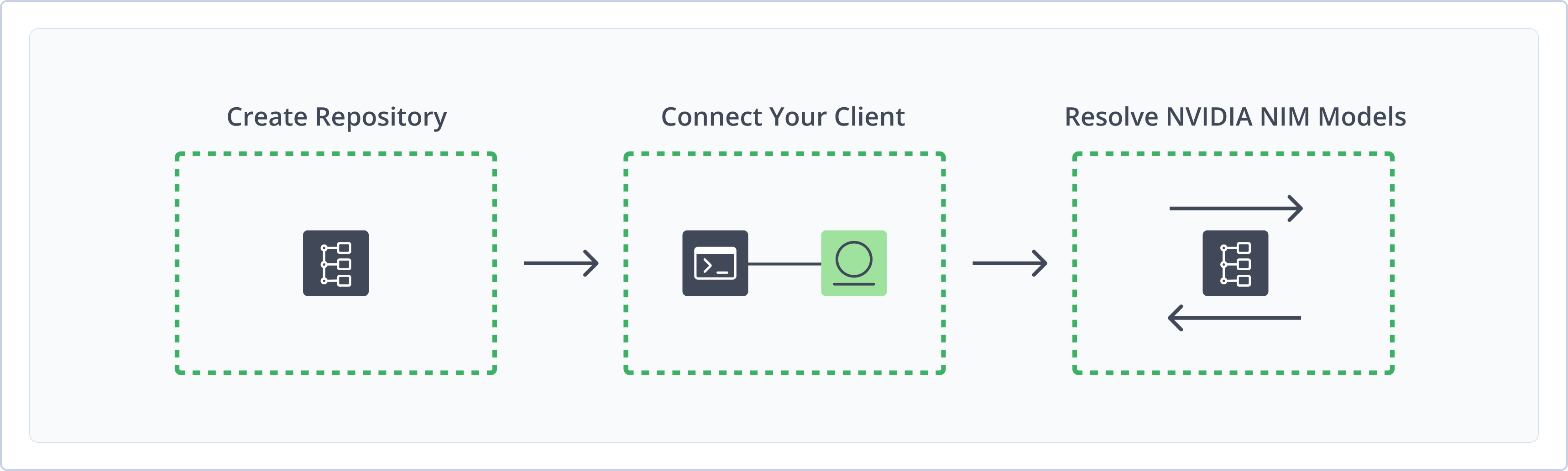
To get started working with NVIDIA NIM, complete the following main steps:
-
Create Repositories
- Remote Docker Repository (Prerequisite)
- Create an NVIDIA NIM Repository
Create an NVIDIA NIM Repository
This topic describes how to create an NVIDIA NIM Repository. This is required before installing NVIDIA NIM Containers. Artifactory supports remote NVIDIA NIM repositories, which allow you to download from any remote location, including external package registries or other Artifactory instances.
For more information on JFrog repositories, see Repository Management.
Prerequisites:
-
Admin or Project Admin permissions to create an NVIDIA NIM repository. If you don't have Admin permissions, the option will not be available.
-
-
A Remote Docker repository pointing to the URL
https://nvcr.io.NVIDIA NIM models are provided as prebuilt containers packaged with optimized models.
To resolve a model from NVIDIA NIM to a remote Docker repository, ensure that the repository is configured to download NVIDIA NIM containers. The URL parameter should be set to
https://nvcr.io/, as NIMs are packaged as container images for individual models or model families. This URL points to the remote Docker repository from which the container can be downloaded.The authentication for the remote Docker repository:
- Username: $oauthtoken
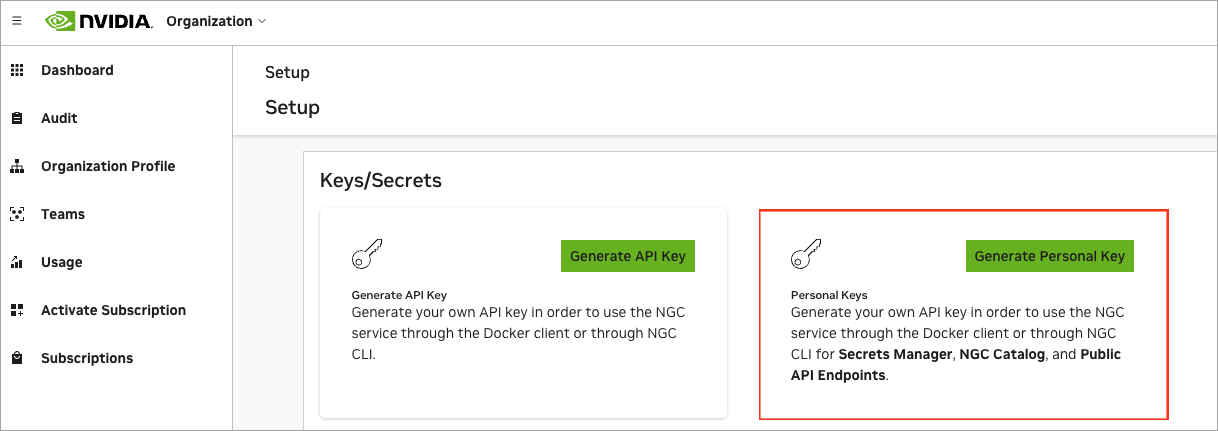
- Password / Access Token: NVIDIA Personal Key
To create an NVIDIA NIM repository:
-
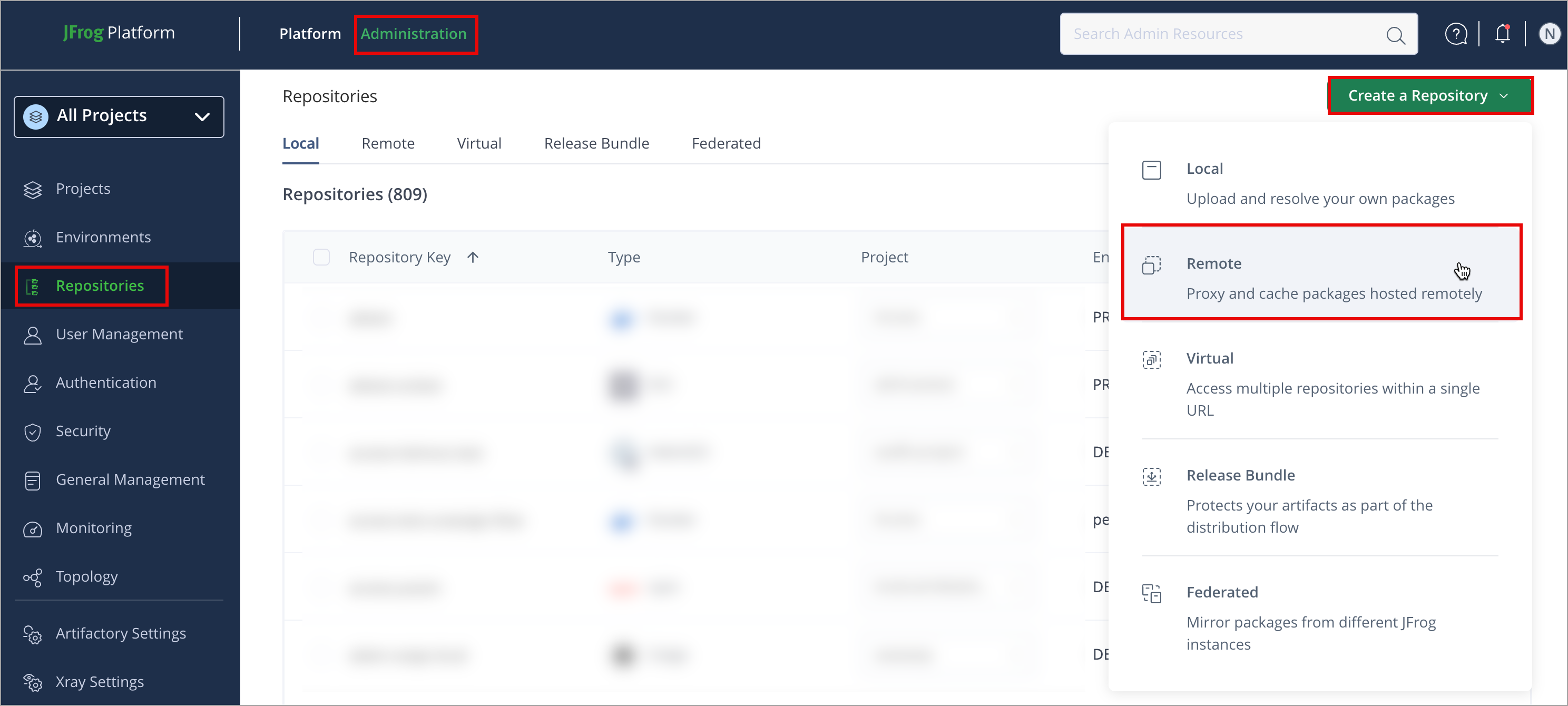
In the Administration module, click Repositories > Create a Repository
-
Select Remote.
-
Select the NVIDIA NIM package type.
-
Configure the required fields:
- Set the Repository Key.
- For Remote Repositories, verify the Repository URL and update if needed. For more information on Remote Repositories and all their possible settings, see Remote Repositories.
Note
- URL is auto-populated:
https://api.ngc.nvidia.com- Username: Leave this field blank
- Password / Access Token: NVIDIA Personal Key, generated as a prerequisite
- Click Create Repository. The repository is created, and the Repositories window is displayed.
Connect your NVIDIA NIM Model Client to Artifactory
This topic provides details on configuring NVIDIA NIM client to work with Artifactory. To get up and running quickly to use NVIDIA NIM, see Get Started with NVIDIA NIM.
Pre-requisite: Before connecting your NVIDIA NIM client to Artifactory, you must have an existing NVIDIA NIM repository in Artifactory. For more information, see Create an NVIDIA NIM Repository.
Supported clients: Currently, the only supported client is Docker. Artifactory does not support NGC CLI or NGC SDK.
To configure your local machine to install NVIDIA NIM packages using Docker:
-
Set Environment Variables
Open your terminal and set the following environment variables to configure access to the NVIDIA NIM repository:
Note
Make sure to replace the placeholders in bold with the appropriate values as follows:
The following fields are populated by the user interface (UI):
<TOKEN>: Artifactory Repository token<DOMAIN>: Use the domain withouthttps://<REPO>: The nim remote repository key<PROTOCOL>: http | https- ./: Specify the directory on your local machine
export NGC_API_KEY=<TOKEN>
export NGC_API_ENDPOINT=<DOMAIN>/artifactory/api/nimmodel/<REPO>
export NGC_AUTH_ENDPOINT=<DOMAIN>/artifactory/api/nimmodel/<REPO>
export NGC_API_SCHEME=<PROTOCOL>
export CACHE_DIR=./
Where:
- NGC_API_KEY=
<TOKEN>: Your Artifactory repository token for authentication, generated by the Set Me UP. Replace<TOKEN>with your actual token. - NGC_API_ENDPOINT=
<DOMAIN>/artifactory/api/nimmodel/<REPO>: The URL of the remote NIM repository. Replace<DOMAIN>with the repository domain and<REPO>with the model repository name. - NGC_API_AUTH_ENDPOINT=
<DOMAIN>/artifactory/api/nimmodel/<REPO>: The authentication URL for the NIM repository. Replace<DOMAIN>with your repository's domain and<REPO>with the model repository name. - NGC_API_SCHEME=
<PROTOCOL>: The protocol to use for communication. Set to http | https for secure connections. - CACHE_DIR=./: The local directory for storing cached files (for example, downloaded models). Replace ./ with the desired path.
-
Authenticate with Docker Repository
Log in to your Artifactory Docker repository using Docker. In your terminal, enter:
docker login <DOMAIN>You will be prompted to enter your Artifactory username and password or API key.
For example:
docker login awesome.jfrog.io
Note
For alternative Docker authentication methods, such as manually configuring your credentials or using different clients or versions. For more information on Set Me Up, see Use Artifactory Set Me Up for Configuring Package Manager Clients.
Next Steps:
Resolve NVIDIA NIM Containers
This topic describes how to resolve NIM Containers using NIM remote repositories in Artifactory. It provides instructions to resolve containers using NIM remote repository that points to https://api.ngc.nvidia.com.
Run NIM Docker container
To run the NIM Docker container:
Run the following command in your terminal:
Replace the placeholders in this command with the appropriate variables for your environment.
docker run -it --rm --gpus all \
   -e NGC_API_KEY="$NGC_API_KEY" \
   -e NGC_API_ENDPOINT="$NGC_API_ENDPOINT" \
   -e NGC_API_SCHEME="$NGC_API_SCHEME" \
   -e NGC_AUTH_ENDPOINT="$NGC_AUTH_ENDPOINT" \
   -v "$CACHE_DIR:/opt/nim/.cache" \
   <docker-repository-url>/<image-path>:<tag>
Where:
<docker-repository-url>: The URL of your remote Docker repository. The Docker image for the model will be pulled from this repository.<image-path>: The path of the NIM image.<tag>: The tag of the NIM image.
This docker run command runs a Docker container with various configurations and parameters:
docker run: This is the base command to run a Docker container. It starts the container, and you can specify various options to configure the environment and behavior.-it:istands for interactive, which keeps the standard input (stdin) open, allowing you to interact with the container if needed.tallocates a pseudo-TTY, which provides terminal features like color and text formatting inside the container.
Together, -it allows for interactive use of the container in the terminal (for example, if you want to run commands inside it).--rm: This option automatically removes the container once it exits. It is useful for keeping your system clean by ensuring that stopped containers don't remain on your system.--gpus all: This option allows Docker to utilize all available GPUs on your machine. The container will have access to all the GPUs on the host system (assuming the Docker daemon supports GPU usage, typically with NVIDIA Docker or CUDA support).-e NGC_API_KEY="$NGC_API_KEY": This sets an environment variable NGC_API_KEY inside the container. The value of NGC_API_KEY is taken from the host system's environment variable $NGC_API_KEY. This is commonly used to provide API keys or secrets.-e NGC_API_ENDPOINT="$NGC_API_ENDPOINT": This sets an environment variable,NGC_API_ENDPOINT, inside the container. The value is taken from the host system's$NGC_API_ENDPOINT. It might be used to set the endpoint for some API interactions (for example, a cloud service or registry).-e NGC_API_SCHEME="$NGC_API_SCHEME": This sets an environment variableNGC_API_SCHEMEinside the container. The value is taken from the host system's$NGC_API_SCHEME.-e NGC_AUTH_ENDPOINT="$NGC_AUTH_ENDPOINT": This sets theNGC_AUTH_ENDPOINTenvironment variable to the value of NGC_AUTH_ENDPOINT.-v "$CACHE_DIR:/opt/nim/.cache": This binds a volume (shared directory) between the host and the container. The host's directory"$CACHE_DIR"is mapped to/opt/nim/.cacheinside the container. This allows data or files to be shared between the host and container, or to persist data outside the container after it exits.$CACHE_DIRis an environment variable from the host that represents the path to a cache directory.
<docker-repository-url>/<image-path>:<tag>: This specifies the Docker image to run. It consists of three parts:<docker-repository-url>: The specified Docker repository from which the model will be pulled. For more information, see Docker Repository URL Formats<image-path>: The specific path to the image within the repository. For example, nim/meta/llama-3.1-8b-instruct.<tag>: The version or tag of the Docker image. This could be a version number, such as the latest, 1.1.0, or a specific commit ID.
Get Container Image and Tag
To get the container image and tag:
-
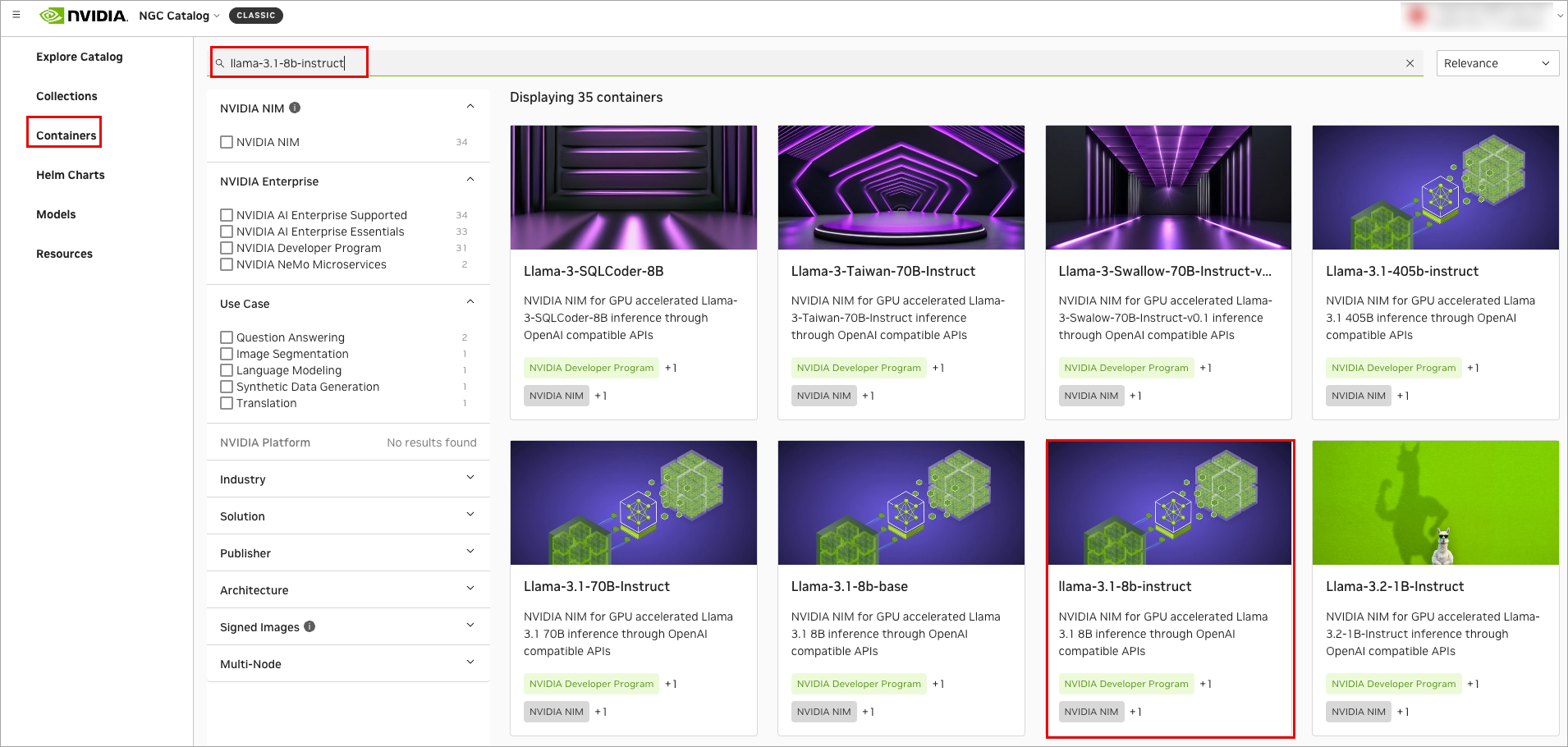
From the NGC Catalog, click Container.
-
Search for your desired container, locate it, and then click on the container.
-
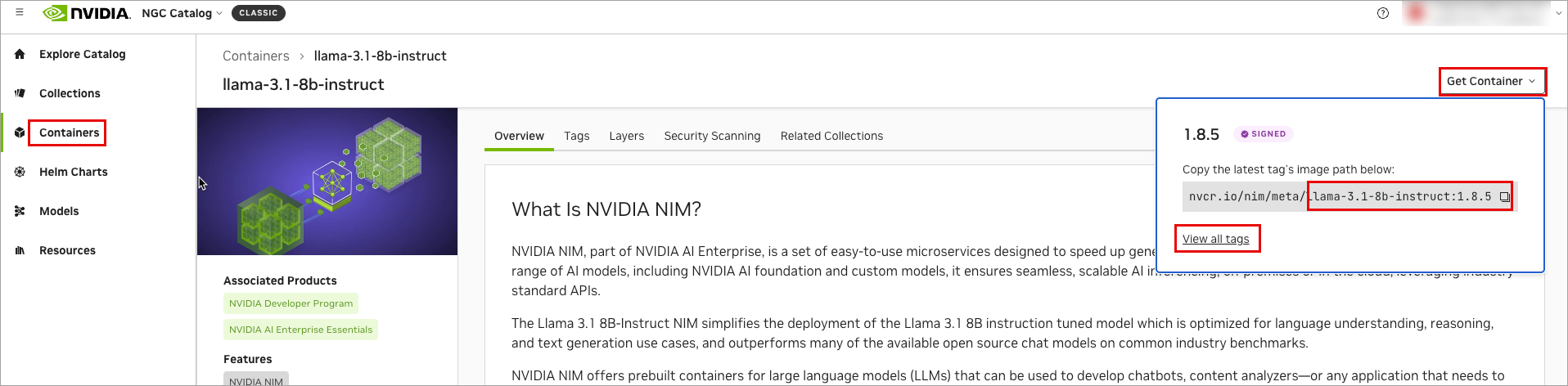
Click Get Container and copy the image path (the image path refers to the part of the string that starts after
nvcr.io/and ends just before the:). For example,nim/meta/llama-3.1-8b-instruct. -
To view all tags, click View all tags.
For example: If you wanted to run a llama Docker image with GPU support:
docker run -it --rm --gpus all
-e NGC_API_KEY="$NGC_API_KEY"
-e NGC_API_ENDPOINT="$NGC_API_ENDPOINT"
-e NGC_API_SCHEME="$NGC_API_SCHEME"
-e NGC_AUTH_ENDPOINT="$NGC_AUTH_ENDPOINT"
-v "$CACHE_DIR:/opt/nim/.cache"
company.jfrog.io/nim-docker-remote/nim/meta/llama-3.1-8b-instruct:1.1.0
It runs the llama container with GPU support, using environment variables for configuration, mounting a cache directory, and ensuring proper permissions.
Additional NVIDIA NIM Actions
The following additional actions are available with NVIDIA NIM repositories:
NVIDIA NIM Repository Layout
This topic describes the NIM remote repositories layout.
NIM Docker Repository Layout
The following is the NIM Repository Layout.
<repository-name>
   ├── .jfrog
   │   ├── caller-info.json
   │   └── model-mapping.json
   ├── models
   │   ├── org
   │   │   ├── nim
   │   │   │   ├── team
   │   │   │   │   ├── meta
   │   │   │   │   │   ├── <model_name>
   │   │   │   │   │   │   ├── <model_version>
   │   │   │   │   │   │   │   ├── .jfrog
   │   │   │   │   │   │   │   │   ├── checksums.blake3
   │   │   │   │   │   │   │   │   ├── config.json
│ │ │ │ │ │ │ │ ├── generation_config.json<repository-name>: The root folder of your Docker remote repository.- .jfrog: Contains JFrog internal configuration files for integration.
- caller-info.json: JSON metadata typically includes information about API callers or services interacting with the repository.
- model-mapping.json: A file that maps various models to their paths or specifications.
- models: The main directory for machine learning models.
- org: A directory that encapsulates organizational structure.
- nim: Indicates a specific technology or model framework.
- team: Represents a specific team working within the organizational folder.
- meta: Contains metadata and model records.
<model_name>: Each model is stored in its directory.<model_version>: Different versions of the model (versioning is crucial for deployment).- .jfrog: Contains files specific to model configuration.
- checksums.blake3: A file with checksum values for integrity verification of the model files.
- config.json: Contains model-specific configurations.
- generation_config.json: Configuration for generation-specific settings.
NIM Remote Repository Layout
<repository_cache>/
├── .jfrog/
│   └── models/
│       └── <org_name>/
│           └── <model_name>/
│               └── <model_version>/
│                   └── model_urls_mapping.json
└── models/
    └── <org_name>/
        └── <model_name>/
            └── <model_version>/
                ├── .jfrog_nim_model_info.json
                └── model/
                    ├── checksums.blake3
                    ├── config.json
                    ├── generation_config.json
                    ├── LICENSE.txt
                    ├── model-<shard_num>-of-<total_shards>.safetensors
                    ├── model.safetensors.index.json
                    ├── NOTICE.txt
                    ├── special_tokens_map.json
                    ├── tokenizer.json
                    ├── tokenizer_config.json
└── tool_use_config.json<repository_cache>: The top-level name of the repository where all models are stored. This often reflects the purpose or organization managing the models.- .jfrog: A directory used by the Artifactory client to store caching metadata. This helps speed up subsequent downloads by mapping requests to existing files.
<models>: A directory that contains all the models.<org_name>: The organization or namespace publishing the model.<model_name>: The name of the specific model (for example, image_classifier).<model_version>: Version of the model, usually following semantic versioning (for example, v1.0.0).- _.jfrog_nim_model_info.json: A metadata file in JSON format that contains information about the model, such as its name, version, description, authorship, and any dependencies or requirements for the model.
<model>: A directory that contains the actual model files necessary for deployment or inference.
Key File Explanations
These are the files typically found within a model version's directory.
- .jfrog_nim_model_info.json: A JSON file containing metadata specific to the NIM container, such as its origin and properties.
- checksums.blake3: A file containing cryptographic hashes of all other files in the model/ directory. This is used to verify the integrity of the downloaded files to ensure they are not corrupted
- config.json: The main configuration file for the model's architecture. It defines parameters like the number of layers, hidden size, and activation functions.
- generation_config.json: Contains default parameters for text generation.
- LICENSE.txt / NOTICE.txt: Text files containing the software license and other important legal notices for the model.
- model-
<shard_num>of-<total_shards>.safetensors: The core model weights. Large models are often split into multiple smaller files called shards for easier downloading and memory management. .safetensors is a secure and fast format for storing tensors. - model.safetensors.index.json: A crucial map file that tells the loading script how the different model weight shards fit together to reconstruct the full model.
- special_tokens_map.json: Defines special tokens used by the model, such as [CLS], [SEP], and [PAD], mapping them to their string representations.
- tokenizer.json: The primary file containing the trained tokenizer, including its vocabulary, merges, and rules needed to convert text to tokens.
- tokenizer_config.json: The configuration file for the tokenizer, specifying details like tokenization method and settings for special tokens.
- tool_use_config.json: A configuration file that defines how the model can interact with external tools or APIs, a key feature for function-calling capabilities.
Search NVIDIA NIM Containers
This topic describes how to search NIM Containers in Artifactory. It provides instructions to search models using a number of parameters.
You can search for NVIDIA NIM Containers by name using the Browsing Artifacts or through the REST API.
Search via UI
Artifactory supports a variety of ways to search for artifacts. For details, please refer to Browsing Artifacts. A new NVIDIA NIM Container will only be found once Artifactory checks for it according to the Retrieval Cache Period setting.
Search via API
Search Artifactory using the REST API. Refer to Artifact Search API.
Tip
Artifactory annotates each cached NVIDIA NIM Container with the following properties:
Nimmodel.createdDate,Nimmodel.displayName,Nimmodel.framework,Nimmodel.labels,Nimmodel.modelFormat,Nimmodel.latestVersionIdStr,Nimmodel.name,Nimmodel.precision,Nimmodel.publisher,Nimmodel.shortDescription,Nimmodel.updatedDateandNimmodel.versionIdProperty Search can search for NVIDIA NIM Containers according to their name or version.
List NVIDIA NIM Model Versions and Tags
This topic describes how to list NIM model versions in Artifactory. It provides references to work with, listing the versions.
To learn more about list versions, see Viewing Packages.
NVIDIA NIM Limitations in Artifactory
The following are not supported with NVIDIA NIM in Artifactory:
-
Xray
-
Curation
-
Local and Virtual Repositories
-
Anonymous Access
Note
Supports NIMs with Version 1.3 or later
Updated 4 months ago