

P2 Repositories
P2 is a technology used by the Eclipse IDE to manage its plugins and components. Artifactory provides advanced support for proxying and caching of P2 repositories and aggregating P2 metadata using remote and virtual repositories. These repositories serve as single points of distribution for Eclipse, Tycho and other P2 clients. For more information, see the Eclipse documentation.
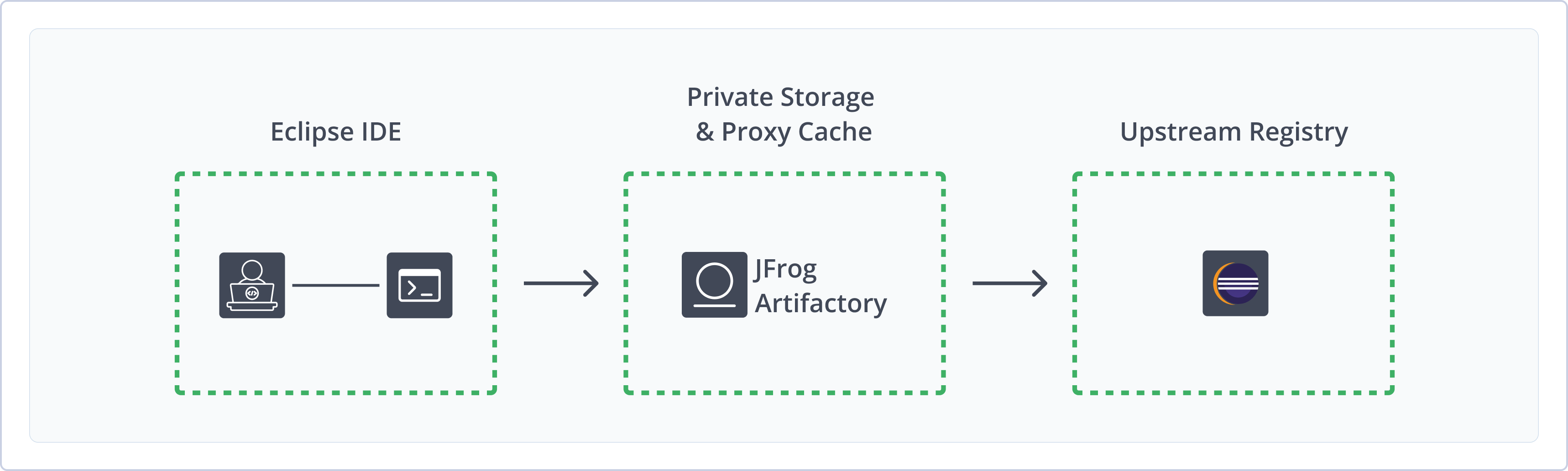
Artifactory supports the following capabilities for P2 repositories:
- Robust Metadata Capabilities: Calculate metadata for P2 artifacts and packages hosted in Artifactory's local Maven or Generic repositories.
- Unified Repository Management: Consolidate all repositories for Eclipse P2 packages in Artifactory as a single source of truth. Access cached versions of remote repositories and create a single access point for all package sources.
- Full Automation with REST API and JFrog CLI: Use the extensive Artifactory REST API to automate and optimize the delivery of Eclipse P2 packages. Use the JFrog CLI to optimize scripts for readability, efficiency, and maintenance.
- Fine-Grained Access Control: Manage user and group permissions for your P2 repositories, giving access based on projects or development teams.
Get Started with P2
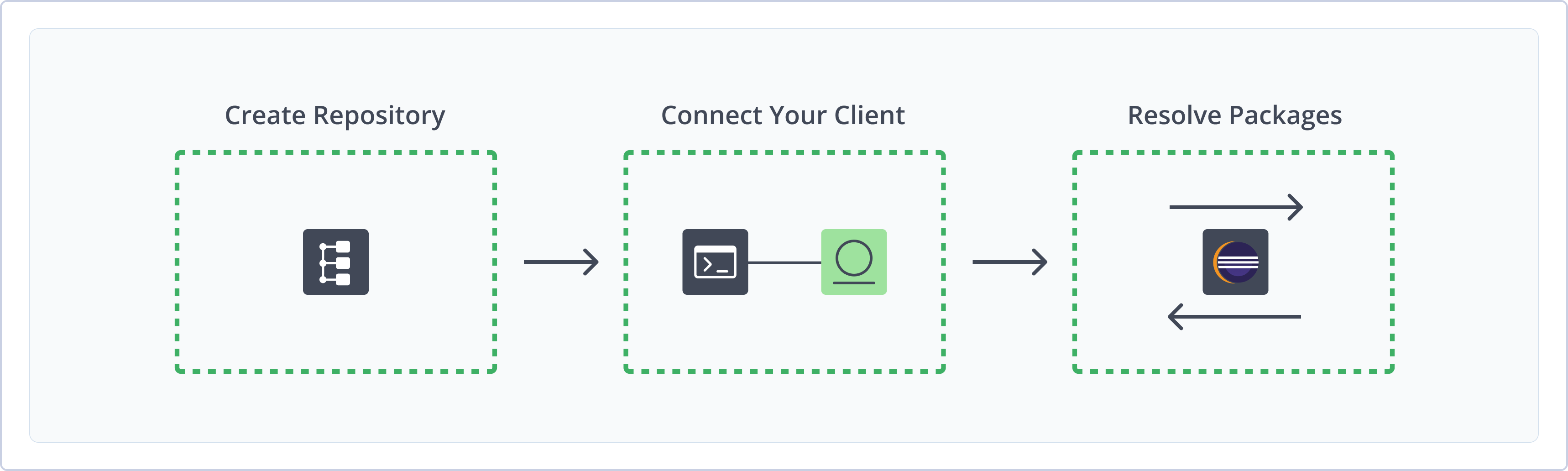
To get started working with P2, complete the following main steps:
- Create a P2 Repository
- Connect Eclipse to Artifactory
- (Optional) Connect Tycho Plugins to Artifactory
After completing this configuration, running builds or reloading the Eclipse target platform will resolve plugins and dependencies from Artifactory.
Create a P2 Repository
This topic describes how to create a P2 repository. This is required before publishing and installing P2 packages. Artifactory supports two types of P2 repositories:
- Remote repositories: Download packages from remote registries, including external package registries or other Artifactory instances
- Virtual repositories: Aggregate remote and local repositories, enabling your organization to scale by providing a single URL that provides access to multiple repositories and types
For more information on JFrog repositories, see Repository Management.
Note
If developers in your organization use different versions of Eclipse, for example Helios and Juno, it is recommended to define a different P2 virtual repository for each Eclipse version.
Prerequisite: You need Admin or Project Admin permissions in Artifactory to create a repository.
To create a P2 repository:
-
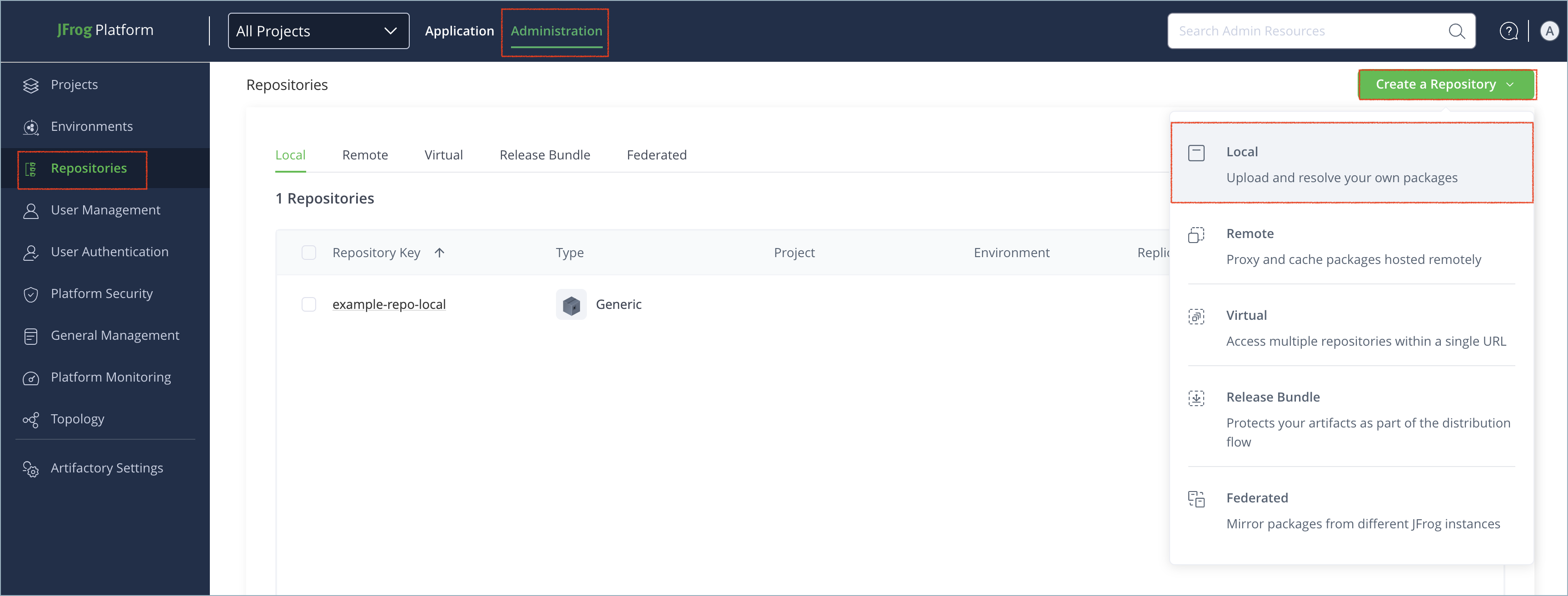
In the Administration tab, click Repositories | Create a Repository.
-
Select the type of repository you want to create: remote or virtual.
-
Select the P2 package type.
-
Configure the required fields for the repository:
- For remote repositories, verify the Repository URL and update as needed. For more information on remote repositories and their settings, see Remote Repositories.
Tip
To add a remote P2 repository to Artifactory, enter the URL to the corresponding P2 metadata files like
content.jar,artifacts.jar, orcompositeContent.xml. If the files are inside an archive file, add!to the end of the URL. For example,http://eclipse.org/equinox-sdk.zip!/.
- For virtual repositories, select one or more local or remote repositories to include in the virtual repository. For more information on virtual repositories and their settings, see Virtual Repositories.
Note
You can add local repositories of different package types, like Maven, to your P2 virtual repository. There is no P2 local repository type in Artifactory.
If you have a Tycho repository deployed to a local repository as a single archive, specify the archive's root path in the Path Suffix field. For example,
eclipse-repository.zip!/.
- Click Create Repository. The repository is created and the Repositories window is displayed.
Connect Eclipse to Artifactory
Prerequisite: Before connecting Eclipse to Artifactory, you must have an existing P2 repository in Artifactory. For more information, see Create a P2 Repository.
Logged in vs. Anonymous User: You can work with Eclipse and Artifactory as a logged-in user or anonymously. To work with Artifactory using Anonymous Access, configure that access under Admin | Security | General. For details, refer to Allow Anonymous Access.
For information about configuring authentication for P2 repositories in Artifactory with anonymous access enabled, see Allow Anonymous Access for P2.
To connect Eclipse to Artifactory:
-
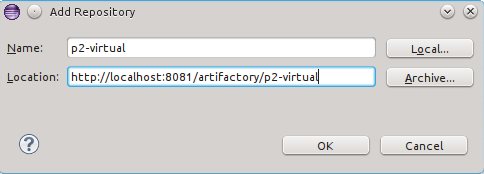
In the Eclipse menu, select Help | Install new Software and then click Add.
-
In the Add Repository pop-up, enter the repository name and URL.
-
Click OK.
Eclipse queries Artifactory for available packages and displays them.
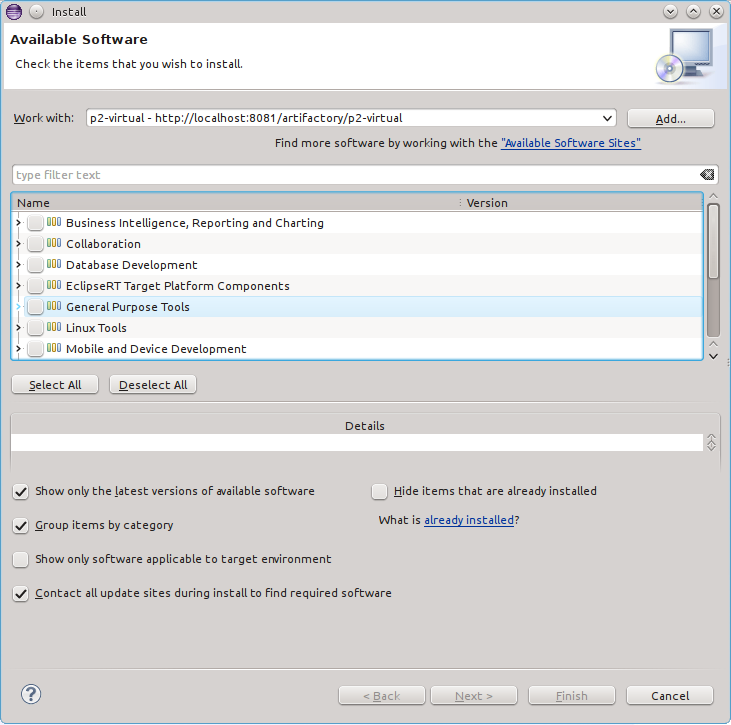
Note
You can also use JFrog Set me up to copy the snippet populated with your token and environment. For more information, see Use Artifactory Set Me Up for Configuring Package Manager Clients.
Next steps:
- (Optional) Connect Tycho Plugins to Artifactory
Connect Tycho Plugins to Artifactory
Artifactory supports hosting Tycho plugins and resolving Tycho build dependencies.
To connect Tycho plugins to Artifactory:
Edit the repository URL in your pom.xml file in this format:
<repository>
	<id>REPO_NAME</id>
	<layout>p2</layout>
	<url>JFrogPlatformURL/artifactory/REPO_NAME/</url>
</repository>
Where:
REPO_NAME: The name of the P2 repositoryJFrogPlatformURL: The URL of your JPD
For example:
<repository>
	<id>p2-virtual</id>
	<layout>p2</layout>
	<url>https://company.jfrog.io/artifactory/p2-virtual/</url>
</repository>
After configuring the pom.xml file, Tycho plugins will resolve dependencies through Artifactory.
Note
You can also use JFrog Set me up to copy the snippet populated with your token and environment. For more information, see Use Artifactory Set Me Up for Configuring Package Manager Clients.
Additional P2 Information
The following pages provide additional information about using P2 repositories in Artifactory:
- Allow Anonymous Access for P2
- Configure a Remote P2 Repository for GWT
- Use Multiple P2 Remote Repositories with the Same Base URL
Allow Anonymous Access for P2
Artifactory supports P2 repositories with Allow Anonymous Access enabled. For more information, see Allow Anonymous Access.
When Allow Anonymous Access is enabled, the default behavior is to not query the P2 client for authentication parameters.
To override the default behavior, select the Force Authentication checkbox in the New or Edit Repository dialog.
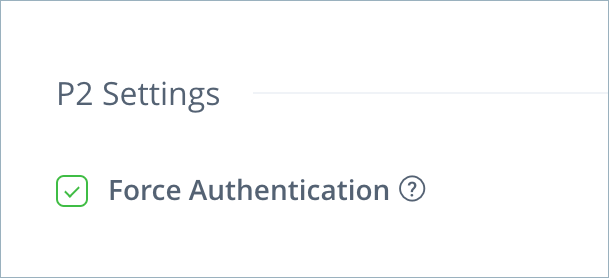
When set, Artifactory will request authentication parameters from the P2 client before trying to access this repository.
Configure a Remote P2 Repository for GWT
Note
The Google Plugin for Eclipse does not support Eclipse 4.7 (Oxygen) or later and is no longer available.
To configure your P2 repository to proxy GWT, set the remote repository URL in Artifactory to be: http://storage.googleapis.com/gwt-eclipse-plugin/v3/release
Use Multiple P2 Remote Repositories with the Same Base URL
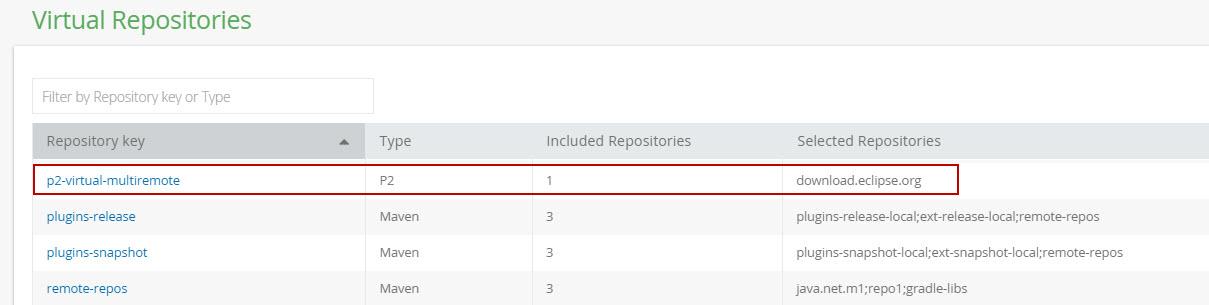
When using P2-enabled repositories with multiple remote repositories that have the same base URL (e.g http://download.eclipse.org ) , you need to ensure that only 1 remote repository is created within your virtual repository (for each base URL). When creating your virtual repository, Artifactory takes care of this for you, but if you are creating the remote repositories manually, you must ensure to create only a single remote repository, and point the sub-paths accordingly in the P2 virtual repository definition.
In the example below, http://download.eclipse.org/releases/helios and http://download.eclipse.org/releases/juno/ were both added to the same virtual repository.
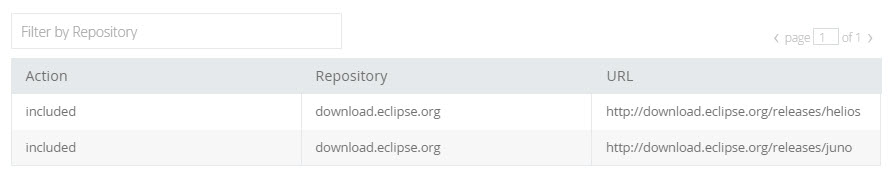
However, the virtual repository really includes only one remote repository.
P2 Limitations in Artifactory
The following are the limitations of P2 repositories in Artifactory:
- Version Support: Artifactory supports P2 repositories with modern versions of Eclipse. Versions of Eclipse earlier than 3.6 may not work correctly with Artifactory P2 repositories.
Updated 8 months ago