

RPM Repositories
The JFrog Artifactory integration with Red Hat Package Manager (RPM) allows you to manage RPM packages in Artifactory. RPM is the standard package format for Red Hat-based Linux distributions. You can use RPM repositories in Artifactory to store, version, and manage RPM packages during the software development lifecycle. For more information, see RPM documentation.
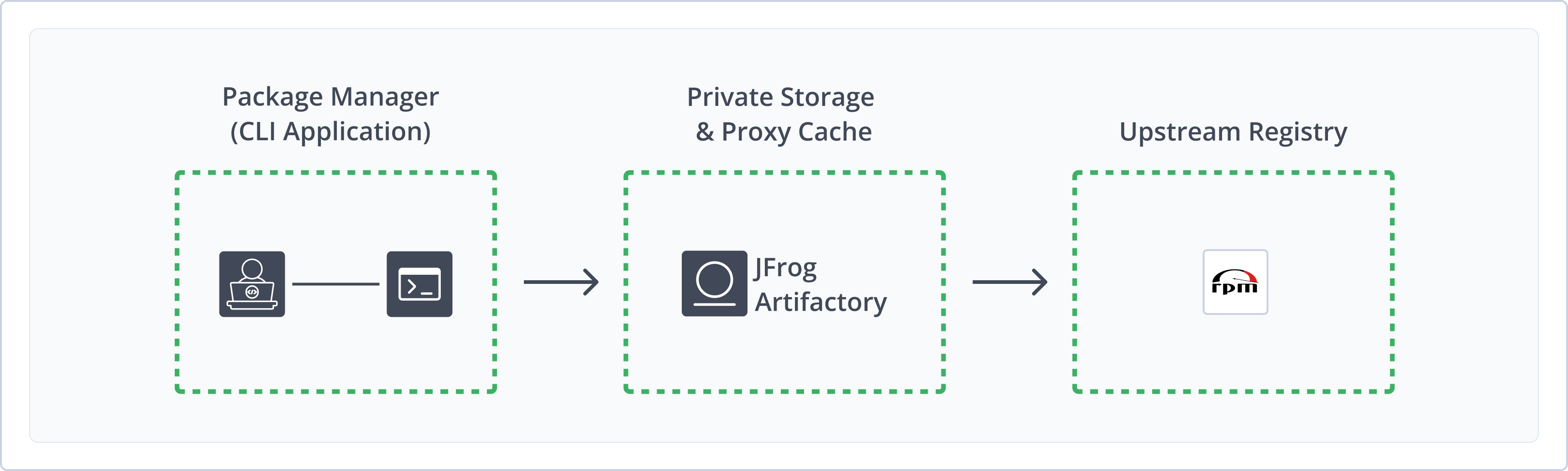
Artifactory fully supports RPM repositories, including the following capabilities:
- Robust Metadata Capabilities: Calculate metadata for RPM packages hosted in Artifactory's local repositories.
- Unified Repository Management: Consolidate all your RPM repositories in Artifactory as a single source of truth. Set up secure local repositories, access cached versions of remote registries, and create a single access point for all sources with virtual repositories.
- Multi-Client Support: Natively use DNF or YUM to deploy, remove, and manage packages in Artifactory.
- Fine-Grained Access Control: Manage user and group permissions for your RPM repositories, giving access based on projects or development teams.
- Verification and Authenticity: Use GPG signatures to verify package authenticity.
Get Started with RPM
To get started working with RPM, complete the following main steps:
-
Deploy and install RPM packages using the client of your choice:
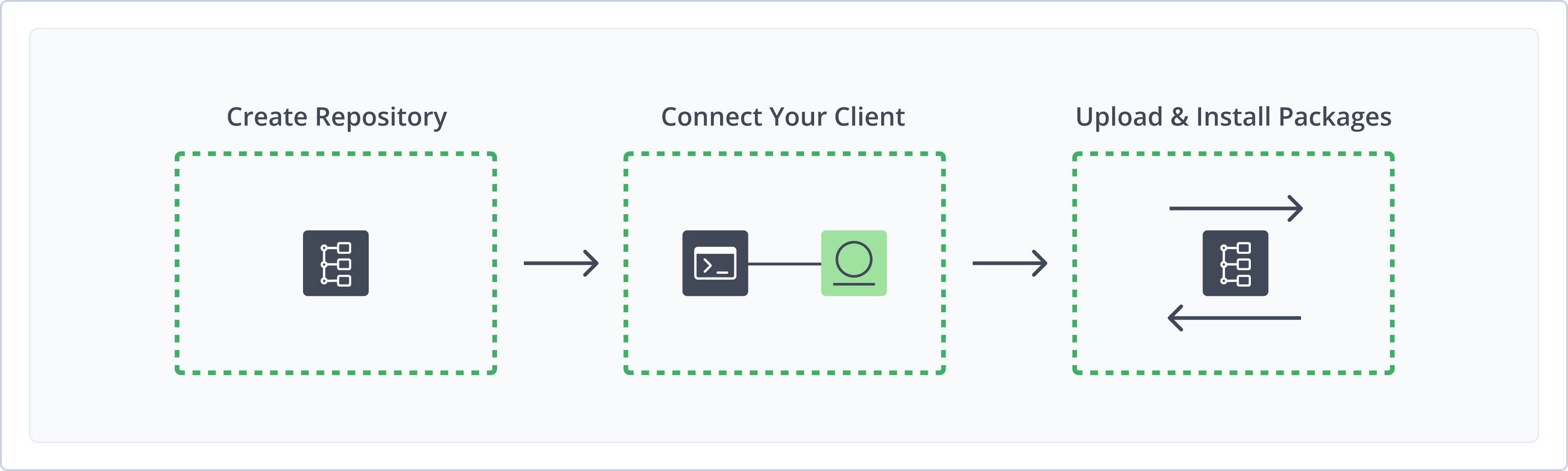
Create an RPM Repository
This topic describes how to create an RPM Repository. This is required before deploying and installing RPM packages. There are three primary types of repositories:
- Local repositories: Store and share first- and second-party packages with your organization
- Remote repositories: Download packages from any remote location, including external package registries or other Artifactory instances
- Virtual repositories: Aggregate remote and local repositories, enabling your organization to scale by providing a single URL that provides access to multiple repositories and types
For more information on JFrog repositories, see Repository Management.
Prerequisite: You need Admin or Project Admin permissions in Artifactory to create a repository. If you don't have Admin permissions, the option will not be available.
To create an RPM repository:
-
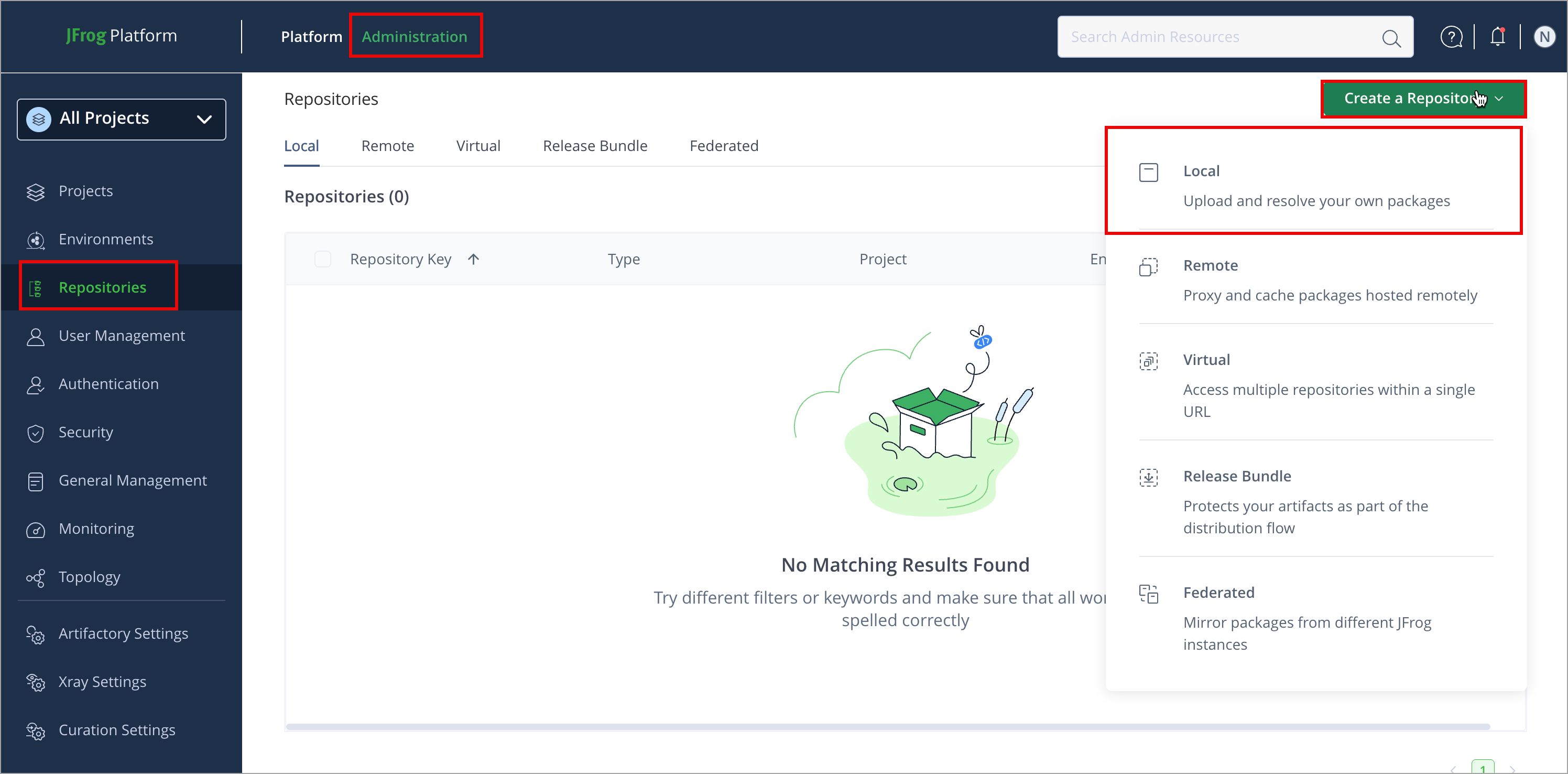
In the Administration tab, click Repositories > Create a Repository.
-
Select the type of repository you want to create.
-
Select the RPM package type.
-
Configure the required fields for the repository:
- For local repositories, in the Repository Key field, type a meaningful name for the repository. For example,
rpm-local. For more information on local repositories and their settings, see Local Repositories and RPM Local Repositories. - For remote repositories, verify the Repository URL and update as needed. For more information on remote repositories and their settings, see Remote Repositories and RPM Remote Repositories.
- For virtual repositories, select one or more local or remote repository types to include in the virtual repository. For more information on virtual repositories and their settings, see Virtual Repositories.
- For local repositories, in the Repository Key field, type a meaningful name for the repository. For example,
Note
yumanddnfcommands that use theupdateinfo.xmlmetadata file are not supported for virtual RPM repositories in Artifactory.
- Click Create Repository. The repository is created and the Repositories window is displayed.
Connect Your RPM Client to Artifactory
This topic provides details on configuring RPM clients to work with Artifactory. To get up and running quickly to use RPM, see Get Started with RPM.
Prerequisite: Before connecting your RPM client to Artifactory, you must have an existing RPM repository in Artifactory. For more information, see Create an RPM Repository.
Supported Clients
- YUM Client version 4.18.2 and above
- DNF Client version 4.19.2 and above
Note
Artifactory prioritizes the DNF client to align with modern RPM-based distributions. DNF is the default package manager in Fedora, RHEL 8+, CentOS 8+, and other modern RPM-based distributions. DNF provides improved performance, better dependency resolution, and a more modern codebase compared to YUM.
While YUM is still supported for legacy systems, DNF is recommended for new deployments.
Logged in vs. Anonymous User: You can work with Artifactory as either a logged in user or as an anonymous user. To work with Artifactory using Anonymous Access, you need to configure that access on the Administration module under Security > General. For details, refer to Allow Anonymous Access.
DNF Client
The following topics describe how to configure and use the DNF client with Artifactory:
Connect the DNF Client to Artifactory
You can use the DNF client to install RPM packages. Connect the DNF client to Artifactory by configuring the repository file.
JFrog recommends using a virtual repository as the default registry setting. Virtual repositories provide flexibility to access external sources and local repositories, and reconfigure them as needed. For more information on setting up a virtual RPM repository, see Create an RPM Repository.
To configure DNF to work with Artifactory:
-
Edit the
artifactory.repofile with root privileges:sudo vi /etc/yum.repos.d/artifactory.repoNote
DNF uses the same
/etc/yum.repos.d/directory for repository configuration files as YUM. This ensures compatibility and easy migration between the two clients. -
Add the following snippet to the
artifactory.repofile:[Artifactory] name=Artifactory baseurl=https://<USERNAME>:<TOKEN>@[JFrogPlatformURL]/artifactory/<RPM-REPO>/<PATH_TO_REPODATA_FOLDER> enabled=1 gpgcheck=0Where:
<USERNAME>: Your JFrog Platform username.<TOKEN>: Your JFrog identity token.[JFrogPlatformURL]: The URL of your JFrog Platform`<RPM-REPO>: Name of the repository. If the configured depth is0, thebaseurlshould point to the root of the repository.<PATH_TO_REPODATA_FOLDER>: Configured repository depth.
For example:
[Artifactory] name=Artifactory baseurl=https://john:[email protected]/artifactory/rpm-virtual/my-rpm enabled=1 gpgcheck=0 -
If you have GPG signing keys installed, use the following flags to verify the repository metadata signature:
[Artifactory]
name=Artifactory
baseurl=https://<USERNAME>:<AUTH>@<JFrogPlatformURL>/artifactory/<REPO_NAME>/<PATH_TO_REPODATA_FOLDER>
enabled=1
gpgcheck=1
gpgkey=https://<USERNAME>:<AUTH>@<JFrogPlatformURL>/artifactory/<REPO_NAME>/<PATH_TO_REPODATA_FOLDER>/repomd.xml.key
repo_gpgcheck=1
Note
You can also use JFrog Set Me Up to copy the snippet populated with your token and environment. For more information, see Use Artifactory Set Me Up for Configuring Package Manager Clients.
Next Steps:
Install RPM Packages with DNF
Artifactory supports installing RPM packages using the DNF client. You can use dnf install to install packages from repositories configured in the .repo files.
Tip
For information about how to handle weak dependencies when installing RPM packages, see Manage Weak Dependencies with DNF.
To install an RPM package:
Run the following command:
dnf install <PACKAGE_NAME>Where:
<PACKAGE_NAME>: The name of the package you want to install
For example:
dnf install httpdOptionally, you can append a version number to the package name in the format <PACKAGE_NAME>-<VERSION> to download a specific version. For example, dnf install httpd-2.4.6-97.
Note
You can also use JFrog Set Me Up to copy the snippet populated with your token and environment. For more information, see Use Artifactory Set Me Up for Configuring Package Manager Clients.
YUM Client
The following topics describe how to configure and use the YUM client with Artifactory:
Connect YUM to Artifactory
You can use the YUM client to install RPM packages. Connect the YUM client to Artifactory by configuring the repository file.
JFrog recommends using a virtual repository as the default registry setting. Virtual repositories provide flexibility to access external sources and local repositories, and reconfigure them as needed. For more information on setting up a virtual RPM repository, see Create an RPM Repository.
To configure YUM to work with Artifactory:
-
Edit the
artifactory.repofile with root privileges:sudo vi /etc/yum.repos.d/artifactory.repo -
Add the following snippet to the
artifactory.repofile:[Artifactory] name=Artifactory baseurl=https://<USERNAME>:<TOKEN>@[JFrogPlatformURL]/artifactory/<RPM-REPO>/<PATH_TO_REPODATA_FOLDER> enabled=1 gpgcheck=0Where:
<USERNAME>: Your JFrog Platform username<TOKEN>: Your JFrog identity token[JFrogPlatformURL]: The URL of your JFrog Platform<RPM-REPO>: Name of the repository. If the configured depth is 0, the baseurl should point to the root of the repository<PATH_TO_REPODATA_FOLDER>: Configured repository depth
For example:
[Artifactory] name=Artifactory baseurl=https://john:[email protected]/artifactory/rpm-virtual/my-rpm enabled=1 gpgcheck=0 -
If you have GPG signing keys installed, use the below flags to verify the repository metadata signature:
[Artifactory]
name=Artifactory
baseurl=https://<USERNAME>:<TOKEN>@[JFrogPlatformURL]/artifactory/<RPM-REPO>/<PATH_TO_REPODATA_FOLDER>
enabled=1
gpgcheck=1
gpgkey=https://<USERNAME>:<TOKEN>@[JFrogPlatformURL]/artifactory/<RPM-REPO>/<PATH_TO_REPODATA_FOLDER>/repomd.xml.key
repo_gpgcheck=1
Note
You can also use JFrog Set Me Up to copy the snippet populated with your token and environment. For more information, see Use Artifactory Set Me Up for Configuring Package Manager Clients.
Next Steps:
Install RPM Packages with YUM
Artifactory supports installing RPM packages using the YUM client. You can use yum install to install packages from repositories configured in the .repo files.
Tip
For information about how to handle weak dependencies when installing RPM packages, see Manage Weak Dependencies with YUM.
To install an RPM package:
Run the following command:
yum install <PACKAGE_NAME>Where:
<PACKAGE_NAME>: The name of the package you want to install
For example:
yum install httpdOptionally, you can append a version number to the package name in the format <PACKAGE_NAME>-<VERSION> to download a specific version. For example, yum install httpd-2.4.6-97.
Note
You can also use JFrog Set Me Up to copy the snippet populated with your token and environment. For more information, see Use Artifactory Set Me Up for Configuring Package Manager Clients.
Deploy RPM Packages
Deploying RPM packages makes them available to other users.
You can deploy RPM modules to the repodata folder using the modules.yaml file which contains all the desired modules and then proceed to trigger a repository index to update the repomd.xml and other metadata files with the modules information.
The following options are available for deploying RPM packages:
Deploy RPM Packages via UI
To deploy an RPM package through the Artifactory UI:
-
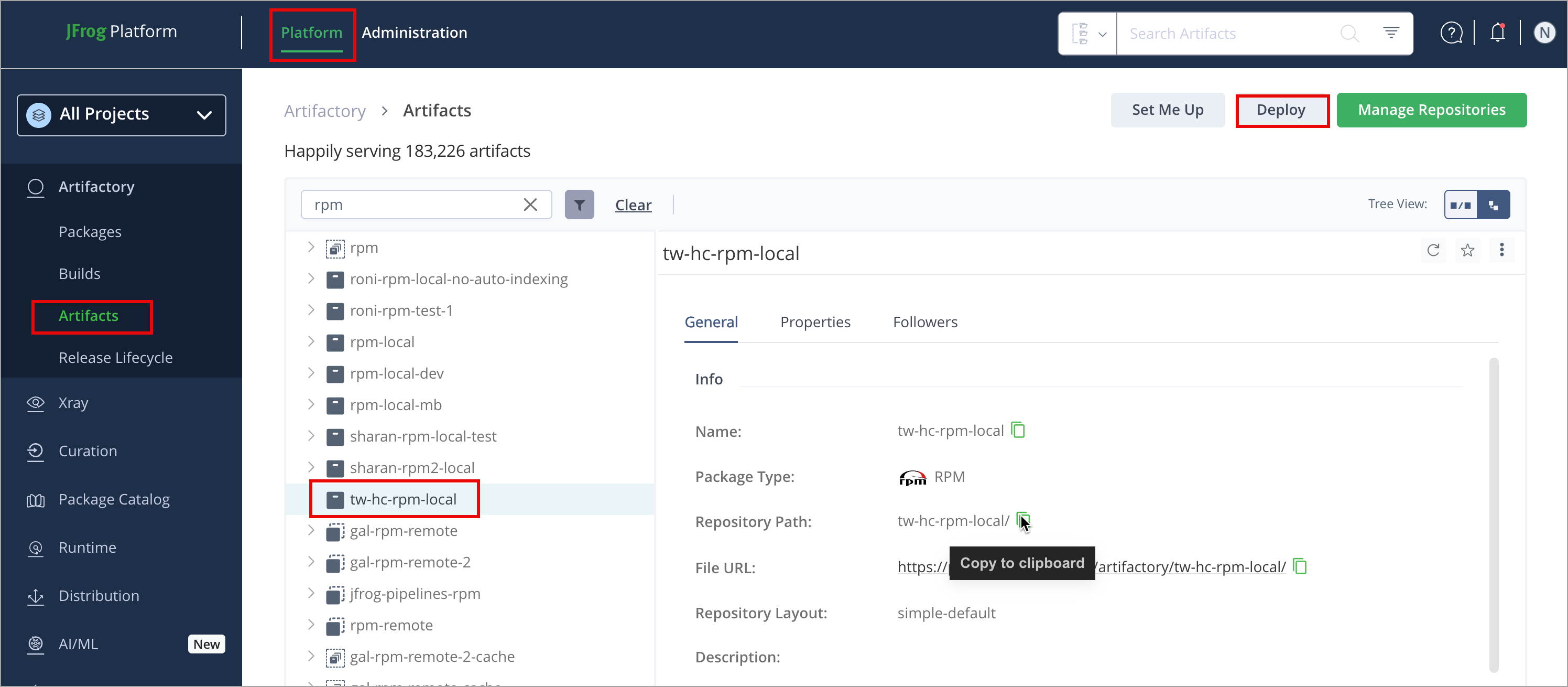
In the Platform tab, click Artifactory > Artifacts, then click Deploy. Deploy options are displayed.
-
Verify the deploy options, then click Deploy.
The package is deployed.
Deploy RPM Packages via API
You can publish packages via the REST API. When using this method, you can deploy by checksum or from an archive.
For example, to publish an RPM package to a repository called rpm-local, you could use the following:
curl -u<USERNAME>:<PASSWORD> -XPUT https://[JFrogPlatformURL]/artifactory/rpm-local/<PATH_TO_METADATA_ROOT> -T <TARGET_FILE_PATH>where:
<USERNAME>: Your JFrog Platform Username<PASSWORD>: Your JFrog Platform Password<PATH_TO_METADATA_ROOT>: specifies the path from the repository root to the deploy folder
Additional RPM Information
The following pages provide additional information about using RPM with Artifactory:
- Additional Supported Commands
- RPM Local Repositories
- RPM Remote Repositories
- Manage Weak Dependencies
- Generate RPM Metadata for Hosted RPMs
- Trigger RPM Metadata Updates
- Set Up Client Authentication
- Sign RPM Metadata
- Manage YUM Groups
- Use YUM and DNF Variables
- Enhance RPM Repository Integrity with SHA-256 Checksums
Additional Supported Commands
To enhance RPM package management with Artifactory and DNF or YUM, you can run any of the following supported commands:
dnf search, followed by a search term, to search for available packagesdnf list availableto list all available packagesdnf upgradeto upgrade all packagesyum search, followed by a search term, to search for available packagesyum list availableto list all available packages
RPM Local Repositories
To enable automatic RPM metadata calculation on a local RPM repository, in the RPM Settings section of the Basic settings screen, set Auto-calculate RPM Metadata.
| Field | Description |
|---|---|
| RPM Metadata Folder Depth | Informs Artifactory under which level of directory to search for RPMs and save the By default this value is 0 and refers to the repository's root folder. In this case, Artifactory searches the entire repository for RPMs and saves the Using a different depth is useful in cases where generating metadata for a repository separates its artifacts by name, version and architecture. This will allow you to create multiple RPM repositories under the same Artifactory RPM repository. For example: If the repository layout is similar to that shown below and you want to generate RPM metadata for every artifact divided by name, set the
|
| Auto-calculate RPM Metadata | When set, RPM metadata calculation is automatically triggered by the actions described above. |
| Enable File List Indexing | When set, RPM metadata calculation will also include indexing the filelists.xml metadata file. |
| RPM Group File Names | A comma-separated list of YUM group files associated with your RPM packages. Note that at each level (depth), the |
RPM Remote Repositories
Artifactory remote repositories support RPMs out of the box, and there is no need for any special configuration in order to work with RPMs in a remote repository.
All you need to do is point your YUM or DNF client at the remote repository, and you are ready to use it with Artifactory.
To define a remote repository to proxy an RPM remote repository, follow the steps below:
-
In the Administration module, navigate to Repositories.
-
Click Create a Repository and select Remote.
-
Select the RPM package type.
-
Set the Repository Key, and specify the URL to the remote registry in the URL field. When using a YUM or DNF client, use the URL of the folder containing your
/repodatafolder- for example,http://mirror.centos.org/centos/7/os/x86_64/.
Note
Running
docker pull centos:latestwill return CentOS 8, which has reached End of Life. To use CentOS, pull a supported version: for a list of supported versions, see CentOS Mirror. If you need to use CentOS 8, you can do so by changing the URL in the URL field tohttps://vault.centos.org/.
-
Click Save & Finish.
-
On the Platform module, navigate to Artifactory > Artifacts.
-
In the browser, select the repository. Note that in the Tree Browser, the repository name is appended with
-cache. -
Click Set Me Up and copy the value of the
baseurltag.
Note
For CentOS 8 users, edit or create the following files with root privileges:
sudo vi /etc/yum.repos.d/CentOS-Linux-AppStream.reposudo vi /etc/yum.repos.d/CentOS-Linux-BaseOS.repo
-
Next, create the
/etc/yum.repos.d/targetCentos.repofile and paste the following configuration into it:[targetCentos] name=targetCentos baseurl=http://localhost:8081/artifactory/targetCentos/ enabled=1 gpgcheck=0
Manage Weak Dependencies
In RPM-based package management systems like DNF, packages can specify optional dependencies using the Recommends tag in their metadata. Recommended dependencies are also called weak dependencies. Weak dependencies are not required for the core functionality of the package but are recommended for enhanced performance or features.
There are several ways to manage weak dependencies:
- Prevent or disable installing weak dependencies with
dnf - Prevent or disable installing weak dependencies with YUM
- Use Recommends tags in Artifactory
Manage Weak Dependencies with DNF
Note
This configuration is supported from Artifactory 7.106.2 Cloud and 7.125.x Self-Managed.
When you install a package with dnf, weak dependencies listed for that package are installed by default. For example, the command dnf install -y simple-package installs both simple-package and recommended packages listed as dependencies.
To prevent installing weak dependencies:
Run the following command:
dnf --setopt=install_weak_deps=False install -y <PACKAGE_NAME>For example:
dnf --setopt=install_weak_deps=False install -y simple-packageTo permanently disable weak dependencies:
Add the following to /etc/dnf/dnf.conf:
[main]
install_weak_deps=False
Manage Weak Dependencies with YUM
Note
This configuration is supported from Artifactory 7.106.2 Cloud and 7.125.x Self-Managed.
When you install a package with yum, weak dependencies listed for that package are installed by default. For example, the command yum install -y simple-package installs both simple-package and recommended packages listed as dependencies.
To prevent installing weak dependencies:
Run the following command:
yum --setopt=install_weak_deps=False install -y <PACKAGE_NAME>For example:
yum --setopt=install_weak_deps=False install -y simple-packageTo permanently disable weak dependencies:
Add the following to /etc/yum.conf:
[main]
install_weak_deps=False
Enable and Disable Recommends Tags in Artifactory
You can manage how YUM and DNF handle weak dependencies by configuring the Recommends tags in the primary.xml metadata of RPM repositories. When Recommends tags are enabled, clients download weak dependencies alongside the package. When the tags are disabled, only the specified package is downloaded.
To configure Recommends tags:
-
In the Administration module, click Artifactory Settings > Packages Settings.
-
In the RPM section, select or clear the Enable Recommends tags checkbox.
When the checkbox is selected, Artifactory adds the Recommends tag in YUM/DNF metadata.
-
Click Save.
Note
Enabling Recommends tags on the Artifactory server side increases data transfer since the default flow of the client is to install soft dependencies by default. This means that clients will pull additional packages for every installation that has recommended dependencies.
Generate RPM Metadata for Hosted RPMs
The RPM metadata generated by Artifactory is identical to the basic-mode output of the Red Hat-based Linux command createrepo.
A folder named repodata is created in the configured location within a local repository with the following files in it:
| File | Description |
|---|---|
| primary.xml.gz | Contains an XML file describing the primary metadata of each RPM archive. |
| filelists.xml.gz | Contains an XML file describing all the files contained within each RPM archive. |
| other.xml.gz | Contains an XML file describing miscellaneous information regarding each RPM archive. |
| repomd.xml | Contains information regarding all the other metadata files. |
YUM/DNF Support is platform-independent
Artifactory's RPM metadata calculation is based on pure Java.
It does not rely on the existence of the
createrepobinary or on running external processes on the host on which Artifactory is running.
Trigger RPM Metadata Updates
When enabled, the metadata calculation is triggered automatically by some actions, and can also be invoked manually by others. Either way, the metadata produced is served to YUM and DNF clients.
Automatic Updates
RPM metadata is automatically calculated:
- When deploying, removing, copying, and moving an RPM file.
- When performing content import (both system and repository imports).
Manual Updates
You can manually invoke RPM metadata calculation using any of the following:
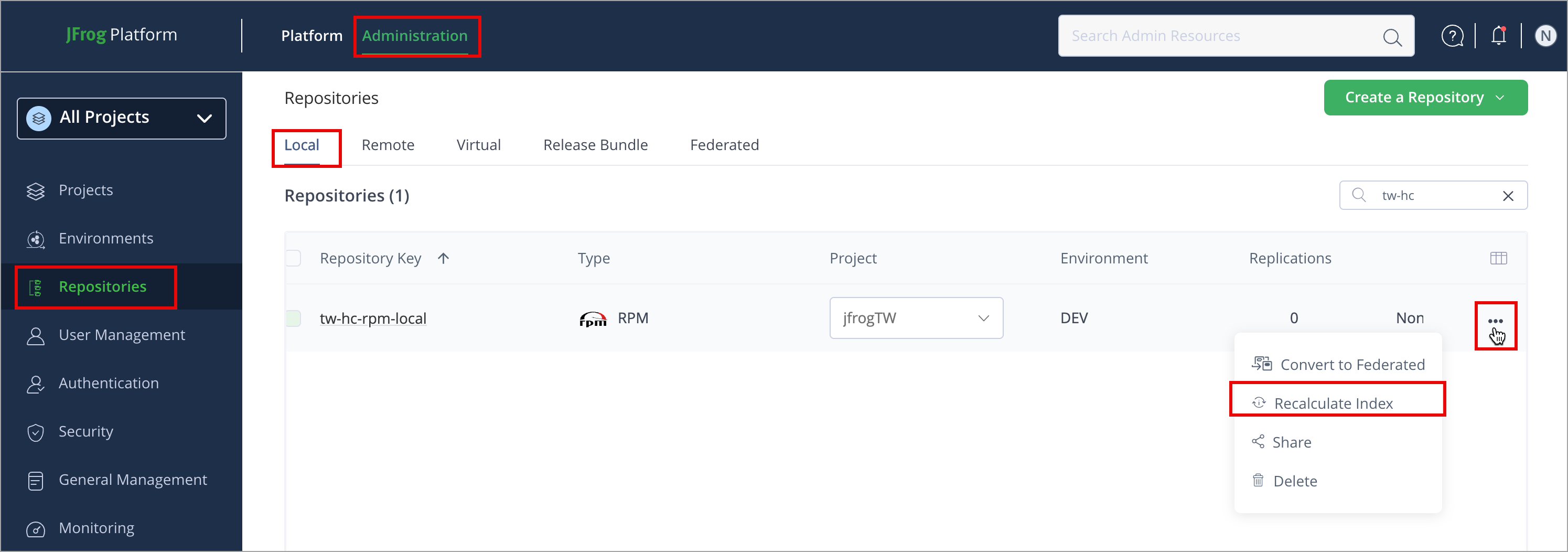
-
In Administration, click Repositories > Local. Select the repository for recalculation.
Click the three dots next to the repository, then click Recalculate Index.
-
Via Artifactory's REST API.
Note
Metadata calculation cleans up RPM metadata that already existed as a result of manual deployment or import. This includes RPM metadata stored as SQLite database files.
Index the File List
The filelists.xml metadata file of an RPM repository contains a list of all the files in each package hosted in the repository. When the repository contains many packages, reindexing this file as a result of interactions with the YUM or DNF client can be resource-intensive, resulting in degraded performance. Therefore, from version 5.4, reindexing this file is initially disabled when an RPM repository is created. To enable indexing filelists.xml, set the Enable File List Indexing checkbox.
Note that the filelists.xml metadata file for a virtual repository may not be complete (i.e. it may not list all the files it aggregates) if any of the repositories it aggregates do not have file listing enabled. Note that if indexing of the filelists.xml file is disabled, it is not possible to search for a file using the YUM or DNF client to determine which package wrote the queried file to the file system.
Set Up Client Authentication
This section includes the following guides:
Configure Proxy Server Settings
If your organization uses a proxy server as an intermediary for Internet access, specify the proxy settings in your configuration file.
For YUM (/etc/yum.conf):
proxy=<proxy server url>
proxy_username=<user>
proxy_password=pass
For DNF (/etc/dnf/dnf.conf):
proxy=<proxy server url>
proxy_username=<user>
proxy_password=pass
If you use the yum plugin (yum-rhn-plugin) to access the ULN, specify the enableProxy and httpProxy settings in /etc/sysconfig/rhn/up2date. In addition, If the proxy server requires authentication, you also need to specify the enableProxyAuth, proxyUser, and proxyPassword settings as shown below.
enableProxy=1
httpProxy=<proxy server url>
enableProxyAuth=1
proxyUser=<user>
proxyPassword=<password>
Configure SSL Settings
Both YUM (from version 3.2.27) and DNF support SSL.
To secure a repository with SSL, execute the following steps:
-
Generate a private key and certificate using OpenSSL.
-
Define your protected repository in a
.repofile as follows:[protected] name = SSL protected repository baseurl=<secure repo url> enabled=1 gpgcheck=1 gpgKey=<URL to public key> sslverify=1 sslclientcert=<path to .cert file> sslclientkey=<path to .key file>where:
gpgkey is a URL pointing to the ASCII-armored GPG key file for the repository . This option is used if YUM/DNF needs a public key to verify a package and the required key has not been imported into the RPM database.
If this option is set, YUM/DNF will automatically import the key from the specific URL. You will be prompted before the key is installed unless the
assumeyesoption is set.
Enable/Disable RPM Package Settings
Note
This feature is supported from release version 7.122
As an administrator, you can enable/disable the RPM Package Settings:
- From the Administration module, click Artifactory Settings > Packages Settings.
- Under the RPM section, check or uncheck the RPM Package Sttings as needed.
Note
The following scenarios outline how UI options are displayed to administrators:
When the property is not set in the artifactory system properties file:
- The checkbox in the UI is available for enabling/disabling.
When the property is set in the artifactory system properties file:
- When set to true, this will disable (grey out) the checkbox in the UI, indicating the property is enabled and enforce a single configuration across the entire Artifactory instance.
- When set to false, this will disable (grey out) the checkbox in the UI, indicating the property is disabled and enforce a single configuration across the entire Artifactory instance.
Sign RPM Metadata
Artifactory allows the use of a GPG key to sign RPM metadata repositories for authentication by YUM and DNF clients, not for signing individual packages.
To generate a pair of GPG keys and upload them to Artifactory, see Managing Signing Keys.
Manage YUM Groups
A YUM group is a set of RPM packages collected together for a specific purpose. For example, you might collect a set of "Development Tools" together as a YUM group.
A group is specified by adding a group XML file to the same directory as the RPM packages included in it. The group file contains the metadata of the group, including pointers to all the RPM files that make up the group.
Artifactory supports attaching a Yum Group File to the YUM calculation, essentially mimicking the createrepo -g command.
A group file can also be created by running the following command:
sudo yum-groups-manager -n "My Group" --id=mygroup --save=mygroups.xml --mandatory yum glibc rpmAttach a YUM Group to a Repository
The process of attaching YUM group metadata to a local repository is simple:
-
Create an XML file in the groups format used by YUM. You can either just type it out manually using any text editor, or run the
yum-groups-managercommand fromyum-utils. -
Deploy the created group file to the
repodatafolder.Artifactory will automatically perform the following steps:
- Create the corresponding
.gzfile and deploy it next to the deployed group XML file. - Invoke a YUM calculation on the local repository.
- Attach the group information (both the XML and the
.gzfile) to therepomd.xmlfile.
- Create the corresponding
-
Make sure the group file names are listed in the YUM Group File Names field under the Basic tab of the repository configuration. This tells Artifactory which files should be attached as repository group information.
Use YUM Group Commands
The following table lists some useful YUM group commands. These commands work with both YUM and DNF clients:
| Command | Description |
|---|---|
yum groupinstall <Group ID> | Install the YUM group. The group must be deployed to the root of the YUM local repository. |
dnf group install <Group ID> | Install the group using DNF. The group must be deployed to the root of the local repository. |
yum groupremove <Group ID> | Remove the YUM group |
dnf group remove <Group ID> | Remove the group using DNF |
yum groupupdate <Group ID> | Update the YUM group. The group must be deployed to the root of the YUM local repository. |
dnf group upgrade <Group ID> | Update the group using DNF. The group must be deployed to the root of the local repository. |
yum groupinfo <Group ID> | List the YUM packages within the group. |
dnf group info <Group ID> | List the packages within the group using DNF. |
yum grouplist | more | List the YUM groups |
dnf group list | List the groups using DNF |
Set YUM Group Properties
YUM group properties can be set in the /etc/yum.config file (or /etc/dnf/dnf.conf for DNF) as follows:
| Setting | Allowed values | Description |
|---|---|---|
| overwrite_groups | 0 or 1 | Determines YUM/DNF's behavior if two or more repositories offer package groups with the same name. If set to 1 then the group packages of the last matching repository will be used. If set to 0 then the groups from all matching repositories will be merged together as one large group. |
| groupremove_leaf_only | 0 or 1 | Determines YUM/DNF's behavior when the groupremove command is run. If set to 0 (default) then all packages in the group will be removed. If set to 1 then only those packages in the group that aren't required by another package will be removed. |
| enable_group_conditionals | 0 or 1 | Determines whether YUM/DNF will allow the use of conditionals packages. If set to 0 then conditionals are not allowed If set to 1 (default) package conditionals are allowed. |
| group_package_types | optional, default, mandatory | Tells YUM/DNF which type of packages in groups will be installed when groupinstall is called. Default is: default, mandatory |
Use YUM and DNF Variables
You can use and reference the following built-in variables in YUM/DNF commands and all configuration files (i.e. /etc/yum.conf, /etc/dnf/dnf.conf, and all .repo files in the /etc/yum.repos.d/ directory):
| Variable | Description |
|---|---|
| $releasever | This is replaced with the package's version, as listed in distroverpkg. This defaults to the version of the redhat-release package. |
| $arch | This is replaced with your system's architecture, as listed by os.uname() in Python. |
| $basearch | This is replaced with your base architecture. For example, if $arch=i686 then $basearch=i386 |
The following code block is an example of how your /etc/yum.conf or /etc/dnf/dnf.conf file might look:
[main]
cachedir=/var/cache/yum/$basearch/$releasever
keepcache=0
debuglevel=2
logfile=/var/log/yum.log
exactarch=1
obsoletes=1
gpgcheck=1
plugins=1
installonly_limit=3
[comments abridged]
Enhance RPM Repository Integrity with SHA-256 Checksums
In YUM/DNF repositories, the repomd.xml file serves as the primary metadata index. It contains checksums to verify the integrity of other metadata files. While historically using the SHA-1 algorithm, modern package managers and security standards prefer the stronger SHA-256 algorithm to ensure metadata has not been tampered with.
Artifactory allows you to include these more secure SHA-256 checksums in your RPM local repository repomd.xml, improving both security and compatibility with modern clients.
Set Artifactory System Properties - Self-hosted: Enabling/Disabling SHA-256
Showing only SHA-256 checksums in repomd.xml is now configurable via artifactory system properties artifactory.yum.local.repomd.calculate.sha2.enabled=true
- When set to false (Default): Artifactory writes only SHA-1 checksum entries in
repomd.xml. Artifactory still maintains SHA-256 checksums for packages internally, butrepomd.xmlwill not include SHA-256 entries. - When set to true: Artifactory writes only SHA-256 checksum entries in
repomd.xmlfor each metadata component.
Impact on Repository Metadata and Clients
Enabling this feature adds a checksum entry with type="sha256" to the
repomd.xmlfile for each metadata component.
Enable/Disable SHA-256 via UI
As an administrator, you can enable/disable the property.
RPM Limitations in Artifactory
The following are the limitations of RPM in Artifactory:
- Virtual repository updateinfo.xml: When using virtual RPM repositories, Artifactory does not support using YUM or DNF commands that use the
updateinfo.xmlmetadata file. - Group file limitations: Each
repodatadirectory may contain only 1 group metadata file (multiple groups should be listed as different tags inside the XML file).
Updated 7 months ago