

Debian Repositories
Note
From Artifactory version 7.164.0, Artifactory no longer selects
i386by default in the Indexed Remote Architectures for new Debian repositories. The default isamd64only. You can addi386or any other architecture when you create or configure the repository.
The JFrog Artifactory integration with Debian allows you to manage Debian packages in Artifactory. It enables teams to easily store, version, and manage their Debian packages throughout the software development lifecycle, whether they use the current Automatic Debian architecture or the deprecated Trivial architecture. As a fully-fledged Debian repository, Artifactory generates index files that are fully compliant with Debian clients.
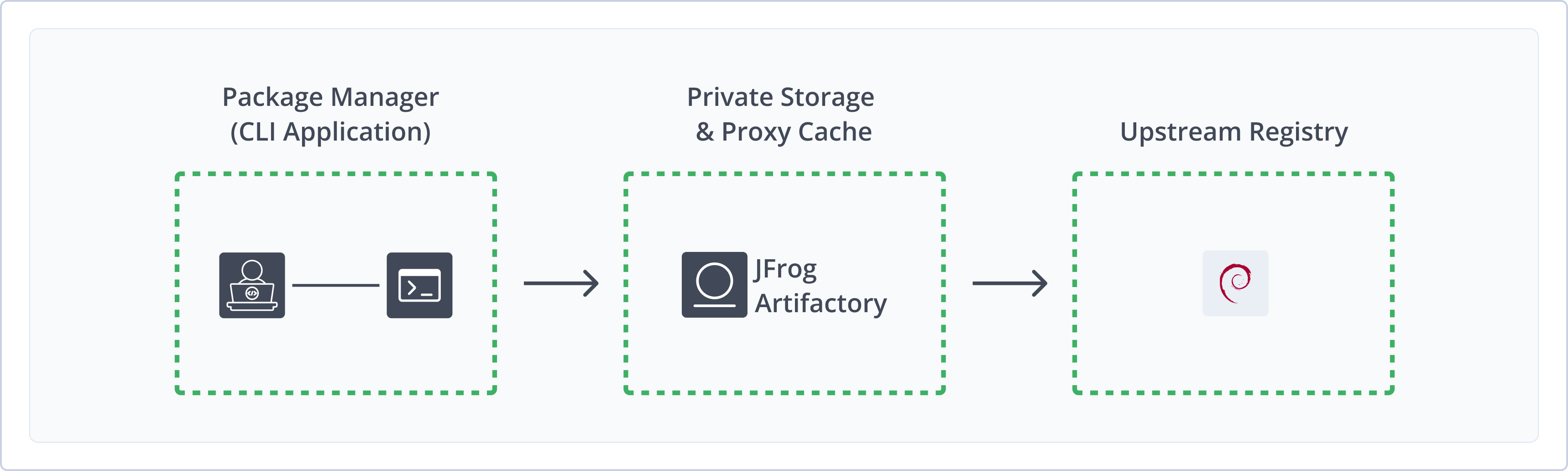
Artifactory supports Debian by enabling provisioning of Debian packages from both local and remote repositories to Debian clients. It automatically calculates metadata for packages in local repositories and allows access to remote resources like us.archive.ubuntu.com through caching and proxy-enabled remote repositories. Artifactory also provides full GPG signature support for package verification, with complete management via the UI and REST API. Additionally, it supports deploying Debian Snapshots. It also supports the current Automatic Debian architecture or the deprecated trivial architecture.
For more information, see Debian documentation.
Get Started with Debian
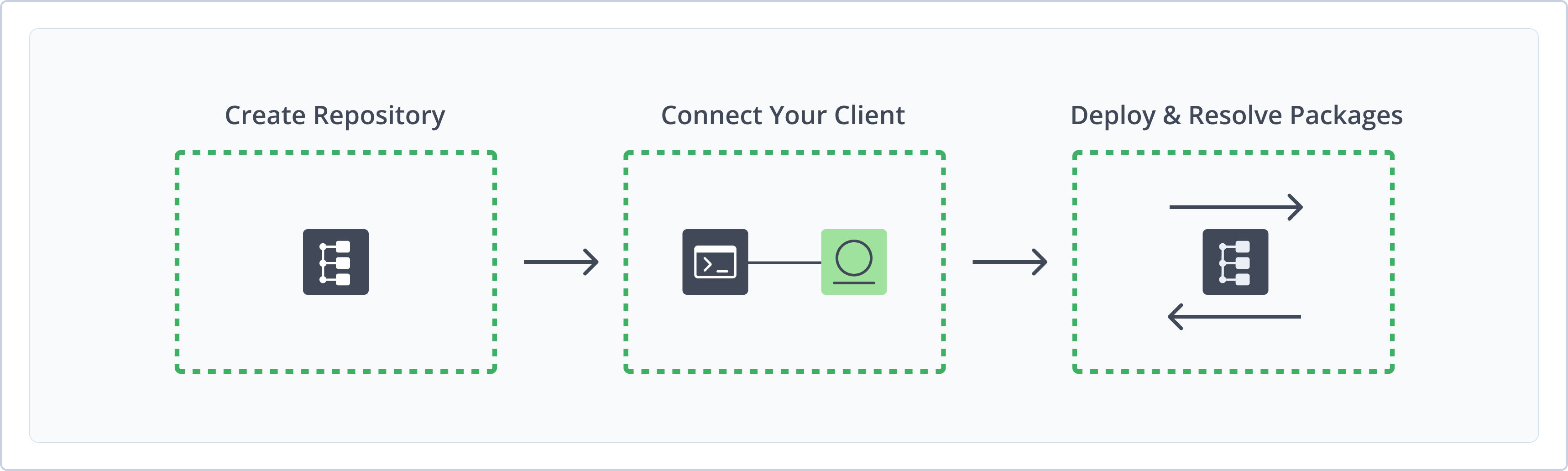
To get started working with Debian, complete the following main steps:
- Create a Debian Repository
- Connect Debian to Artifactory
- Deploy Debian Packages
- Resolve Debian Packages
Create a Debian Repository
This topic describes how to create a Debian Repository. This is required before uploading and installing Debian packages. There are three primary types of repositories:
- Local repositories: Where you store and share 1st and 2nd party packages with your organization
- Remote repositories: Enable you to download from any remote location, including external package registries or other Artifactory instances
- Virtual repositories: Enable aggregating remote and local repositories enabling your organization to scale by providing a single URL that provides access to multiple repositories and types
For more information on JFrog repositories, see Repository Management.
Prerequisite: You need Admin or Project Admin permissions to create a Debian repository. If you don't have Admin permissions, the option will not be available.
To create a Debian repository:
-
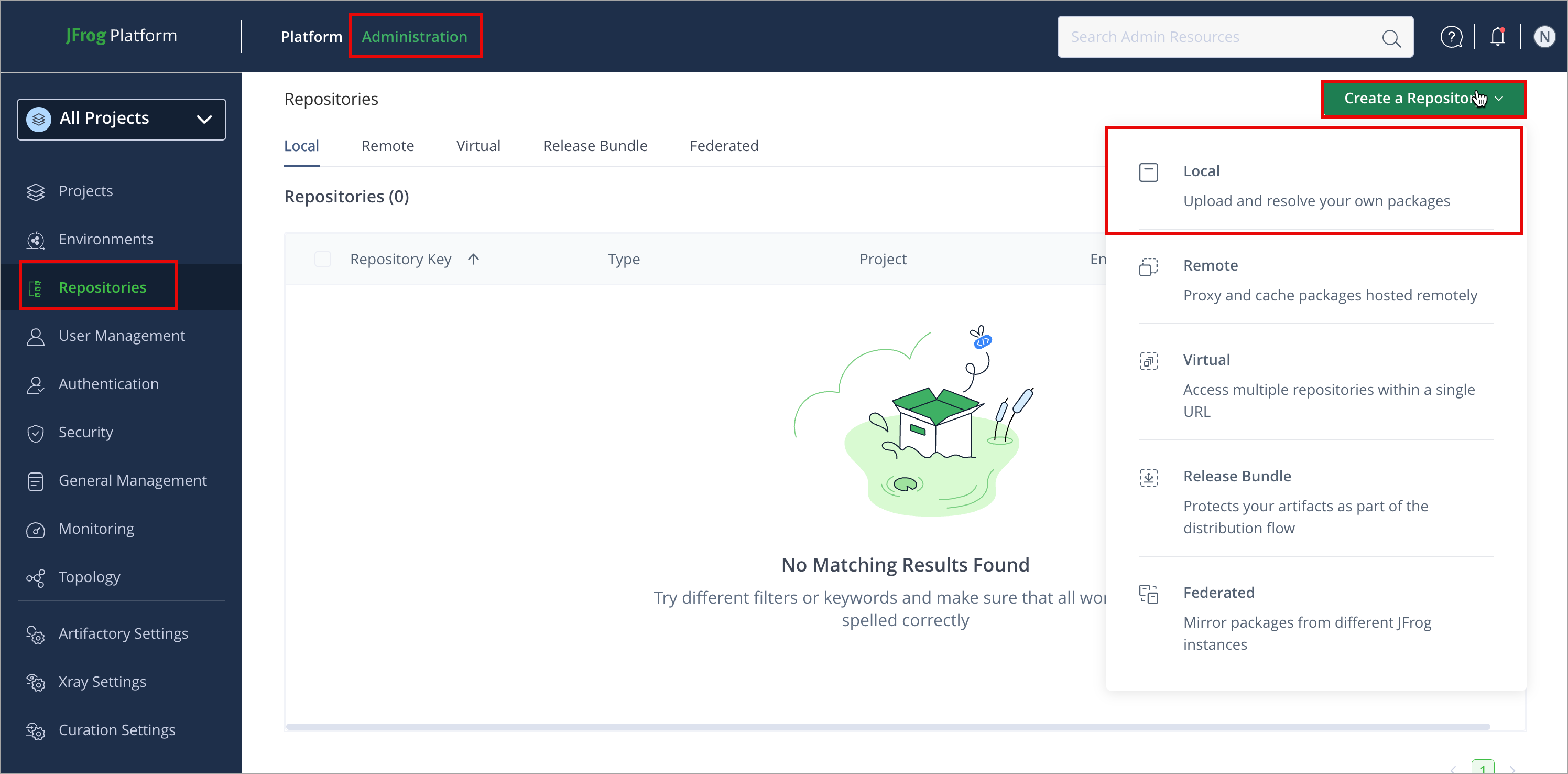
In the Administration tab, click Repositories | Create a Repository
-
Select the repository type you want to create, configure the required fields (described in the following list), then click Create Repository.
- For Local Repositories, in the Repository Key field, type a meaningful name for the repository. For example, debian-local-repository-1. For more information on local repositories and all their possible settings, see Local Repositories and Debian Local Repositories.
- For Remote Repositories, additionally, verify the Repository URL and update if needed. For more information on Remote Repositories and all their possible settings, see Remote Repositories and Debian Remote Repositories.
- For Virtual Repositories, additionally select one or more local or remote repository types to include in the virtual repository. For more information on virtual repositories and all their possible settings, see Virtual Repositories and Virtual Debian Repositories.
Connect Debian to Artifactory
To use Debian to manage packages in Artifactory, you have to add your Artifactory repository to the sources.list file. Artifactory local repositories support binary packages and source packages.
JFrog CLI
With JFrog CLI 2.118.0 or later, you can run
jf setup aptto create a managed APT source and then usejf aptfor authenticated package operations. Publish.debfiles withjf rt upload --deb. See Use APT with JFrog CLI.
Note
Source packages are not supported in Trivial repository layout.
To configure Debian to connect to Artifactory:
- Run one of these commands:
- For Debian binary packages:
Where:
sudo sh -c "echo 'deb https://<JFrogPlatformURL>/artifactory/<REPO_NAME> <DISTRIBUTION> <COMPONENT>' >> /etc/apt/sources.list"<JFrogPlatformURL>: Your JFrog Platform URL<REPO_NAME>: The name of the target repository<DISTRIBUTION>: The target Debian distribution<COMPONENT>: The component of the distribution
For example:
sudo sh -c "echo 'deb https://company.jfrog.io/artifactory/debian-local jammy main' >> /etc/apt/sources.list" - For Debian source packages:
Where:
sudo sh -c "echo 'deb-src https://<JFrogPlatformURL>/artifactory/<REPO_NAME> <DISTRIBUTION> <COMPONENT>' >> /etc/apt/sources.list"<JFrogPlatformURL>: Your JFrog Platform URL<REPO_NAME>: The name of the target repository<DISTRIBUTION>: The target Debian distribution<COMPONENT>: The component of the distribution
For example:
sudo sh -c "echo 'deb-src https://company.jfrog.io/artifactory/custom-linux-src noble main' >> /etc/apt/sources.list"
- For Debian binary packages:
Tip
To authenticate to your Artifactory repository with credentials, pass your credentials in the URL using this format:
https://<USERNAME>:<TOKEN>@<HOST>/artifactory/<REPO_NAME>.
Deploy Debian Packages
Deploying Debian packages makes them available to other users.
The following options are available for publishing Debian packages:
Deploy Debian Packages Using the UI
-
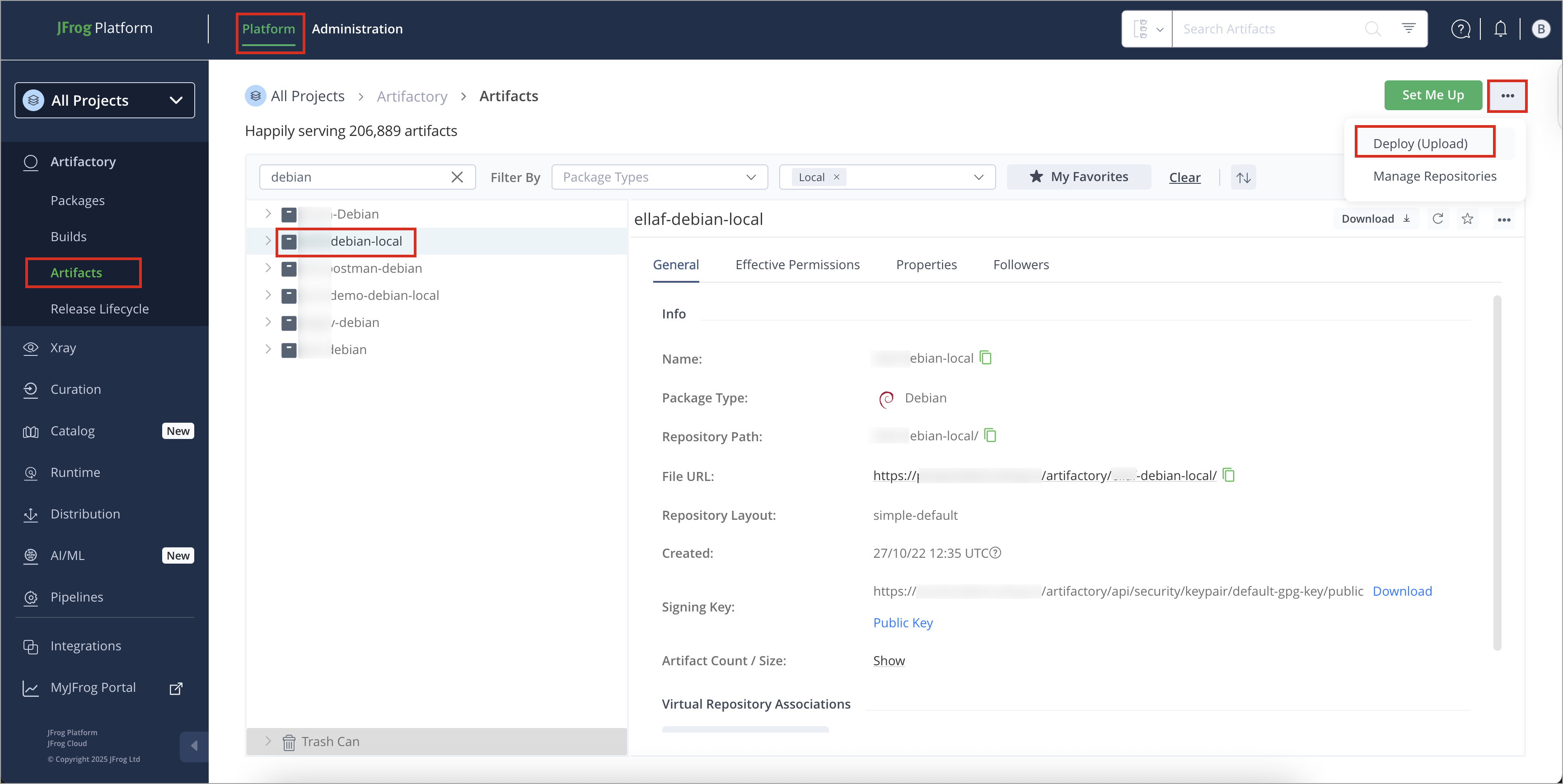
In the Platform tab, click Artifactory | Artifacts, then click ellipsis |Deploy(Upload). Deploy options are displayed.
-
Select your Debian repository as the Target Repository, and upload the file you want to deploy.
-
Check the Deploy as Debian Artifact checkbox and fill in the Distribution, Component , and Architecture fields in the Debian Artifact section. Notice that the Target Path is automatically updated to reflect your input.
-
Verify the deploy options, then click Deploy. The package is deployed.
Setting the target path manually? Be careful with spaces
We recommend using the fields in the Debian Artifact section to set your Target Path. Nevertheless, if you choose to specify the Target Path manually, make sure you don't enter any superfluous spaces.
For example, to upload package
planckdb-08-2015.deb, and specify that its layout is from the trusty distribution, in the main component and the i386 architecture, you would enter:
pool/planckdb-08-2015.deb;deb.distribution=trusty;deb.component=main;deb.architecture=i386
You can also deploy Debian packages to Artifactory with an explicit URL using Matrix Parameters.
After deploying, the repository index is recalculated and displays your upload. Reindexing can take about a minute.
Deploy Debian Packages Using Curl
You can deploy a Debian package using curl, leveraging the Matrix Parameters to specify the distribution, component, and architecture parameters as relevant.
Deploy Debian Binary Packages
To deploy a Debian binary package with curl:
- Run the following command:
Where:
curl -u <USERNAME>:<TOKEN> -XPUT "http://<HOST>/artifactory/<REPO_NAME>/pool/<PACKAGE_NAME>;deb.distribution=<DISTRIBUTION>;deb.component=<COMPONENT>;deb.architecture=<ARCHITECTURE>" -T <PATH_TO_FILE>-
<USERNAME>: Your Artifactory username -
<TOKEN>: Your Artifactory identity token -
<HOST>: The hostname of your JFrog Platform -
<REPO_NAME>: The name of the target repository -
<PACKAGE_NAME>: The name of the package you want to deploy -
<DISTRIBUTION>: The target Debian distribution -
<COMPONENT>: The component of the distribution -
<ARCHITECTURE>: The package architectureTo add an architecture-independent layout, use
deb.architecture=all.
For example:
curl -u jeffry:Random_TokenEFh83Wf00ESbkhge388 "http://company.jfrog.io/artifactory/debian-local/pool/libatk1.0_i386.deb;deb.distribution=wheezy;deb.component=main;deb.architecture=i386" -
Tip
You can specify multiple layouts by adding duplicate parameters separated by semicolons. For example,
deb.architecture=<ARCHITECTURE1>;deb.architecture=<ARCHITECTURE2>.
Deploy Debian Source Packages
To deploy Debian source packages, you must upload all three files that make up the total source package:
.dsc: Tells build tools which files to look for and updates Debian local metadata when deployeddebian.tar: Turns base code into a Debian packageorig.tar: Provides base code
Note
Deploying Debian source packages is supported for local repositories only. Debian source packages are not supported with Trivial repository layout.
To deploy a Debian source package:
- Run the following command to upload the
.dscfile:Where:curl -u <USERNAME>:<TOKEN> -XPUT "http://<HOST>/artifactory/<REPO_NAME>/pool/<PACKAGE_NAME>;dsc.distribution=<DISTRIBUTION>;dsc.component=<COMPONENT>" -T <PATH_TO_FILE><USERNAME>: Your Artifactory username<TOKEN>: Your Artifactory identity token<HOST>: The hostname of your JFrog Platform<REPO_NAME>: The name of the target repository<PACKAGE_NAME>: The name of the package you want to deploy<DISTRIBUTION>: The target Debian distribution<COMPONENT>: The component of the distribution
For example:curl -u jeffry:Random_Token87cmVwb3NpdG9yeS1rZXkK -XPUT "http://company.jfrog.io/artifactory/debian-local/pool/myapp-1.0.deb;dsc.distribution=bullseye;dsc.component=main" -T ./myapp-1.0.deb
- Run the following command to upload the
orig.tarfile:Where:curl -u <USERNAME>:<TOKEN> -XPUT "http://<HOST>/artifactory/<REPO_NAME>/pool/<PACKAGE_NAME>" -T <PATH_TO_ORIG_TAR_FILE><USERNAME>: Your Artifactory username<TOKEN>: Your Artifactory identity token<HOST>: The hostname of your JFrog Platform<REPO_NAME>: The name of the target repository<PACKAGE_NAME>: The name of the package you want to deploy<PATH_TO_ORIG_TAR>: The path to theorig.tarfile on your local machine
For example:
curl -u jeffry:Random_Token87cmVwb3NpdG9yeS1rZXkK -XPUT "http://company.jfrog.io/artifactory/debian-local/pool/myapp_1.0.orig.tar.gz" -T ./myapp_1.0.orig.tar.gz - Run the following command to upload the
debian.tarfile:Where:curl -u <USERNAME>:<TOKEN> -XPUT "http://<HOST>/artifactory/<REPO_NAME>/pool/<PACKAGE_NAME>" -T <PATH_TO_DEBIAN_TAR><USERNAME>: Your Artifactory username<TOKEN>: Your Artifactory identity token<HOST>: The hostname of your JFrog Platform<REPO_NAME>: The name of the target repository<PACKAGE_NAME>: The name of the package you want to deploy<PATH_TO_DEBIAN_TAR>: The path to thedebian.tarfile on your local machine
For example:
curl -u jeffry:Random_Token87cmVwb3NpdG9yeS1rZXkK -XPUT "http://company.jfrog.io/artifactory/debian-local/pool/myapp_1.0-1.debian.tar.xz" -T ./myapp_1.0-1.debian.tar.xz
Resolve Debian Packages
Artifactory supports resolving Debian binary packages and Debian source packages.
Resolve Debian Binary Packages
You can resolve Debian binary packages from local, remote, or virtual repositories in Artifactory.
To resolve a Debian binary package:
- Run the following command:
where
apt-get install <PACKAGE><PACKAGE>is the name of the package you want to resolve. For example:apt-get install curl
Resolve Debian Source Packages
You can resolve Debian source packages from remote and local repositories. Trivial repository layout does not support Debian source packages.
To resolve a Debian source package:
- Run the following command:
where
apt-get source <PACKAGE><PACKAGE>is the name of the package you want to resolve. For example:apt-get source git
Additional Debian Actions
The following additional actions are available with Debian repositories:
- Local Debian Repositories
- Remote Debian Repositories
- Virtual Debian Repositories
- Configure Authenticated Access to Debian Servers
- Debian Artifact Metadata
- Use Debian Metadata Validation
- Specify Multiple Debian Layouts
- Set the Target Path for Debian
- Acquire Debian Packages by Hash
- Sign Debian Metadata
- Add MD5 Checksum to the Debian Packages File
- Use Debian InRelease Metadata Files
- Work with Debian Snapshots
Local Debian Repositories
If you are using Debian with a Trivial layout, in the Debian Settings section, set the Trivial Layout checkbox. Trivial layout does not support Debian source packages.
Under Optional Index Compression Formats, click on Select compression formats and from the drop-down list select the index file formats you would like to create in addition to the default Gzip (.gzip extension), which is created for every Debian repository and cannot be disabled. Additional index file formats can also be created using the Local Repository Configuration JSON via REST API.
To allow indexing of debug symbols, select the Enable indexing with debug symbols (.ddeb) field.
Remote Debian Repositories
You can download Debian packages from Local Debian Repositories, or from Remote Repositories specified as supporting Debian packages.
To specify that a Remote Repository supports Debian packages, you need to set its Package Type to Debian when it is created.
Note that the index files for remote Debian repositories (including the sources index) are stored and renewed according to the Retrieval Cache Period setting.
You can extract the component/distribution/architecture coordinates from a remote repository and assign them as properties on the cached packages.
To do this, right-click on the relevant remote Debian repository and select Calculate Debian Coordinates. You can also use the Calculate Cached Remote Debian Repository Coordinates REST API.
Note
This process may take some time for remote repositories with many packages. It is recommended to run it only when needed. For example, before copying packages to a local repository.
The following executions will only calculate the newly added packages to the cache.
Virtual Debian Repositories
A Virtual Repository defined in Artifactory aggregates packages from both local and remote repositories.
To define a virtual Debian repository, create a virtual repository, set the Package Type to be Debian, and select the underlying local and remote Debian repositories to include in the Basic settings tab.
Deprecated Trivial layout not supported
Only repositories with an Automatic Layout can be included in a virtual repository. A deprecated Trivial layout is not supported for virtual repositories.
Indexed Remote Architectures
When creating a new virtual repository, the Indexed Remote Architectures field specifies the architectures that will be indexed for the included remote repositories.
Specifying these architectures will speed up Artifactory's initial metadata indexing process. The default architecture value is amd64.
Set the Optional Index Compression Formats with the index file formats you would like to create in addition to the default Gzip (.gzip extension).
Configure Authenticated Access to Debian Servers
If you need to access a secured Artifactory server that requires a username and password, you can specify these in your Debian source.list file by prefixing the artifactory host name with the required credentials as follows:
Accessing Artifactory with credentials
https://<USERNAME>:<PASSWORD>@[JFrogPlatformURL]/artifactory/{repoKey} {distribution} {components}For example:
https://john:[email protected]/artifactory/debian-local wheezy main restrictedEncrypting your password
You can use your encrypted password as described in Centrally Secure Passwords.
Compression Formats
Artifactory supports the following compression formats for Debian indices:
- Gzip (.gz file extension) - created by default for every Debian repository and cannot be disabled.
- Bzip2 (.bz2 file extension)
- LZMA (.lzma extension)
- XZ (.xz extension)
Work with Debian Snapshots
This section contains the following topics:
Create Debian Snapshots
From Artifactory 7.41.3, Debian repositories include support for Debian Snapshots. A Debian Snapshot contains metadata of a fixed state of a local, remote or virtual Debian repository. Snapshots are immutable and contain a metadata folder for each specific distribution, including all metadata files, like RELEASES AND PACKAGES, and not the actual packages.
Snapshots can be used in the following scenarios:
- As backups, allowing you to easily fall back to previous versions in case of package corruption due to dependency changes.
- As backups, allowing you to easily fall back to previous versions in case of package corruption due to dependency changes.
In Artifactory, the Debian snapshots are saved by default under the $repoKey/snapshots/$tag subfolder within the Debian Repository and are created using a dedicated Create Debian Snapshot REST API.
In the following example, a Debian snapshot named “202203141800” is saved under the “deb-snapshot” local repository, containing “focal” distribution metadata.
Rules and Guidelines for Debian Snapshots
- To work with Debian Snapshots in Artifactory, you need to configure the sources file of your Debian client to point to the following path: artUrl/artifactory/api/deb/$repoKey/snapshots/$tag.
- The root of the snapshot sub-repository is $repoKey/snapshots/$tag.
- All the metadata files of the $srcRepo/dists/$distribution, including the release and packages file, are copied to the snapshot folder.
- In the folder, a property called deb.snapshot.source is created, pointing to the source repository.
- You need to use /artifactory/api/deb/$repoKey/snapshots/$tag, whereby the tag is a user-defined name for the snapshot.
- You need to use /artifactory/api/deb/$repoKey/snapshots/$tag, whereby the tag is a user-defined name for the snapshot.
- Deleting a snapshot does not delete the related Debian Package files as the. Debian Snapshots sub-repositories does not contain the packages, but only redirect to them.
To create a Debian Snapshot, see the Create Debian Snapshot REST API.
Resolve Debian Snapshots
To work with Debian Snapshots in Artifactory, you need to configure the sources file of your Debian client to point to the following path: artUrl/artifactory/api/deb/$repoKey/snapshots/$tag .
Debian Artifact Metadata
Artifactory writes several entries from the Debian package's metadata as properties on all of the artifacts (based on the control file's content).
These properties can be used to search for Debian packages more efficiently using Arifactory's Package Search.
Metadata properties are written for each new Artifact that is deployed to Artifactory.
To have these properties written to Debian artifacts that already exist in your repositories, you need to call the Calculate Debian Repository Metadata REST API, which writes the properties to all of the artifacts by default.
Use Debian Metadata Validation
To ensure that malformed packages do not corrupt Debian repositories, Artifactory first validates parts of the Debian metadata to make sure that none of the relevant metadata fields are empty. If the validation process indicates a malformed package, Artifactory provides several indications:
-
The package is not indexed
-
The package is annotated with the following property:
- Key: deb.index.status
- Value: The reason the package failed the validation process
-
If the package is selected in the Tree Browser, the Debian Info tab will display a message indicating that it was not indexed and why it failed the validation process
Note
Artifactory logs a message explaining why a package was not indexed, including details about the validation failure.
Disable validation
Debian package validation is controlled by the
debian.metadata.validationsystem property . Package validation is enabled by default. To disable Debian package validationset:debian.metadata.validation=false
Finding malformed packages
To easily find all malformed packages in your Debian repositories, you can use Property Search or run an AQL query with Property Criteria on the deb.index.status property described above.
Specify Multiple Debian Layouts
Whether uploading a package using the UI or Curl, you can specify multiple layouts for any Debian package you upload by including additional values for the distribution, component, or architecture, separated by a comma.
For example, to upload package libatk1.0_i386.deb to both wheezy and trusty distributions, in both main and contrib components, and both i386 and 64-bit-arm architectures, you would specify the following Target Path to upload using the UI:
Target path for multiple layouts
pool/libatk1.0_i386.deb;deb.distribution=wheezy;deb.distribution=trusty;deb.component=main;deb.component=contrib;deb.architecture=i386;deb.architecture=64bit-armCorrespondingly, to upload the file using Matrix Parameters, you would use the following:
Multiple layouts using Matrix Parameters
PUT "https://company.jfrog.io/artifactory/debian-local/pool/libatk1.0_i386.deb;deb.distribution=wheezy;deb.distribution=trusty;deb.component=main;deb.component=contrib;deb.architecture=i386;deb.architecture=64bit-arm"Set the Target Path for Debian
The Target Path needs to be entered in a strict and specific format that uses system properties to define where the artifact will be stored and its specific layout as follows:
Target Path Format
[path];deb.distribution=[distribution];deb.component=[component];deb.architecture=[architecture]| Property | Description |
|---|---|
| path | The repository path where the package should be stored. Artifactory supports storing Debian packages anywhere within the repository. The examples on this page show Debian packages stored under the pool folder in accordance with the Debian convention. |
| distribution | The value to assign to the deb.distribution property used to specify the Debian package distribution |
| component | The value to assign to the deb.component property used to specify the Debian package component name |
| architecture | The value to assign to the deb.architecture property used to specify the Debian package architecture |
Adding Architecture Independent Packages
Uploading a Debian package with deb.architecture=all will cause it to appear in the Packages index of all the other architectures under the same Distribution and Component, as well as under a new index branch called binary-all which holds all Debian packages that are marked as all. Removing an all Debian package will also remove it from all other indexes under the same Distribution and Component. When the last Debian package in an architecture is removed but the Packages index still contains an all Debian package, it is preserved in the index. If you want such an architecture index removed you may do so via the UI or using Calculate Debian Repository Metadata in the REST API, which cleans up orphaned package files from the index.
Acquire Debian Packages by Hash
Artifactory supports the acquire-by-hash functionality of APT clients for Debian repositories laid out using the Automatic architecture (Trivial architecture is not supported for acquiring packages by hash). This feature is supported by two system properties:
| Parameter | Description |
|---|---|
| artifactory.debian.use.acquire.byhash | [default: true] When true, the value of acquire-by-hash in Debian release files is set to true allowing APT clients to access Debian packages by their checksums (MD5, SHA1, SHA256). To allow this, Artifactory will add the "by-hash" layout to all Debian repositories |
| artifactory.debian.packages.byhash.history.cycles.to.Keep | [default: 3] Specifies the number of cycles of package file history to save when acquire-by-hash is enabled |
Sign Debian Metadata
Artifactory supports signing Debian repository metadata (not packages) using a GPG key. This process will create a signed Release file named Release.gpg, which will be shipped alongside the Release file. Artifactory will store and manage public and private keys that are used to sign and verify Debian packages.
To generate a pair of GPG keys and upload them to Artifactory, see Managing Signing Keys.
Add MD5 Checksum to the Debian Packages File
To support tools (e.g. Aptly) that require Debian packages to include their MD5 checksum in their Packages metadata file for validation, you can configure Artifactory to add this value by setting the following system property in the artifactory.system.properties file:
## Add package MD5 checksum to Debian Packages file
#artifactory.debian.metadata.calculateMd5InPackagesFiles=true
Artifactory needs to be restarted for this change to take effect.
Use Debian InRelease Metadata Files
From version 7.4, Artifactory supports Debian InRelease metadata files.
Artifactory will produce an InRelease metadata file in the repository when working with GPG signing. Downloading a Debian package from Artifactory will now be faster as the client will only download the InRelease file without downloading the Release and Release.gpg files that are heavier.
Debian Release Files Configuration
The Release files default values for the Label and Origin parameters is Artifactory. From Artifactory version 6.23.3 or 7.11.1, it is possible to change these values.
To do so, set the deb.release.origin and/ or deb.release.label custom properties to the desired value on the root repository level.
Debian REST API Support
The JFrog Artifactory REST API provides extensive support for Debian signing keys and recalculating the repository index as follows:
Limitations of Debian Repositories in Artifactory
Debian repositories in Artifactory have the following limitations:
- Support for source packages: Debian packages are currently supported in local and remote repositories only.
- Trivial layout: Source packages are not supported in repositories that use Trivial layout. Repositories must use only default Debian layouts to be compatible with source packages.
Updated 29 days ago