

JFrog Properties
Properties in JFrog Artifactory are customisable and searchable string fields that you can apply to artifacts and other items. Properties are used extensively in the JFrog REST APIs, CLI for JFrog Artifactory, the Artifactory Query Language (AQL), and in the UI. Properties can also be used with integrations or extensions like the Jenkins plugin. You can also create reusable property sets with pre-defined properties and values.
You can add properties to both artifacts and folders. You can add and delete properties in local repositories and local caches of remote repositories. You can retrieve properties in virtual repositories, but not add or delete them.
You can add properties using the UI, REST API, CLI, or on deployment using Matrix Parameters.
Note
Properties and property sets provide guidance in the JFrog Platform UI for tagging and finding item, but their values are not strictly enforced. This is by design to keep repository operations fast and allow for flexibility in artifact management. Properties are helpful and flexible guides, not rigid restrictions.
Types of Properties
There are two kinds of properties in the JFrog Platform:
Explicit Properties
Explicit properties are user-configured and customisable. You can add properties to artifacts and folders and use the properties as the basis for actions like search, promotion, state management, additional organization information, and more. For examples of how to add and use properties, see Use Cases for JFrog Properties.
Implicit Properties
Implicit properties are JFrog Platform-generated properties and are predefined in the system, such as Last Update and Last Upload. You can perform tasks like cleanup based on this metadata. For a complete list of implicit properties and their attributes, see GraphQL.
Related Topics
- Add Properties to Items
- Delete Properties
- Create Property Set
- Using Properties in Deployment and Resolution
- Property Search
- Item Properties APIs
Use Cases for JFrog Properties
The following table provides information about use cases for properties in the JFrog Platform.
| Use Case | Explanation | Related Topics |
|---|---|---|
| REST API | Properties are XML metadata stored on an item. You can view and examine properties from the The properties XML uses the | Item Properties APIs |
| JFrog CLI | JFrog CLI provides a simple interface for automating access to JFrog products. You can use JFrog CLI commands to set properties on any artifact in Artifactory. | Setting Properties on Files |
| AQL Resources | An AQL resource creates an Artifactory query using the Artifactory Query Language (AQL). You can use an AQL resource in the configuration of a FileSpec resource to specify file properties to match against. You can also use an AQL resource as an | Artifactory Query Language |
| User Plugins | User plugins written in Groovy allow you to adapt Artifactory's behavior to meet your own needs. For example, you can use a plugin to respond to storage events on items and properties. | User Plugins |
| Property Sets | Property Sets are collections of properties. In each property set, you can define properties and specify whether a property is open, single-value, or multi-value. This impacts the UI for setting and searching property values. | Create Property Set |
| Matrix Parameters | Matrix parameters are key-value pairs parameters separated by a semicolon (;) that you can place anywhere on a URL. You can add key-value matrix parameters to deploy (PUT) requests, and those parameters are automatically transformed to properties on the deployed artifact. | Using Properties in Deployment and Resolution |
Add Properties to Items
You can add properties, either individually or from property sets, to items in the Properties tab of the artifact information pane. For more information about property sets, see Create Property Set.
Properties help you identify, classify, manage, and search for items. Properties can be applied to different kinds of items including packages, builds, Release Bundles v1, and artifacts. The recursive option allows you to apply properties to all artifacts, folders, and sub-folders under a selected folder.
Note
Property keys are limited to 255 characters and property values are limited to 2400 characters.
Prerequisite: You need Annotate permissions to add and edit properties. For more information, see Permissions.
To add properties to an item:
- In the Platform module, navigate to Artifactory > Artifacts. The repository tree and artifact information panes appear.
- Browse and filter in the repository tree to find the item you want to apply properties to. For more information, see Browsing Artifacts.
- In the artifact information pane, select the Properties tab.
- In the Add section, select Property or Property Set.
- Enter a property name or select the property set name.
- Enter a property value or select property set values from the list.
- Optionally, select the Add Recursively checkbox to add the property the selected folder and to all of artifacts and folders under the folder.
- Click Add Property. The property is added to the item and appears in the Properties table.
Related Topics
Delete Properties
If a property is incorrect or irrelevant, you can delete it from the affected item in the Properties tab. For information on deleting item properties using the REST API, see Delete Item Properties.
To delete a property:
-
In the Platform module, navigate to Artifactory > Artifacts.
-
Select the item whose properties you want to change.
-
In the artifact information pane, click the Properties tab. The properties associated with the item appear.
-
For the property you want to delete, click the actions button and select one of these options:
- Delete: Delete the property from the selected item.
- Delete Recursively: Delete the property from the item and all artifacts or folders nested under the item.
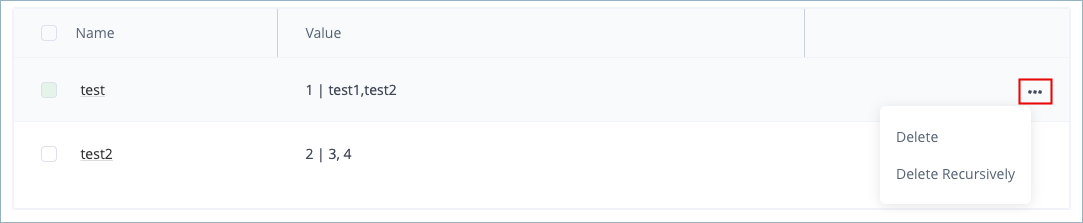
A message appears asking you to confirm the deletion.
-
Click OK. The property is deleted.
Create Property Set
You can create pre-defined collections of properties for reuse across repositories called property sets. Property sets can contain multiple properties, and each property can have multiple values. You can choose whether the property values are open, single-select, or multi-select.
For information on adding a single property directly to an item, see Add Properties to Items.
Prerequisites: You need Administrator permissions to create property sets.
To create a property set:
-
In the Administration module, navigate to Artifactory Settings > Property Sets.
-
Click New Property Set. The New Property Set window opens.
-
In the Property Set Name field, enter a name for the property set.
-
Add properties to the set:
-
Click New record. The New Property window appears.
-
In the Property Name field, enter a property name.
-
Select one of the following options for the value type:
- Any Value: Allows user entry for the property value when adding the property to an item.
- Single Select: Requires a single selection from predefined property values.
- Multi Select: Allows multiple selections from predefined property values.
-
For single select and multi select, enter a property value in the text box and click Add. Repeat for all property values you want to define.
-
Click Save. The property is saved to the property set.
-
-
Click Save. The property set is saved.
The property set has properties and values defined and can now be added to items.
Next steps:
Assign Property Sets to a Repository
To use a property set, you have to assign it to the relevant repositories to make the properties and values available for use there. For more information about creating property sets, see Create Property Set.
Prerequisites: You need Admin or Project Admin permissions to create and configure repositories.
To assign property sets to a repository:
-
In the Administration module, navigate to Repositories. The list of repositories appears.
-
In the repository list, click the name of the repository you want to configure. The repository settings appear.
-
Click the Advanced tab. The advanced repository settings appear.
-
In the Property Sets section, use the selector to assign and un-assign property sets:
- Click and drag property sets from one list to another.
- Select the checkbox for one or more property sets and click the arrow button to move them from one list to another.
- Click the double arrow buttons to move all property sets in one list to the other list.
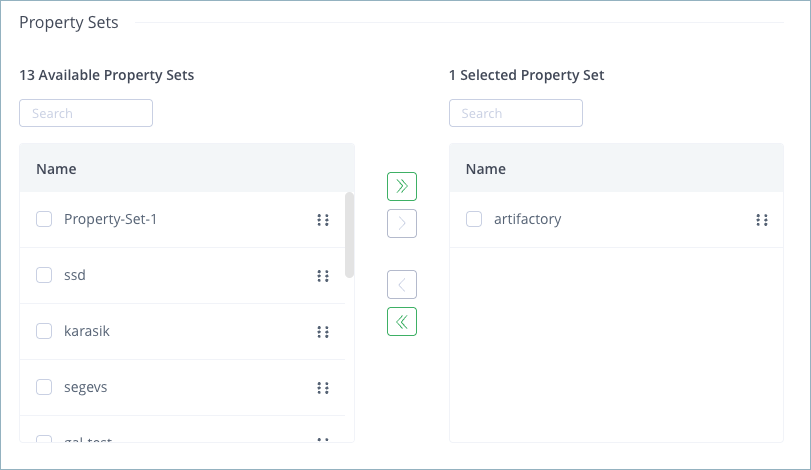
-
Click Save. The property set is assigned and is now available when adding properties to items in the repository.
Next steps:
Using Properties in Deployment and Resolution
Matrix parameters are key-value pair parameters separated by a semicolon (;) that you can place anywhere in a URI. Matrix URI is a method for specifying parameters in HTTP, in addition to querying parameters and path parameters. You can use matrix parameters in Artifactory to add properties to artifacts as part of deployment, and to control artifact resolution.
For example, note the matrix parameters status=DEV and rating=5 in the following URL:
http://repo.jfrog.org/artifactory/libs-releases-local/org/libs-releases-local/org/jfrog/build-info-api/1.3.1/build-info-api-1.3.1.jar;status=DEV;rating=5These parameters add specifications for artifact resolution or deployment.
For deployment, you can add key-value matrix parameters to deploy (PUT) requests. If you add matrix parameters to the target deployment base URL, the artifact path is added after the matrix parameters at the time of deployment. The matrix parameters are automatically transformed to properties on the deployed artifact.
Dynamic Properties in Deployment
Depending on your deployment framework, you can use dynamic properties. For example, when using Maven, you can add the parameters buildNumber and revision to the deployment URL. At deployment time, Maven replaces the parameters with dynamic values from the project properties.
For example, given the following:
-
Distribution URL:
http://myserver:8081/artifactory/qa-releases;buildNumber=${buildNumber};revision=${revision} -
Deployment path to the
qa-releasesrepository:/org/jfrog/build-info-api/1.3.1/build-info-api-1.3.1.jar -
Final deployment URL:
http://myserver:8081/artifactory/qa-releases;buildNumber=249;revision=1052/org/jfrog/build-info-api/1.3.1/build-info-api-1.3.1.jar
The final deployed item build-info-api-1.3.1.jar has two properties:
buildNumber=249
revision=1052
Matrix Parameters Queries for Artifact Resolution
You can use matrix parameters in artifact resolution to control how artifacts are found and served. Two types of queries are supported:
- Non-conflicting values: Resolved artifacts may either have no matching property, or have a property that matches the specified key and value exactly. Non-conflicting values are not mandatory and are identified by a
key=valueparameter. - Mandatory values: Resolved artifacts must have a property that matches the specified key and value exactly. Mandatory properties are identified by a
key+=valueparameter, with the plus sign+denoting that the property is mandatory for artifact resolution.
The following table provides examples of artifact resolution results based on artifact properties and specified matrix parameters.
| Query Type | Artifact Property | Matrix Parameter | Resolution Result |
|---|---|---|---|
| Non-conflicting values | color=black | color=black | OK (200) |
None or height=50 | color=black | OK (200) | |
color=red | color=black | NOT_FOUND (404) | |
| Mandatory values | color=black | color+=black | OK (200) |
None or height=50 | color+=black | NOT_FOUND (404) | |
color=red | color+=black | NOT_FOUND (404) |
Updated 6 months ago