

AI Editor Extension Repositories
JFrog Security Feature
AI Editor Extension repositories are available as part of JFrog Curation.
AI Editor Extension repositories in Artifactory are a secure caching proxy for Integrated Development Environment (IDE) extensions like Cursor, Kiro, Devin (formerly Windsurf), and VSCode. By proxying public marketplaces like Visual Studio Marketplace, Artifactory gives you control over the IDE plugins used by your developers. This level of control helps secure your development environments by caching and scanning extensions for vulnerabilities and applying Curation policies to prevent the use of unapproved plugins.
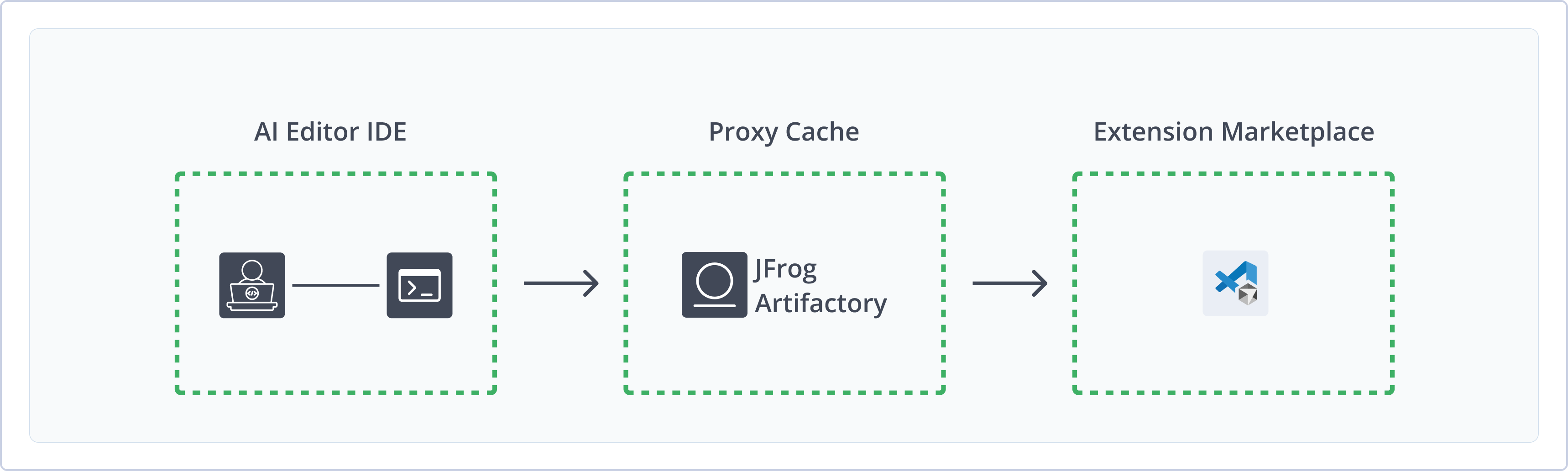
Artifactory supports the following capabilities for AI Editor Extension repositories:
- Remote Repository Proxy: Proxy and cache extensions from the public marketplaces that support
.visx. - Secure Your Software Supply Chain: Provide a secure, centralized location to vet and store IDE plugins, minimizing the risk of introducing malicious code into your development environments.
- JFrog Curation Integration: Apply Curation policies to block or approve extensions, preventing risky or unwanted plugins from being downloaded by developers.
- VSCode-based IDE Support: Designed for Cursor, Kiro, Devin (formerly Windsurf), and Visual Studio Code.
- Native Extension Installation: Browse and install extensions natively in your IDE, selecting from the approved and secured extensions in your Artifactory marketplace proxy.
Get Started with AI Editor Extensions
To get started working with AI Editor Extension repositories in Artifactory, complete the following main steps:
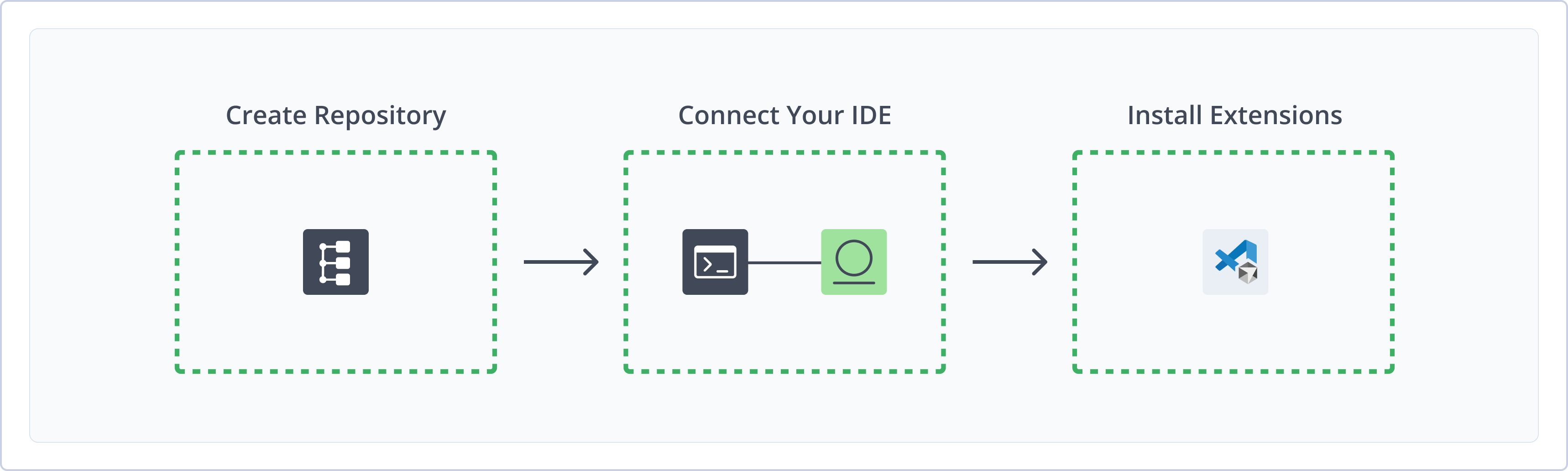
Create an AI Editor Extension Repository
This topic describes how to create an AI Editor Extension repository. This is required before installing extensions. Artifactory supports remote AI Editor Extension repositories, allowing you to proxy extension marketplaces and install extensions from your secure cache.
For more information on JFrog repositories, see Repository Management.
Prerequisite: You need Admin or Project Admin permissions in Artifactory to create a repository.
To create an AI Editor Extension repository:
-
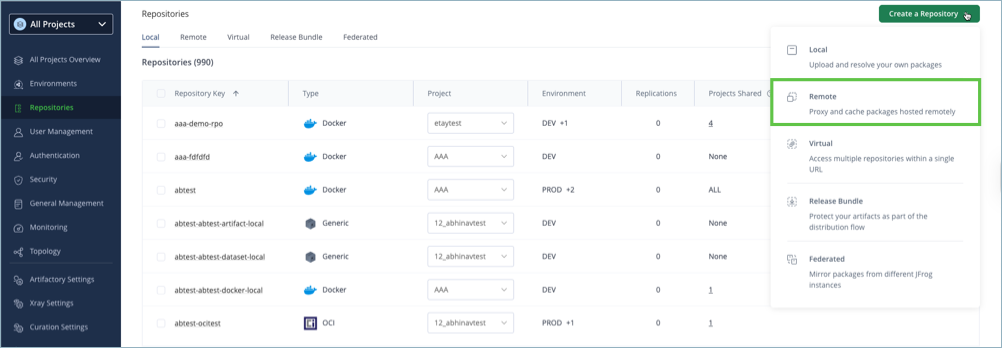
In the Administration tab, click Repositories > Create a Repository.
-
Select the Remote repository type.
-
Select the AI Editor Extension package type.
-
Configure the required fields for the repository:
-
In the Repository Key field, type a meaningful name for the repository. For example,
cursor-remote. -
Verify the Repository URL and update as needed. The supported URLs include Open VSX based registries:
- Cursor:
https://marketplace.cursorapi.com/_apis/public/gallery - Kiro:
https://open-vsx.org/vscode/gallery - Devin (formerly Windsurf):
https://marketplace.windsurf.com/vscode/gallery - VSCode Public Gallery:
https://marketplace.visualstudio.com/_apis/public/gallery
For more information on remote repositories and their settings, see Remote Repositories.
- Cursor:
-
-
Click Create Repository. The repository is created and the Repositories window is displayed.
Connect Your IDE to Artifactory
To use Artifactory as the extension gallery for your IDE, you need to modify the product.json file to point to Artifactory. Supported IDEs are Cursor, Kiro, Devin (formerly Windsurf), and VSCode.
Artifactory supports two gallery URL patterns for the marketplace proxy connection:
- Without token: The gallery URL doesn't include a token segment. You can configure the marketplace proxy without a token using the JFrog CLI.
- With reference token: A read-only scoped reference token is embedded in the gallery URL path. This token enables Curation Audit tracking. For more information, see Connect Your IDE to Artifactory Manually.
Prerequisite: Before connecting your IDE to Artifactory, you must have an existing AI Editor Extensions repository in Artifactory. For more information, see Create an AI Editor Extension Repository.
Warning
This configuration modifies
product.jsonand is a sensitive change. Make a backup of the original file before editing.
Requirements: Write permissions for all parent folders nesting product.json, and privileges to open and edit product.json. The file locations and parent folders vary by OS and IDE. For more information, see product.json File Locations.
There are two configuration methods:
- Connect Your IDE to Artifactory with JFrog CLI, starting from CLI version 2.85.0
- Connect Your IDE to Artifactory Manually
Connect Your IDE to Artifactory with JFrog CLI
The JFrog CLI configures the marketplace proxy connection without a reference token. The jf ide setup command simplifies three things into a single command:
- Disables automatic updates to your IDE. Automatic updates will overwrite your configurations and reset the connection from your Artifactory registry to the default marketplace.
- Provides write access to
product.jsonfile and folders. - Modifies your
product.jsonfile to point to Artifactory.
Note
The
jf ide setupcommand is available starting from CLI version 2.85.0.
To connect your IDE to Artifactory with JFrog CLI:
- Run this command:
Where:
jf ide setup <IDE> --url "https://<JFrogPlatformURL>/artifactory/api/aieditorextensions/<REPO_NAME>" --update-mode none<IDE>: The IDE you want to configure. Possible values are:cursorkirowindsurfvscode
<JFrogPlatformURL>: The URL of your JFrog Platform<REPO_NAME>: The name of the target repository
For example:
jf ide setup cursor --url "https://company.jfrog.io/artifactory/api/aieditorextensions/cursor-remote" --update-mode none
Tip
- If your JFrog CLI is already set up with a default Artifactory
server-id, you can run the script with the--repo-keyflag instead of specifying the whole URL.- If your IDE is installed in a custom path, specify its location using the
--product-json-pathflag.
Note
You can also use JFrog Set Me Up to copy the snippet populated with your token and environment. For more information, see Use Artifactory Set Me Up for Configuring Package Manager Clients.
Connect Your IDE to Artifactory Manually
To manually connect your IDE to Artifactory, disable automatic updates and edit the product.json file to point to your Artifactory repository. Automatic IDE updates will cause the marketplace connection to revert from Artifactory to the default.
Requirements: Write permissions for all parent folders nesting product.json, and privileges to open and edit product.json. The file locations and parent folders vary by OS and IDE. For more information, see product.json File Locations.
To connect your IDE to Artifactory:
Disable Automatic Updates
Automatic IDE updates will cause the marketplace connection to revert from Artifactory to the default. Before configuring Artifactory as your marketplace connection, disable automatic updates to prevent overwriting your changes.
To disable automatic updates:
-
Open your
settings.jsonfile in a text editor. You can open the file by searching for workbench settings in the Command Palette:- Linux and Unix (macOS): Cmd+Shift+P
- Windows: Ctrl+Shift+P
-
Add the following line to the
settings.jsonfile:"update.mode":"none" -
Save your changes and close the file.
Set Artifactory as the Marketplace Connection
To configure your IDE to connect to Artifactory, set the serviceUrl destination to the Artifactory proxy of the extensions marketplace.
To edit the serviceUrl to connect to Artifactory:
-
Open the
product.jsonfile in a text editor. The file location varies by IDE and by OS, for example:- Linux and Unix (macOS):
/Applications/Visual Studio Code.app/Contents/Resources/app - Windows:
C:\Program Files\Microsoft VS Code\resources\app
For
product.jsonfile locations, see product.json File Locations. - Linux and Unix (macOS):
-
In the
product.jsonfile, edit theserviceUrlin theextensionsGalleryobject to point to your Artifactory repository. Use one of the following URL patterns:-
Without a read-only scoped token:
"extensionsGallery": { ... "serviceUrl": "https://<JFrogPlatformURL>/artifactory/api/aieditorextensions/<REPO_NAME>/_apis/public/gallery", ... } -
With a read-only scoped reference token:
"extensionsGallery": {
	...
	"serviceUrl": "https://<JFrogPlatformURL>/artifactory/api/aieditorextensions/<REPO_NAME>/_apis/public/gallery/<REFERENCE_TOKEN>",
	...
}
Where:
<JFrogPlatformURL>: The URL of your JFrog Platform<REPO_NAME>: The name of the target repository<REFERENCE_TOKEN>: A read-only scoped reference token for Curation Auditing, used to track developer interactions. The token is generated in the Set Me Up configuration instructions for the repository. The token is not an identity token.
For example (without token):
"extensionsGallery": { ... "serviceUrl": "https://company.jfrog.io/artifactory/api/aieditorextensions/vscode-remote/_apis/public/gallery", ... } -
-
Save the changes to your file.
-
Close all instances of your IDE and restart the program.
Note
You can also use JFrog Set Me Up to copy the snippet populated with your token and environment. For more information, see Use Artifactory Set Me Up for Configuring Package Manager Clients.
Next steps:
product.json File Locations
product.json File LocationsThe following table provides the locations of the product.json file for each supported IDE and OS. Use this information to verify the parent folders that you need write access to.
| IDE | OS | product.json File Location |
|---|---|---|
| VSCode | Linux and Unix (macOS) | /Applications/Visual Studio Code.app/Contents/Resources/app |
| VSCode | Windows | %USERPROFILE%\AppData\Local\Programs\Microsoft VS Code\resources\app |
| Cursor | Linux and Unix (macOS) | /Applications/Cursor.app/Contents/Resources/app |
| Cursor | Windows | %USERPROFILE%\AppData\Local\Programs\Cursor\resources\app |
| Devin (formerly Windsurf) | Linux and Unix (macOS) | /Applications/Windsurf.app/Contents/Resources/app |
| Devin (formerly Windsurf) | Windows | %USERPROFILE%\AppData\Local\Programs\Windsurf\resources\app |
| Kiro | Linux and Unix (macOS) | /Applications/Kiro.app/Contents/Resources/app |
| Kiro | Windows | %USERPROFILE%\AppData\Local\Programs\Kiro\resources\app |
Install Extensions
Once you have configured your IDE to connect to Artifactory, you can browse and install extensions from the secure Artifactory cache of the extensions marketplace natively in your IDE.
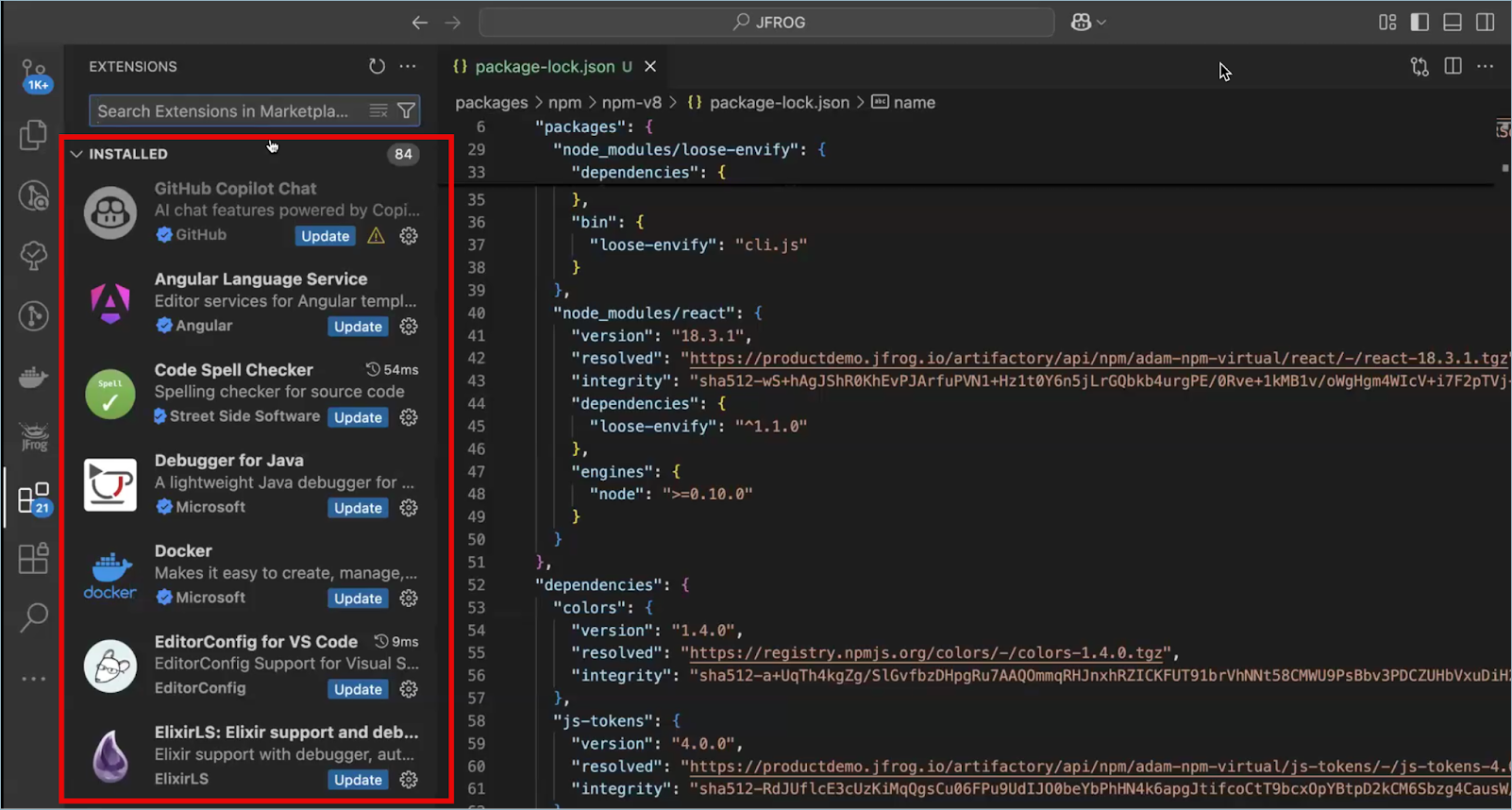
You can also install extensions using your IDE's CLI. For more information, see Install Extensions with CLI.
Important
Extensions that are blocked by your organization's Curation policies return an error upon installation. For more information, see Curation.
Install Extensions with CLI
You can install extensions from Artifactory using your IDE's CLI.
To install extensions using the CLI:
Run any of the following commands:
-
To install an extension:
<CLI> --install-extension <PUBLISHER>.<EXTENSION_NAME> -
To install a specific version of an extension:
<CLI> --install-extension <PUBLISHER>.<EXTENSION_NAME>@<VERSION> -
To force download the latest versions of an extension:
<CLI> --install-extension <PUBLISHER>.<EXTENSION_NAME> --force
Where:
<CLI>: The CLI command for your IDE. Possible values are:cursorkirosurfcode
<PUBLISHER>: The publisher of the extension<EXTENSION_NAME>: The name of the extension<VERSION>: The version number of the extension
For example:
cursor --install-extension [email protected]Important
You can't install extensions that are blocked by your organization's Curation policies. For more information, see Curation .
Limitations of AI Editor Extensions in Artifactory
The following limitations apply to AI Editor Extension repositories in Artifactory:
- Remote Repositories Only: AI Editor Extension repositories support remote repositories only. Local and virtual repository types aren't supported.
- Unauthenticated Gallery Access: The IDE client can't send authentication headers to the gallery endpoint. Artifactory handles all gallery requests anonymously, and all operations are read-only. The optional read-only scoped reference token embedded in the URL path is for Curation Audit tracking only and doesn't authenticate the request.
- Disable Automatic IDE Updates: Automatic IDE updates overwrite
product.jsonand reset the marketplace connection to the default. You must disable automatic updates to preserve your Artifactory marketplace configuration. - ExtensionGalleryServiceUrl: The VSCode
ExtensionGalleryServiceUrlis not supported. - Signature Verification with Open VSX: Due to a signature-verification path tied to the official VSCode Marketplace, installing extensions from an Artifactory repository that points to Open VSX or another non-VS Marketplace returns the error
Cannot install extension because Visual Studio Code cannot verify the extension signature. To install the plugin, click Install Anyway (Don't Verify Signature).
Updated about 21 hours ago