

Alpine Linux Repositories
Alpine Linux is a lightweight, security-oriented Linux distribution built around musl libc and BusyBox. This makes Alpine significantly smaller and more resource-efficient than other distributions. You can use Alpine Linux repositories in Artifactory to create secure, centralized storage and access for your .apk packages. This gives you precise control over your development and deployment processes. For more information, see the Alpine documentation.
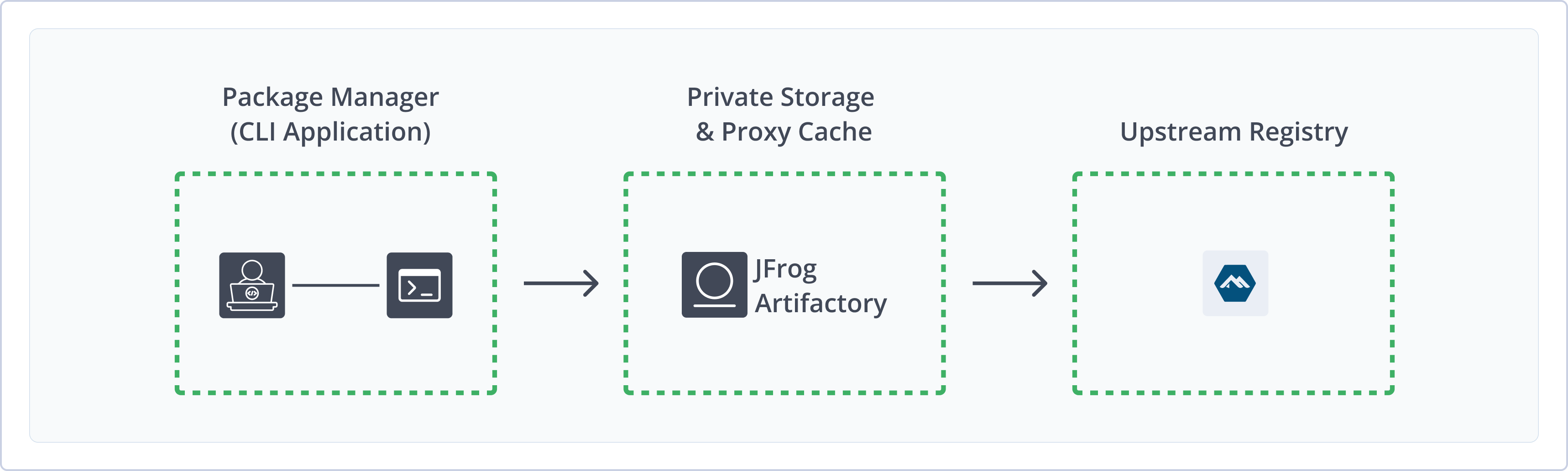
Artifactory fully supports Alpine Linux repositories, including the following capabilities:
- Unified Repository Management: Consolidate all your
.apkpackages by using Alpine Linux repositories in Artifactory as a single source of truth. Set up secure local repositories, access cached versions ofhttps://pkgs.alpinelinux.org/packages, and create a single access point for all sources with virtual repositories. - Support for Alpine Linux CLI: Natively manage and provision Alpine packages from Artifactory using the
apkclient. - Automated metadata calculation: Artifactory automatically calculates metadata for packages uploaded to local repositories, eliminating the need for manual indexing.
- Flexible Key Management: Manage multiple RSA key pairs and assign different keys to each Alpine repository. This allows you to sign the package indexes in your local and virtual repositories, ensuring package integrity and authenticity.
Get Started with Alpine Linux
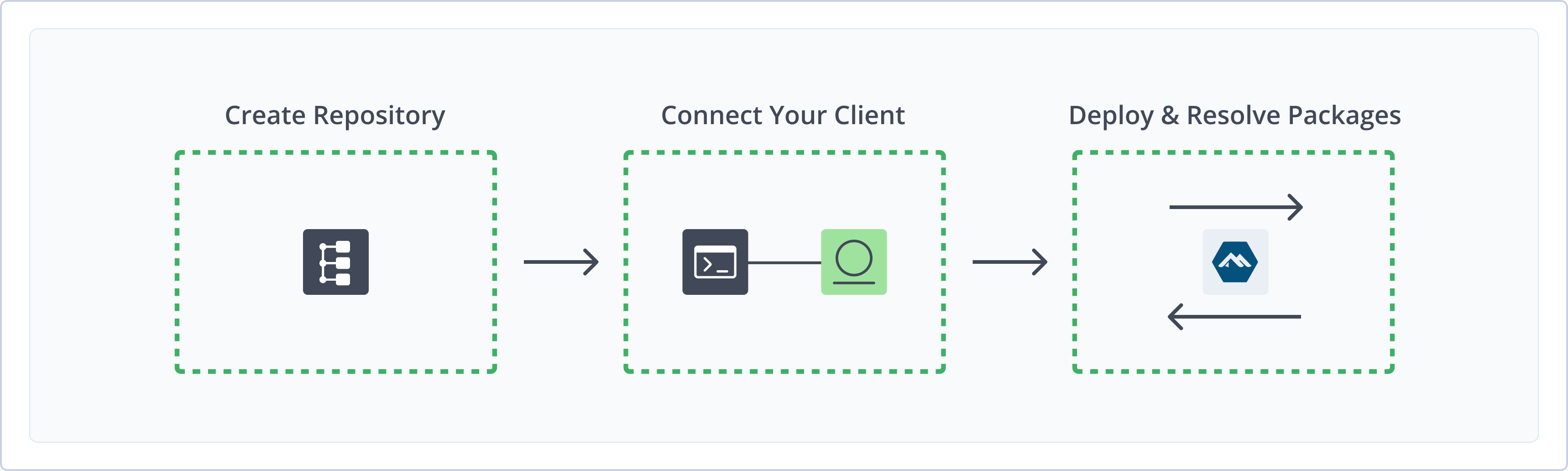
To get started working with Alpine, complete the following main steps:
- Create an Alpine Repository
- Connect apk to Artifactory
- Deploy and resolve Alpine packages
Create an Alpine Repository
This topic describes how to create an Alpine repository. This is required before deploying and resolving Alpine packages. There are three primary types of repositories:
- Local repositories: Store and share first- and second-party packages with your organization
- Remote repositories: Download packages from
https://pkgs.alpinelinux.org/packagesand other remote locations or Artifactory instances - Virtual repositories: Aggregate remote and local repositories, enabling your organization to scale by providing a single URL that provides access to multiple repositories and types
For more information on JFrog repositories, see Repository Management.
Prerequisites:
-
You need Admin or Project Admin permissions in Artifactory to create a repository. If you don't have Admin permissions, the option will not be available.
-
Alpine Linux requires RSA keys by default. For more information on adding RSA keys, see RSA Key Pairs. If you do not configure RSA keys, you must use the
--allow-untrustedflag.
Note
When running apk commands with the
--allow-untrustedflag against a local or virtual Alpine repository, you may see the following warning:This apk-tools is OLD! Some packages might not function properly.This is an expected security warning from the Alpine package manager that appears only when package signature verification is disabled via the
--allow-untrustedflag. The message has no impact on your system and can be safely ignored.
To create an Alpine repository:
-
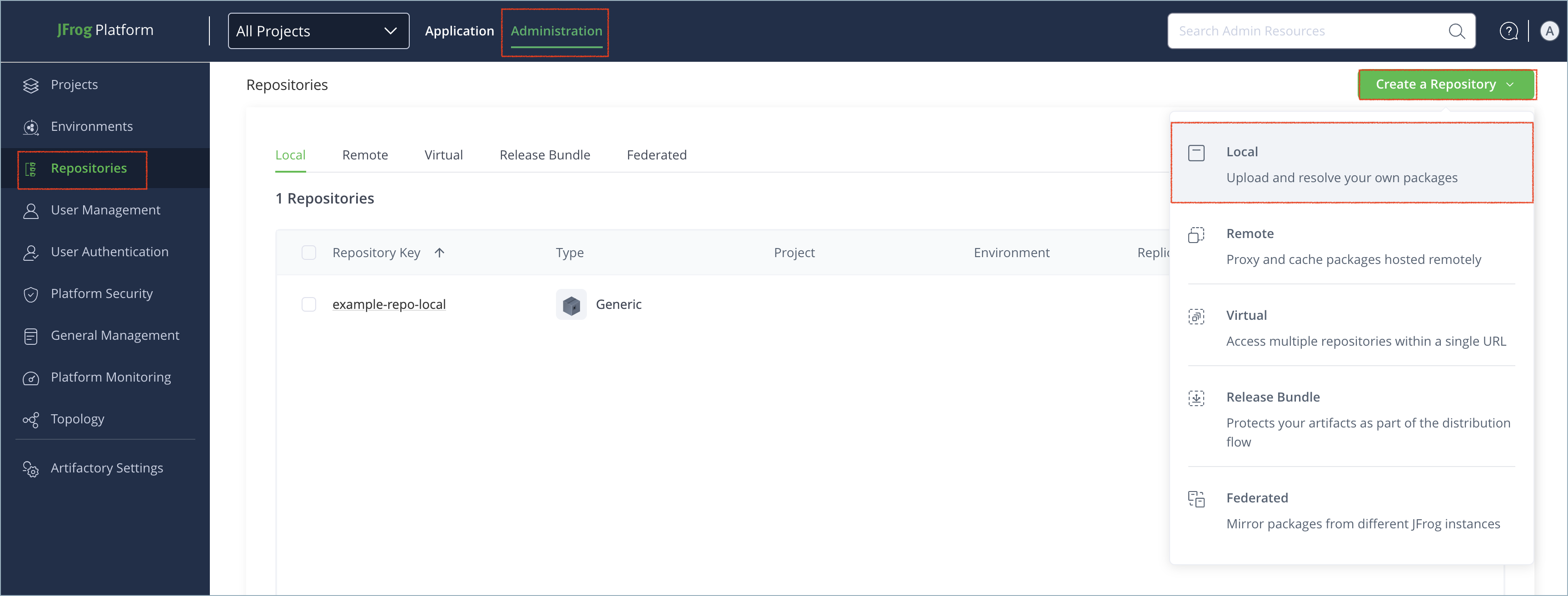
In the Administration tab, click Repositories | Create a Repository.
-
Select the type of repository you want to create: local, remote, or virtual.
-
Select the Alpine package type.
-
Configure the required fields for the repository:
-
For local repositories, in the Repository Key field, type a meaningful name for the repository. For example,
alpine-local. For more information on local repositories and their settings, see Local Repositories.In the Advanced tab, select an RSA key from the list to sign the
APKINDEX.tar.gzindex file. -
For remote repositories, verify the Repository URL and update as needed. For more information on remote repositories and their settings, see Remote Repositories.
To avoid manually managing keys for remote repositories, place them inside a virtual repository. Assign a key pair to the virtual repository, and Artifactory will re-sign all remote metadata. This way, your client only needs to trust the virtual repository's single public key.
-
For virtual repositories, select one or more local or remote repository types to include in the virtual repository. For more information on virtual repositories and their settings, see Virtual Repositories.
The RSA key pair defined for the virtual repository will be used to sign the virtual index file. If local repositories are defined with RSA key pairs, these keys will be ignored.
-
-
Click Create Repository. The repository is created and the Repositories window is displayed.
Connect apk to Artifactory
You can connect the Alpine Package Keeper client, or apk, to Artifactory to deploy and resolve packages from Artifactory repositories.
Prerequisite: Before connecting apk to Artifactory, you must have an existing Alpine repository in Artifactory. For more information, see Create an Alpine Repository.
Note
To configure
apkfor Artifactory, inject credentials, collect build-info, and upload packages with JFrog CLI, see Use apk with JFrog CLI. Usejf setup apkto write/etc/apk/repositoriesand the repository RSA public key, then runjf apk add,jf apk upgrade, orjf apk upload.
To connect the Alpine Package Keeper client to Artifactory:
Run the following command set Artifactory as an Alpine Linux repository in your /etc/apk/repositories file:
sudo sh -c "echo 'https://<USERNAME>:<AUTH_TOKEN>@[JFrogPlatformURL]/artifactory/<REPO_NAME>/<BRANCH>/<REPOSITORY>'" >> /etc/apk/repositoriesWhere:
<USERNAME>: Your Artifactory username<AUTH_TOKEN>: Your Artifactory identity token[JFrogPlatformURL]: The base URL of your JPD<REPO_NAME>: The name of the Alpine repository in Artifactory<BRANCH>: The specific release branch of Alpine Linux you want to use<REPOSITORY>: The collection or component within the Alpine branch, typicallymainorcommunity
For example:
sudo sh -c "echo 'https://jeffry:[email protected]/artifactory/alpine-prod-virtual/v3.20/main' >> /etc/apk/repositories"Note
You can also use JFrog Set me up to copy the snippet populated with your token and environment. For more information, see Use Artifactory Set Me Up for Configuring Package Manager Clients.
Verify Index Signature
To use RSA keys, you must add the keys into your /etc/apk/keys folder to verify the index signature.
To verify the index signature:
Run this command:
wget -O /etc/apk/keys/rsa_tst.rsa.pub https://<USERNAME>:<AUTH_TOKEN>@[JFrogPlatformURL]/artifactory/api/security/keypair/public/repositories/<REPO_NAME>Where:
<USERNAME>: Your Artifactory username<AUTH_TOKEN>: Your Artifactory identity token[JFrogPlatformURL]: The base URL of your JPD<REPO_NAME>: The name of the Alpine repository in Artifactory
For example:
wget -O /etc/apk/keys/rsa_tst.rsa.pub https://jeffry:[email protected]/artifactory/api/security/keypair/public/repositories/alpine-localNote
You can also use JFrog Set me up to copy the snippet populated with your token and environment. For more information, see Use Artifactory Set Me Up for Configuring Package Manager Clients.
Next steps:
Deploy Alpine Packages
Run the following command:
curl -L -u <USERNAME>:<AUTH_TOKEN> -XPUT "https://[JFrogPlatformURL]/artifactory/<REPO_NAME>/<BRANCH>/<REPOSITORY>/<ARCHITECTURE>/<PACKAGE>" -T <PATH_TO_FILE>Where:
<USERNAME>: Your Artifactory username<AUTH_TOKEN>: Your Artifactory identity token[JFrogPlatformURL]: The URL of your JPD<REPO_NAME>: The name of the Alpine repository in Artifactory<BRANCH>: The specific release branch of Alpine Linux you want to use<REPOSITORY>: The collection or component within the Alpine branch, typicallymainorcommunity<ARCHITECTURE>: The CPU architecture that the Alpine package is built for<PACKAGE>: The package filename<PATH_TO_FILE>: The location of the.apkpackage file on your computer
For example:
curl -L -u jeffry:AKCp89XxY7wLPqL6vK3Dsfdh4fe887SguYnm90x -XPUT "https://company.jfrog.io/artifactory/alpine-local/v3.20/main/x86_64/my-app-1.0.0-r1.apk" -T ~/builds/my-app-1.0.0-r1.apkNote
You can also use JFrog Set me up to copy the snippet populated with your token and environment. For more information, see Use Artifactory Set Me Up for Configuring Package Manager Clients.
Resolve Alpine Packages
Run the following command:
apk add <PACKAGE>Where:
<PACKAGE>: The name of the target package in your Artifactory repository, optionally specifying a package version
For example:
apk add my-app=1.0.0-r1Tip
If RSA keys are not configured for your repository, add the
--allow-untrustedflag.
Upgrade Alpine Packages
You can use the -u flag with the apk add command to upgrade an installed package to the latest available version from the repository.
Prerequisite: Run the apk update command to sync your package index with the repository and make sure your system is aware of the latest available versions.
To upgrade a package:
Run the following command:
apk add -u <PACKAGE>Where:
<PACKAGE>: The name of the target package in your Artifactory repository
For example:
apk add -u my-appAdditional Alpine Information
The following pages provide additional information about using Alpine with Artifactory:
Alpine Artifact Metadata
Artifactory writes several entries from the Alpine Linux package's metadata as properties on all of the artifacts.
These properties can be used to search for Alpine Linux packages more efficiently using the Artifacts Search, by Package type Alpine.
Alpine Linux package properties are the following:
alpine.namealpine.versionalpine.branchalpine.repositoryalpine.architecture
Alpine Linux Repository Structure
An Alpine Linux repository is a directory with a collection of .apk packages, and an Alpine Linux repository consists of the following three main coordinates:
- branch
- repository
- architecture
Artifactory uses the same convention of the directory layout as the Alpine Linux repository uses. For example:
├── 3.9 (branch)
│    └─ main (repository)
│      └─ aarch64 (architecture)
│        └── APKINDEX.tar.gz (index file)
│        └── a2ps-4.14-r7.apk
│        └── ...apk
│      └─ x86
│        └── APKINDEX.tar.gz (index file)
│        └── a2ps-4.14-r7.apk
│        └── ...apk
│      └─ ...
├── ...Deployment Structure
All deployment of Alpine Linux packages into Artifactory must be under the
<BRANCH>/<REPOSITORY>/<ARCHITECTURE>/structure.If packages are not deployed under this structure, they will not be included in any index file.
Alpine REST API Support
The Artifactory REST API enables the recalculation of the repository index, as described in Calculate Alpine Repository Metadata.
Alpine Limitations in Artifactory
The following are the limitations of Alpine in Artifactory:
- Supported clients: Artifactory supports Alpine Linux version 3.9.6 and above and the apk-tools client version 2.10.3 and above.
APKINDEXsigning: Artifactory signs the repository metadata file, or the index, not individual Alpine packages themselves.- Path structure requirements: All Alpine packages must be deployed to a specific path structure,
<BRANCH>/<REPOSITORY>/<ARCHITECTURE>, in order to be correctly indexed by Artifactory. For more information, see Alpine Linux Repository Structure.
Updated about 2 months ago