

Managing Artifacts
The browser on the Artifacts page allows you to browse, copy, move, and delete artifacts to keep your repositories organized. When you move, copy, or delete an artifact, the corresponding metadata descriptors are immediately and automatically updated to reflect the change and keep your repositories consistent with the package clients. You can also do a version cleanup to delete unneeded versions of the same artifact.
The following actions are available for artifact management:
Download a Folder
You can download a complete folder and its contents from the browser on the Artifacts page.
Prerequisite: This feature must be enabled by a JFrog Artifactory administrator. For more information, see Folder Download Configuration.
To download a folder:
-
Do one of the following:
-
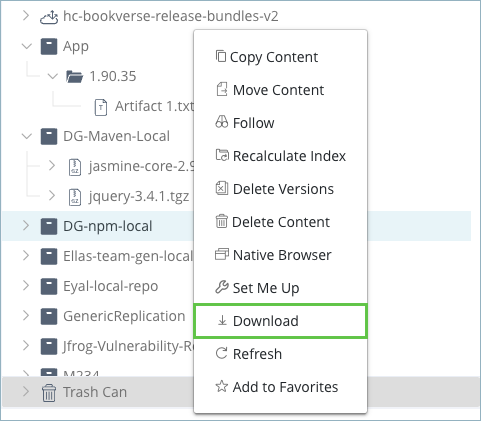
On the Artifacts page, right-click the folder in the browser and select Download.
-
Select the folder from the browser and in the details pane, click Download.
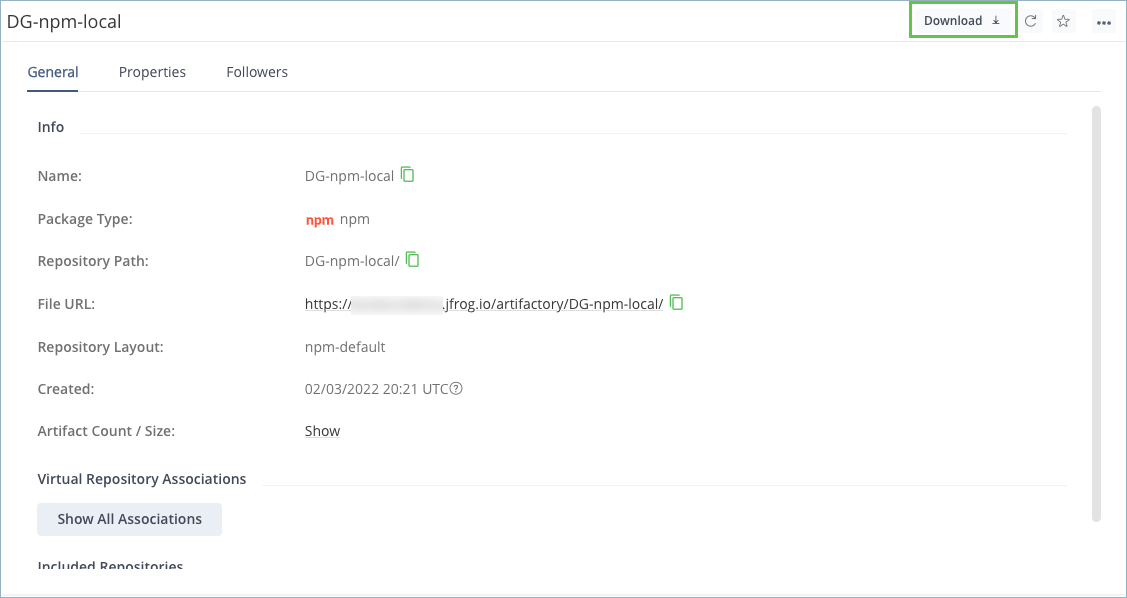
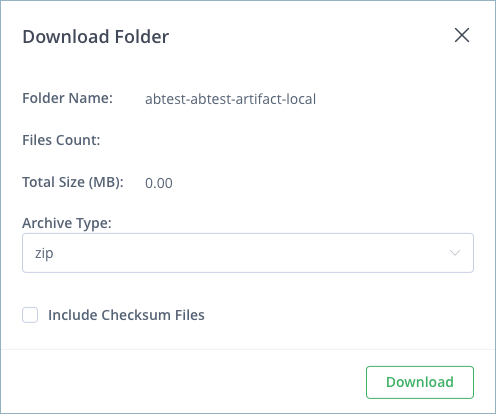
The Download Folder window appears.
-
-
Select an archive type from the list. Supported formats are
zip,tar,tar.gzandtgz. -
Optionally, select the Include Checksum Files checkbox.
In Artifactory, checksum files (
.sha1,.sha256and.md5files) are displayed and are downloadable in the HTML browsing endpoint (for example,http://<ARTIFACTORY>/artifactory/<REPOSITORY_KEY>), depending on one of the below pre-conditions:- The artifact was originally uploaded with its checksum value. For example, if the deploying client provided the
X-Checksum-Sha1header on the request. - The repository Checksum Policy is set to
Trust Server Generated Checksums.
If the latter applies, there is no need to provide the artifact checksums during the upload in order for its checksum files to be visible.
The Download Folder functionality mimics this mechanism, and will write checksum files to the output archive based on the same conditions.
With remote repository caches, there is no distinction for the checksum policy of the repository. Selecting this checkbox will always result in checksum files being added.
- The artifact was originally uploaded with its checksum value. For example, if the deploying client provided the
-
Click Download. The file and its contents are downloaded.
You can also download a folder using the REST API.
Folder Download Configuration
An Artifactory administrator can enable complete folder download in the Administration tab under Artifactory > General > Settings. This configuration applies to all Artifactory users. The following table describes the configuration options for folder download.
| Field | Description |
|---|---|
| Max Size | The maximum size (MB) of artifacts that can be downloaded in a folder download. |
| Max Number of Files | The maximum number of artifacts that may be downloaded from the selected folder and all its sub-folders. |
| Max Parallel Folder Downloads | The maximum number of concurrent folder downloads allowed. |
Blocked Folder Download
When trying to download a folder, if any of the artifacts in that folder are blocked for download, then downloading the folder fails with an HTTP FORBIDDEN (403) error.
Move and Copy Artifacts
You can copy or move artifacts to different repositories. The destination repository must be of the same package type as the item you want to move, or a Generic type. For example, you can only move a Debian artifact to a local Debian repository or a local Generic repository.
Note
Copy operations are executed using Unix conventions. For example, copying
org/jfrog/1from a source repository toorg/jfrog/1in a target repository will result in the contents of the source being copied toorg/jfrog/1/1.To achieve the same path in the target repository, copy the source into one folder up in the hierarchy. In the above example, that would mean copying source
org/jfrog/1into targetorg/jfrog.
Requirements: For move operations, you need DELETE permissions for the source repository and DEPLOY permissions for the target repository.
To move or copy an artifact or folder:
-
On the Artifacts page, right-click the item in the browser.
-
Select Copy Content or Move Content.
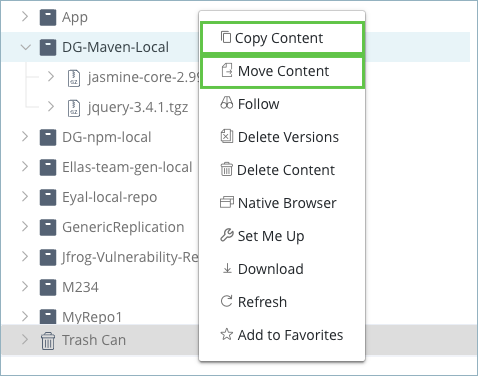
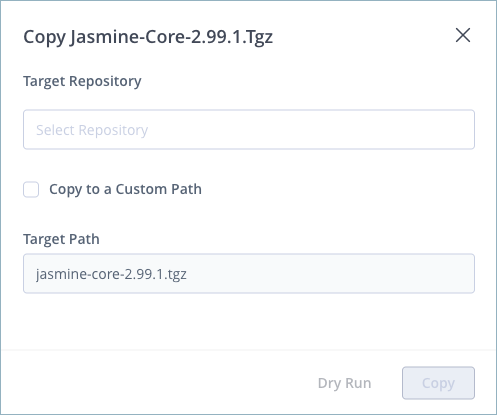
A Move or Copy window appears.
-
Select a destination from the Target Repository list.
The available repositories include local repositories and virtual repositories with a default deployment repository configured. The repositories are either Generic or match the package type of the selected item.
-
Optionally, select the custom path checkbox and enter a location within the target repository in the Target Path field. If you do not enter a target path, the source will be copied into the target repository's root folder.
Warning
If you are copying or moving your source artifacts to a repository with a different layout, specifying a custom path suppresses cross-layout translation. This means that your client may not be able to resolve the artifacts, even in cases of a same-layout operation.
-
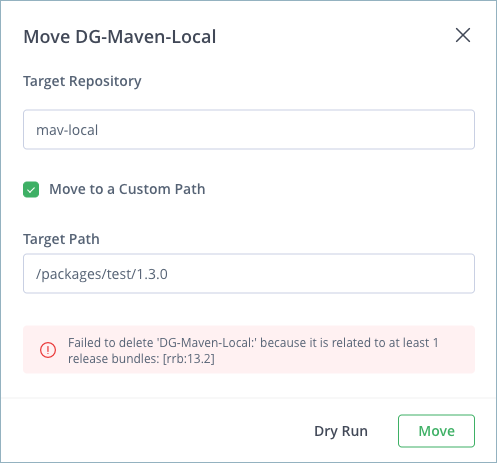
Optionally, click Dry Run to simulate the copy or move operation and check for warnings or errors. For more information, see Dry Run.
-
Click Copy or Move to complete the operation.
All metadata is updated once the operation is completed.
Dry Run
An operation may fail or generate warnings for several reasons. For example, the target repository may not accept all the items due to its own specific policies, or you may not have the required permissions to perform the operation.
Before actually doing an operation, you can check if it will succeed without errors or warnings by clicking Dry Run. JFrog Artifactory runs a simulation of the operation and shows applicable errors or warnings.
Delete a Single Item
You can delete folders and artifacts one at a time on the Artifacts page, either from the repository tree or the artifact details.
To delete a single item:
-
On the Platform module, navigate to Artifactory > Artifacts.
-
Find the item in the browser and do one of the following:
-
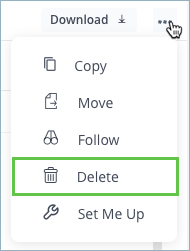
Select the item and from the action menu in the artifact details, select Delete.
-
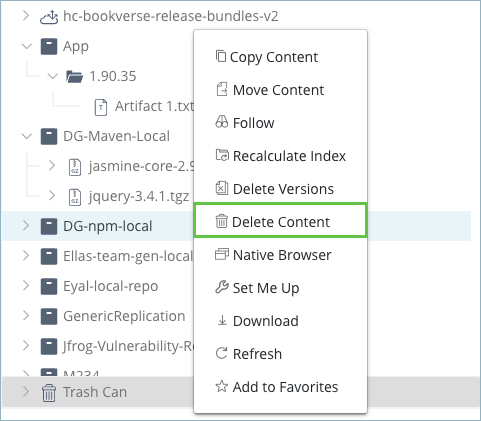
Right-click the item in the repository tree and select Delete.
-
Note
The exact text of the Delete action varies depending on item type. For example, you may see Delete for an individual artifact, or Delete Content for a folder.
The item is deleted, and the corresponding metadata file is updated to reflect the change so the item will not be found in a search.
Delete a Version
A repository may accumulate many artifacts deployed under the same group, or path prefix, and version. This is especially true for snapshot deployments of multi-module projects, where all deployed artifacts use the same version.
Instead of deleting a version by individually deleting its constituent artifacts one by one, you can select one artifact and delete all artifacts with the same version tag in a single click while keeping the corresponding metadata descriptors up to date.
To delete a version:
-
On the Platform module, navigate to Artifactory > Artifacts.
-
Right-click a folder in the browser.
-
Select Delete Versions.
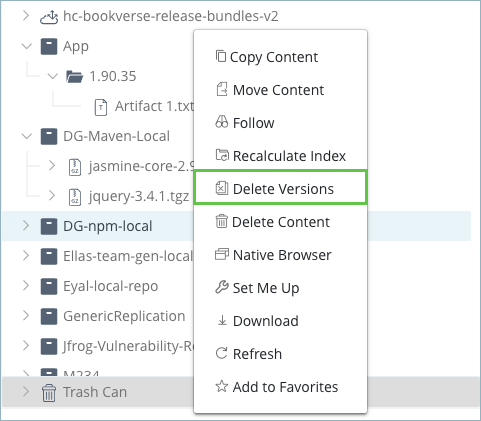
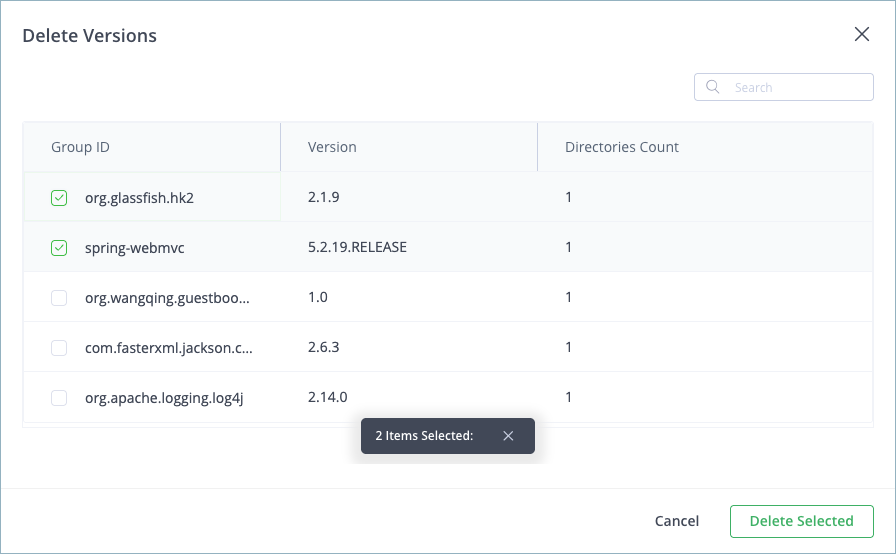
The Delete Versions window appears, showing all groups and versions that can be deleted in the selected folder.
-
Select the versions you want to delete.
Tip
Artifactory displays the different version numbers assigned to the first 1000 artifacts found in the selected level of the repository hierarchy. If you don't see the version number you want to delete, filter the artifacts by Group ID or Version number.
- Click Delete Selected.
Updated 5 months ago