

Agent Plugins Repositories
Configure JFrog Artifactory Agent Plugins repositories to securely store and distribute agent plugins from Artifactory.
Note
Agent Plugins repositories are a beta feature.
Agent Plugins repositories allow you to index, search, and securely store and distribute your organization's plugins. With plugins as a package type in Artifactory, versioning is enforced at the binary level and immutability and provenance are guaranteed. Agent Plugins repositories integrate with Claude for seamless, native plugin installation. Other clients, including Cursor, Codex, and VS Code, are supported by JFrog CLI commands for plugin distribution and management. Agent Plugins in Artifactory also include a combined index file to serve every supported coding agent from the same location.
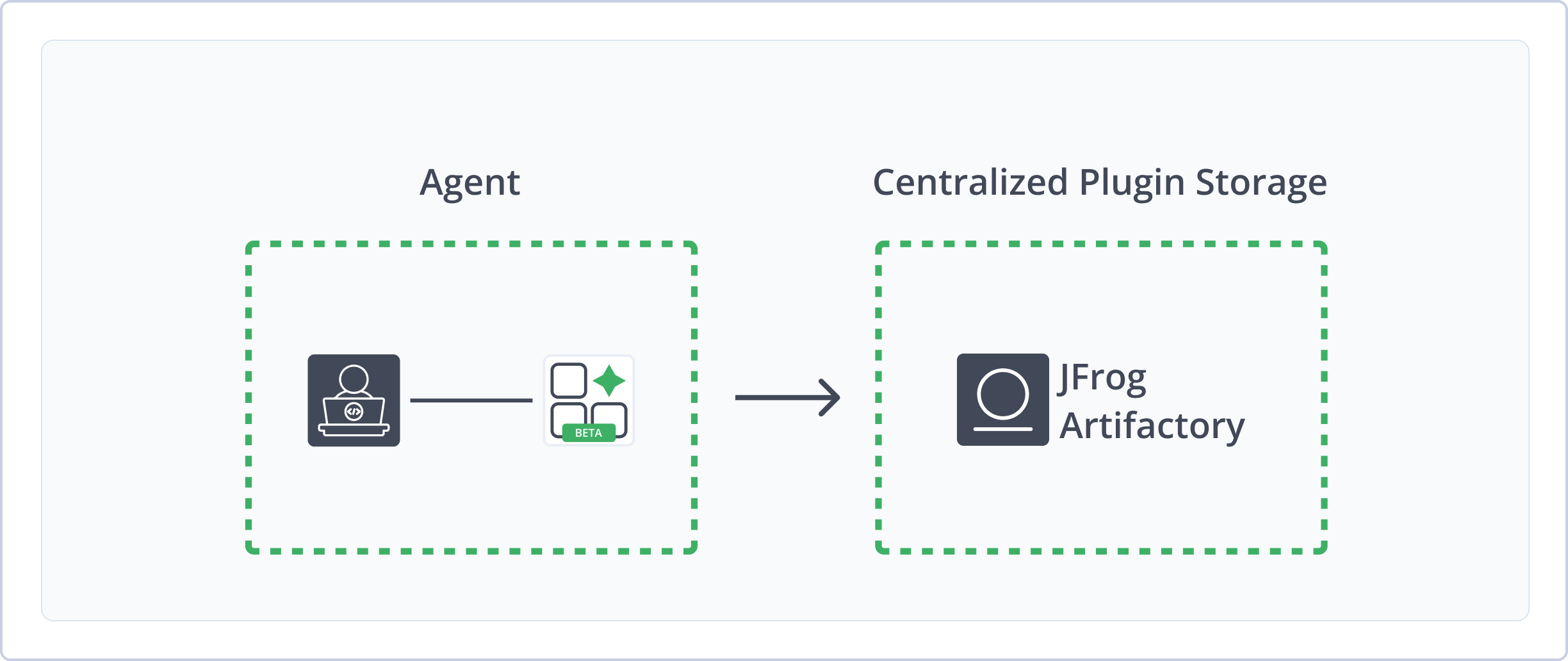
Agent Plugins repositories in Artifactory provide the following capabilities:
- Secure plugin ZIP storage: Use local Agent Plugins repositories in Artifactory to securely store plugin ZIP files, index metadata, and serve both
marketplace.jsonand agent-specific marketplace files. - Multi-harness plugins: Package a single plugin for one agent only, or for multiple agents in one plugin ZIP file using the JFrog CLI.
- Native Claude marketplace integration: Register Artifactory as a plugin marketplace in Claude Code through
claude-marketplace.jsonto download plugins natively. - Broad client support with JFrog CLI: Use the JFrog CLI to deploy multi-harness plugin directories and install plugins for Claude, Cursor, Codex, and VS Code.
Get Started with Agent Plugins
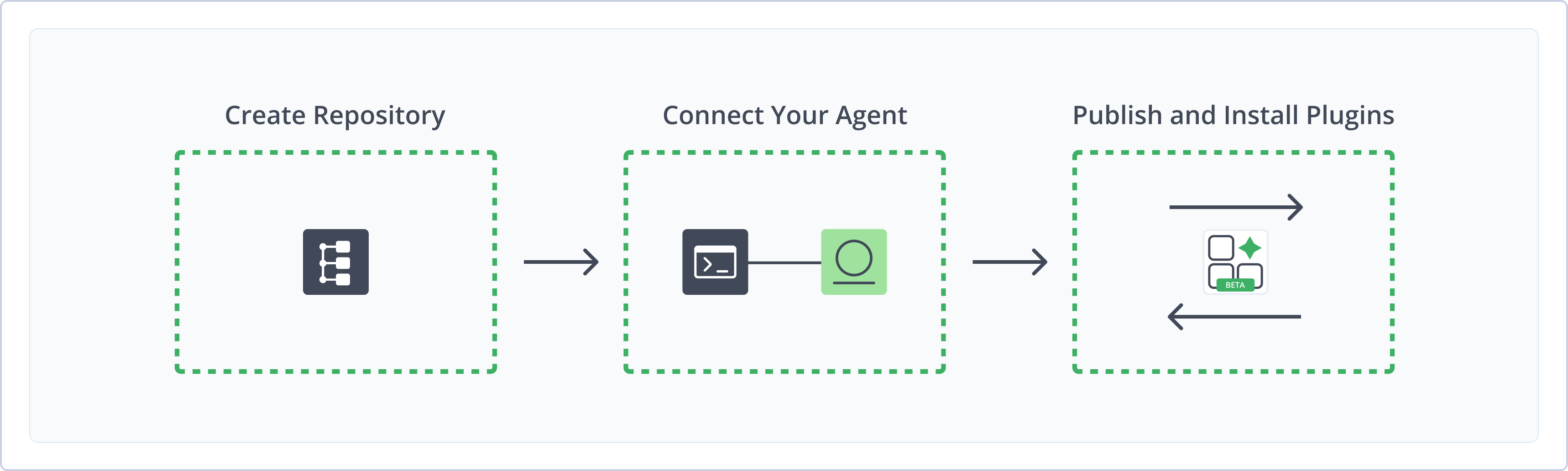
To get started working with Agent Plugins, complete the following main steps:
- Create Agent Plugins Repository
- Connect Your Agent to Artifactory
- Publish Agent Plugins and Install Agent Plugins
Create Agent Plugins Repository
This topic describes how to create an Agent Plugins repository. This is required before publishing plugin ZIP files and serving marketplace indexes.
Agent Plugins local repositories allow you to store and share first- and second-party plugin ZIP files with your organization.
For more information on JFrog repositories, see Repository Management.
Prerequisite: You need Admin or Project Admin permissions in Artifactory to create a repository. If you don't have Admin permissions, the option will not be available.
To create an Agent Plugins repository:
-
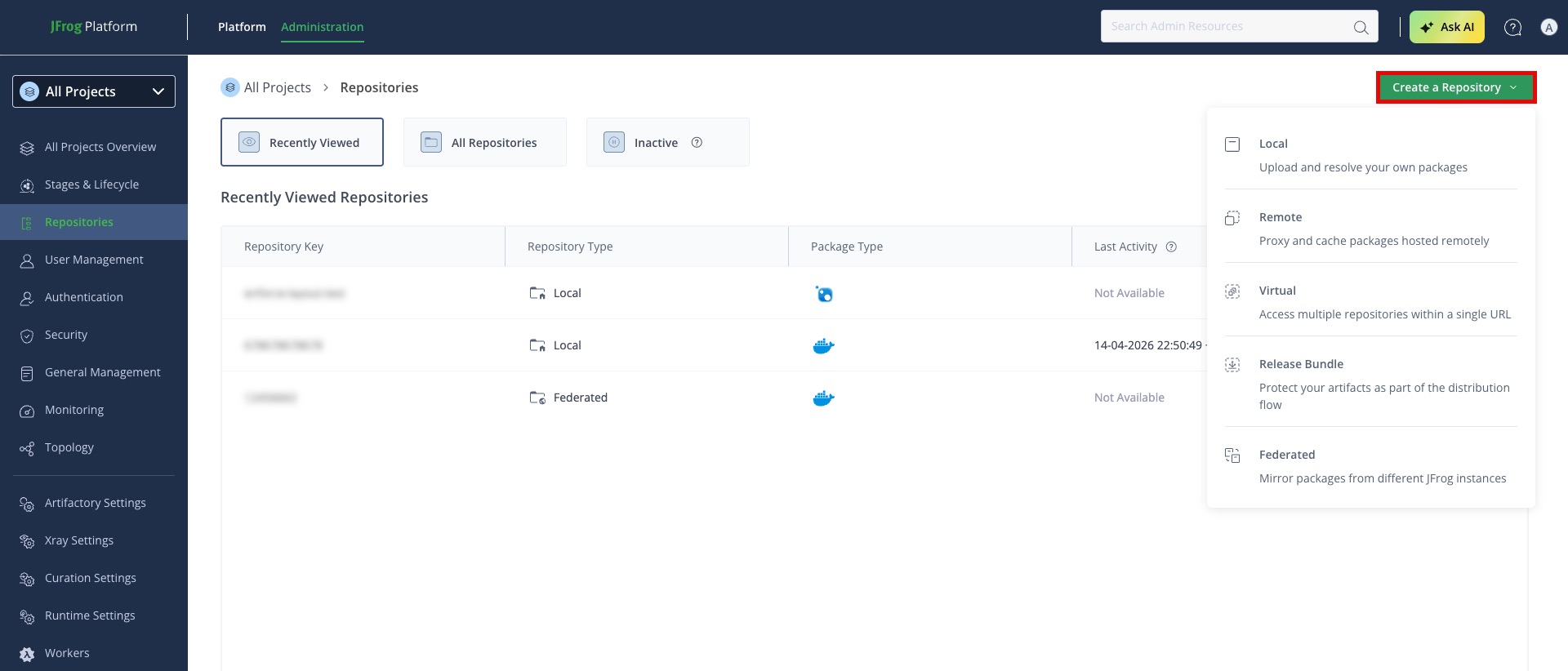
In the Administration tab, click Repositories > Create a Repository.
-
For repository type, select Local.
-
Select the Agent Plugins package type.
-
In the Repository Key field, type a meaningful name for the repository. For example,
agent-plugins-local. For more information on local repositories and their settings, see Local Repositories. -
Click Create Repository. The repository is created and the Repositories page is displayed.
Connect Your Agent to Artifactory
This topic provides details on configuring your agent to treat Artifactory as its plugin marketplace. To get started, see Get Started with Agent Plugins.
Prerequisite: Before connecting clients to Artifactory, you must have an existing Agent Plugins repository. For more information, see Create Agent Plugins Repository.
To connect your agent to Artifactory:
- Configure the JFrog CLI to reference your Artifactory server.
- If using Claude, Connect Claude Code to Artifactory for native plugin installation.
Configure the JFrog CLI
To use Agent Plugins repositories in Artifactory, configure your Artifactory server in the JFrog CLI.
The JFrog CLI is required to publish plugins to Artifactory and to install plugins for agents that do not support native marketplace integration.
Prerequisite: Make sure you have the latest version of the JFrog CLI installed. For more information, see Install JFrog CLI.
To configure the JFrog CLI:
-
Add your Artifactory server. This stores credentials locally so you do not need to pass
--urland--access-tokenon every command:jf config add <SERVER_NAME> \ --url https://<HOST> \ --access-token <TOKEN> \ --interactive=falseWhere:
<SERVER_NAME>: A name for the server configuration<HOST>: Your JFrog Platform hostname, without a trailing slash<TOKEN>: Your Artifactory identity token
For example:
jf config add agent-plugins \ --url https://company.jfrog.io \ --access-token <TOKEN> \ --interactive=false -
Set the server as your default and verify the configuration:
jf config use <SERVER_NAME>
jf config show
For example:
jf config use agent-plugins jf config show -
Set the default Agent Plugins repository for your CLI session:
export JFROG_AGENT_PLUGINS_REPO=<REPO_NAME>Where
<REPO_NAME>is the repository key of your Agent Plugins repository.For example:
export JFROG_AGENT_PLUGINS_REPO=agent-plugins-local
Note
You can also use JFrog Set Me Up to copy the snippet populated with your token and environment. For more information, see Use Artifactory Set Me Up for Configuring Package Manager Clients.
Connect Claude Code to Artifactory
Claude Code supports native installation by connecting to your Artifactory repository as a marketplace. Add your Artifactory host to your .netrc file so the Claude Code CLI can authenticate automatically and support native plugin downloads.
Important
To authenticate successfully, Artifactory usernames must not be email addresses.
To connect Claude Code to Artifactory:
-
Open your
.netrcfile in a text editor. The file location varies by operating system, for example:- Linux and Unix (macOS):
~/.netrc - Windows:
%USERPROFILE%\_netrc
- Linux and Unix (macOS):
-
Add the following snippet to the
.netrcfile:machine <HOST> login <USER> password <TOKEN>Where:
<HOST>: Your JFrog Platform hostname<USER>: Your Artifactory username<TOKEN>: Your Artifactory identity token
For example:
machine company.jfrog.io login jeffry password <TOKEN> -
Save the changes to your
.netrcfile and set the minimum required permissions on the file:chmod 600 ~/.netrcThe file permissions are restricted to your user only.
-
To register add Artifactory as your Claude Code CLI plugins marketplace, do one of the following:
-
Run the following command in the terminal:
claude plugin marketplace add https://<USER>:<PASSWORD>@<HOST>/artifactory/api/agentplugins/<REPO_NAME>/claude-marketplace.jsonWhere:
<USER>: Your Artifactory username
Note
Due to client limitations, usernames cannot contain the
@character. If your Artifactory username is an email address, switch to a username without an@character.<PASSWORD>: Your Artifactory identity token<HOST>: Your JFrog Platform hostname<REPO_NAME>: The repository key of your Agent Plugins repository
For example:
claude plugin marketplace add https://jeffry:<TOKEN>@company.jfrog.io/artifactory/api/agentplugins/agent-plugins-local/claude-marketplace.json -
In Claude Code CLI, navigate to Plugins > Marketplaces > Add marketplace and paste the same URL:
https://<USER>:<PASSWORD>@<HOST>/artifactory/api/agentplugins/<REPO_NAME>/claude-marketplace.json
-
Note
You can also use JFrog Set Me Up to copy the snippet populated with your token and environment. For more information, see Use Artifactory Set Me Up for Configuring Package Manager Clients.
Publish Agent Plugins
Publish a plugin ZIP file into the canonical storage layout so Artifactory can index it. The JFrog CLI is the recommended publish path because it validates multi-harness manifests and builds the ZIP for you.
Plugin ZIP files must follow <name>/<version>/<name>-<version>.zip in the repository, for example, test-plugin/1.1.0/test-plugin-1.1.0.zip. For more information about plugin structure, see Plugin Structure and Layout.
Prerequisite: Configure the JFrog CLI to connect to Artifactory.
To publish a plugin:
-
From the directory that contains your harness folder or folders, run the Agent Plugins publish command:
jf agent plugins publish <PATH_TO_PLUGIN_FOLDER> --repo <REPO_NAME>Where:
<PATH_TO_PLUGIN_FOLDER>: Path to the local directory that contains your plugin harness folder or folders<REPO_NAME>: The name of your Agent Plugins repository
For example:
jf agent plugins publish ~/plugins/my-plugin --repo agent-plugins-localThe plugin ZIP file is uploaded to your Agent Plugins repository.
After a successful upload, Artifactory indexes the plugin ZIP file into every marketplace file that matches the manifests found inside it.
Tip
You can optionally specify a specific version by appending
--versionto the publish command and specifying a SemVer number.
Publish Plugins with Evidence Signing
Evidence signing attaches a cryptographic attestation to the published plugin.
To publish a plugin with evidence signing:
-
Run the following command:
jf agent plugins publish <PATH_TO_PLUGIN_FOLDER> \
--repo <REPO_NAME> \
--version <PLUGIN_VERSION> \
--signing-key <PATH_TO_EVIDENCE_KEY> \
--key-alias <KEY_ALIAS> \
--build-name <BUILD_NAME> \
--build-number <BUILD_NUMBER>
Where:
<PATH_TO_PLUGIN_FOLDER>: Path to the local directory that contains your plugin harness folder or folders<REPO_NAME>: The name of your Agent Plugins repository<PLUGIN_VERSION>: The SemVer plugin version to publish<PATH_TO_EVIDENCE_KEY>: The path to the PGP private key file used to sign the evidence attestation<KEY_ALIAS>: The alias of the signing key<BUILD_NAME>: The build name recorded in Build Info for this publish. Must be passed together with<BUILD_NUMBER>.<BUILD_NUMBER>: The build number recorded in Build Info for this publish. Must be passed together with<BUILD_NAME>.
Note
You can also use JFrog Set Me Up to copy the snippet populated with your token and environment. For more information, see Use Artifactory Set Me Up for Configuring Package Manager Clients.
Considerations for Publishing Plugins
The following requirements and usage notes apply when you deploy Agent Plugins:
- Storage path layout: Plugin ZIP files must follow
<name>/<version>/<name>-<version>.zipin the repository, for example,test-plugin/1.1.0/test-plugin-1.1.0.zip.- Path-driven indexing: Artifactory uses the folder path (
<name>/<version>/) as the plugin name and version, not the values inplugin.json. If the manifest lists different values, the upload may still succeed, but Artifactory uses the folder path for search and marketplace entries. - Upload conflicts: If Artifactory already stores a plugin with the same name and version, the upload succeeds only when you have permission to overwrite existing artifacts. Without overwrite permission, the upload fails.
- Path-driven indexing: Artifactory uses the folder path (
- Source directory layouts: The JFrog CLI accepts a single-harness directory that contains one agent folder (
.claude-plugin/,.cursor-plugin/, or.codex-plugin/) with aplugin.jsonmanifest inside it, or a multi-harness directory that contains two or more agent folders, for example, both.cursor-plugin/and.codex-plugin/. You choose which harnesses to include. Unrelated combinations such as.cursor-plugin/and.codex-plugin/without Claude are valid. - Multi-harness publish behavior: The JFrog CLI uses the first discovered harness
plugin.jsonfor the plugin slug. Before upload, it rewrites the top-levelversionfield in every discovered harness manifest so they match the resolved publish version. The CLI does not reject uploads when harness manifests declare differentnamevalues; Artifactory still indexes by the repository path (<name>/<version>/).
Install Agent Plugins
After you deploy a plugin, Artifactory indexes it into the marketplace JSON files for each harness manifest found in the plugin ZIP file. Install is the step where your agent consumes those indexed plugins. The install flow differs by agent. Use one of the following methods:
Warning
Using both install methods for a single repository may disable previously installed Claude plugins due to conflicts in the marketpace file namespace. For more information, see Agent Plugins Limitations in Artifactory.
Install Plugins in Claude Code
After you register the Artifactory marketplace in Claude, you can install plugins natively in Claude Code. Marketplace entries in claude-marketplace.json use a source type of url that points to the plugin ZIP file, and Claude downloads the plugin ZIP file from that URL.
To install a plugin in Claude Code:
- In Claude Code, run the following command to get the latest plugins from your marketplace:
/reload-plugins - Do one of the following:
- Navigate to
/pluginsand use Discover plugins to search, navigate, and browse for plugins. - Install a specific plugin directly by running the following command:
Where
claude plugin install <PLUGIN_NAME><PLUGIN_NAME>is the name of the plugin.
- Navigate to
Install Plugins with JFrog CLI
You can install plugins with the JFrog CLI from the agent-specific marketplace index. If you have not configured the JFrog CLI, complete Configure the JFrog CLI first.
VS Code support requires JFrog CLI v2.121.0 or later.
To install plugins with JFrog CLI:
-
Run the install command:
jf agent plugins install <PLUGIN_NAME> --repo <REPO_NAME> --harness <HARNESS>Where:
<PLUGIN_NAME>: The plugin name from the manifest.<REPO_NAME>: The repository key of your Agent Plugins repository.<HARNESS>: The name of your harness. Possible values arecursor,codex,claude, orvscode.
For example:
jf agent plugins install my-plugin --repo agent-plugins-local --harness cursor -
Optionally, use the following flags to control the version and install location:
Built-in harnesses (
claude,cursor,codex,vscode) install to global scope only. When you omit both--globaland--project-dir, the CLI defaults to global scope.Flag Purpose Example --versionInstall a specific version, or latestfor the newest version.jf agent plugins install my-plugin --repo agent-plugins-local --harness cursor --version 1.0.0--globalExplicitly install under the harness global directory (same as omitting scope flags for built-in harnesses). jf agent plugins install my-plugin --repo agent-plugins-local --harness cursor --global--pathInstall to a custom directory. Use instead of --harness. Cannot be used with--globalor--project-dir.jf agent plugins install my-plugin --repo agent-plugins-local --path ./plugins --version 1.0.0For Claude and Codex, the CLI also writes a local marketplace manifest and runs native agent CLI registration when
claudeorcodexis onPATH. Cursor and VS Code have no native plugin CLI hook: the CLI copies plugin files to each editor's auto-discovery directory. See Supported Built-in Harnesses for install paths and post-install behavior. -
After install, use the CLI to inspect and maintain plugins (JFrog CLI v2.116.0 or later):
jf agent plugins list --harness cursor --check-updates
jf agent plugins update --slug my-plugin --harness cursor --repo agent-plugins-local
jf agent plugins update --all --harness cursor
update --allupdates only plugins that JFrog CLI installed (those with.jfrog/plugin-info.json). For the full flag reference, see JFrog CLI for Agent Plugins.
Note
You can also use JFrog Set Me Up to copy the snippet populated with your token and environment. For more information, see Use Artifactory Set Me Up for Configuring Package Manager Clients.
Additional Agent Plugins Information
The following additional information is available for Agent Plugins repositories:
Plugin Structure and Layout
Plugin ZIP files must follow the path <name>/<version>/<artifact>.zip. After upload, Artifactory extracts manifest files, sets agentplugins.* properties, and rebuilds marketplace JSON at the repository root.
Artifactory supports the following plugin layouts.
The harness layout is the original JFrog layout for Agent Plugins. The plugin.json manifest lives in a harness-specific directory such as .claude-plugin/, .cursor-plugin/, or .codex-plugin/.
The following example shows the common layout for plugins across harnesses.
my-plugin/
├── <manifest-dir>/           # format .<harness>-plugin/
│   └── plugin.json           # only file allowed inside
├── skills/
│   └── <skill-name>/
│       └── SKILL.md          # YAML frontmatter (name, description) + body
├── commands/                 # markdown command files
├── agents/                   # markdown subagent files
├── hooks/
│   └── hooks.json
├── .mcp.json                 # MCP server config
├── assets/                   # icons, logos, screenshots
└── README.md
Artifactory indexes a harness-layout plugin into each matching harness marketplace file and into the unified marketplace.json. It sets multi-valued agentplugins.type from the harness manifests it finds, using identifiers such as claude, cursor, and codex.
VS Code does not have a specific vscode-marketplace.json for harness-layout plugins, and jf agent plugins install --harness vscode installs from the unified marketplace.json.
The Agent Plugins open standard, also called Agent Plugins 1.0.0, requires a plugin.json file at the plugin root that includes a name and sets $schema to https://agent-plugins.org/schemas/1.0.0/plugin.schema.json.
The smallest useful manifest looks like this:
{
  "$schema": "https://agent-plugins.org/schemas/1.0.0/plugin.schema.json",
  "name": "hello-plugin"
}
The following example shows a standard-layout plugin.
my-plugin/
├── plugin.json
├── skills/
│   └── <skill-name>/
│       └── SKILL.md
└── mcp.json
The Agent Plugins Standard is accepted by VS Code and Cursor. Artifactory discovers the layout from the root plugin.json and indexes the plugin into vscode-marketplace.json, cursor-marketplace.json, and the unified marketplace.json. Artifactory sets multi-valued agentplugins.type to generic, vscode, and cursor.
For more information, see the following:
Marketplace Files and Indexing
Note
Agent Plugins is a beta feature, and
marketplace.jsonstructure may change in the future.
Artifactory maintains the following marketplace index files at the repository root. Each marketplace file lists the latest version of a plugin only. Older versions are stored in the repository but are not included in the index.
| File | Contents | Plugin source type |
|---|---|---|
marketplace.json | All plugins, regardless of agent | zip |
claude-marketplace.json | Plugins with a .claude-plugin/plugin.json manifest | url |
cursor-marketplace.json | Plugins with a .cursor-plugin/plugin.json manifest or a conforming root plugin.json | zip |
codex-marketplace.json | Plugins with a .codex-plugin/plugin.json manifest | zip |
vscode-marketplace.json | Plugins with a conforming root plugin.json manifest, for Agent Plugins Standard only | zip |
Indexing depends on which layout Artifactory finds in the plugin ZIP file:
- Harness layout: Artifactory indexes each harness
plugin.jsoninto the matching harness marketplace file and intomarketplace.json. For example, a plugin uploaded with only.claude-plugin/plugin.jsonappears inclaude-marketplace.jsonandmarketplace.json. Harness layout VS Code plugins are installed from the unifiedmarketplace.json. - Agent Plugins standard layout: A root
plugin.jsonthat conforms to the Agent Plugins standard adds the plugin tovscode-marketplace.json,cursor-marketplace.json, andmarketplace.json. - Both layouts in one ZIP file: If a plugin ZIP file contains a conforming root
plugin.jsonand one or more harness manifests, Artifactory indexes the plugin into every marketplace file that matches any of those manifests, includingvscode-marketplace.json. If the ZIP already contains.cursor-plugin/plugin.json, that harness manifest is used forcursor-marketplace.json.
Harness-layout plugins and standard-layout plugins can share the same repository. The unified marketplace.json contains one entry per plugin name, using the latest semver version published in the repository regardless of which layout that version uses. For example, if claude-marketplace.json lists plugin at 1.0.0 and a later upload adds plugin at 2.0.0 with a root plugin.json or only a .cursor-plugin/plugin.json manifest, then cursor-marketplace.json and the unified marketplace.json both list plugin at 2.0.0. A spec-compliant root plugin.json at 2.0.0 also appears in vscode-marketplace.json.
Agent Plugins Limitations in Artifactory
The following are the limitations of Agent Plugins in Artifactory:
- Local repositories only: Agent Plugins repositories support local repositories only. Remote repository proxying of plugin ZIP files is not supported.
- Artifactory username format: To authenticate successfully through Claude Code, Artifactory usernames must not be email addresses.
- Native marketplace registration: Claude Code supports native marketplace registration through
claude-marketplace.json. Cursor, Codex, and VS Code do not yet support an equivalent native marketplace connection. Install those harnesses withjf agent plugins install --harness. A feature request for adding from HTTP URLs has been logged on the Cursor forum. - Multi-harness publish behavior: The JFrog CLI takes the plugin slug from the first discovered harness
plugin.jsonand rewrites harness manifestversionfields to the resolved publish version. It does not reject mismatchednamevalues across harness manifests. - Path-driven indexing: Artifactory uses the folder path (
<name>/<version>/) as the plugin name and version, not the values inplugin.json. If the manifest lists different values, the upload may still succeed, but Artifactory uses the folder path for search and marketplace entries. - Duplicate plugin versions: Uploading another plugin ZIP file with the same name and version succeeds only when you have permission to overwrite the existing artifact.
- No package version index file: Agent Plugins repositories do not currently expose a package version index file that lists every published version of a plugin. Marketplace index files list only the latest version per plugin name. To discover or query all versions of a plugin, use OneModel.
- Claude marketplace name conflicts: To avoid marketplace namespace conflicts, use only one install method per repository for Claude plugins or verify that marketplace file namespaces are unique. Claude plugins install under
~/.claude/plugins/cache/<MARKETPLACE_NAME>/, where the marketplace name is typically the Artifactory repository key. If you install plugins natively with Claude Code and then later usejf agent plugins install, the JFrog CLI overwrites the existing cache path. The overwrite disables previously installed plugins.
Related Topics
Updated about 2 months ago