

Federated Repositories
Note
This feature is supported with Enterprise X and Enterprise+ licenses with Artifactory versions 7.18.3 or later.
Working with Federated Repositories
Federated repositories enable enterprises that operate across multiple sites to maintain a single source of truth for their binaries. A Federated repository functions similarly to a local repository on the local JPD but is grouped logically with other Federated members located on remote JPDs to create a Federation. Artifacts and metadata in one JFrog Platform Deployment (JPD) are mirrored to the Federated repositories in the remote JPDs that together comprise the Federation. Changes made to an artifact on one Federation member are replicated asynchronously to the other members.
Once you have created a Federation, changes made to artifacts on one member of the Federation will be replicated asynchronously to the other Federated members. The Federated repository configuration is also aligned across all members of the Federation.
For example, if Federated repository A in "JPD A" and Federated repository B in "JPD B" are members of the same Federation, deploying a file to Federated Repository A in "JPD A", will trigger a copy of the file action to the Federated Repository B in "JPD B".
Similarly, deploying a file to Federated Repository B in "JPD B", will trigger a copy of the file action to the Federated Repository A in "JPD A". The configuration changes are also synchronized based on the latest update (e.g. latest update to the configuration is propagated to all members of the Federation).
Important
A file that is replicated from one Federation member (the source) to a different Federation member (the target) cannot be downloaded by users from the target member until it receives the metadata.
The arrival of the metadata can be verified by seeing the file displayed in the tree browser or the database of the target member.
Starting from version 7.74, Cloud customers can confirm the file's arrival by looking for the following log message:
"Finished the handle mirror event for repo <repo_key> and message: <message>"
Use Cases
Federated repositories provide Enterprise organizations divided across multiple geographical sites with a single source of truth for their binaries as if they were one seamless unit. They support the following use cases:
- Distributed development teams
- Remote production environment
- Increased artifact availability in a multi-site environment
Defining Characteristics
Federated repositories have the following characteristics:
- Federated repositories use a persistent queue to ensure that events are maintained even in the event of a system failure or restart.
- Metadata events are updated asynchronously among Federated repositories. However, because of the persistent queue, the repository Federation mechanism ensures that all events will be synchronized among all Federation members. For example, an event might not be sent immediately to a different Federation member due to a server failure or network delays, but the system ensures that the event will be sent eventually.
- There is no dependency among Federation members, nor is there member priority when synchronizing the metadata. This means that a member which is slow to respond or experiencing heavy traffic will not impact the other members.
- When the same file is sent from two locations simultaneously, conflict resolution is performed based on timestamps where the last event received overrides previous events. This is why clock synchronization is critical to the proper functioning of the Federation (see Setup Prerequisites for Federated Repositories).
Synchronized Metadata
Federated repositories synchronize the following metadata among members:
Folders | Files |
|---|---|
|
|
Note
Synchronization of the metadata that was introduced as part of the 7.90.1 release (
uploadedBy,lastFileModified,deploymentDate) is controlled by the system property,artifactory.federated.mirror.events.upload.info.propagate.enabled. By default, this flag is set tofalse. Set this flag totrueon both the source and target JPDs to synchronize this metadata to other members.
Settings that are not Synchronized
The following repository configuration settings are not synchronized among Federation members:
- proxy
- maxNumberOfThreads
- modificationDate
- blackedOut
- repoLayout
- key
- primaryKeyPairDescriptor
- secondaryKeyPairDescriptor
- xrayConfig
- cdnRedirectConfig
- propertySets
- cdnRedirectRepo
- downloadRedirect
For more information about these settings, see Repository Configuration JSON.
Federated Topology
Federated repositories employ a topology with two separate but integrated mechanisms, whereby artifact metadata is replicated continuously but separately from the binary content. This is done to enable fast synchronization of the metadata, which is replicated rapidly in bulk, while the binary content is brought asynchronously using a separate mechanism based on workers. Priority can always be given to specific binaries on user demand as required.
Having the metadata replicated quickly is critical because file properties cannot be uploaded before the file itself is uploaded. This is especially true when working with Docker manifests, which cannot be uploaded before the layers listed in the manifest are uploaded.
Dividing the federation of the metadata and the binaries into two separate mechanisms also provides a solution with excellent scalability.
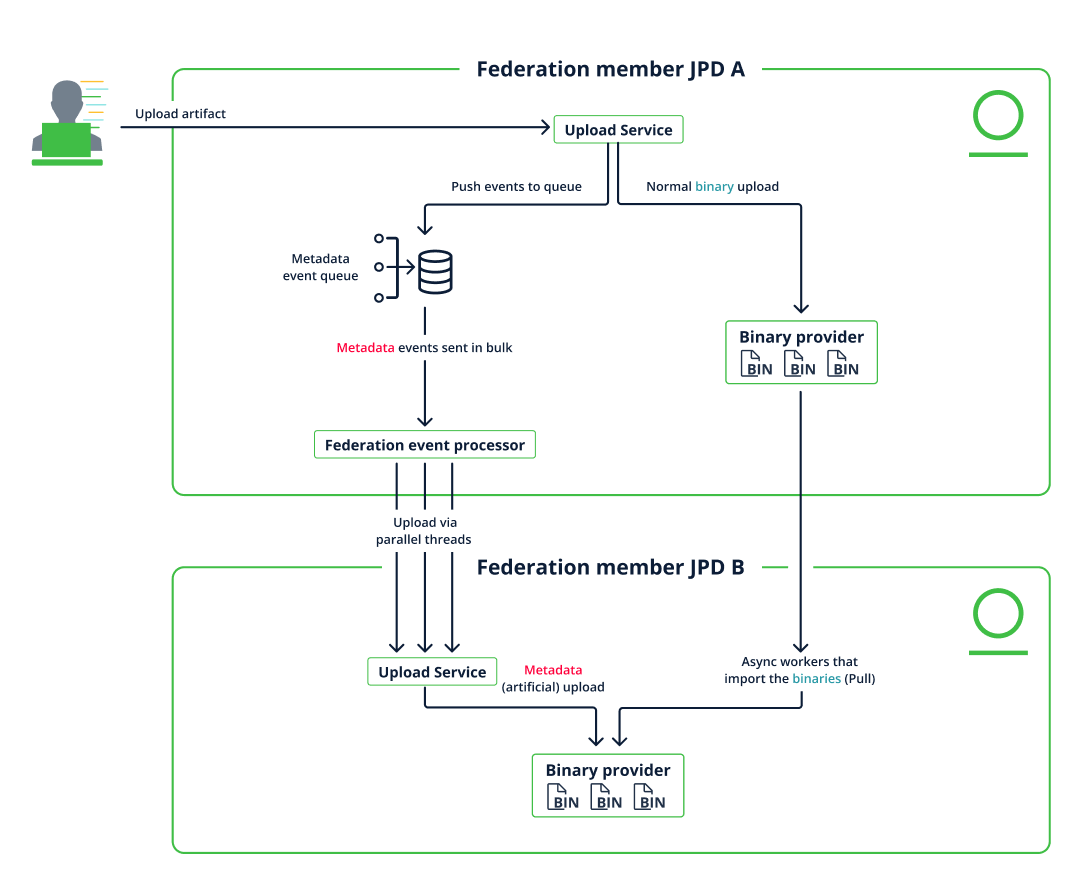
Artifactory Federation Service
To meet the growing needs of customers, JFrog released the standalone Artifactory Federation Service in Q3 2024 for customers in Cloud environments (support for Self-hosted environments was introduced in January 2025) to ensure the timely synchronization of huge volumes of artifact metadata between customer sites.
Customer Benefits
The Artifactory Federation Service offers multiple benefits, including:
- Scalability: The service is designed from the ground up to grow as the needs of our customers grow.
- Resource separation: Federated repositories employ a topology with two separate but integrated mechanisms, whereby artifact metadata is replicated continuously but separately from the binary content. This enables fast synchronization of the metadata, which is replicated rapidly in bulk, while the binary content is brought asynchronously using a separate mechanism based on workers. Separate mechanisms also enable checksum validation on binaries before they are synchronized, which reduces traffic costs by preventing the copying of files that already exist on the target.
- Federation monitoring: A new dashboard enables administrators to quickly understand the health of their organization's repository Federations at a glance. For more information, see Monitor Federated Repositories using the Dashboard.
- Prioritization: Users can assign high priority to a limited number of repositories to ensure they receive priority access to system resources. For more information, see View the Status of All Repository Federations.
- Automatic Federation recovery: The service features an auto-healing mechanism that can identify synchronization problems between members due to an exhausted queue (a queue that has exceeded the maximum number of attempts to send metadata events to other members), reset the failed events, and retry synchronization. This capability is particularly useful in the event a Full Sync operation is interrupted by a restart of one of the Artifactory instances that host a Federation member.
Migrate to the Artifactory Federation Service
Important
Migration to the Artifactory Federation Service (RTFS) is supported for self-hosted environments.
Certificate handling depends on your Artifactory version:
- Artifactory versions earlier than 7.133.x require certificates signed by a trusted CA.
- Artifactory 7.133.x and later support self-signed certificates and certificates signed by a custom CA.
Self-hosted customers can use the JFrog CLI to migrate their repository Federations (including configuration, states, and events) from the legacy Federation service in Artifactory to the standalone Artifactory Federation Service (RTFS) that was introduced in release 7.104.5. This topic also describes how to return (rollback) to the legacy service, if required.
Prerequisite
You must activate the Artifactory Federation Service before performing migration. For more information, see Install the Artifactory Federation Service.
Full Sync and migration
It is imperative that no Full Sync operations are running during the migration. Verify that none are in progress before you start, and do not start Full Sync until migration has finished and you have confirmed success.
Use the Get Federation Sync State REST API to check for running Full Sync operations. For example:
jf rt curl api/federation/state | jq '.[] | select(.status == "FULL_SYNC_RUNNING")'
Large environments and behavior during migration
Use the following guidance when planning migration for large federated footprints (for example, very many federated repositories and a high artifact count or total binary volume).
- Federation during migration: Federation continues to work while migration runs; Artifactory does not fully move processing to RTFS until migration completes. Routine artifact uploads and downloads can continue, but avoid unusually heavy load for the duration of the migration (for example, Full Sync, or very large bulk upload bursts).
- Mixed Legacy Federation and RTFS across JPDs: You can run a topology where one instance or site uses Legacy Federation (for example, Artifactory 7.104.x) and another uses RTFS (for example, 7.133.x). This is consistent with hybrid coexistence during transition, as described under Migration Support in the Legacy Federation sunset timeline in this topic.
- How long migration takes: JFrog does not publish a fixed duration. Actual time depends on factors such as queued federation events and configuration size, not only the number of federated repositories or total artifact storage. For very large environments, plan the window with JFrog Support.
- Kubernetes CPU and memory: Increasing pod-level CPU or memory for Artifactory or RTFS is not generally required solely as a precaution for migration; use sizing that matches your normal production load.
Large-Scale Migration Considerations
The following guidance applies to larger environments (for example, thousands of Federated repositories and tens of millions of artifacts):
- No special migration limit is currently defined for repository count or total artifact volume. The migration focuses on Federation metadata, states, and events rather than moving binary data payloads.
- Do not run Full Sync during migration. Running Full Sync during migration can interfere with migration flow and should be avoided.
- Avoid heavy Federation operations during migration. Artifactory remains available, but it is recommended to avoid high-volume uploads and other heavy Federation tasks until migration completes.
- Hybrid operation is supported during transition. It is valid to have one site on legacy Federation (for example, 7.104.12) and another on RTFS-based Federation (for example, 7.133.12) while migrating.
- Migration duration is environment-dependent. There is no universal ETA; duration depends on topology, current lag, network behavior, and queued events.
- No proactive pod resource increase is usually required. In most cases, existing Artifactory and RTFS sizing is sufficient. Scale resources only if monitoring indicates sustained pressure or backlog growth.
It is imperative to ensure that no Full Sync operations are running when migration begins.
Install the Plugin
Run the following command to install the migration plugin from the official registry of JFrog CLI plugins:
jf plugin install federation-migrator
This command installs the plugin and the jar of the migration tool, which performs all required operations with one command.
Note
If a previous installation of the plugin exists, we recommend that you remove or uninstall it before running the plugin installer. On rare occasions, the previous installation can cause the plugin installer to fail.
Migration Procedure
Run the following command to execute the migration to the standalone Federation service:
jf federation-migrator migrate_rtfs <base url without /artifactory> <scoped token>
Region command options
Option | Type | Description |
|---|---|---|
| boolean | Forces migration without properly processing all queued events. The default value is |
| boolean | Enables parallel mode for faster queue migration. The default value is |
| integer | Sets the batch size for RTFS import operations. The default value is
|
| boolean | Enables a more robust migration for repositories that were not processed during previous runs due to unexpected errors. The default value is
|
| boolean | Uses the legacy context path for RTFS, including the '/artifactory/service' prefix. The default value is
|
HTTP client command options
Option | Type | Description |
|---|---|---|
| integer | Socket timeout in milliseconds. The default is |
| integer | Maximum total HTTP client connections. The default is |
| integer | Maximum HTTP client connections per route. The default is |
| integer | HTTP client connection pool TTL in seconds. The default is |
| integer | HTTP client retry count. The default is |
| boolean | Enables verbose HTTP client mode. The default is |
Executor command options
Options | Type | Description |
|---|---|---|
| integer | Executor timeout in minutes. The default is |
| integer | Number of executor threads. The default value is |
Note
- The operation can take anywhere from a few seconds to several minutes to complete. You do not need to restart Artifactory after performing the migration.
- For details about generating a scoped access token, see Generate Scoped Tokens.
Verify Migration Status
Perform the following steps to verify that the migration has succeeded:
-
Execute the following API:
curl -X GET -uadmin:password "http://{{artifactory_url}}/artifactory/api/federation/migration/status"If the service has been enabled, this API will return the status of the migration:
MIGRATION_STARTED
MIGRATING_EVENTS_TO_RTFS
MIGRATION_COMPLETED
COMPLETED_WITH_ERRORS
If the service has not been enabled, this API returns:
Status not configured -
Execute the following API to verify that migration has completed:
curl -X GET -uadmin:password "http://{{platform_url}}/artifactory/api/federation/rtfs"The API will return
trueif migration has completed successfully. -
The new Federation monitoring dashboard should be available in the platform UI. In the Administration module, go to Monitoring > Federation. For more information, see View the Status of All Repository Federations.
Rollback Procedure
Run the following command to return to the legacy Federation service:
jf federation-migrator migrate_rt <base url without /artifactory> <access token>
The rollback command features the same command options as the migration command. For more information, see Migration Procedure.
The migrate_rt command supports the same options as the migration command.
The migration process is designed to prevent inconsistent or "stuck" states. In the rare event that the migration process does not complete as expected, please contact JFrog Support..
Note
The operation can take anywhere from a few seconds to several minutes to complete. You do not need to restart Artifactory after returning to the legacy Federation service.
Tip
For additional information, add
--helpafter each command:
jf federation-migrator --helpjf federation-migrator migrate_rtfs --helpjf federation-migrator migrate_rt --help
Federation over Secure Private Link (Bridge)
You can now configure Repository Federation between SaaS and self-managed environments using JFrog Bridge, without VPN or public exposure. For setup instructions, see Federated Repositories with JFrog Bridge.
Timeline for the Sunset of JFrog Legacy Repository FederationWe are providing advance notice of the planned retirement timeline for Legacy Repository Federation in Self-Hosted environments.
TimelineJanuary 2026 – Announcement Phase
Sunset plan communicated to customers.Now through Mid-2027 – Migration Window (18 Months)
Customers are encouraged to begin transitioning to RTFS.July 2027 – Removal from New Releases
Legacy Federation will no longer be included in newly released Self-Hosted versions.
Previously released versions remain supported according to JFrog standard support policies.
Important Information
Database RequirementsRTFS requires a PostgreSQL database connection. This applies only to the RTFS service itself.
Your main Artifactory installation remains unaffected and continues to support all supported databases.
Implementation Options
If your Artifactory already uses PostgreSQL, you may use the same instance.
If using a different database, you only need a separate PostgreSQL instance for RTFS. There is no need to migrate your entire Artifactory installation.
Why This Change?RTFS represents the next generation of repository federation with:
Standalone microservice architecture that reduces impact on Artifactory
All new federation features (including Unidirectional Sync) developed exclusively for RTFS
Default federation service for JFrog SaaS customers
Proven stability and performance validated by enterprise customers
Migration SupportThe migration from Legacy Federation to RTFS is designed to be seamless:
Automatic migration tools ensure configuration and data integrity
No downtime required
Hybrid mode supported (Legacy and RTFS can coexist during transition)
You do not need to migrate all sites simultaneously
Full rollback capabilities during the transition window
Note: This sunset applies to Self-Hosted environments only.
For detailed information about RTFS features, migration procedures, and FAQs, please refer to the Artifactory Federation Service documentation.
Setup Prerequisites for Federated Repositories
Setup prerequisites for Federated repositories include:
- Artifactory Versions Must be Identical (prior to 7.49.6)
- JFrog Platform Deployment (JPD) clocks must be synchronized
- Configure a Custom Base URL
- Establish Trust between the JPDs
- Oracle RAC Support
Artifactory Versions Must be Identical (prior to 7.49.6)
When using a version of Artifactory older than 7.49.6, you must verify that the same Artifactory version is installed in all the Artifactory instances hosting the members to be included in the Federation.
After all instances have been upgraded to Artifactory release 7.49.6, Artifactory includes multi-version support, which enables the members of a Federation to run different versions of Artifactory, even if the version at one site includes configuration features and values that are not supported on the versions running at other sites. Thanks to multi-version support, future upgrades after 7.49.6 can be performed on one site at a time, eliminating the need for simultaneous upgrades across all locations.
For more information, see Multi-Version Support.
JFrog Platform Deployment (JPD) Clocks Must be Synchronized
If the federated repository artifacts are simultaneously updated on two (or more) member federated repositories, the update that is registered last will overwrite the other update(s). Therefore, to ensure consistent, predictable and trackable behavior of the system as a whole, the server clocks of all the machines running Federated members must be synchronized.
Configure Custom Base URL
Configure the Custom Base URL in the Administration module, under General | Settings. The Base URL supports detecting member JFrog Deployments (JPDs) in your organization.
Applies to Self-Hosted Deployment
The Custom Base URL is relevant to Self-Hosted deployments and not applicable in SaaS.
Changing the BaseURL in a Federated Repository Environment
In versions prior to Artifactory 7.55.1, you cannot modify the Base URL if you have Federated repositories set up with remote mirroring. Therefore, you will first need to remove the remote members from the Federation and click Save. This limitation no longer applies in versions 7.55.1 and above. For more information, see Change the Base URL in Federated Repositories.
After changing the base URL, proceed to set up the Federated repositories with the original Federated members. For all the remote members to be populated with new settings, it is recommended to wait for a short period of time between removing the remote members and changing the base URL.
Establish Trust Between the JPDs
You will need to establish trust between the JPDs in your Federated repository. The options for enabling trust depend on whether you have a Cloud or a Self-hosted deployment.
Cloud Customers
JFrog Enterprise/ Enterprise+ SaaS customers:
- Set up a binding token to create bi-directional trust between the JPDs.
Self-Hosted Customers
Choose from one of the following options:
- Set up bindings between relevant JPDs: Using binding tokens enables admins to create trust between managed JFrog Platform Deployments (JPDs) once the JPDs have been added to the Mission Control instance, thus simplifying the setup across JPDs.
- Enable a Circle of Trust: This option is intended for customers who are interested in providing full access to the other JPDs, access which is granted automatically once the Circle of Trust is implemented.
Note
Federated repositories that use binding tokens (i.e., no Circle of Trust) require an enabled Mission Control microservice in their Artifactory since the token is created by Mission Control.
Oracle RAC Support
Note
This section is relevant for customers in Self-Hosted environments running Artifactory release 7.71.16 and later or 7.77.8 or later.
Customers who use Oracle Real Application Clusters (RAC) must configure the following Artifactory system property to support Federated repositories:
artifactory.oracle.node.events.sequence.is.no.cache
Setting this property to true enables a converter that fixes the Oracle node events sequence definition for RAC instances.
Federated Repository Best Practices
Manual Migrations and Full Sync Federated repositories rely on event-based synchronization. If a manual migration process is executed (e.g., moving data at the storage level or using methods not performed through Artifactory APIs), the necessary synchronization events will not be triggered.
Requirement: In such cases, you must execute a Full Sync on the impacted federated repositories once the migration is completed to ensure all members are consistent.
Setting up Federated repositories on JPDs in a multisite environment impacts your organization's network, servers, and databases. It takes careful consideration and planning to configure a Federation that makes efficient use of available resources and provides timely and accurate synchronization across all Federation members.
This is why JFrog recommends building your repository Federations in stages, with thorough evaluations conducted at each stage to verify your infrastructure is configured properly to handle the demands of running repository Federations.
JFrog recommends the following best practices when configuring your JPD for repository Federations:
-
Persisted queue age
This setting determines the amount of time that events remain in the queue before they are purged. The default value is 3 days. This means that if there is a disconnection between two Federation members that lasts longer than 3 days, the older events are purged and can no longer be synchronized. You need to perform a Full Sync operation to re-establish the Federation, which can take a long time to perform.
If you increase this value to more than 3 days, it can greatly increase the size of your database table, which in turn increases costs and affects performance (depending on the number of events generated by each site).
This setting is configured per JPD using the property:
artifactory.events.log.cleanup.age.of.entries.to.discard.daysIt should be set to the same value for each Federation member.
-
Number of metadata workers
Artifactory uses an internal mechanism (referred to here as a 'worker') to send metadata events in bulk via parallel threads from the source JPD to other Federation members. Each thread is managed by a worker. Each thread can handle the events for one Federated repository at a time. The default value is calculated based on the number of cores in the CPU.
In terms of the Federation, the number of threads required is dependent on the number of repositories that are updated at the same time and the frequency of those updates. If many repositories are updated frequently and at the same time, more threads might be required. A sufficiently powerful server (for example, 64-core) should provide sufficient power to manage 20-40 threads.
To configure the number of metadata workers, set the following property in the
artifactory.system.propertiesfile (a restart is required):artifactory.persistentQueue.trigger.number.of.threadsFor more information, see Artifactory System Properties.
-
Number of binary import workers
Artifactory uses an internal mechanism (referred to here as a 'worker') to import binary events from the source JPD to the target Federation members. The default value is 6.
In terms of the Federation, the number of workers required is dependent on the number of binaries the Federation is expected to handle, their relative size, and the capacity of your network. You need to find the correct balance between the amount of network bandwidth dedicated to importing binaries and the time it will take to import them.
To configure the number of binary import workers, set the following property in
binarystore.xml(under the Federated provider section):numberOfRemoteImporters
Note
For more information about
binarystore.xml, see Binary Provider under Filestore Confguration.For the Federated Binary Provider on self-managed installations, see Federated Binary Provider.
-
Number of thread executors
Thread executors (also known as pools), which are located in the target Federation member, enable the metadata events sent from the source Federation member to be uploaded in parallel while maintaining the correct order of the files.
Important
The number of thread executors should always be equal to or greater than the number of metadata workers, otherwise a bottleneck will result.
To configure the number of thread executors, set the property:
artifactory.federated.mirror.events.bulk.max.pools
For more information, see Configure Federated Repositories for Bulk Mirroring and Parallel Processing.
Tip
In addition to increasing the number of metadata workers and thread executors, you may need to increase the following timeout thresholds above their default values (2 min.) if you expect your Federations to carry heavy loads:
artifactory.federated.mirror.events.bulk.executor.poll.timeout.minutesartifactory.federated.mirror.events.bulk.fullSync.executor.wait.timeout.minutesIncrease these values in proportion to the maximum expected load. For more information about these settings, see Configure Federated Repositories for Bulk Mirroring and Parallel Processing.
-
Number of threads for each executor
This setting determines how many metadata events for a particular repository can be processed in parallel while preserving the correct order (for example, for Docker events this means uploading all layouts followed by all manifests). This number can be increased by adding threads to each thread executor. The default value is 4.
To configure the number of threads for each executor, set the property:
artifactory.federated.mirror.events.bulk.threadsPerPoolFor more information, see Configure Federated Repositories for Bulk Mirroring and Parallel Processing.
-
Network infrastructure
The capabilities of your organization's network are of paramount importance to the optimal functioning of your Federation. The stronger the network connections between the members and the greater the bandwidth, the better the Federation will be able to avoid latency when sending metadata events and binaries from site to site.
Set Up a Federated Repository
Important
Verify that you have met all setup prerequisites before proceeding. Self-hosted customers must configure a Custom Base URL. For more information, see Setup Prerequisites for Federated Repositories.
Important
Only Platform Administrators can set up a Federated repository and add members to the Federation.
Setting up a Federated repository is similar to setting up a local repository with the additional step of choosing the repositories on other JPDs that are part of the same Federation. As an alternative to the following procedure you can use APIs.
Important
Verify that you have met all setup prerequisites before proceeding. Self-hosted customers must configure a Custom Base URL. For more information, see Setup Prerequisites for Federated Repositories.
To set up a Federated repository:
-
From the Administration module, select Repositories.
-
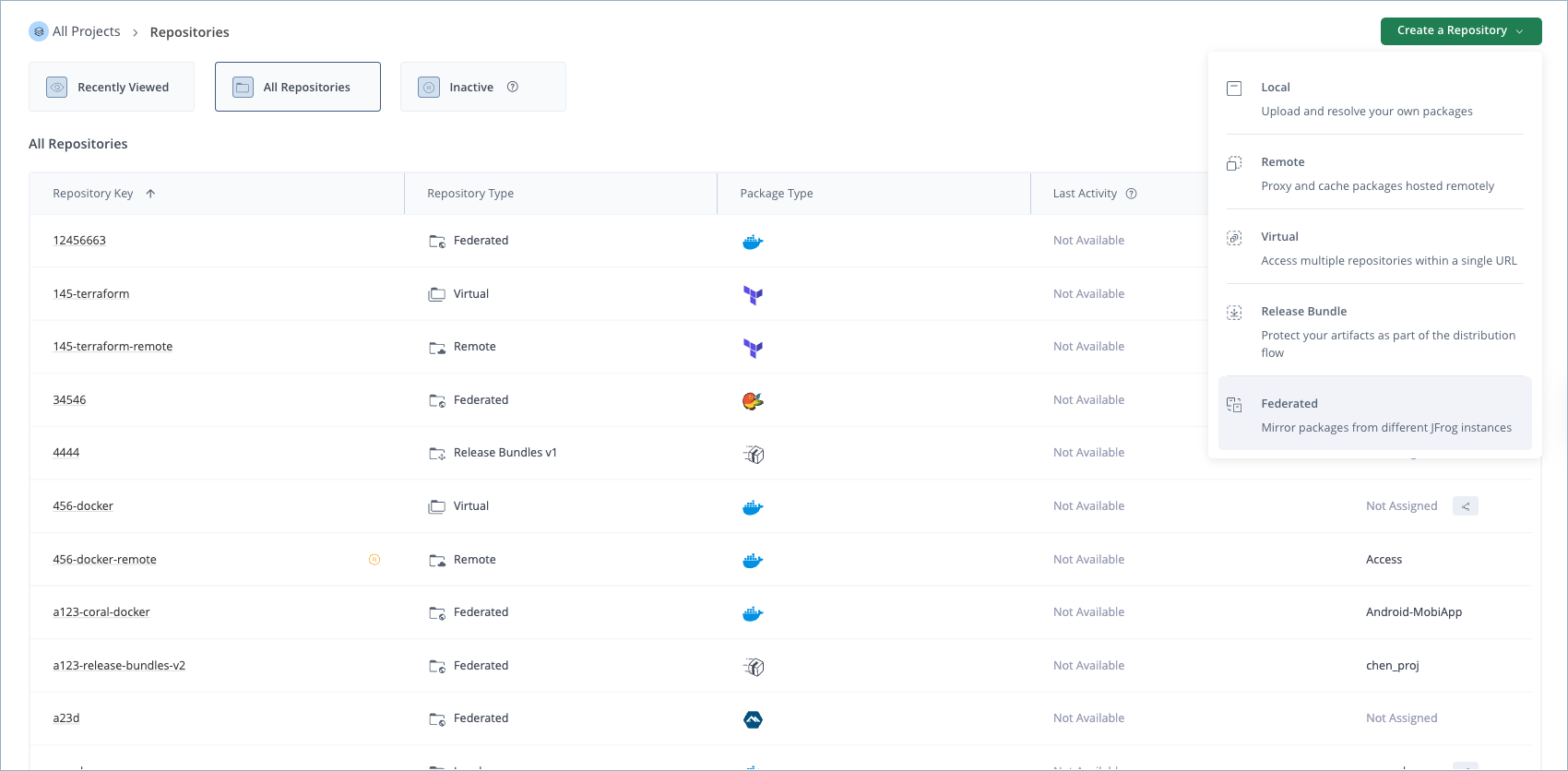
Click Create a Repository and select Federated.
-
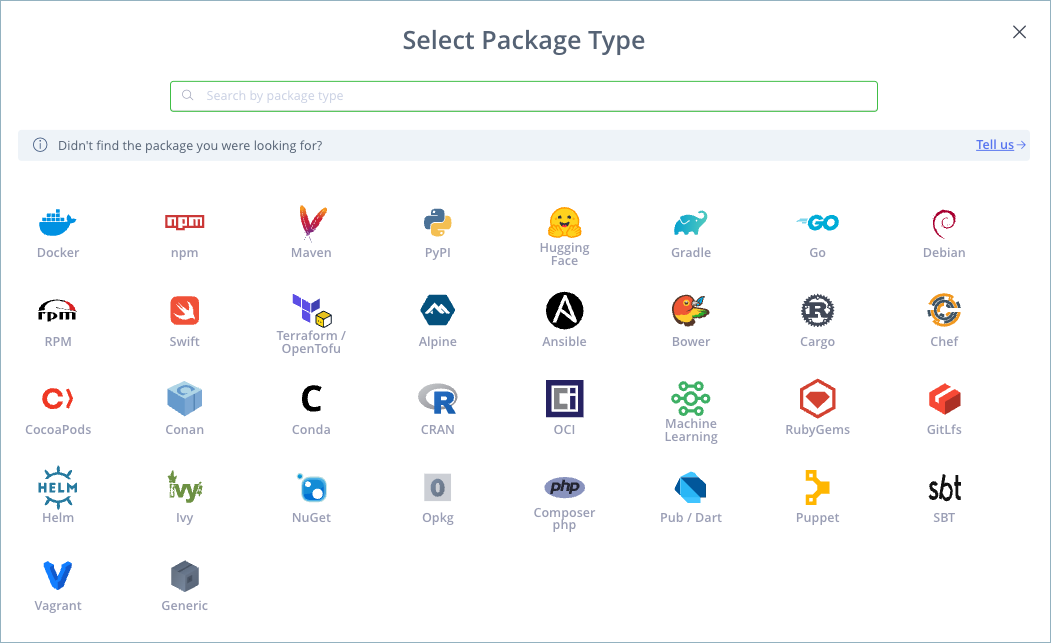
In the Select Package Type window, select the package type.
-
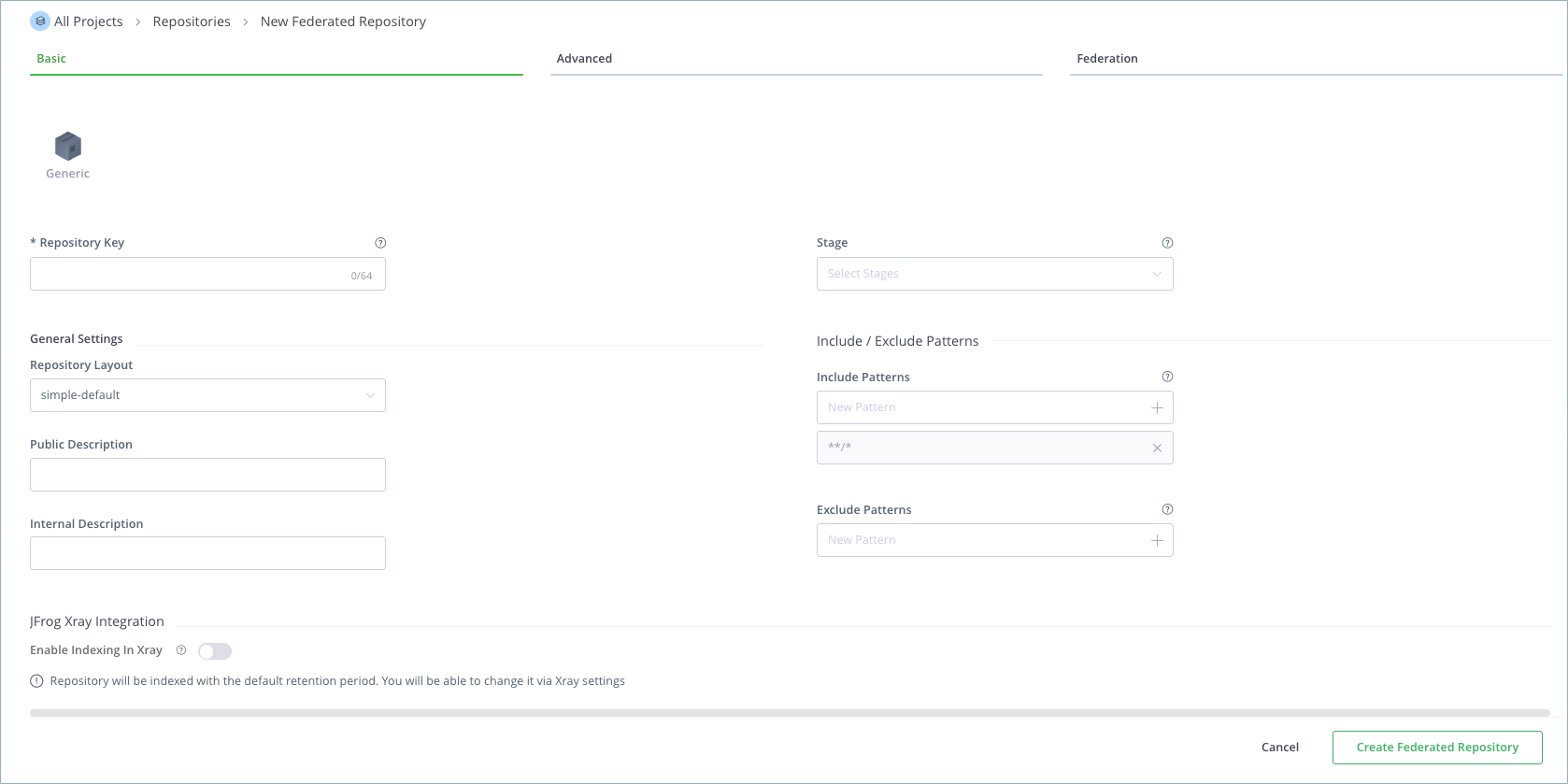
In the Basic tab, configure the basic repository settings. For more information, see Basic Settings for Local Repositories.
Important
It is mandatory to assign a Repository Key that will be added as the prefix to the Federated repository and displayed on all the sites.
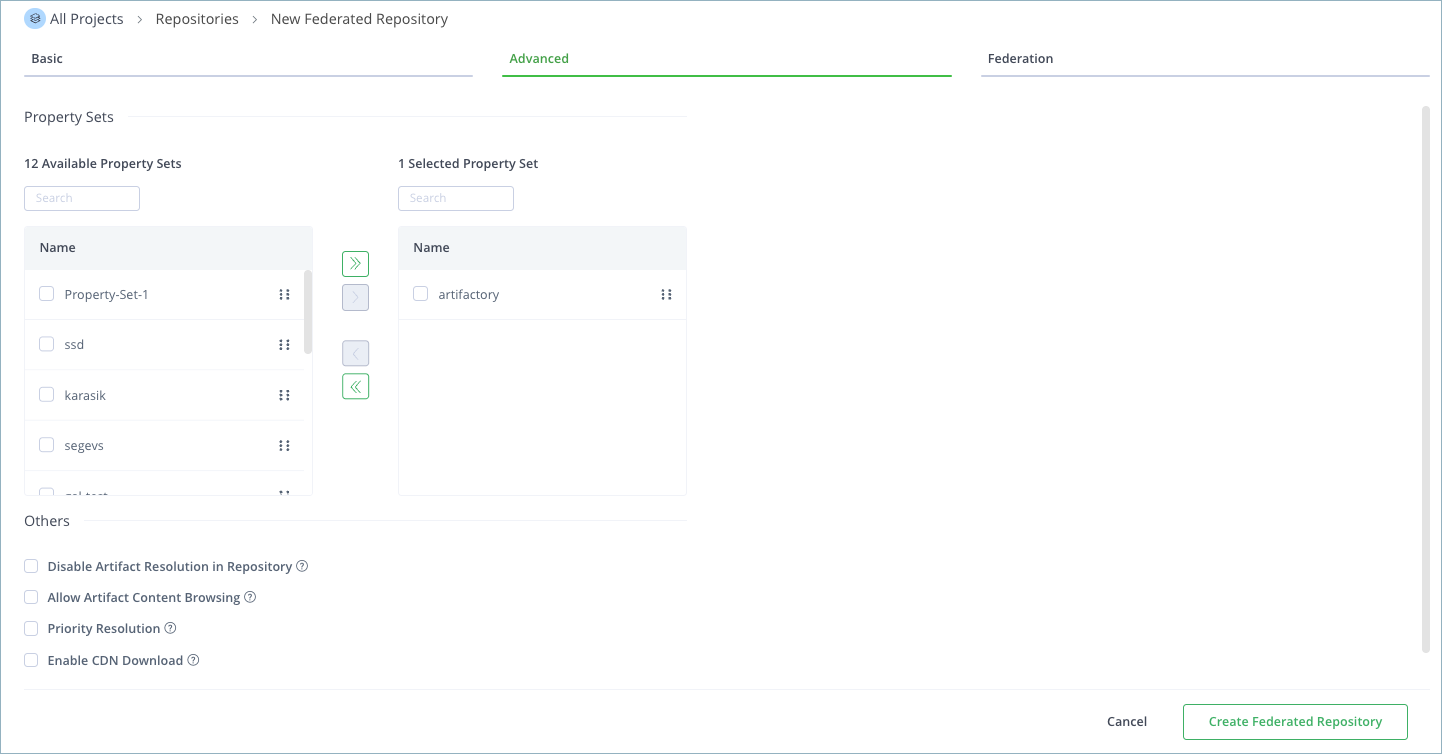
- In the Advanced tab, configure additional repository settings as required. For more information, see Advanced Settings for Local Repositories.
- In the Federation tab, add members to the Federation by selecting repositories on other JFrog Platform Deployments (JPDs). Click Add Repository.

- In the Add Repositories dialog box, add members to the Federation using one of these methods:
-
Deployments: If you have Mission Control installed, the repositories on the remote JPDs will automatically be populated. If the repository with the identical name doesn't exist on the remote JPD, click Create New to duplicate this repository.
-
URL: Manually add a predefined URL path to the repository. If the repository does not exist on the remote JPD, it will be created automatically according to the following syntax:
<BASE_URL>/artifactory/<repository_name> //For example, http://<ip address>:8082/artifactory/fed117
Note
JPDs will appear only if you have set up bindings or established a Circle of Trust.
- Click Done. You will be returned to the Federated tab.
- Click Create Federated Repository.
Federated Repositories Not Supported for Artifactory Backend Repositories
It is not possible to connect a Terraform Backend repository to a Federated repository. This limitation prevents inconsistencies in the system state, which could lead to unexpected behavior or errors.
Federated Repositories with JFrog Bridge
Federated Repositories with JFrog Bridge enables secure, encrypted communication between JFrog Platform environments without complex networking requirements. This feature allows Repository Federation to work seamlessly between SaaS and self-managed Artifactory environments.
It operates transparently within the JFrog Platform, allowing platform services to communicate with services running on another environment over a private channel — without requiring inbound network access, public exposure, or complex VPN configurations.
Prerequisites
Before you begin, ensure you have a Bridge configured between your environments. For instructions on setting up a Bridge, see Add a JFrog Bridge.
Environment Requirements
- You must have Bridge installed and configured. For setup instructions, see Add a JFrog Bridge.
You should receive a Bridge URL such ashttp://localhost:8046/bridge-<Bridge_ID>that will be used as a federation Base URL to the self-managed environment.
SaaS Environment:
As Federation over Bridge is in early adopter stage, contact JFrog Support to verify that Bridge is enabled on your SaaS environment.
Self-Managed Environment:
- RTFS enabled with Bridge feature flags:
artifactory.rtfs.bridge.url.enabled— set in Artifactorysystem.yamlrtfs.bridge.url.enabled— set in RTFSsystem.yaml
- Artifactory version 7.133.13 or higher (bundling RTFS 1.15.13)
- Federated Base URL configured to point to Bridge endpoint
Note: Self-hosted Bridge federation support is available starting with Artifactory 7.133.13 (rolling out from March 16, 2026).
Access Requirements:
- Admin access to both SaaS and self-managed environments
kubectlor SSH access to self-managed cluster- New Bridge-compatible pairing token (see Establish Trust — Service Trust Pairing for creation instructions)
Setup Guide
Before you begin, ensure all prerequisites are met and your Bridge is configured.
Step 1: Configure Federated Base URL
On Self-Managed:
Set the Federation base URL to point to the Bridge endpoint. For instructions, see Change the Federated Base URL.
Set the federated base URL to:
http://localhost:8046/bridge-<Bridge_ID>/artifactoryImportant: Changing the Federated Base URL affects all existing federations on this instance. A self-managed environment configured with a Bridge Federated Base URL can only federate with SaaS. Self-hosted to self-hosted federation over Bridge is not currently supported and will be revisited in a future release
Step 2: Pair Environments
Federation requires two-way trust between environments. Complete both bindings below.
Binding 1: SaaS to Self-Managed
- Generate a pairing token on SaaS:
curl -u <user>:<password> --location --request POST \
 'https://<saas-url>/artifactory/api/v1/service_trust/pairing/federated-repo/*' \
--data ''- Import the returned token to the self-managed environment:
curl -u <user>:<password> --location --request PUT \
 'https://<self-managed-url>/artifactory/api/v1/service_trust/pairing/federated-repo/*' \
 --header 'Content-Type: application/json' \
 --data '{
   "pairing_token": "<access-token>"
 }'
Binding 2: Self-Managed to SaaS
This binding requires accessing the self-managed instance directly.
- Access the self-managed instance and Generate a pairing token inside:
curl -u<user>:<password> -X POST \ "http://localhost:8081/artifactory/api/v1/service_trust/pairing/federated-repo/*" \
-H "X-JFrog-Override-Base-Url: http://localhost:8046/bridge-<Bridge_ID>" \
-H "Accept: application/json"- Import the returned token to SaaS:
curl -u<user>:<password> --location --request PUT 'https://<saas-url>/artifactory/api/v1/service_trust/pairing/federated-repo/*' \
--header 'Content-Type: application/json' \
--data '{
"pairing_token": "<access-token>"
}'
Step 3: Test Federation
- Create federated repository on SaaS
- Add member with URL:
http://localhost:8046/bridge-<Bridge_ID>/artifactory/<repo-name>Note: When adding a self-hosted member from the SaaS side, use the URL tab — the Deployment tab is not supported for Bridge members.
Note: Adding a SaaS member from the self-hosted side is a regular flow and does not require any Bridge-specific steps.
- Upload artifact to SaaS repository
- Verify artifact appears on self-managed repository
Verification
Success Indicators
- Bridge endpoint responds to ping
- Pairing completes without errors
- Artifacts sync between environments
- No 400/404 errors on federation operations
Health Check Commands
Check Bridge Status (SaaS):
curl https://<saas-url>/bridge-<Bridge_ID>/access/api/v1/system/pingCheck Federation Status:
** On SaaS**
curl -u admin:password https://<saas-url>/artifactory/api/federation/status

** Verify repository sync**
curl -u admin:password https://<saas-url>/artifactory/api/repositories/<repo-name>
Troubleshooting
Common Issues
Issue: "Adding members from same host is not allowed"
Symptoms: Error appears when adding members from the same host
Cause: Bridge feature flags are not enabled
Solution: Enable the following Bridge feature flags, then retry:
artifactory.rtfs.bridge.url.enabled(Artifactory)rtfs.bridge.url.enabled(RTFS)
Issue: "Federated service is not fully operational yet"
Symptoms: 400 error when accessing Bridge endpoint
Cause: RTFS still initializing
Solution: Wait five to ten minutes, then retry
Issue: 404 on Bridge Endpoint
Symptoms: Bridge endpoint returns 404 Not Found
Cause: Feature flags not enabled or incorrect URL format
Solution:
- Verify feature flags are enabled on both Artifactory and RTFS
- Check URL format includes
/bridge-<Bridge_ID>/
Issue: Pairing Fails with Token Exception
Symptoms: Token validation error during pairing
Cause: Known issue with RTFS-to-RTFS pairing
Solution: Follow the pairing process in Establish Trust — Service Trust Pairing and verify both directions are completed.
Issue: Artifacts Not Syncing
Symptoms: Files uploaded to one side don't appear on the other
Cause: Federation not properly configured or connection issues
Solution:
- Verify pairing completed successfully
- Check federation member URL uses correct Bridge prefix
- Review logs for connection errors
- Verify base URLs are configured correctly
Debug Checklist
Run through this checklist if experiencing issues:
- Feature flags enabled on SaaS (
artifactory.rtfs.bridge.url.enabled) - RTFS enabled on self-managed (
rtfs.enabled: true) - Base URLs configured correctly on both sides
- Federation base URL includes Bridge prefix
- Pairing tokens generated and imported successfully
- Network connectivity exists (port 443)
- Pods are running and healthy
Verify Configuration Format (system.yaml)
A common mistake is setting the feature flag value as a quoted string instead of a boolean.
Incorrect:
rtfs:
  bridge:
    url:
      enabled: 'true'
Correct:
rtfs:
  bridge:
    url:
      enabled: true
After restart, confirm the parameter appears as a boolean in startup logs:
rtfs.bridge.url.enabled = trueA quoted 'true' may not be interpreted as a boolean, leaving the feature effectively disabled.
Enable TRACE Logging
If federation using Bridge URLs is failing, enable TRACE logging to see how URLs are detected and processed.
RTFS — Edit logback.xml (/opt/jfrog/federation/var/etc/rtfs/logback.xml):
Add before </configuration>:
<logger name="org.jfrog.rtfs.common.utils.BridgeUrlProcessor" level="TRACE"/>
<logger name="org.jfrog.rtfs.common.utils.HttpUtils" level="TRACE"/>
Artifactory — Edit logback.xml:
<logger name="org.artifactory.addon.federated.utils.BridgeUrlProcessor" level="TRACE"/>
<logger name="org.artifactory.addon.federated" level="DEBUG"/>
After enabling TRACE, reproduce the issue and search logs:
grep -E "(BridgeUrlProcessor|Detected bridge URL|processed)" /opt/jfrog/federation/var/log/artifactory-federation-service.logExpected RTFS output:
TRACE BridgeUrlProcessor - Detected bridge URL pattern, Input remoteUrl: http://localhost:8046/bridge-xyz/artifactory/my-repo
TRACE BridgeUrlProcessor - Bridge URL with /artifactory processed - returning: http://localhost:8046/bridge-xyz/artifactory
Expected Artifactory output:
TRACE BridgeUrlProcessor - Detected bridge URL pattern, Input remoteUrl: http://localhost:8046/bridge-xyz/artifactory/my-repo
TRACE BridgeUrlProcessor - Bridge URL with /artifactory processed - removed /artifactory, returning: http://localhost:8046/bridge-xyz
Collect Information for Support
When opening a support ticket, include:
rtfs.bridge.url.enabledvalue from startup logs (Artifactory and RTFS)- Relevant
system.yamlsections - RTFS and Artifactory logs with TRACE enabled (filtered for
BridgeUrlProcessor) - Repository name, Bridge URL being used, and full error message
Performance Considerations
Federation over Bridge introduces additional network hops compared to direct federation. Expect higher latency and lower throughput, particularly for large-scale artifact synchronization or high-frequency metadata operations. The degree of impact depends on the network distance between environments and artifact sizes.
If experiencing slow federation or timeouts:
- Check connection pool size — Verify Bridge client has sufficient connections
- Monitor network latency — High latency between environments will directly impact sync times
- Review artifact sizes — Very large artifacts may require timeout adjustments
- Check resource allocation — Ensure pods have adequate CPU/memory
- Test with your workload — Validate performance against your expected usage patterns before production rollout
API Reference
Pairing Endpoints
Create Pairing Token:
POST /artifactory/api/v1/service_trust/pairing/federated-repo/*
Authorization: Bearer <token>
Register Pairing Token:
PUT /artifactory/api/v1/service_trust/pairing/federated-repo/*
Content-Type: application/json
Authorization: Bearer <token>

{
  "pairing_token": "<pairing-token>"
}
Federation Status
Check Federation Status:
GET /artifactory/api/federation/status
Authorization: Bearer <token>
List Federation Members:
GET /artifactory/api/repositories/<repo-name>
Authorization: Bearer <token>
Configuration Reference
Base URL Format
Self-Managed Federation Base URL:
http://localhost:8046/bridge-<Bridge_ID>/artifactorySaaS Base URL:
https://<your-instance>.jfrogdev.org/artifactoryBridge URL Format
For SaaS to Self-Managed Communication:
http://localhost:8046/bridge-<Bridge_ID>/artifactory/<repo-name>Frequently Asked Questions
Q: Do I need to configure anything on my firewall?
A: For firewall and network requirements, see Manage JFrog Bridges.
Q: What's the performance impact of using Bridge?
A: Federation over Bridge adds network overhead compared to direct federation. Expect higher latency, especially for large artifacts or high-frequency sync operations. Test with your specific workload and scale requirements before production deployment.
Q: What happens if the Bridge connection drops?
A: Federation operations will fail until the connection is restored. For details on Bridge reconnection behavior, see Manage JFrog Bridges.
For general Bridge questions (architecture, installation, VPN comparison), see Manage JFrog Bridges.
Configure Receiving-Only (Unidirectional Sync)
JFrog Unidirectional Sync modifies the default bidirectional behavior of Federated Repositories to create "receiving-only" targets, serving as a more reliable, highly scalable replacement for legacy Push Replication. Its primary value lies in enforcing strict hub-and-spoke architectures with clear ownership, which minimizes storage costs and network traffic by preventing unwanted artifact replication from remote spokes back to the central hub.
Overview
Unidirectional Sync adds a Transmission Mode per federation member:
- bidirectional (default) — members send and receive.
- receiver (new) — member is Get-Only within that repository's federation. Outbound federation processing and Full-Sync initiation are skipped for the receiver. Monitoring reflects Receiving Only semantics.
Primary Benefits
- Governance & Compliance: Keep satellite/third-party sites in a receive-only posture.
- Operational Simplicity: Use federation's streaming, auto-healing, and observability; avoid job-scheduling overhead of replication.
- Deterministic Hub-and-Spoke: Enforce Source → Target flows with clear ownership, which reduces the cost of storage and network traffic by preventing unnecessary artifact synchronization from the spoke (Target) back to the hub (Source).
Prerequisites
- Artifactory Federation Service installed and connected on Source and Target JPDs.
- Both JPDs should be on the supported versions.
- Network reachability between JPDs for API + binaries.
- Admin permissions on Source; minimal required on Target.
- Tokens/Trust options:
- Option A (recommended): Service Trust Pairing → issue a receiving-only master token for enforcement.
Note
This option is recommended when the customer needs to assure the target site is not capable of pushing content to the source due to governance or compliance reasons. Since the master token itself is receiving-only, it enforces restrictions across the entire site for the pairing, meaning:
- The Target JPD's admin cannot build federations that push content back to the Source.
- All federations built from Source to Target using this pairing will be receiving-only on the Target side.
- Option B: Regular master token with full permissions — works functionally but does not enforce receiving-only posture at the trust boundary.
Note
This option is typically used when the customer wants the flexibility to establish both bidirectional and unidirectional federations between the Source and Target JPDs. The unidirectional flow is usually selected on a per-repository basis (by setting the member mode to receiver) mainly to save on storage and network traffic. In this case, there is no site-level enforcement that the target members are receiving-only; enforcement relies entirely on the repository configuration.
Steps
Complete All Steps
Unidirectional Federation setup requires completing Steps 1 through 3 in sequence. Each step builds on the previous one. Do not stop after Step 1—federation will not function correctly until you complete the health check in Step 3B.
Setup Workflow Overview
| Step | Action | Outcome |
|---|---|---|
| 1 | Establish Trust | Receiving-only master token created |
| 2 | Create/Update Repository | Federated repository with receiver member configured |
| 3A | Initial Sync | Artifacts synchronized from Source to Target |
| 3B | Validate Health | Confirm federation is operational |
Step 1 — Establish Receiving-Only Trust (Service Trust Pairing)
Note
Skip to Step 2 only if you have chosen Option B (regular master token with full permissions). For governance and compliance use cases, complete this step using Option A.
1A. Generate a read-permission pairing token on the Source JPD
POST {{jpd_url}}/artifactory/api/v1/service_trust/pairing/federated-repo/r
Authorization: Bearer <admin_or_scoped_token>
Response (example):
{ "pairing_token": "<PAIRING_TOKEN>", "expires_in": 300 }1B. Exchange the pairing token on the Target JPD to obtain a receiving-only master token
PUT {{jpd_url}}/artifactory/api/v1/service_trust/pairing/federated-repo/r
Authorization: Bearer <admin_or_scoped_token>
Content-Type: application/json

{ "pairing_token": "<PAIRING_TOKEN>" }
Alternative (equivalent when pairing token was created with /r):
PUT {{jpd_url}}/artifactory/api/v1/service_trust/pairing/federated-repo/*Outcome: Target now holds a receiving-only master token suitable for creating Receiver-restricted membership with the Source.
Step 2 — Create (or Update) the Federated Repository on the Source
2A. Create a federated repository with the Target as Receiver
PUT {{jpd_url}}/artifactory/api/repositories/{{source_repo_name}}
Content-Type: application/json
Authorization: Bearer <admin_or_scoped_token>

{
  "rclass": "federated",
  "packageType": "generic",
  "members": [
    {
      "url": "{{memberUrl}}/artifactory/{{target_repo_name}}",
      "mode": "receiver"
    }
  ]
}
2B. Update an existing federated repository to set Receiver mode
POST {{jpd_url}}/artifactory/api/repositories/{{source_repo_name}}
Content-Type: application/json
Authorization: Bearer <admin_or_scoped_token>

{
  "members": [
    {
      "url": "{{memberUrl}}/artifactory/{{target_repo_name}}",
      "mode": "receiver"
    }
  ]
}
Step 3 — Initial Synchronization & Verify
3A. Automatic Full Sync on create/update
On repository create/update, Artifactory triggers a Full Sync automatically from the Source to the Target (receiver). No manual Full Sync call is required for initial synchronization. The reverse direction (Target → Source) is not possible in receiver mode.
3B. Validate health — Required
Tip
This step confirms your Unidirectional Federation is fully operational. Do not consider setup complete until you verify these health checks pass.
Run the following health check APIs:
Check repository connection state:
GET {{jpd_url}}/artifactory/api/federation/status/connectionStates/{{source_repo_name}}Check JPD-wide federation summary:
GET {{jpd_url}}/artifactory/api/federation/status/stateSummaryExpected Results
| Check | Expected Value | Status |
|---|---|---|
| Target member mode | Receiving_Only | ✓ |
| Connection status | HEALTHY | ✓ |
| Outbound processing | Skipped (as expected for receiver) | ✓ |
If any checks fail, review the Troubleshooting section before proceeding.
Set Up Unidirectional Sync Using the Platform UI
Creating a New Federated Repository with Receiver Members
- Navigate to Administration → Repositories → Create a Repository → Federated
- Fill in the Basic tab with required fields (Repository Key, Package Type)
- In the Federation Management section:
- The current repository (local) will be displayed
- Click Add Repository button to add federation members
- In the modal, enter the target member URL in the format:
{platform_url}/artifactory/{repo_key} - Click Done to add the member
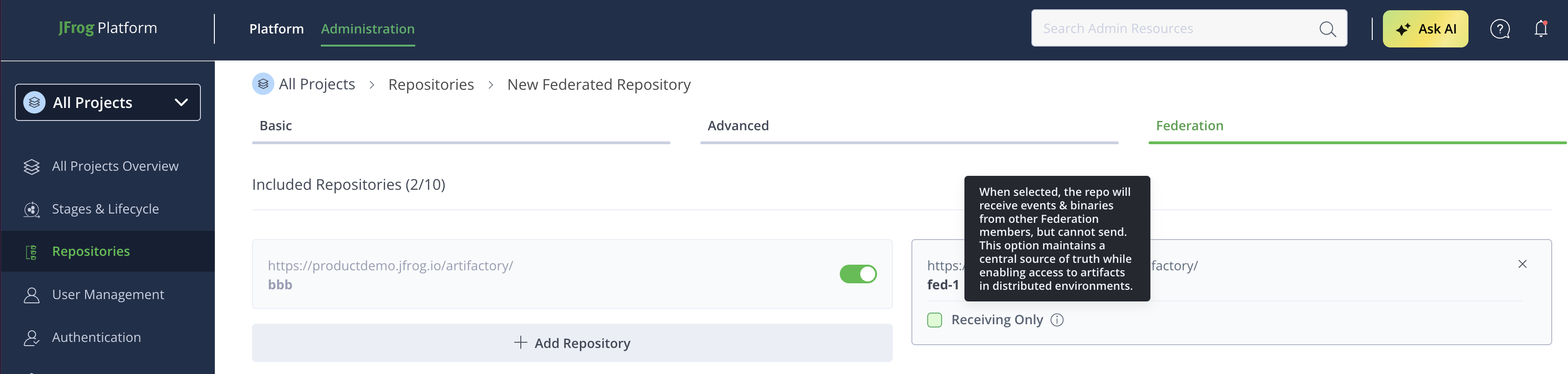
- For each added member, a "Receiving Only" checkbox appears:
- Check this box to set the member to receiver mode (unidirectional sync)
- A tooltip explains: "When selected, the repo will receive events & binaries from other Federation members, but cannot send. This option maintains a central source of truth while enabling access to artifacts in distributed environments."
- Check this box to set the member to receiver mode (unidirectional sync)
- Click Create to save the repository
Updating an Existing Federated Repository to Set Receiver Mode
- Navigate to Administration → Repositories → Repositories
- Find and click on the federated repository you want to modify
- Scroll to the Federation Management section
- For each linked member (non-current repository), locate the "Receiving Only" checkbox:
- Check the checkbox to set the member to receiver mode
- Uncheck to revert to bidirectional mode
- Click Save to apply changes
Set Up a Federated Repository Using the REST API
Important
Verify that you have met all setup prerequisites before proceeding. Self-hosted customers must configure a Custom Base URL. For more information, see Setup Prerequisites for Federated Repositories.
The dedicated Federated Repository Configuration JSON file is application/vnd.org.jfrog.artifactory.repositories.FederatedRepositoryConfiguration+json
The following repository REST APIs support working with Federated repositories:
- Get Repositories by Type and Project API
- Create Repository API
- Update Repository Configuration API
- Delete Repository API
Note
When working inside a specific project, the Federated repositories that comprise the Federation must all share the same project key.
Convert a Local Repository to a Federated Repository
Local repositories can be converted to Federated repositories using one of the following methods:
Convert a Local Repository to a Federated Repository - Platform UI
You can convert an existing local repository to a Federated repository directly from its listing in the Local tab.
Warning
Repository federations and replication cannot co-exist in the same repository. Therefore, if the local repository has been set up previously for repository replication, these replication definitions are deleted automatically when the local repository is converted to a Federated repository.
To convert a local repository to a Federated repository:
-
Go to the Administration module and select Repositories.
-
Use the Repositories filter to show local repositories.
-
At the end of the row for the relevant local repository, open the Actions menu and select Convert to Federated.
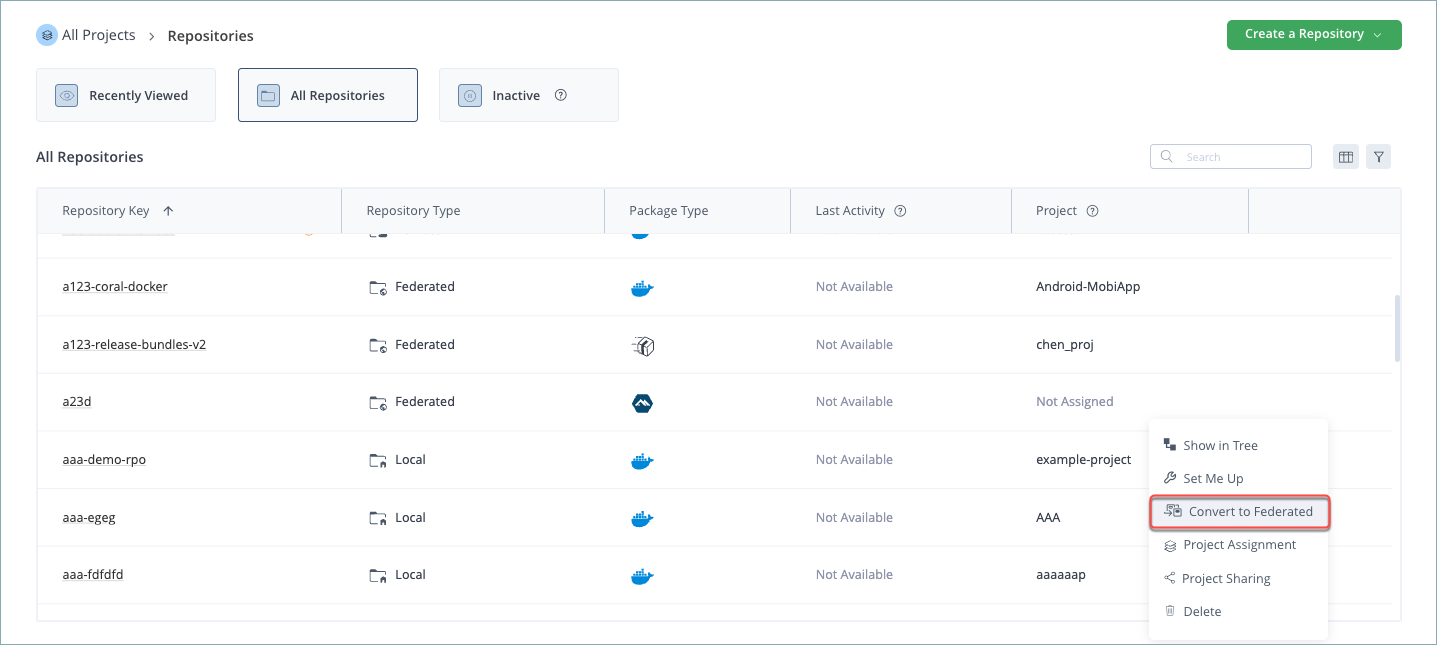
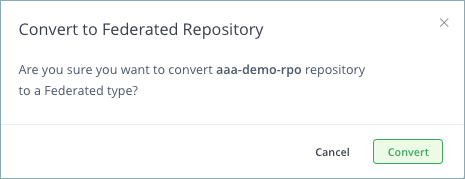
A prompt appears asking if you are sure you want to convert the local repository to a federated repository.
-
Click Convert.
-
Optional: Add other members to the Federated repository, as described in Set Up a Federated Repository Using the UI.
Converted Local Repositories Remain Federated
Removing the repository from the Federation does not automatically revert the repository to a local repository. Removing a repository from the Federation simply disconnects the bi-directional sync. However, the repository remains federated.
Use the Convert Federated Repository to a Local Repository REST API to convert back to local, if required.
Convert a Local Repository to a Federated Repository - REST API
You can convert a local repository to a Federated repository using the Convert Local Repository to a Federated Repository REST API.
Converted Local Repositories Remain Federated
Removing the repository from the Federation does not automatically revert the repository to a local repository. Removing a repository from the Federation simply disconnects the bi-directional sync. However, the repository remains federated.
Use the Convert Federated Repository to a Local Repository REST API to convert back to local, if required.
Convert a Federated Repository to a Local Repository
You can convert a Federated repository back to a local repository using the Convert Federated Repository to a Local Repository REST API.
Important
The conversion from Federated back to local is allowed only if the Federated repository is not part of an active Federation containing additional members.
Convert a Build-Info Repository to a Federated Repository
Build-Info repositories can be set as a federated member in a Federation.
From Artifactory 7.35, you can convert an existing Build-Info repository to a Federated repository using the Artifactory REST API.
- Step 1: Convert the build-info repository to a Federated repository
- Step 2: Add members to the build-info Federation
Note
The Federated repository cannot be converted back to a local Build-Info repository.
Step 1: Convert the Build-Info Repository to a Federated Repository
POST /api/federation/migrate/{buildInfoRepoName}Sample Input
POST /api/federation/migrate/artifactory-build-info
Migration finished successfully.
Step 2: Add Members to the Build-Info Federation
After you have converted the Build-Info repository into a Federated Build-Info repository, add members to the Federation using the Update Repository Configuration REST API.
{
    "key": "projectKey-build-info",
    "rclass" : "federated",
    "members": [
        { "url": "http://<target-JPD>/artifactory/projectKey-build-info", "enabled":"true"},
        { "url": "http://<target-JPD>/artifactory/projectKey-build-info", "enabled":"true"}
  ]
}
For more information, see Repository Configuration JSON.
Working with Federated Repositories
A Federation is a collection of Federated repositories in up to 10 JFrog Platform Deployments (JPDs) at different sites that are automatically configured for full bi-directional replication. Once you have set up the Federation, changes made to artifacts on one site will be automatically synchronized to the other JPDs in the Federation using bi-directional mirroring.
You can perform the following Federated repository procedures:
- Working with Federated Artifacts
- Pause/Resume Federated Synchronization
- Remove Members from a Federation
- Federation Recovery and Auto Healing
- Perform Full Sync on Federated Repositories
- Use the Federation Comparison Tool
- Configure Federated Repositories for Bulk Event Mirroring and Parallel Processing
- Configure In-Memory Sorting for Full Sync Operations
- Geo Synchronized Topology Use Case: Setting a Federated Base URL
- Change the Base URL in Federated Repositories
- Increase the Predefined Socket Timeout for Larger Repositories
- Troubleshoot Federated Member Out-of-Sync Notifications
Working with Federated Artifacts
Once you have created the Federation, the Federated repositories are automatically displayed in your artifact browser.
Any of the CRUD actions that you perform are automatically applied to the member Federated repositories. Users can perform actions according to their permission sets. The logic is applied according to the last action performed on the artifact by any of the users in the Federation.
The importance of knowing which action occurred last is the reason why clock synchronization is critical to the proper functioning of the Federation (see Setup Prerequisites for Federated Repositories.
Pause/Resume Federated Synchronization
You can pause and resume synchronization of the artifacts from your Federated repository to the other member repositories.
When you pause a Federated repository, the other members of the Federation will not synchronize artifacts and metadata with the disabled member until you resume synchronization.
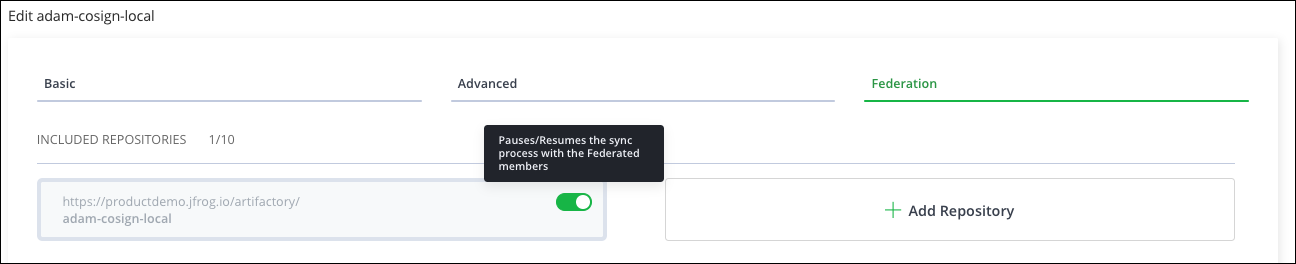
Remove Members from the Federation
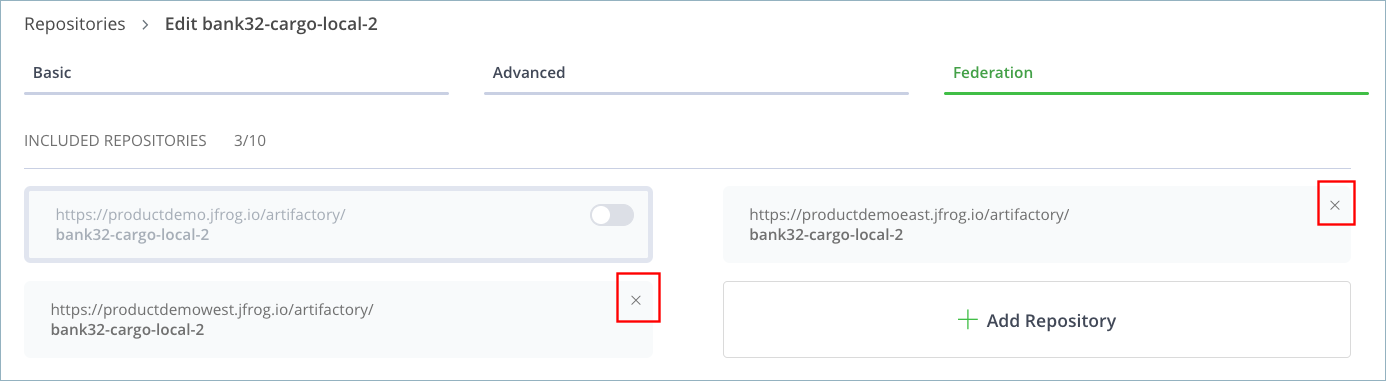
Admins of any Federated members can remove themselves and other members from the Federation. Note that you can remove the initial repository and the Federation will continue to function between the remaining Federated members.
-
From the Administration module, click Repositories and use the Repositories filter to display all the federated repositories.
-
Select the Federation repository from the list and click the Federation tab.
-
Click the x located on the top right of the repository to be removed.
-
Click Save.
Federation Member Removal – Legacy Service vs. Artifactory Federation Service
There is an important difference in the behavior of the Artifactory Federation Service and the legacy Federation service when you try to remove a member when a different member of the same Federation is offline (for example, due to network connectivity issues or if the remote JPD is down):
- Legacy service: If member A tries to delete member B, the system allows the removal even though member C is offline. However, when member C comes back online, it will not be aware of the removal of member B. This requires you to make manual changes on the target JPD to bring member C back in sync with the rest of the Federation.
- Artifactory Federation Service (RTFS): You cannot remove a member from the Federation if any other members are offline. Instead, you must first remove the offline members, as shown above.
Federation Recovery and Auto-Healing
Important
This feature requires all JPDs in the Federation to run Artifactory release 7.71.1 or later.
In certain cases, it may not be possible to maintain near real-time synchronization of all artifact events (create, update, delete) and binary tasks among Federation members. Examples include short-term networking issues between the JPDs, Artifactory upgrades, a user-initiated synchronization pause, and so on. If synchronization continues to fail after reaching the maximum number of retry events, event sync is paused and the Federation moves into an error state.
One way to recover the Federation is call the Full Sync API, but this can be a time-consuming process if the Federated repositories contain a large number of artifacts, as this amounts to restarting the Federation.
Artifactory features an auto-healing mechanism that ensures the reliability and consistency of Federated repositories by performing recovery actions at regular intervals. These recovery actions include:
- Recovering exhausted queues: The auto-healing mechanism checks for queues that have exceeded the maximum number of attempts to send events to other Federation members. Such queues are considered exhausted. The auto-healing mechanism resets the failed events automatically, enabling the system to retry synchronization with the target mirror.
- Recovering exhausted binary tasks: In cases where binary tasks have reached their maximum retry attempts (default: 10 retries), the auto-healing mechanism invokes the Replay Failed Binary Tasks API. This API resets the retry count for the task, enabling the system to retry the task and ensure that binary synchronization tasks are completed successfully.
Note
If events have accumulated over a period of days, the event cleanup mechanism might potentially clean events that have not been propagated, causing the queue to move to an out-of-sync state. In such cases, performing a full sync is required.
Email Notifications
All administrators who are registered for Artifactory's mail service will receive notifications similar to the one shown below when auto-healing takes place:
2023-09-21T10:39:24.696Z [jfrt ] [INFO ] [29cb8b34b3ec63e4] [atedRepositoryRecoveryTest:247] [TestNG_1            ] [rt_229036255 ] [rt_229036255] - Mail notification subject: [JFrog] Mirror Recovery in Progress
2023-09-21T10:39:24.696Z [jfrt ] [INFO ] [29cb8b34b3ec63e4] [atedRepositoryRecoveryTest:249] [TestNG_1            ] [rt_229036255 ] [rt_229036255] - Mail notification content: ------=_Part_0_2088885210.1695292764495
Content-Type: text/html; charset=us-ascii
Content-Transfer-Encoding: 7bit

"Auto Healing" task has recognized a mirror in an exhausted state: 'http://localhost:11552/artifactory/generic-fed-9ac0b669-5760-4ff3-a209-c6b8c7826928' -> 'http://localhost:55295/artifactory/generic-fed-9ac0b669-5760-4ff3-a209-c6b8c7826928'.
Recovery attempt is now in progress...
System Properties
Federation recovery and auto-healing are controlled using the following properties in the artifactory.system.properties file:
Property | Description |
|---|---|
| Defines the interval (in seconds) at which the auto-healing feature checks for exhausted queues. The default value is |
| Defines the buffer that works in conjunction with the The default value is |
| Defines the number of attempts to send a queued Federated event before the queue becomes exhausted and therefore eligible for auto-healing. The default value is |
| Defines the delay interval (in minutes) between attempts to trigger the queue. The default value is |
| Defines the interval (in minutes) for an async task that resets the status of a Full Sync operation that has become "stuck", enabling the Full Sync to restart. This property is useful, for example, if the Artifactory instance is restarted while a Full Sync operation is running. After the restart, this async task will reset the operation and restart it. The default value is |
| Defines the initial delay (in minutes) before running the async task that resets the status of a stuck Full Sync operation. The default value is |
Manual Recovery using a REST API
Use the Federation Recovery REST API to perform recovery manually. This API can be used when auto-healing has been disabled or when you want to perform recovery immediately without waiting for the auto-healing interval to arrive.
Perform Full Sync on Federated Repositories
Tip
Users who are running Artifactory 7.71.1 or later on all their JPDs should use the auto-healing mechanism (or perform Federation recovery manually using the REST API) before resorting to performing a Full Sync.
In certain cases, it might not be possible to synchronize all the metadata events between repository Federation members. For example, suppose two members are disconnected for a long period of time (for example, more than 3 days). In that case, old events might be deleted from the queue making it impossible to copy those events to the remote member after restoring the connection.
When regular synchronization is incomplete, the solution is to perform a unidirectional Full Sync operation between the repositories. The Full Sync operation synchronizes all the events in one JPD by copying any missing files to designated remote JPDs. However, Full Sync does not synchronize any deleted events.
For example, suppose a file was deleted from JPD A, but the event wasn't propagated to the remote site (JPD B) before the event was deleted from the queue. If you run Full Sync on JPD B (where the file deleted from JPD A still exists), the operation will restore the file on JPD A.
Therefore, if you need to synchronize the entire Federation, you must run the Full Sync operation on all members.
Bear in mind that a Full Sync operation can be time-consuming if the Federated repositories contain many artifacts, as this amounts to restarting the Federation.
A Full Sync operation is performed using the Federated Repository Full Sync REST API. You can use this API to synchronize specific Federated repositories or all the Federation repositories in the Federation.
Note
For more information about configuring Full Sync operations, see:
How Full Sync Works
When you initiate a Full Sync operation, the query is sent to the remote member, which begins compiling a file list of the repository's contents. The local JPD polls the remote JPD every 30 seconds (this interval is configurable - see the note below) to check whether the file list is ready. The advantage of using this polling method is that it removes the need to keep the connection between the members open for a long period of time, which in the case of large repositories can lead to timeouts.
When ready, the remote JPD sends its file list to the local JPD for comparison with the local file list, and then the Full Sync operation can begin.
Note
The following property defines the polling interval:
federatedFullSyncPoolingWaitTime("federated.full.sync.pooling.wait.time.sec", TimeUnit.SECONDS.toMillis(30)),
Federation Comparison Tool
The REST API contains an option to use the Federation Comparison tool, which performs a dry run of a Full Sync operation and returns the results in a JSON file. For more information, see Use the Federation Comparison Tool.
Note
You must have Artifactory 7.104.2 or later and the Artifactory Federation Service installed to use the Federation Comparison tool.
System Properties for Full Sync File List Queries
The following Artifactory system properties define how to execute file list queries for Full Sync operations on Federated repositories.
The property described in the table below defines how to perform file list queries.
Property | Description |
|---|---|
| When set to When set to |
The properties in the table below are relevant only when artifactory.federated.full.sync.use.aql is set to false.
Property | Description |
|---|---|
| If the number of artifacts for the file list is greater than this threshold, the file list is generated from multiple queries (paging). If the number of artifacts is smaller than this threshold, the data for all artifacts is loaded using a single query. The default value is |
| When using paging to generate the Full Sync file list, this property defines the page size, which means the number of rows read by each database query. The default value is |
| Defines the number of pages placed in a single, temporary file to allow efficient sorting of the data. The default value is |
Use the Federation Comparison Tool
Note
This feature requires Artifactory 7.104.2 or later and the Artifactory Federation Service must be installed.
The Federation Comparison tool is a validation mechanism for Federated repositories. Instead of actively synchronizing artifacts, this tool compares the state of a Federated repository with one or more remote members to detect missing artifacts in those remote members.
The Federation Comparison tool enables you to verify that all necessary artifacts are properly synced between Federation members, helping to identify any discrepancies due to event loss or system issues.
To use the tool, set the isDry query parameter in the Full Sync REST API to true, as shown below:
curl -X POST "https://<your-artifactory-instance>/api/federation/fullSync/testDryFullSyncRepo?mirror=https://mirror-instance/artifactory/my-repo&isDry=true" \
     -H "Authorization: Bearer <your-token>" \
     -H "Content-Type: application/json"
The JSON report generated by the operation lists all the files that are present in the local member but missing from the remote members. The report is stored in the jfrog-full-sync-info system repository. The API response provides the path to the report.
Sample response:
{
  "message": "Dry full sync completed successfully.",
  "resultPaths": [
    "jfrog-full-sync-info/comparison-results/testDryFullSyncRepo-mirror-comparison-2025-02-04.json"
  ]
}
Sample report contents:
{
  "results": [
    {
      "name": "testDryFullSyncFile_1.txt",
      "type": "file",
      "fullPath": "folder/testDryFullSyncFile_1.txt"
    },
    {
      "name": "testDryFullSyncFile_2.txt",
      "type": "file",
      "fullPath": "folder/testDryFullSyncFile_2.txt"
    }
  ]
}
For complete details about the REST API, see Federated Repository Full Sync API.
Configure Federated Repositories for Bulk Mirroring and Parallel Processing
Bulk event mirroring, introduced in Artifactory version 7.63.2, helps to optimize Federation performance.
Before bulk event mirroring was introduced, artifacts were copied to target mirrors sequentially one event at a time per repository. This limited the number of events that could be processed in a reasonable amount of time and sometimes resulted in HTTP network bottlenecks, especially between geographically distant members where network latency can be a significant factor.
Bulk event mirroring bypasses potential HTTP network bottlenecks by collecting events into bulks, each of which is dedicated to a single repository, and sending them to the target mirror.
The target mirror assigns a dedicated thread pool to each bulk. Each pool contains multiple threads that upload artifacts to the local Artifactory in parallel. This parallel processing enables events to be uploaded much faster than was previously possible.

In addition to improving the standard event flow between Federation members, as described above, bulk events also improve the performance of Full Sync operations. Working in conjunction with a special cache mechanism (also introduced in 7.63.2), bulk mirroring helps to greatly reduce the load on Artifactory during Full Sync operations.
The following Event Queue properties can be configured for bulk event mirroring:
Property | Description |
|---|---|
| Excludes specific package types from bulk event mirroring. To exclude all package types:
To exclude specific package types, separate the types with a comma:
|
| The number of available event processing thread pools (executors). Default: 4 Maximum: 5 |
| The number of threads per pool (executor). Default: 4 Maximum: 5 |
| The number of Event Queue events sent with each replication message to the target mirror. Default: 100 |
| The amount of time new requests will wait (in minutes) if all processing pools are occupied. Default: 2 |
Bulk fetching of event properties from the database was introduced in Artifactory release 7.100.x as an additional performance enhancement. The following property can be configured:
Property | Description |
|---|---|
| Determines whether bulk property fetching is enabled. Default: false (disabled) |
The following Full Sync event properties can be configured for bulk event mirroring:
Property | Description |
|---|---|
| The number of threads per pool. Full Sync events take priority in a single dedicated executor containing the number of threads defined here. Default: 10 Maximum: Determined by the number of available processors. |
| The amount of time (in minutes) that Full Sync calls for other repositories wait while the pool works on the Full Sync of a particular repository. Default: 2 |
| The number of times to retry a failing batch (bulk) when performing Full Sync. Default: 5 |
| The amount of time to wait between batch (bulk) retries. Default: 5 seconds
|
Configure In-Memory Sorting for Full Sync Operations
Full Sync queries can take a long time to perform, and under extreme circumstances can sometimes fail to complete. Users who determine that their database is not sufficiently robust or scalable to accommodate heavy loads have the option to sort queries in memory instead of in the database. The sort is performed according to depth, path, and name.
Use the following system properties to configure in-memory sorting:
Property | Description |
|---|---|
| Enables in-memory sorting. Default value is |
| Determines how many artifacts in the file list are sorted at one time. (This property is relevant only when in-memory sorting is enabled.) Default value is |
Geo Synchronized Topology Use Case: Setting a Federated Base URL
The geo-synchronized topology is an extension of the full mesh topology whereby several Artifactory instances are connected to a GeoDNS. In this use case, the desired outcome is to have the exact same configuration (repository names, users, groups, permission targets) in all of the instances connected to the routing server. Users can then deploy and resolve from the same repositories without the need to change the configuration in their build tool according to the server to which they are routing (for example, to divide a load among multiple instances in different locations). For these users, everything is behind the scenes and they just connect to Artifactory through one dedicated URL.
Note
Federated repositories do not operate synchronously, and therefore it is recommended to work with one fixed site. If the decision is made to move between one site and another, you must take into account that it takes time for all events to be synchronized between those sites.
Setting an Initial Federated Repository URL
A geo-synchronized topology requires that all platform deployments (Artifactory instances) be configured with the same Custom Base URL. However, Federated repositories also need a unique Federated Base URL to distinguish between the Federated members in the different platform deployments.
To work with Federated repositories within a geo-synchronized topology, add the federatedRepoUrlBase parameter to the Global Configuration Descriptor file, which is the global Artifactory configuration file used to provide a default set of configuration parameters.
The following XML tag should be added under the <systemProperties> section in the Global Configuration Descriptor:
<urlBase>https://<ART_LB_URL></urlBase> {/* NOTE: Enter your Geo-LB URL */}
<federatedRepoUrlBase>https://ARTIFACTORY_SERVER_HOSTNAME/artifactory</federatedRepoUrlBase>
For information on how to modify the Global Configuration Descriptor, see Global Configuration Descriptor.
Important
The
federatedRepoUrlBasedescribed above is relevant ONLY for Federated repositories and cannot be applied to other features. For a detailed guide that describes how to set theurlBaseand still allow redirects and metadata to map to the Geo-LB, see Geo-Location LB Setup Steps.
Migrating Federated Repositories to a Geo-Synchronized Topology
From Artifactory version 7.21.13, you can migrate your existing Federated repositories to be configured with a dedicated Federated Repository URL instead of the Artifactory base URL.
Migrating in an HA Environment
When setting up Federated Repositories in an HA environment, ensure on both sites that only one HA node is up and running.
To migrate Federated repositories to a geo-synchronized topology:
-
Disconnect all the Federated repositories in either one of the sites, using one of the following methods:
- One at a time on the Federated Repository page in the UI
- Directly through the Config Descriptor file.
-
Wait for a while and then validate that all the Fed repositories are disconnected on the member site.
-
Navigate to
$JFROG_HOME/artifactory/var/etc/artifactory/artifactory.config.xmland add the following XML tag.<federatedRepoUrlBase>https://<address>/artifactory</federatedRepoUrlBase> -
Reconnect all the Federated repositories.
-
Validate that the configuration was applied in the member site.
-
Monitor the logs for related errors.
-
[Test] Upload a new file for each Repo to site 1 and download it to site 2.
-
[Optional] Perform full synchronization if during the time that the Fed Repos were disconnected changes occurred on one of the sites (For example upload, override, change in properties, or delete actions).
Change the Base URL in Federated Repositories
Administrators can change the base URL in an active Federated repository with remote members. Changing the base URL might be necessary, for example, if the network topology has changed.
Important
This feature is available only when all Federation members are using version 7.55.1 or above.
The steps required to complete the change are dependent on whether the Federation uses the base URL or a special Federated base URL.
If a Federated base URL has been defined, the JPD publishes this address to all Federation members, who then use this address to access the Federated repository on the JPD instead of the standard base URL.
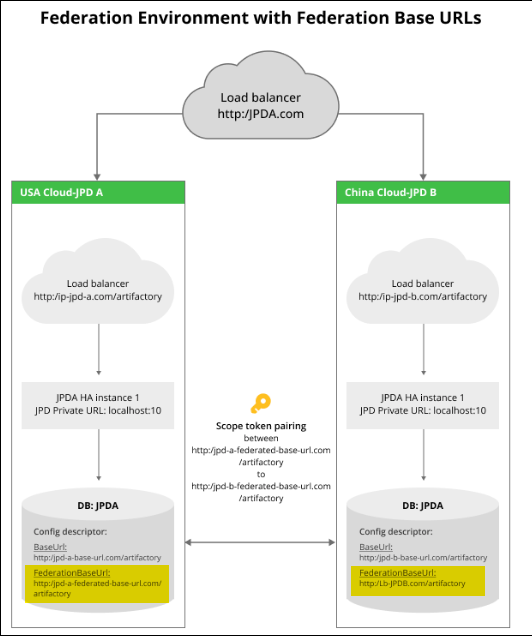
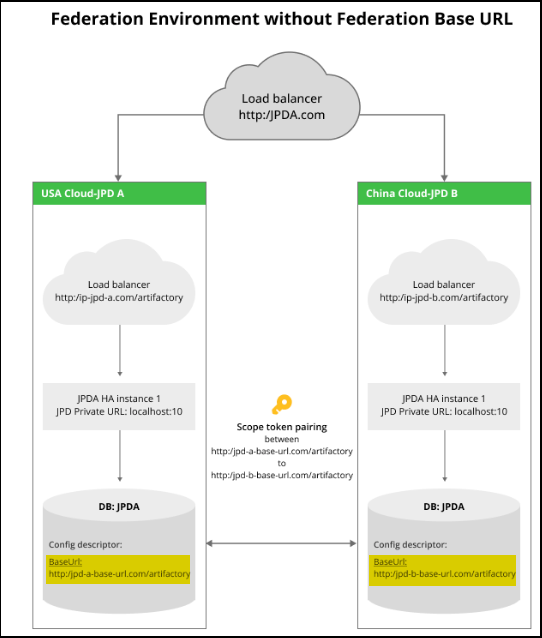
Important
As a fallback, it is possible to change the base URL more aggressively by canceling the Federation, changing the base URL, and then recreating the Federation. However, this has a huge impact on the system since it requires recreating each Federated repository from scratch.
Possible Use Cases
When changing the base URL in Federated repositories, there are two possible use cases:
- If you want to change the base URL, perform Change the Base URL.
- If you want to change the existing Federated base URL, perform Change the Federated Base URL.
It is highly recommended to test the functionality of the Federation after changing either the base URL or the Federated base URL, as described in After Changing the Base URL.
Change the Base URL
Administrators can change the base URL directly from the JFrog platform UI, as described below.
Note
The custom Base URL is blocked on SaaS platforms and enabled on Self-Hosted platforms.
-
In the Administration module, select General Management > Settings.
-
Enter a new custom base URL.
-
Click Save.
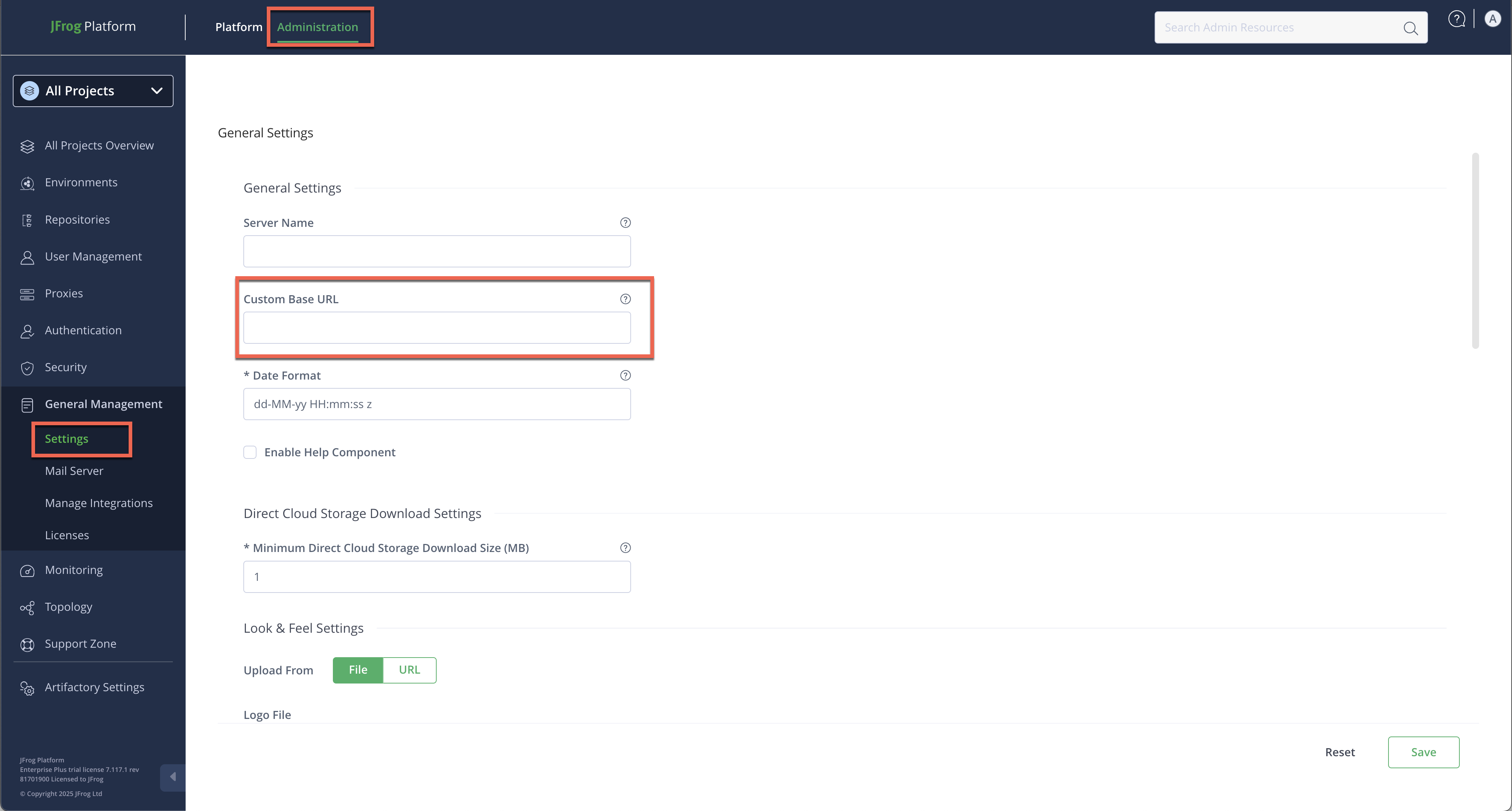
-
The next steps to be performed are dependent on the type of Federation service installed on the members:
Federation service in use on source & target | Steps to perform |
|---|---|
Legacy to Legacy |
For more information about these steps, see Generate New Tokens for Federation Members. |
Legacy to RTFS |
For more information about these steps, see Generate New Tokens for Federation Members. |
RTFS to Legacy |
For more information about these steps, see Generate New Tokens for Federation Members. |
RTFS to RTFS | A new pairing token is not required. Continue below. |
- Verify the functionality of the Federation, as described in After Changing the Base URL.
Tip
You can also change the custom base URL using the Update Custom URL Base REST API.
Change the Federated Base URL
If the Federation uses a Federated base URL, the Administrator can make changes to it directly using the Config Descriptor.
To change the Federated Base URL:
-
In the Administration module, select Artifactory Settings > Config Descriptor.
-
Search the configuration file for a Federation base URL entry:
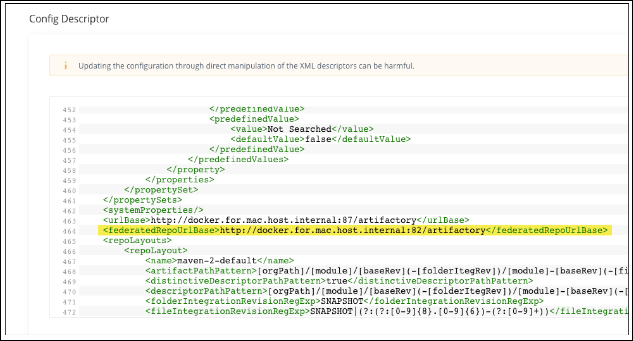
-
Make the required changes to the Federation base URL and save your changes.
Generate New Tokens for Federation Members
After changing the base URL or Federated base URL, the administrator must generate a new pairing token and pair the source and target JPDs.
Important
Make sure to perform this procedure on each remote Federation member that uses the legacy Federation service. This procedure does not need to be performed on members that use the Artifactory Federation Service (RTFS).
To generate new tokens:
-
Generate a new token from the source JPD using the Create Pairing Token Platform REST API.
-
Pair the target JPD to the source JPD using the new token with the Initiate Pairing Platform REST API .
-
Replace the base URL (or Federated base URL) by executing the following POST request against the target JPD:
api/federation/replaceUrlwith the following body:{ "oldBaseUrl": "http:/<old base URL>/artifactory", "newBaseUrl": "http://<new base URL>/artifactory" } -
Continue with the next section, After Changing the Base URL.
After Changing the Base URL
It is strongly recommended to test the functionality of the Federation after changing the base URL or Federated base URL. After verifying that the Federation members are synchronized, the administrator can optionally revoke the obsolete keys.
To test the functionality of the Federation after changing the base URL:
- In the Administration module, select Monitoring > Federation Status. If you see that the Federation is no longer in sync, there is a problem with the new configuration. See View Federation Sync Status for more information.
- [optional] After verifying that all Federation members have synchronized successfully with the updated base URL, revoke the obsolete key for each remote JPD using the Revoke Token by ID REST API.
Increase the Predefined Socket Timeout for Larger Repositories
From Artifactory version 7.38.17 (Self-Hosted), you can increase the socket timeout when syncing large repositories between federated members within a Federation.
To increase the timeout time, use the Artifactory system propertyartifactory.mirror.http.client.socket.timeout.mili in the artifactory.system.properties file.
Troubleshoot Federated Member Out-of-Sync Notifications
If any members of your Federation are out of sync, the system triggers an out-of-sync notification. This can occur due to network failures or changes to your Federated members.
You can manually push the updated configuration to the target Federated member, using one of these methods:
-
Run the Synchronize Federated Member Configuration REST API.
POST http://localhost:port/artifactory/api/federation/configSync/<repositoryKey> -
Directly in the JFrog Platform UI
To manually push an updated configuration to a target federated member in the UI:
-
In the Administration module, select Repositories.
-
Use the Repositories filter to show federated repositories.
-
Select the relevant Federated member, and from the Actions menu, select Push Configuration.
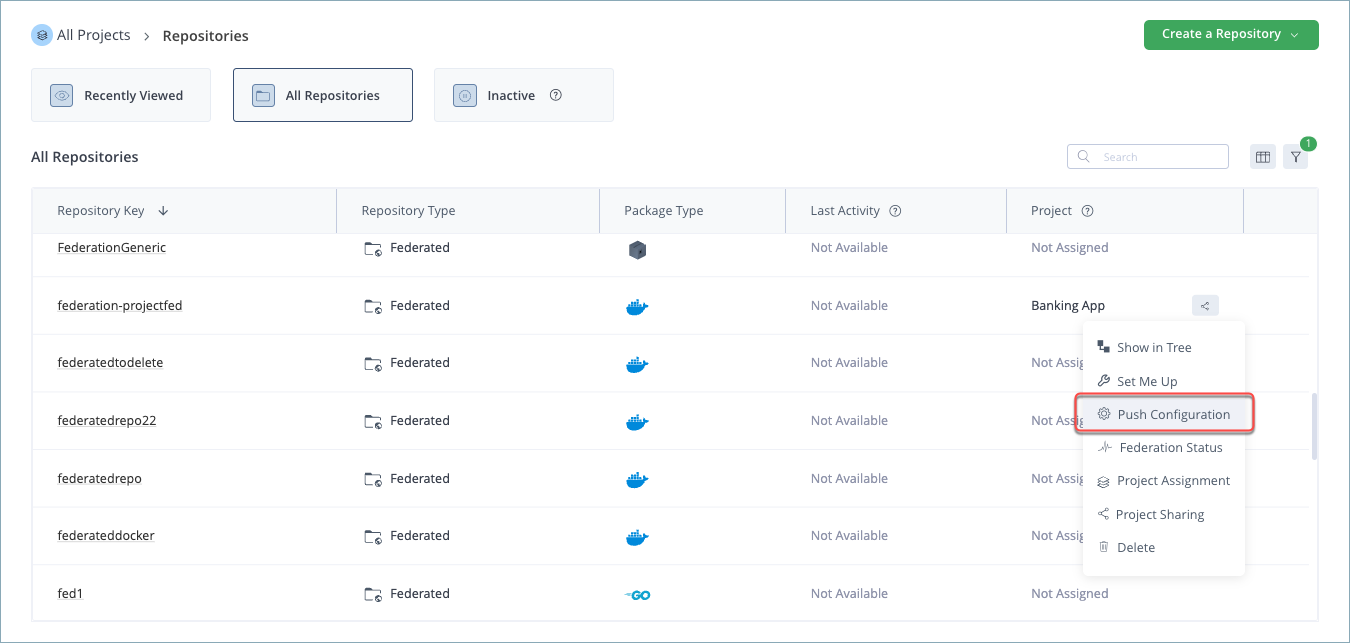
Monitor Federated Repositories
You can monitor the status of Federated repositories using a variety of tools, including:
The available monitoring tools are dependent on whether you are using the standalone Artifactory Federation Service (introduced for Cloud environments in Q3 2024 and for Self-hosted environments in Q1 2025) or the legacy Federation service that existed earlier.
Monitor Federated Repositories using the Federation Dashboard
Administrators can use the Federation dashboard to track the current state of your Federated repositories.
Note
The Federation dashboard requires an Artifactory release that supports the standalone Artifactory Federation service (release 7.104.2 or later).
At the site level, administrators can use the dashboard to:
- Understand the general health of all repository Federations at a glance
- Assign priority to selected repositories to provide them with greater access to system resources
- Filter the display to view all Federated repositories experiencing errors or delays
At the Federation level, administrators can use the dashboard to:
- Drill down to view the connection states between all members of a selected Federation
- View additional information about repository Federations, such as the number of binary tasks in progress
For more information about the Federation dashboard, see:
View the Status of All Repository Federations
Use the Federations dashboard to view a list of repository Federations and their current synchronization status.
To view the repository Federation status table:
In the Administration module, select Monitoring > Federation Status.
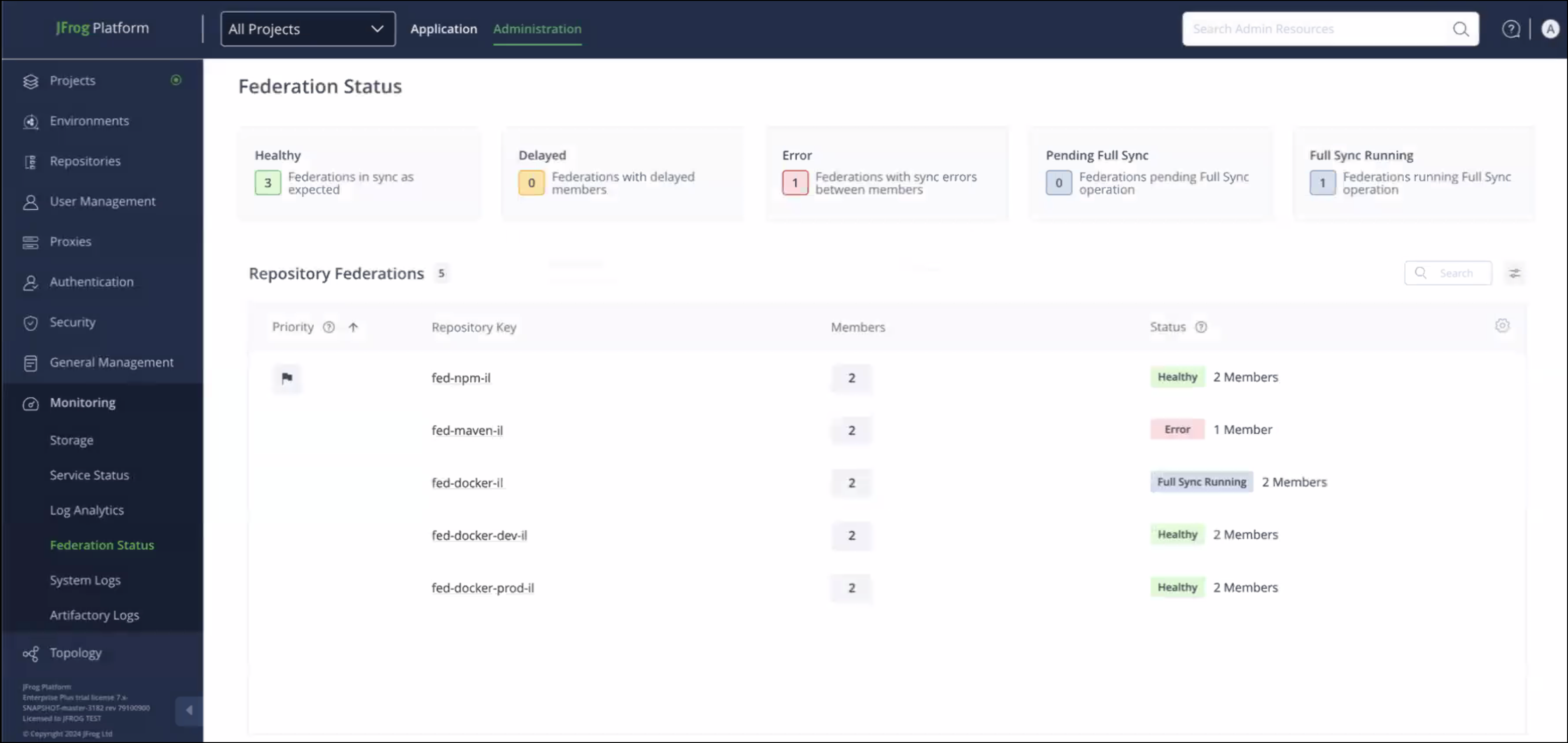
View Status Summaries
The tiles displayed above the table indicate how many repository Federations on this JPD currently have the following statuses:
Status | Description |
|---|---|
Healthy | Federations can attain a Healthy status only when all members are experiencing timely synchronization of metadata events. For example, a Federation cannot attain this status if one of its members has an error, is involved with a Full Sync operation, or is experiencing delays. |
Delayed | Indicates how many Federations have at least one member with high latency, which means that synchronization of metadata events is taking longer than expected. |
Error | Indicates how many Federations have at least one member with synchronization errors. |
Pending Full Sync | Indicates how many Federations have at least one member waiting for a Full Sync to be performed. A Full Sync is performed during the initialization process when a Federation is created, and as a way to restore synchronization when regular synchronization and auto-healing are insufficient (for example, if there are purged events that are no longer available to be synchronized). |
Full Sync Running | Indicates how many Federations have at least one member currently undergoing the Full Sync procedure. |
The state of each member is based on an aggregation of all connections that are federated with the JPD on which this endpoint is run. The aggregation is based on the most severe state. In the example shown below, metadata events sent from the Federated repository gen-fed-fr are synchronizing in a timely fashion with gen-fed-au. Therefore, that connection is HEALTHY. However, there is a delay in sending events from gen-fed-fr to gen-fed-us. Therefore, the aggregated status of gen-fed-fr is DELAYED.
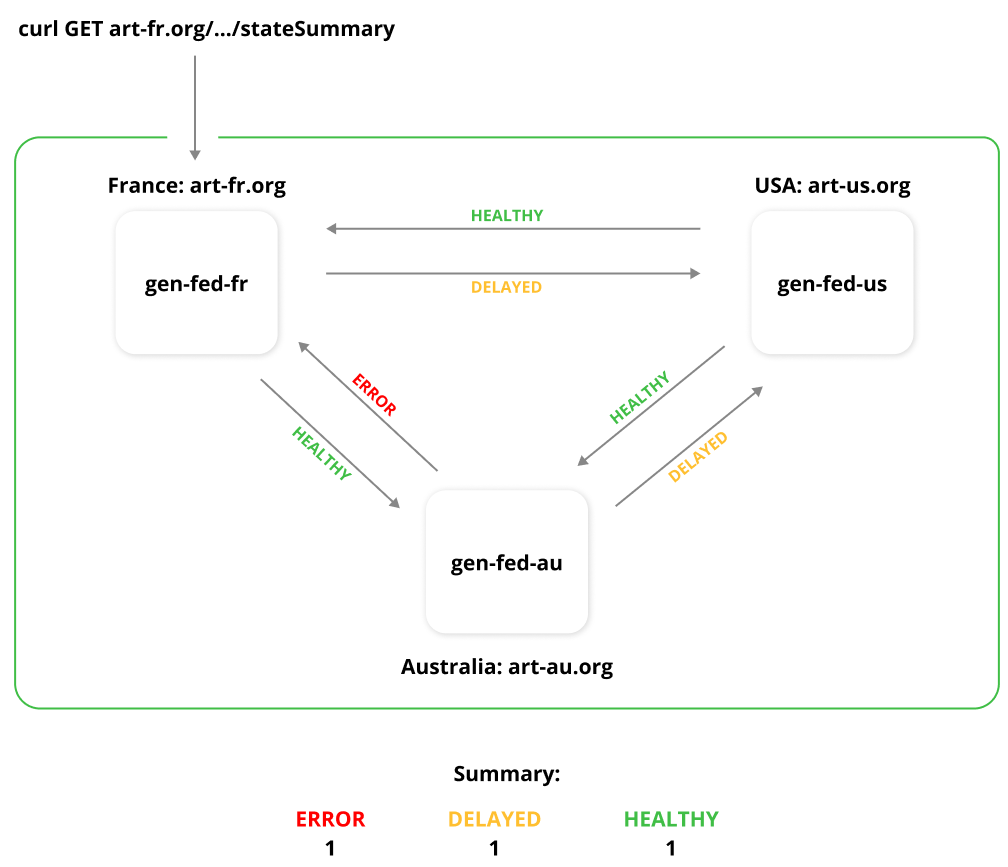
Filter the Repository Federations Table
Click one of the status cards to filter the Repository Federations table according to that status. For example, clicking the Healthy card shows only those Federations whose members are all synchronizing events in a timely fashion.
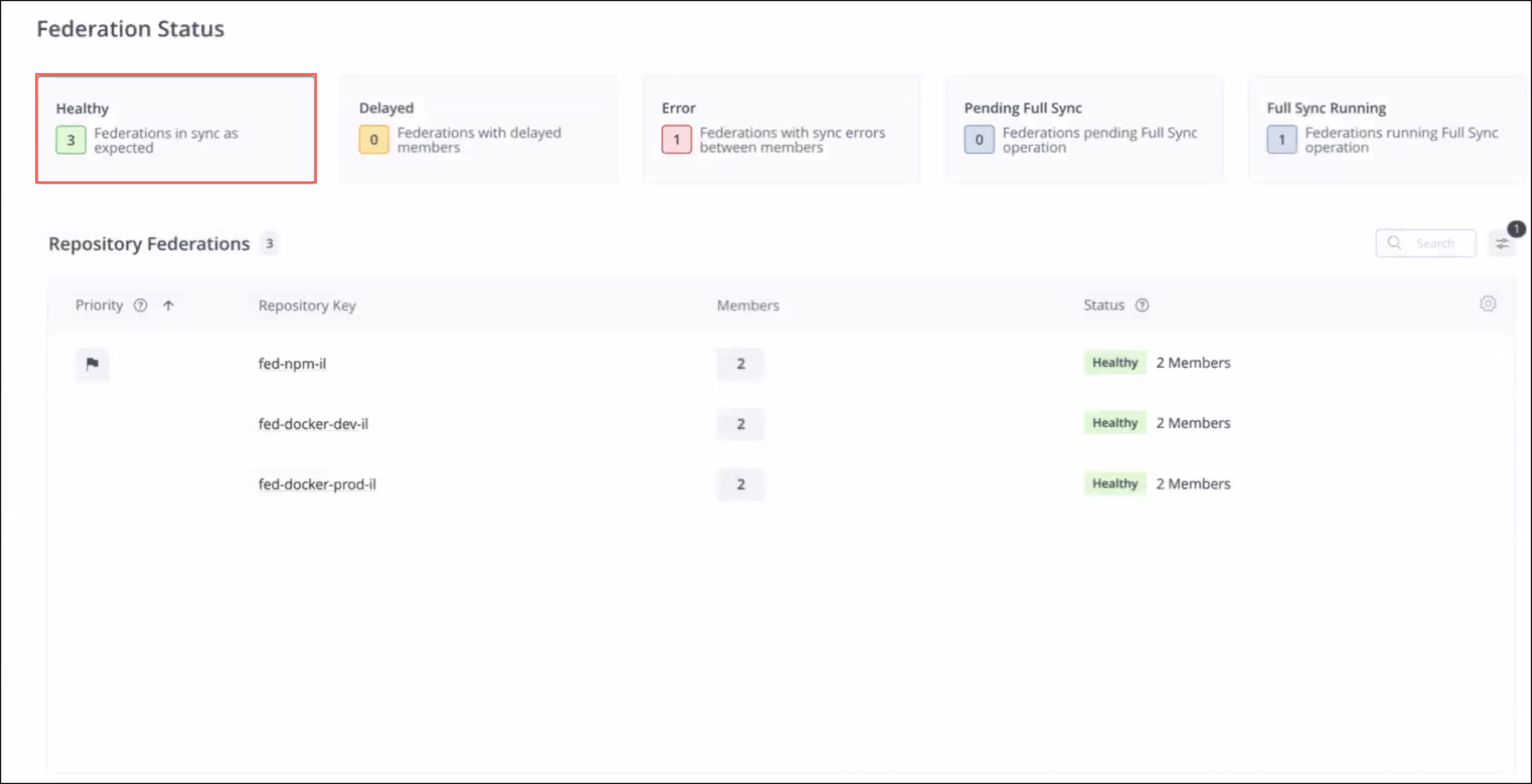
Tip
Click the filter icon
above the table to filter it according to multiple statuses.
View the Status of Each Repository Federation
The Repository Federations table includes the following information:
Column | Description |
|---|---|
Priority | A row displaying the flag icon indicates this Federated repository has been assigned priority to system resources. For more information, see Assign Priority to Federated Repositories. |
Repository Key | The repository key of the member of the repository Federation on this JPD. |
Members | The number of members in this repository Federation. For more information, see View Federation Members. |
Status | The overall status of the repository Federation. The status is based on the most severe status among its members. For example, if the Federation has 5 members, some of which are in Error status, the overall status of the Federation is shown as Error together with an indication of how many members have that status.
|
View Federation Members
In one of the table rows, click the rectangle displaying the number of Federation members to open a popup window with a list of the members and their current status.
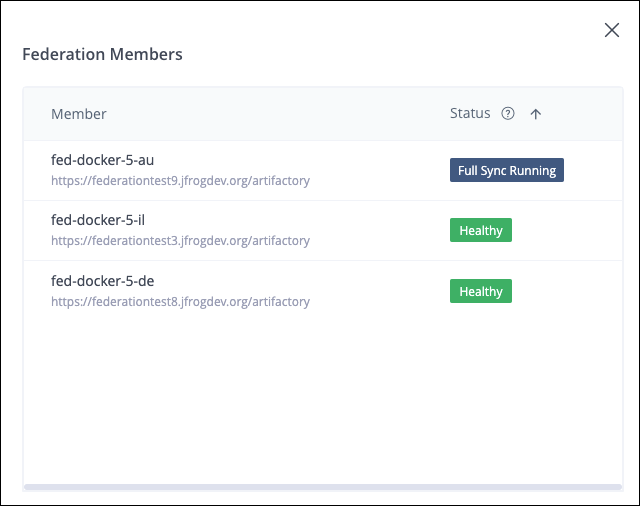
Assign Priority to Federated Repositories
When you assign priority, you provide the event queue of the selected Federated repository with priority access to system resources. This is done to help ensure the timely synchronization of its events with the other members of the Federation.
Note
Since system resources are finite, priority should be assigned sparingly, as prioritizing too many repositories effectively cancels out the benefits of prioritization. The limit is 10 repositories or 20% of the total number of repositories, whichever is lower.
To assign priority:
-
Go to the table row for the repository you want to prioritize and hover over the Priority field. A flag icon will appear.
-
Click the flag icon to assign priority to the selected repository.
-
To remove priority from a selected repository, click the flag icon to remove it from the table.
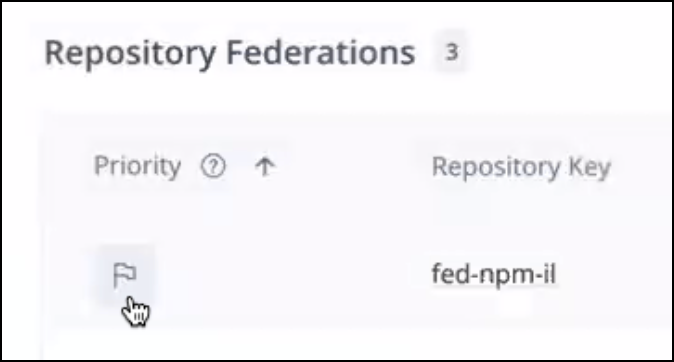
Note
To prioritize an entire Federation you must assign priority to each member of the Federation separately.
View the Status of a Selected Repository Federation
Select a Federated repository from the Federations table to view the status of the connections between this repository and the other Federation members, including the current latency and the number of queue events waiting to be sent.
To view the status of a selected repository Federation:
-
In the Administration module, select Monitoring > Federation Status to open the Federations page.
-
Click the name of the repository key belonging to the Federation you wish to examine. The Federation Status window is displayed.
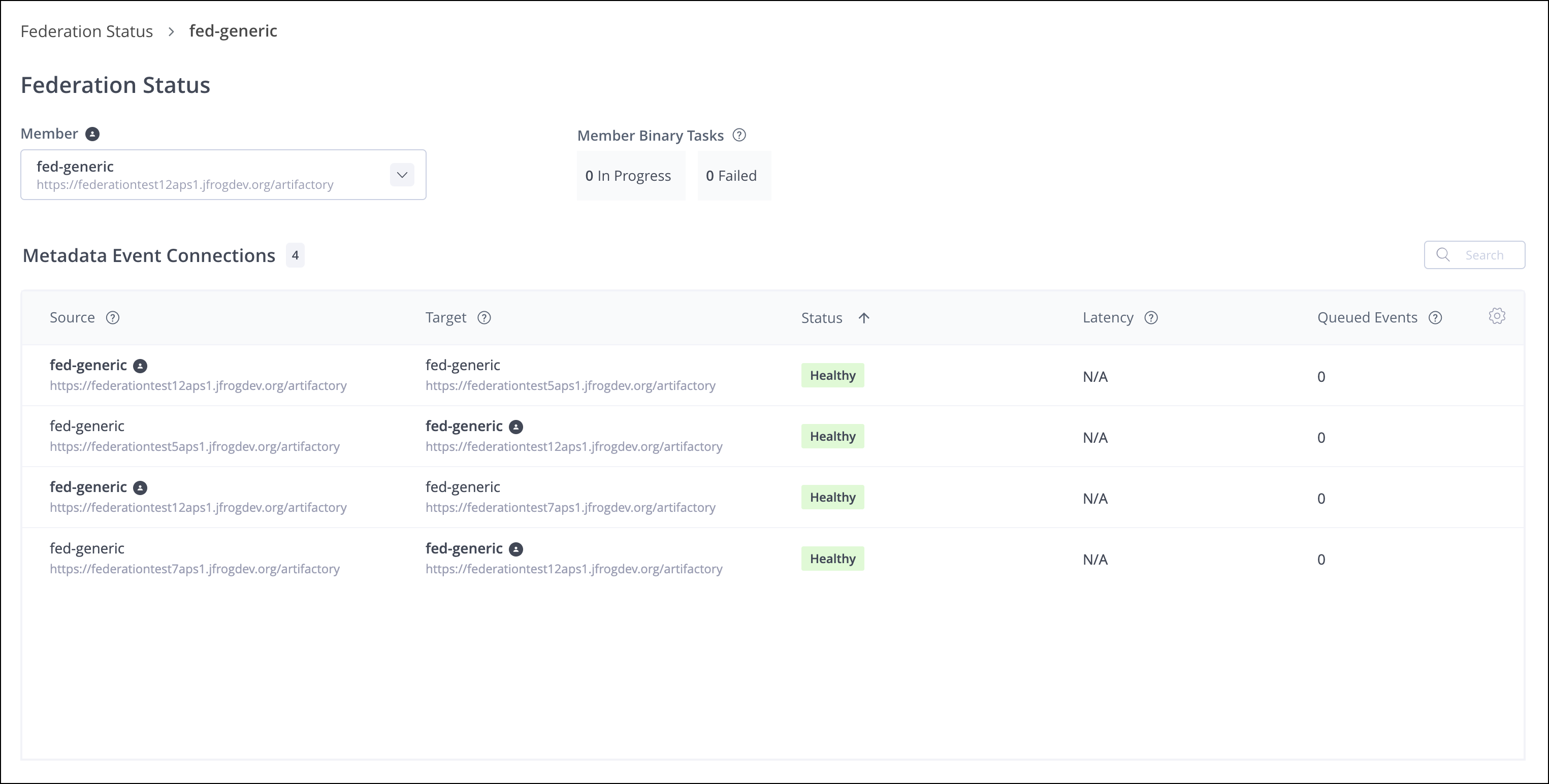
The top of the Federated Status window contains the name of the selected Federation member and the following information about it:
- The number of replication tasks that are currently in progress.
- The total number of replication tasks that have failed to complete.

The Metadata Event Connections table includes a row for each incoming and outgoing connection related to the selected member. The table contains the following information about each connection:
Column | Description |
|---|---|
Source | The repository on the source member responsible for sending events. |
Target | The repository on the target member responsible for receiving events. |
Status | The current status of the connection between the target and source members:
|
Latency | The length of time that has passed since the last event that was handled successfully. |
Queued Events | The total number of events waiting to be sent to the target repository. |
Tip
To view the connections between a different source member and the other members of the Federation, select the source from the dropdown list. An icon
is displayed next to the selected member for easier identification. Click the x icon to view the connections between all members.
RTFS State Machine Reference
This section documents the state machines used by the standalone Artifactory Federation Service (RTFS) to track Federation members and binary tasks. Understanding these states helps administrators troubleshoot synchronization issues and interpret monitoring data.
Note
This reference applies to the standalone Artifactory Federation Service introduced for Cloud in Q3 2024 and for Self-hosted in Q1 2025. For legacy state behavior, see Legacy Queue States.
Member State Machine
Federation members transition through lifecycle states while RTFS performs queue processing, full sync, and recovery operations.
Member State Diagram
stateDiagram-v2
    [*] --> PENDING_FS: New member or full sync required
    PENDING_FS --> FULL_SYNC_PREPARING: Full sync starts
    FULL_SYNC_PREPARING --> FULL_SYNC_RUNNING: File list prepared
    FULL_SYNC_RUNNING --> HEALTHY: Sync completed

    HEALTHY --> DELAYED: High worker lag detected
    DELAYED --> HEALTHY: Lag recovered

    HEALTHY --> ERROR_GENERIC: Processing error
    HEALTHY --> ERROR_INACTIVE: Target unreachable
    HEALTHY --> ERROR_OUT_OF_SYNC: Missing purged events

    ERROR_GENERIC --> HEALTHY: Auto-heal or retry succeeded
    ERROR_INACTIVE --> HEALTHY: Connectivity restored
    ERROR_OUT_OF_SYNC --> PENDING_FS: Full sync required

    HEALTHY --> READ_ONLY: Receiver-only mode enabled
    READ_ONLY --> HEALTHY: Bi-directional sync restored

    HEALTHY --> DISABLED: Member disabled by admin
    DELAYED --> DISABLED: Member disabled by admin
    ERROR_GENERIC --> DISABLED: Member disabled by admin
    ERROR_INACTIVE --> DISABLED: Member disabled by admin
    ERROR_OUT_OF_SYNC --> DISABLED: Member disabled by admin
RTFS Member State Reference
| Status | Description | Auto-Heals? | User Action |
|---|---|---|---|
| HEALTHY | Member is synchronized and processing events normally. | N/A | None required. |
| READ_ONLY | Member is configured as a receiver only. Events are received but not sent. | No | Check configuration if this is unexpected. |
| FULL_SYNC_PREPARING | RTFS is building file lists and preparing a full sync run. | Yes (if stale) | Wait for completion. |
| FULL_SYNC_RUNNING | RTFS is comparing and synchronizing artifacts between members. | Yes (if stale) | Wait for completion. |
| PENDING_FS | Member is queued and waiting for full synchronization to begin. | No | Wait for automatic processing. |
| ERROR_GENERIC | A general processing error occurred. | Yes | Check logs if auto-healing does not recover. |
| ERROR_INACTIVE | Member is unreachable. | Yes | Verify network connectivity and member health. |
| ERROR_OUT_OF_SYNC | Full sync failed, or queued events were deleted before synchronization could complete. | Yes | A full sync may be required. |
Note
Status priorities determine the aggregated status shown in the Federation dashboard. When aggregating across members, the state with the highest severity is shown.
Dashboard Status Mapping
The Federation dashboard displays simplified labels that map to RTFS member states.
| Dashboard Status | Underlying States | Description |
|---|---|---|
| Healthy | HEALTHY | All metadata events are synchronizing normally. |
| Delayed | HEALTHY (with high lag) | Synchronization is slower than expected. This is based on lag metrics, not a distinct RTFS state. |
| Error | ERROR_GENERIC, ERROR_INACTIVE, ERROR_OUT_OF_SYNC | One or more synchronization errors are detected. |
| Pending Full Sync | PENDING_FS | Member is waiting for full sync to begin. |
| Full Sync Running | FULL_SYNC_PREPARING, FULL_SYNC_RUNNING | Full sync operation is in progress. |
| Disabled | enabled=false | Member is disabled by an administrator. |
| Unsupported | N/A | Member is running a version that does not support the Federation dashboard. |
Binary Task State Machine
When RTFS propagates a CREATE or UPDATE event, binary content may not exist on the target. RTFS creates a binary task to transfer that content.
Binary Task Lifecycle
stateDiagram-v2
    [*] --> AVAILABLE: Event requires binary

    AVAILABLE --> IN_PROGRESS: Storage handler picks up task
    IN_PROGRESS --> COMPLETED: Binary transferred successfully
    IN_PROGRESS --> AVAILABLE: Transient failure, retry
    IN_PROGRESS --> EXHAUSTED_SUBMISSION: Max Artifactory retries exceeded
    IN_PROGRESS --> EXHAUSTED_STORAGE: Max storage retries exceeded
    IN_PROGRESS --> REJECTED: Binary rejected by target

    COMPLETED --> DELETED: Task cleanup
    DELETED --> [*]

    EXHAUSTED_SUBMISSION --> AVAILABLE: Manual replay triggered
    EXHAUSTED_STORAGE --> AVAILABLE: Manual replay triggered
    REJECTED --> [*]: Task cannot be retried
Binary Task Status Reference
| Status | Description | Next Action |
|---|---|---|
| AVAILABLE | Task is queued and waiting for a storage handler. | Automatic pickup by a handler. |
| IN_PROGRESS | Handler is downloading from source or uploading to target. | Automatic completion or retry. |
| COMPLETED | Binary transferred successfully. | Task is removed from queue. |
| DELETED | Task is marked for deletion after successful completion. | Automatic cleanup. |
| EXHAUSTED_SUBMISSION | Maximum retries when submitting to Artifactory are exceeded. | Use the Replay Failed Binary Tasks API. |
| EXHAUSTED_STORAGE | Maximum retries for storage operations are exceeded. | Use the Replay Failed Binary Tasks API. |
| REJECTED | Target Artifactory rejected the binary due to validation or policy checks. | Review rejection details in logs. |
Monitoring Binary Tasks
Use these metrics to monitor binary task health. In Prometheus or Grafana, query the scraped names (see Artifactory Federation Service Custom Metrics):
jfrtfs_binary_tasks_total_count_by_status_total— counter for binary task counts by status (logical namejfrtfs_binary_tasks_total_count_by_status; exposition typically adds the_totalsuffix).jfrtfs_binary_tasks_handler_execution_duration_millis— timer/histogram family; series may include_count,_sum,_bucket, or related suffixes depending on export.
Tip
A high count of
EXHAUSTED_SUBMISSIONorEXHAUSTED_STORAGEtasks indicates failures that require investigation. Use the Replay Failed Binary Tasks API after addressing root cause.
Monitor Federated Repositories using REST APIs
You can monitor the status of Federated repositories using a set of dedicated REST APIs. The endpoints that are available are dependent on whether you are using the standalone Artifactory Federation Service (introduced for Cloud environments in Q3 2024 and for Self-hosted environments in Q1 2025) or the legacy Federation service that existed earlier.
Monitoring APIs for the Standalone Artifactory Federation Service
The Artifactory Federation Service includes the following monitoring APIs:
- Get Federation Connection Details API
- Get Federation State Details API
- Get Federation State Summaries API
- Prioritize Federated Repository API
- Reconnect to Federation Client API
Monitoring APIs for the Legacy Federation Service
The legacy Federation service includes the following monitoring APIs:
- Get Federated Repository Status API
- Get Federated Repository Status (v2) API
- Get Federation Sync State API
- Get Federation Mirror Lag Time API
- Get Unavailable Mirrors API
Monitor Federated Repositories using Open Metrics
In addition to viewing the status of Federated repositories within the platform UI, it is possible to gather Federation performance data using a set of metrics that complies with the Open Metrics standard. This data can then be accessed by 3rd party monitoring tools without the need for custom inbound API calls.
Note
This feature was introduced in version 7.63.7 and is available for Self-hosted customers only.
The Open Metrics that are available is dependent on whether you are using the standalone Artifactory Federation Service (introduced for Cloud environments in Q3 2024 and for Self-hosted environments in Q1 2025) or the legacy Federation service that existed earlier.
Open Metrics for the Artifactory Federation Service
When using the Artifactory Federation Service, see Artifactory Federation Service Custom Metrics.
Open Metrics for Legacy Federation
When using the legacy Federation service, see the following topics:
- Setup: Artifactory System Properties for Federated Repository Metrics
- How to use: Federated Repository Metrics
- How to use in MBeans: Federated Repository Metrics in MBeans
Artifactory Federation Service Custom Metrics
This section outlines the custom metrics collected by the standalone Artifactory Federation service.
RTFS metrics endpoint, exposition names, and Artifactory metrics
On self-hosted JPDs, RTFS serves OpenMetrics (Prometheus-compatible) metrics at
GET https://<JPD_URL>/rtfs/api/v1/metrics. For a full metric list, optional PromQL examples, and related administration context, see Open Metrics and the Platform Administration Artifactory Federation Service metrics reference.Prometheus and Grafana queries: Tables below use logical Micrometer-style names. In Prometheus exposition (and therefore in Grafana), counters and other types often appear with extra suffixes—for example, a counter may be scraped as
jfrtfs_binary_tasks_total_count_by_status_totalrather thanjfrtfs_binary_tasks_total_count_by_status. Timers may appear as multiple series (for example,_count,_sum,_bucket). If a query using a name from this page returns no data, open the raw text from/rtfs/api/v1/metricsand use the exact series names returned there.
jfrtfs_vsjfrt_federation_: Metrics whose names start withjfrtfs_are emitted by RTFS from/rtfs/api/v1/metrics. Metrics whose names start withjfrt_federation_(including federation mirror lag examples under Federated Repository Metrics) are Artifactory Open Metrics for the legacy federated-repository flow. They require the Artifactory federated metrics system properties and are exposed on Artifactory’s metrics endpoint—not on the RTFS URL. Scraping only RTFS will not showjfrt_federation_*series.Fluentd / log analytics (JOBS-1897): Support in
fluent-plugin-jfrog-metricsfor collecting RTFS metrics uses the same RTFS/rtfs/api/v1/metricspath. That integration affects how metrics are shipped to observability backends, not the names on the RTFS endpoint itself.
Metrics Granularity
Due to potential performance overhead, custom metrics are collected by default at the tenant level. However, selected metrics can collect data at the repo key or member level if predefined thresholds are exceeded.
Warning
These granular metrics should be implemented and used with caution due to their potential performance impact.
Available Metrics
Custom metrics for the Artifactory Federation service are divided into the following categories:
Lag Metrics
The Artifactory Federation service includes the lag metrics described in the table below.
Name | Description | Type | Granularity |
|---|---|---|---|
| The lag time when transferring events to the remote member. The calculation: Lag = Current time - Trailing baseline time Trailing baseline time =
| Gauge | Per tenant |
| The lag of the Artifactory Federation queue (in milliseconds). | Gauge | Per tenant |
| Per-repository event-processing lag for the repositories with the highest lag, in seconds. Use this series when you need member/repo-level lag from RTFS (compare with aggregate worker lag in | Gauge | Per tenant (and related labels such as source/remote repo keys and remote member URL when exposed) |
| The number of events that remain to be handled to overcome the lag. | Counter | Per tenant |
Event Metrics
The Artifactory Federation service includes the event metrics described in the table below.
Name | Description | Type | Granularity |
|---|---|---|---|
| The total number of events received by the Federation service from Artifactory. | Counter | Per tenant |
| The total number of deduped (deduplicated) events filtered out of the queue. For example, imagine an artifact with two events in the queue. In the first event, the artifact is updated and in the second it is deleted. The first event is removed from the queue to streamline the process, and only the deletion event is sent to the remote member. | Counter | Per tenant |
| The total number of events received by the tenant from remote members. | Counter | Per tenant |
| The number of events sent from the tenant to remote members.
| Counter | Per tenant |
| Tracks the duration between the creation of partitions in the | Gauge | Per Tenant |
| Track the duration between the creation of partitions in the | Gauge | Per Tenant |
Full Sync Metrics
The Artifactory Federation service includes the Full Sync metrics described in the table below.
Name | Description | Type | Granularity |
|---|---|---|---|
| The total number of Full Sync operations that have been executed. | Counter | Per Tenant / Member |
| The total end-to-end duration of all Full Sync operations. Configure the threshold using the property: (default=30 min.) | Timer | Per Tenant / Member (per member if a single Full Sync operation exceeds the threshold) |
| The file list sort rate (in milliseconds). The rate is calculated by dividing the number of artifacts in the file list by the total sort time. Configure the threshold using the property:
(default = 10000 ms) | Gauge | Global |
| The artifact event propagation rate in milliseconds. The rate is calculated by dividing the number of artifact events sent to the remote member by the total amount of time needed to propagate them (i.e. elapsed time between sending events and receiving an OK response from the remote member). | Gauge | Global |
| The total number of artifacts in the file list of the local member. Configure the threshold using the property:
(default = 1 million) | Counter | Per Tenant / Member (if the threshold is exceeded) |
| The file list compilation rate in milliseconds. The rate is calculated by dividing the number of artifacts in the file list by the total amount of time to get the file list. Configure the threshold using the property:
(default = 5 sec.) | Gauge | Global |
Member State Metrics
The Artifactory Federation service includes the member state metrics described in the table below.
Name | Description | Type | Granularity |
|---|---|---|---|
| The total number of recovery operations that have been performed using the auto-healing process. For example, recovery performed once on 5 members is equivalent to recovery being performed on the same member 5 times. | Counter | Global |
| The current number of members in the following states:
Disabled members are filtered out. | Gauge | Per Tenant |
| The total number of members disabled locally by the user. | Counter | Per Tenant |
Miscellaneous Metrics
The Artifactory Federation service includes the additional metrics described in the table below.
Name | Description | Type | Granularity |
|---|---|---|---|
| The total number of HTTP errors between Artifactory and the Artifactory Federation service. | Counter | Global |
| The total number of failed database queries in the Artifactory Federation service. | Counter | Global |
| The total number of failed database queries. | Counter | Global |
| The amount of time that was needed to execute a specific query. | Counter | Depends on query |
| The percentage of available HTTP client connections. | Gauge | Global |
| The percentage of leased HTTP client connections. | Gauge | Global |
| The number of pending HTTP client connections. | Counter | Global |
Artifactory System Properties for Federated Repository Metrics
The following Artifactory system properties are used to configure Federated repository monitoring data based on the Open Metrics standard:
-
artifactory.federated.metrics.enabledDetermines whether metrics writing for Federated repositories is enabled (true/false). The default value is false.
-
artifactory.federated.metrics.sync.threshold.time.msDefines the minimum threshold (in ms) above which the Open Metrics counter will indicate a repository has breached the sync threshold. The default value is 20000 (20 seconds).
Note
The default value is also the minimum value.
-
artifactory.federated.metrics.monitoring.interval.time.secDefines the measurement interval for the Federation synchronization of all repositories. The default value is 30 seconds.
Note
The system will override any defined value that is under the minimum set by JFrog to protect the system, currently set for 5 seconds.
-
artifactory.federated.metrics.exclude.disabledDetermines whether to exclude disabled mirrors (whose sync lag by definition is always increasing) from metrics writing. The default value is true.
-
artifactory.federated.metrics.enable.count.disabled.membersDetermines whether to count the number of disabled members across all existing Federations in the JPD. The default value is true.
Federated Repository Metrics
The metrics available for monitoring Federated repositories are based on the Get Federation Mirror Lag Time REST API:
GET api/federation/status/mirrorsLagNote
The examples below (
jfrt_federation_*) are Artifactory Open Metrics. They are written when federated repository metrics are enabled through the Artifactory system properties for Federated repository metrics and appear on Artifactory’s Open Metrics scrape—not on the RTFS/rtfs/api/v1/metricsendpoint. For lag and health signals from the standalone Federation service (RTFS), use thejfrtfs_*metrics in Lag Metrics and the other RTFS tables above.
Important
The first four metrics described below are applicable only to healthy Federations. These metrics ignore Federated repositories that are down or disabled.
Federation Mirror Lag
Example:
jfrt_federation_member_lag_total{local_repo_key="example-repo-local", remote_repo_key="test3-repo", remote_url="http://docker.for.mac.localhost:10102/artifactory/"} 5000 1575374691025Records all Federated repositories whose sync lag exceeds the defined threshold (in milliseconds).
Note
The measured lag must exceed the minimum threshold value defined in the system property
artifactory.federated.metrics.sync.threshold.time.ms.
Federation Mirror Maximum Lag
Example:
jfrt_federation_max_lag_ms_total 500 1575374698000Records the maximum lag value (500 in the example above) from among all Federated repositories in milliseconds.
Number of Mirrors Exceeding the Sync Threshold Value
Example:
jfrt_federation_num_mirrors_exceeding_lag_threshold_total 17 1575374698000Records the total number of mirrors (17 in the example above) that have a sync lag larger than the default threshold. If no mirrors have a log above the threshold, the recorded value will be 0.
Number of Federated Repositories Exceeding the Sync Threshold Value
Example:
jfrt_federation_num_repos_exceeding_lag_threshold_total 9 1575374698000Records the total number of distinct Federated repositories (9 in the example above) that have a sync lag larger than the default threshold. This value will always be equal to or less than the Number of Mirrors Exceeding the Sync Threshold value. If no repositories have a log above the threshold, the recorded value will be 0.
Number of Disabled Federated Members
Example:
jfrt_federation_num_members_disabled_total 2 1575374698000Records the number of disabled mirrors (2 in the example above), including disabled Federated repositories from the JPD in context as well as disabled remote Federated repositories that are part of any existing Federation from the JPD in context.
Number of Federated Repositories per Status
Examples:
jfrt_federation_num_repos_status_total{status="healthy"} 232 1575374691025
jfrt_federation_num_repos_status_total{status="out_of_sync"} 22 1575374691025
jfrt_federation_num_repos_status_total{status="error_exhausted"} 13 1575374691025
jfrt_federation_num_repos_status_total{status="pending_fullsync"} 41 1575374691025
Records the number of Federated repositories that have the indicated status. Possible statuses include: healthy, pending full sync, full sync running, out of sync, exhausted, disabled.
Federated Repository Metrics in MBeans
An MBean section for Federated repositories is available whose attributes are identical to the metrics specified in Federated Repository Metrics. The attributes include:
-
MaximumLagInMs
-
NumberOfDisabledFederationMembers
-
NumberOfReposExceedingLagThreshold
This metric requires the use of the Get Federation Mirror Lag Time API to limit the results to those repositories that exceed a defined threshold.
-
NumberOfMirrorsExceedingLagThreshold
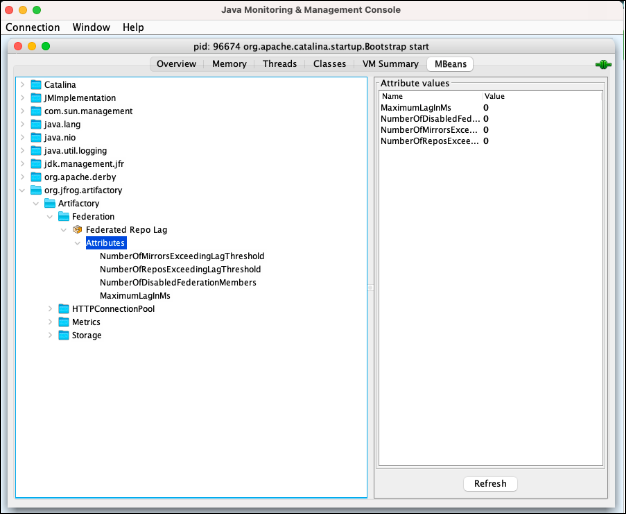
Monitor Federated Repositories in the Platform UI
Monitoring Federated repositories in the platform UI is dependent on whether you are using the standalone Artifactory Federation Service (introduced for Cloud environments in Q3 2024 and for Self-hosted environments in Q1 2025) or the legacy Federation service that existed earlier.
Monitoring with the Artifactory Federation Service
When using the Artifactory Federation Service, see Monitor Federated Repositories using the Dashboard.
Monitoring with Legacy Federation
When using the legacy Federation service, see the following topics:
View Federated Repository Status
From Artifactory version 7.58.0, administrators can view the current status of a Federated repository, including the number of pending events, the mirror latency, and the synchronization status among the mirrors for this repository.
To view the status of a Federated repository:
-
Go to the Administration module and select Repositories.
-
Use the Repositories filter to show federated repositories.
-
Click the actions menu for the relevant Federated repository and select Federation Status.
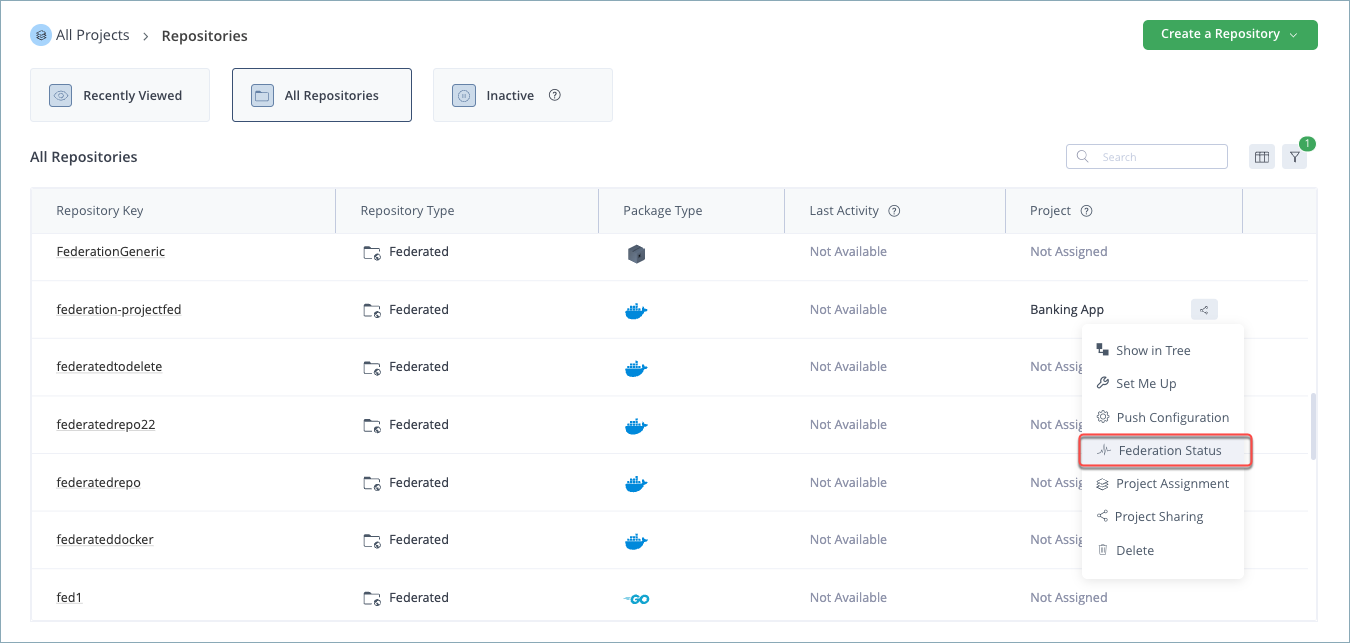
The top of the Federated Repository Status window displays the following information about the selected JPD:

Item | Description |
|---|---|
Replicated Artifacts | Fully: The total number of artifacts that have been fully replicated (metadata & binary) on this JPD. Metadata only: The total number of artifacts for which metadata exists on this JPD but not the binary. |
Binaries Tasks | In Progress: The number of replication tasks that are currently in progress. If this value is significantly less than the Metadata Only value, this indicates a high failure rate that should be investigated. Failed: The total number of replication tasks that have failed to complete. |
The table in the Federated Repository Status window displays the following information about each target mirror that is Federated with the selected repository:
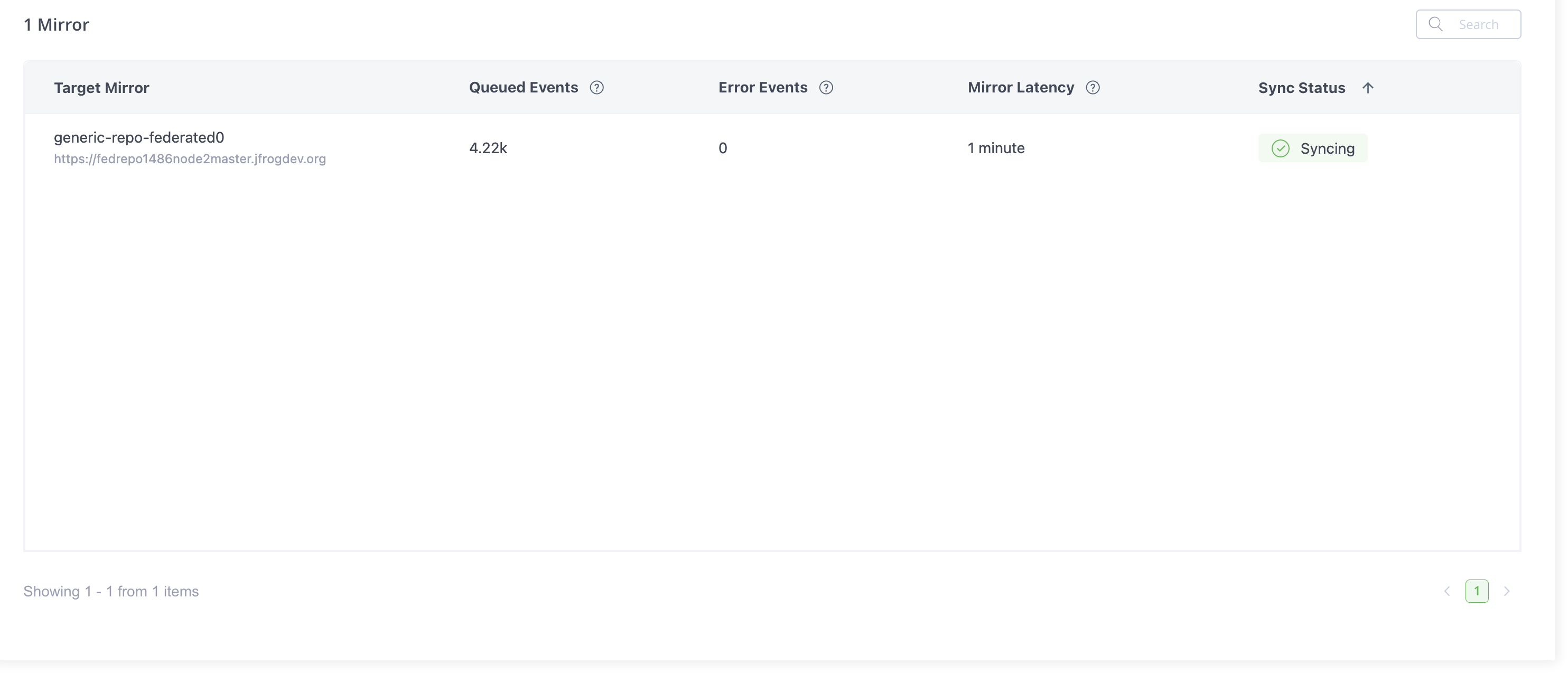
Item | Description |
|---|---|
Queue Events | The total number of events waiting to be sent to the target mirror. |
Error Events | The number of failed events during the synchronization process. |
Mirror Latency | The total wait time for the next pending event that needs to be handled. The calculation is: Current time – Time of the next event that has yet to be handled |
Sync Status | Indicates whether the Federated repository is synchronized with the target mirror. (The threshold is a certain number of error events that is defined at the system level and cannot be modified.) |
View Queued Event Details for the Selected Target Mirror
Select a row in the Federated Repository Status table to display additional details about the queue events for the selected target mirror.
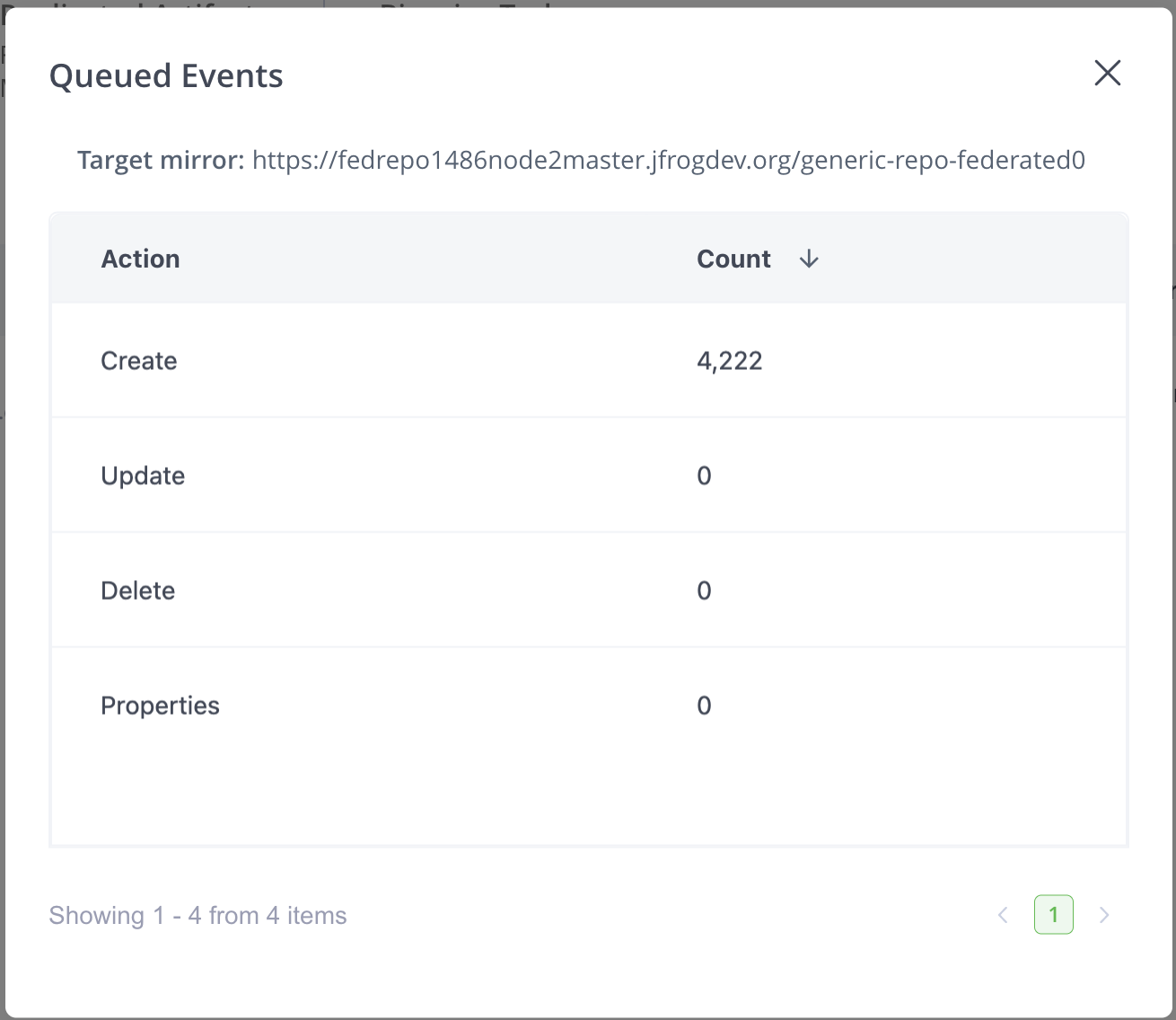
| Item | Description |
|---|---|
| Create | The number of Create events waiting to be sent to the target mirror. |
| Update | The number of Update events waiting to be sent to the target mirror. |
| Delete | The number of Delete events waiting to be sent to the target mirror. |
| Properties | The number of node properties waiting to be sent to the target mirror. |
View Federation Sync Status
From Artifactory version 7.55.1, administrators can see whether there are significant synchronization delays between the Federated repositories on the local JPD and other Federation members on remote JPDs.
To view the Federation synchronization status, go to the Administration module and select Monitoring > Federation Status.
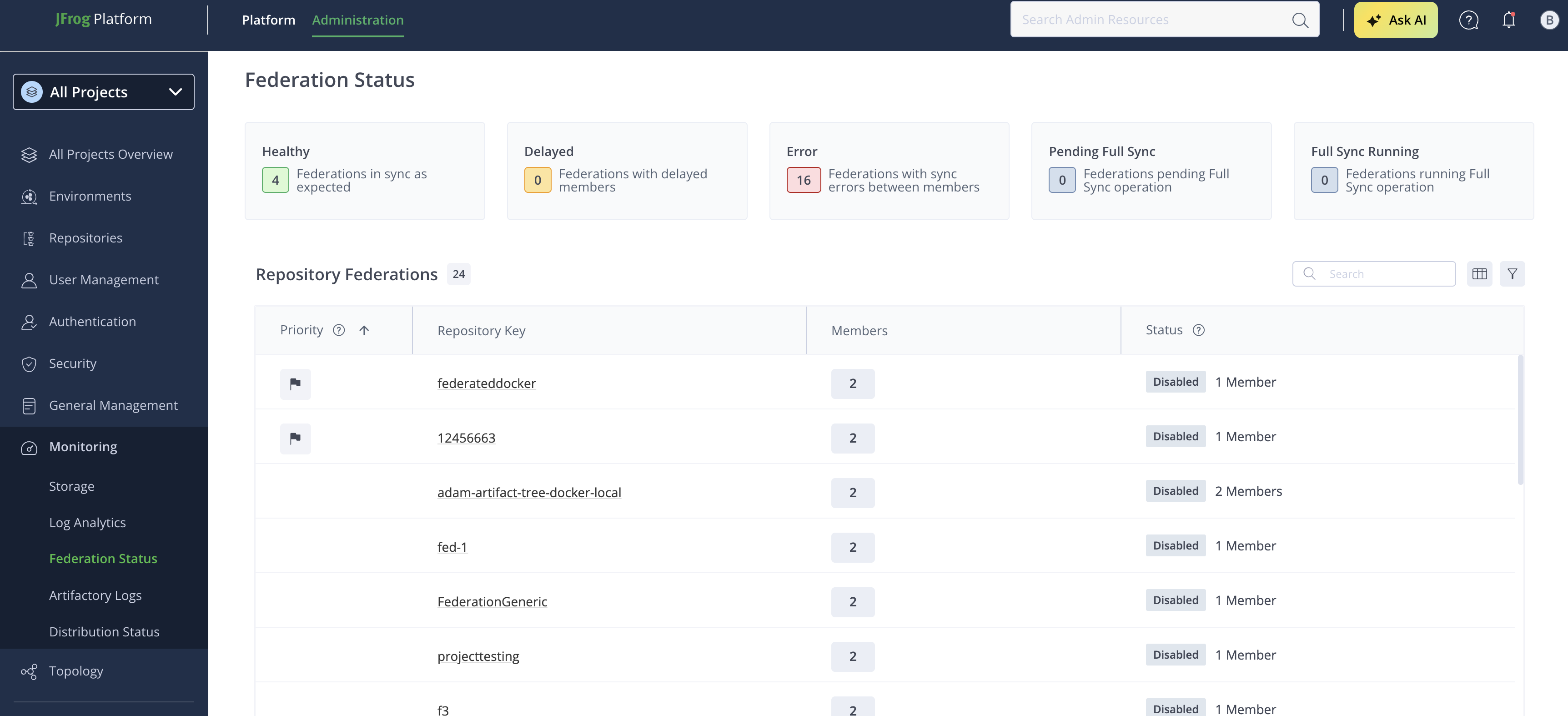
The table contains the following information about each JPD:
| Column | Description |
|---|---|
| Priority | Allows setting the synchronization priority for the federated repository. |
| Repository Key | The unique identifier (key) of the federated repository. |
| Members | The number of JFrog Platform Deployments (JPDs) that are members of this repository federation. |
| Status | The synchronization status of the repository (e.g., in sync, delayed, in error, or disabled). |
Refresh the Federated Sync Status
In the Federation Sync Status window, click Refresh to update the information in the table.
View the List of Longest Delays in a JPD
In the Federation Sync Status table, click the row of a JPD to view a popup window containing a list of repositories (up to 10) with the longest delays.
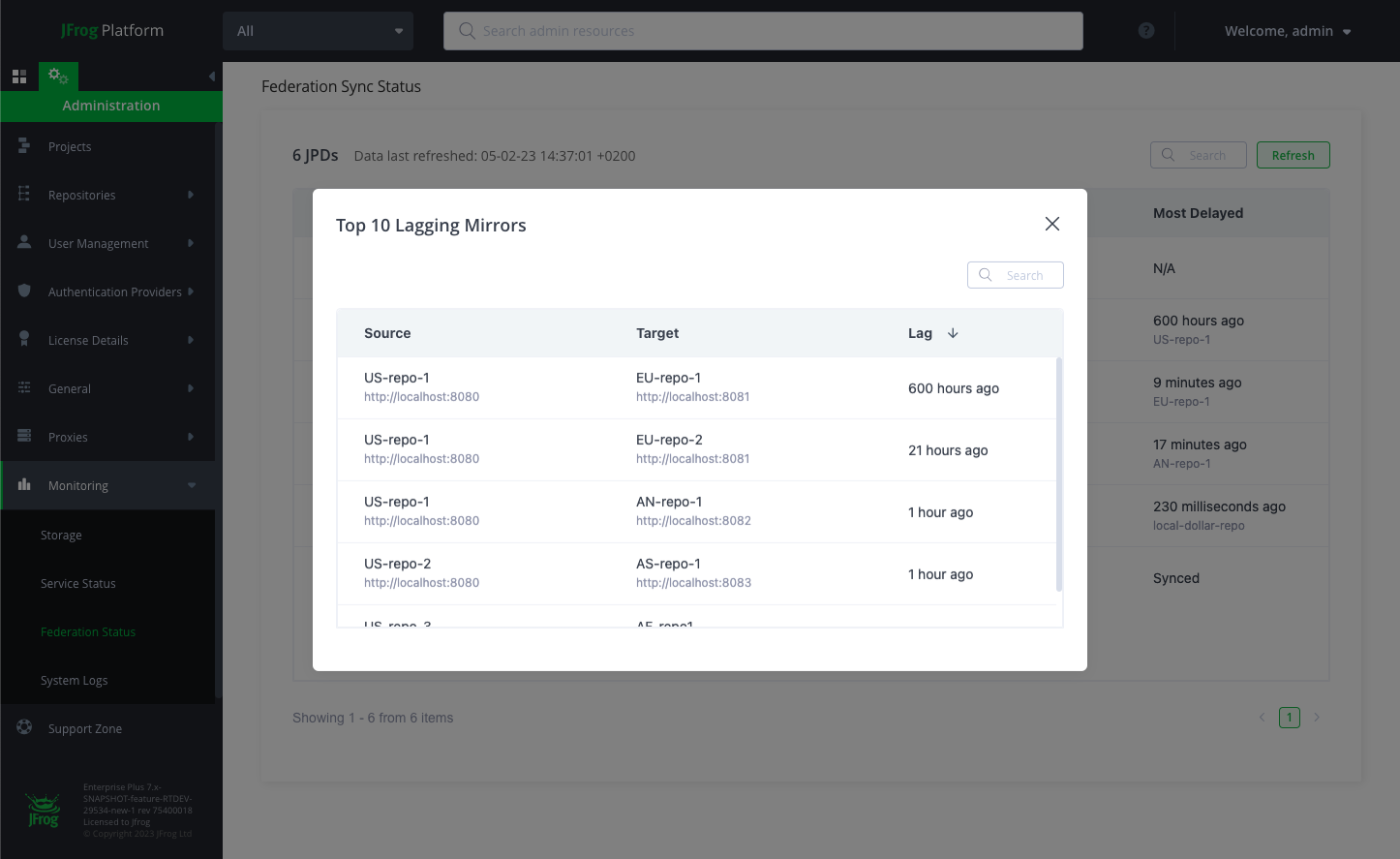
The table contains the following information:
| Column | Description |
|---|---|
| Source | The Federated repository on the source JPD. |
| Target | The Federated repository on the target JPD. |
| Delay | The length of the delay between the source to the target. |
Multi-Version Support
Artifactory includes multi-version support, which enables the members of a Federation to run different versions of Artifactory, even if the version at one site includes configuration features and values that are not supported on the versions running at other sites. Thanks to multi-version support, future upgrades after 7.49.6 can be performed on one site at a time, eliminating the need for simultaneous upgrades across all locations.
Note
It is a prerequisite of the multi-version support feature to upgrade all Artifactory instances hosting Federated repository members to Artifactory 7.49.6. After this has been done, multi-version support is enabled for all versions going forward.
Whenever an instance with a new Artifactory version is introduced to the Federation, any configuration differences that are detected between the new version and older versions are reported to the user. For example, if there are new features not found in the older version, a message such as the following is displayed:
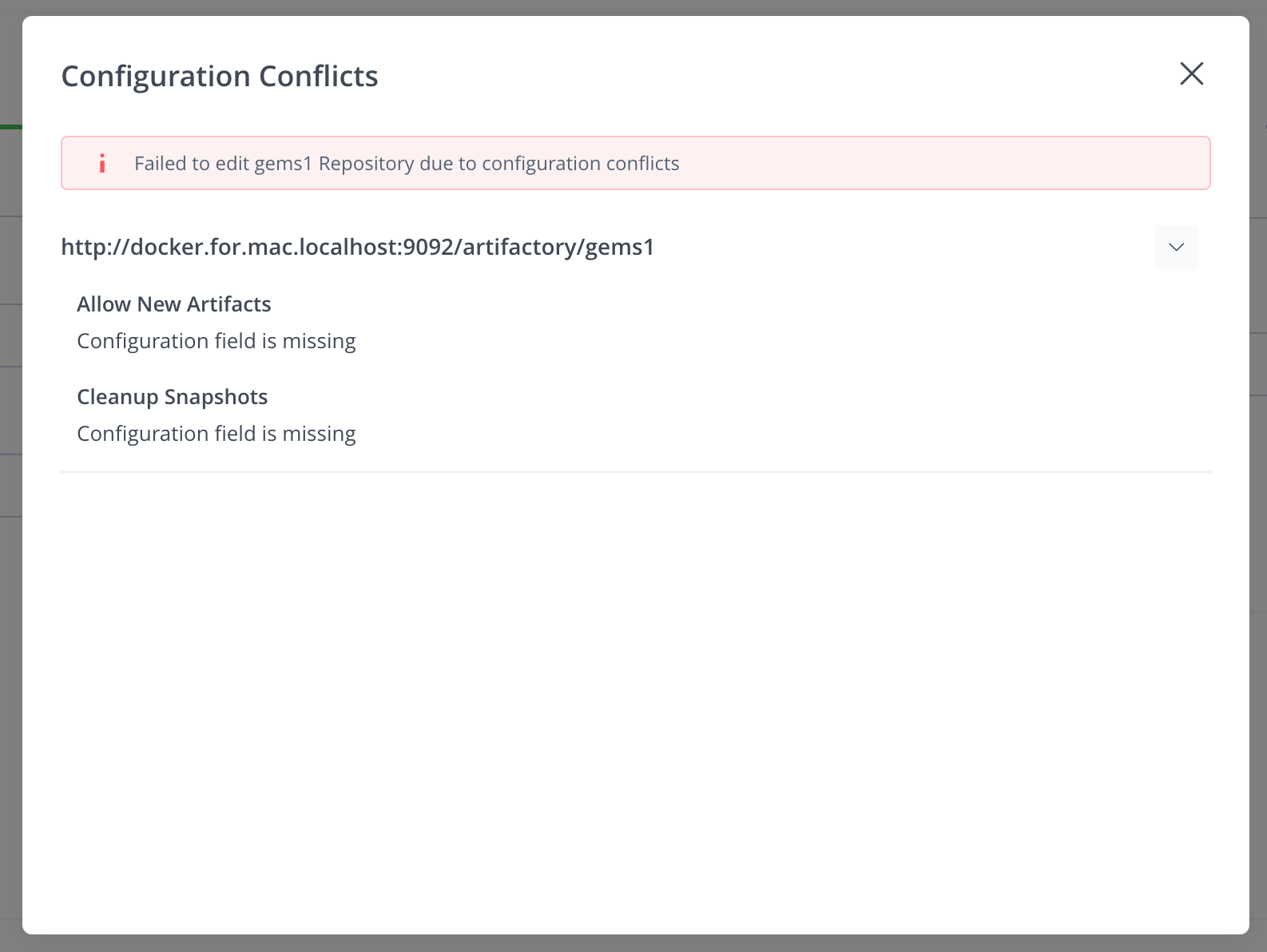
In the example shown above, the user can respond by either disabling the two new fields in the Federation member running the new Artifactory version, or by removing the member from the Federation.
If an existing feature has been enhanced with a new value that is not available in older versions, a message such as the following is displayed:
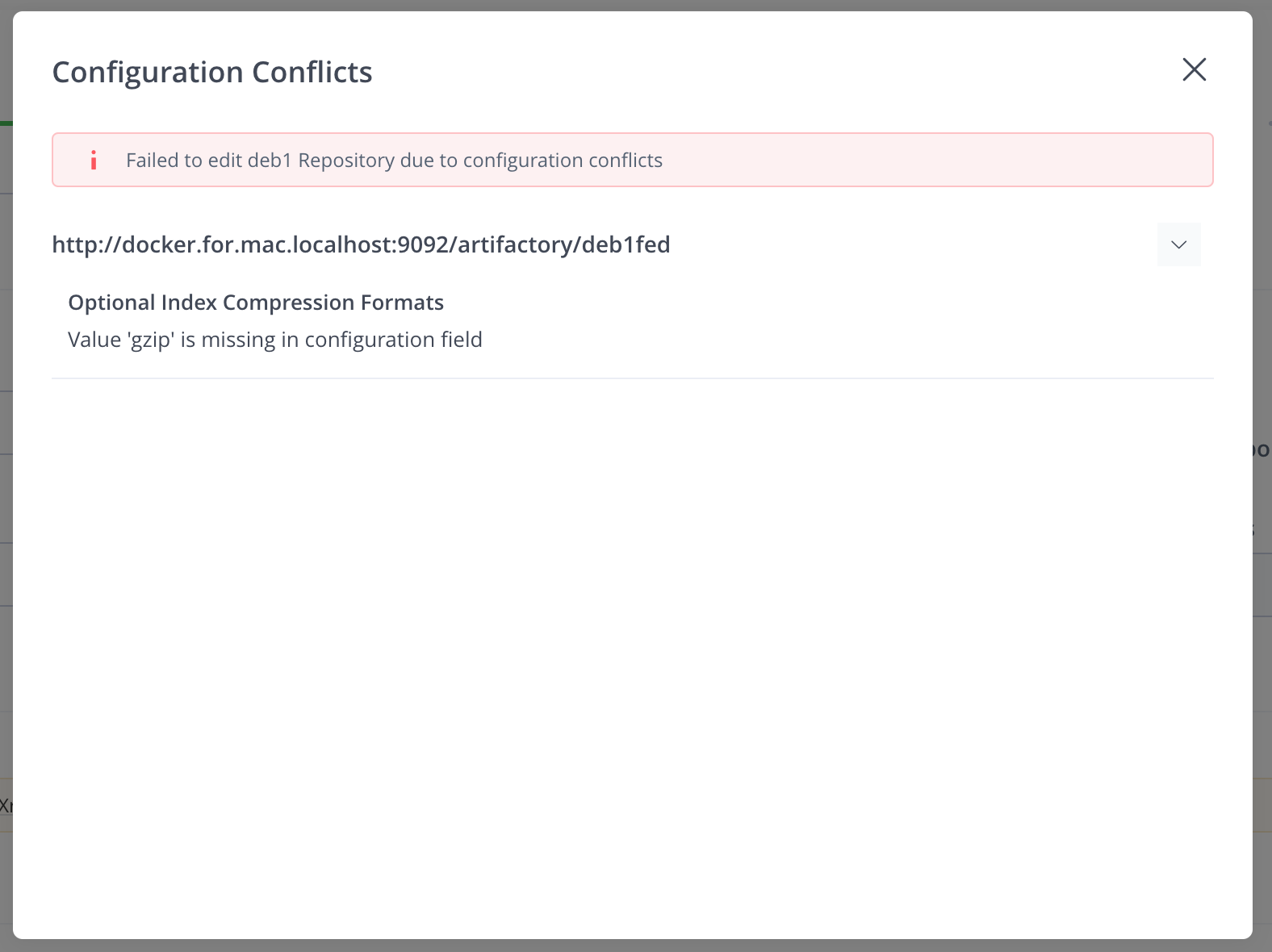
In such cases, the user can respond by selecting a value that the older versions support.
When creating repositories using the API, the process works in a more automated fashion to prevent other automated processes (such as disaster recovery) from breaking due to the Federation member that was upgraded.
If there are new features that older versions do not support, the new feature is disabled. For upgraded features, a default value is chosen that is supported on all member versions.
Updated about 18 hours ago