

Platform Search
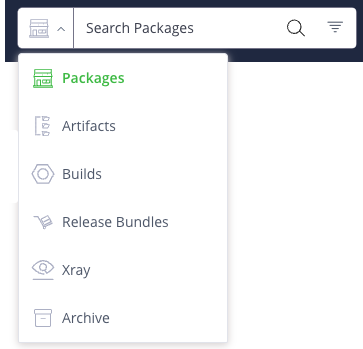
The platform search box at the top of the JFrog Platform UI supports the following search methods:
The platform search box is always available from any window, and the selected Search view changes depending on where you are in the Platform. For example, the Packages search is active when you are in the Packages page.
Product-Specific Requirements
The following search types require the following to be installed with their associated licenses:
- Release Bundles Search: For Release Bundles v1, requires JFrog Distribution to be installed with an Enterprise+ license. For Release Bundles v2, requires Pro or above.
- Security & Compliance Search: Requires JFrog Xray to be installed with a Pro X, Enterprise with Xray, or an Enterprise+ license.
To search for an object:
- From any page in the platform UI, click the dropdown button next to the search field and choose the type of item you want to search for.
- Enter a search term and click Enter. The search results appear.
- Click the item you want to view. That item loads in the window and its properties are displayed.
Learn more about Search Best Practices at JFrog Academy!
Search Syntax
The platform search supports the following syntax:
- Keyword-based search.
- Case-sensitive search.
- Wildcard characters
*and?
For example, when searching for a package named angular, typing an*, angula? returns angular.
Search by Keywords
You can use predefined keywords in the platform search to effectively and specifically narrow your search.
The Advanced search filter is also based on these keywords. Selecting a filter in the Advanced search populates the associated keyword in the search bar. For more information, see Advanced Search Using Filters.

General Keywords
The following table lists keywords that you can use in any platform search.
| Keyword | Description |
|---|---|
pkg | Searches by package type. For example: |
repo | Searches by repository type: local, remote, virtual, or distribution. For example: |
checksum | Searches by the checksum of the package or artifact. For example: |
properties | Searches for artifacts that are annotated with properties. For example: |
before | Searches for resources that were created before the specified date. For example: |
after | Searches for resources that were created after the specified date. For example: |
cve | Searches for resources that have the specified issue. For example: |
license | Searches for resources containing the specified license. For example: |
severity | Searches for resources contain a violation with a specific severity level. For example: |
Artifact Keywords
The following table lists keywords for Artifacts searches.
| Keyword by Search Type | Supported Package Type | Supported Values |
|---|---|---|
| Artifacts | ||
searchType | Packages, Archive, Properties, Checksum, or Trash. | |
| Artifacts > Packages | ||
version | All Packages | Searches for artifacts according to a specific version. |
category | Chef | Free text |
platform | Chef and Conda | Free text |
user | Conan | Free text |
channel | Conan | Free text |
os | Conan | Free text |
arch | Conan, Conda, Debian, Opkg, RPM | Free text |
buildType | Conan | Free text |
compiler | Conan | Free text |
priority | Debian, Opkg | Free text |
maintainer | Debian, Opkg | Free text |
dist | Debian | Free text |
component | Debian | Free text |
digest | Docker | Free text |
v1 | Docker | Free text |
appVersion | Helm | Free text |
groupID | Maven | Free text |
artifactID | Maven | Free text |
classifier | Maven | Free text |
scope | npm | Free text |
keywords | npm | Free text |
boxProvider | Vagrant | Free text |
| Artifacts > Archive Entries | ||
path | Free text | |
classResourcesOnly | Indicates whether to search according to class resources only. Possible values: true, false Default value: false | |
excludeInnerClasses | Indicates whether to exclude inner classes are part of the search. Possible values: true, false Default value: false | |
checksumSearch | Indicates whether the search pattern needs to be searched as a checksum Possible values: true, false Default value: false |
Free Text Search
You can search by using one or more words, terms that include wildcard symbols, and Boolean expressions.
To search using free text:
- In the search box at the top of the platform UI window, type a string that reflects the name of the item you are searching for. You can use wildcard symbols such as * (all), and Boolean expressions. Then click Enter. The search results are displayed.
Advanced Search Using Filters
You can narrow down your search results for complex searches by setting filters in the the advanced filtered search. The search contains filters that apply to all the resources, for example, name and data range, and resource-specific filters in your docker-local repository that have a specific Docker tag. For example you can search for all the Docker images in yourdocker-localrepository that have a specific Docker tag.
To use advanced search filters:
-
From the left-hand side of the search box at the top of the platform UI, select a resource type, for example, Packages.
-
Click Advanced Search
 to the right of the search field. Advanced Search options are displayed for that resource type.
 -
Configure Advanced Search options for the resource type you have selected. Click a resource type to see its options:
Example
If Packages is chosen from the list to the left of the search field, you can click the Advanced Search button to display the advanced filtering options for packages. For example, a Type field appears listing package types, from which you can choose Docker, for example. JFrog then adds the pkgType:docker keyword to the search bar to search for a Docker package.
Package Search
Package Search allows you to search for packages using a number of parameters. For important information that will help you better search for Packages and Artifacts, see Searching in Artifactory.
To search for packages:
-
From the left of the search field at the top of the platform UI, select Packages.
-
From the right of the search field, click Advanced Search
. Advanced Search options are displayed.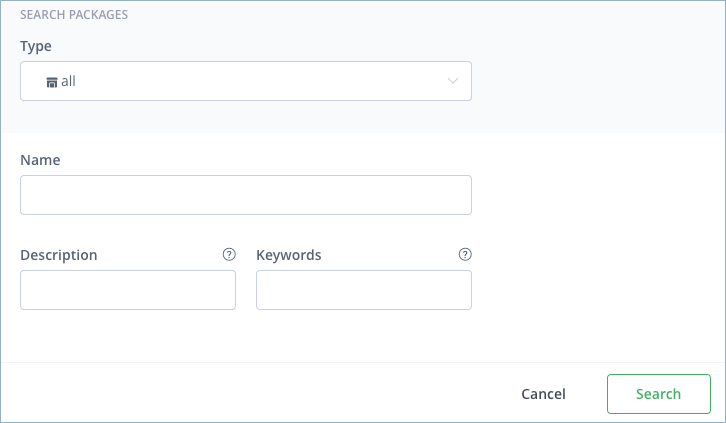
-
Configure Advanced Search options using any of the following parameters:
- Type: Select the package from the Type list.
- Name: Enter the package name.
- Description: Search for keywords in the package description for supported packages
- Keywords: Search for keywords in the package metadata, for supported packages. Keywords may be called 'tags' or 'labels' for different packages types.
Build Search
Build Search allows you to search for builds using a number of parameters.
To search for builds:
-
From the left of the search field at the top of the platform UI, select Builds.
-
From the right of the search field, click Advanced Search
. Advanced Search options are displayed.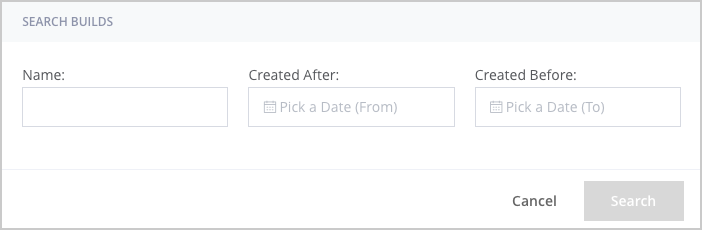
-
Configure Advanced Search options using any of the following parameters:
- Name: The build name
- Created After/Created Before: The date range in which the build was deployed
Artifacts Search
Artifact Search offers a number of search parameters based on the type of artifact you're searching for. Each search type offers a set of input fields corresponding to the search type you selected to help narrow down your search.
Note
Browse and search for Artifacts in the dedicated Artifacts search by navigating to Artifactory > Artifacts. For more information, see Search for Artifacts.
To search for artifacts in the platform search:
-
From the left of the search field at the top of the platform UI, select Artifacts.
-
From the right of the search field, click Advanced Search
. Advanced Search options are displayed.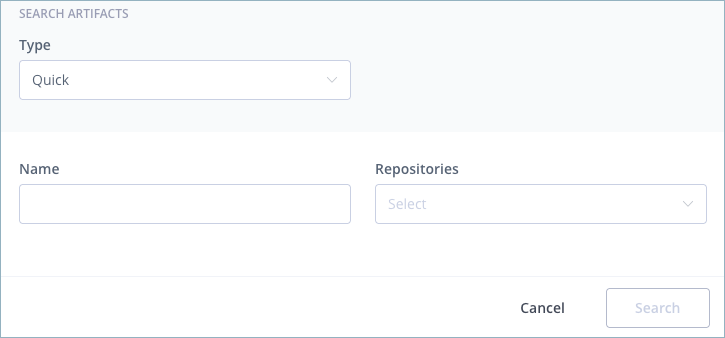
-
Select a Type. Advanced search options vary depending on the type of artifact you are searching for. The following artifact types are available. Click for more information on what is offered in each, then complete the fields as needed:
-
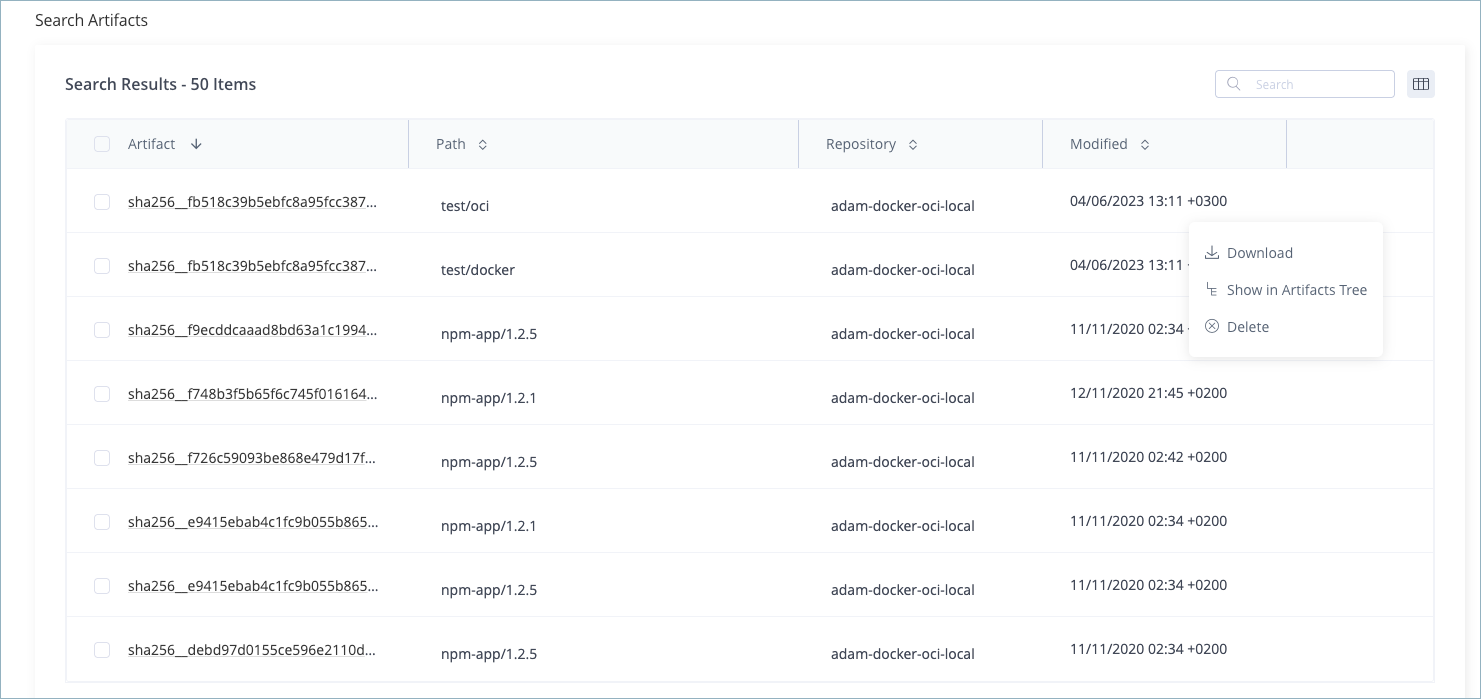
Take action on an artifact, if required. Several actions are available based on the resource, by clicking the arrow on the far right, as follows:
Quick Search
Using Quick Search you can search for artifacts by name and repositories. From the search type dropdown, select Quick, enter your search terms, and click Search.
To run a quick search:
-
From the left of the search field at the top of the JDP window, select Artifacts.
-
From the right of the search field, click Advanced Search
. Advanced Search options are displayed.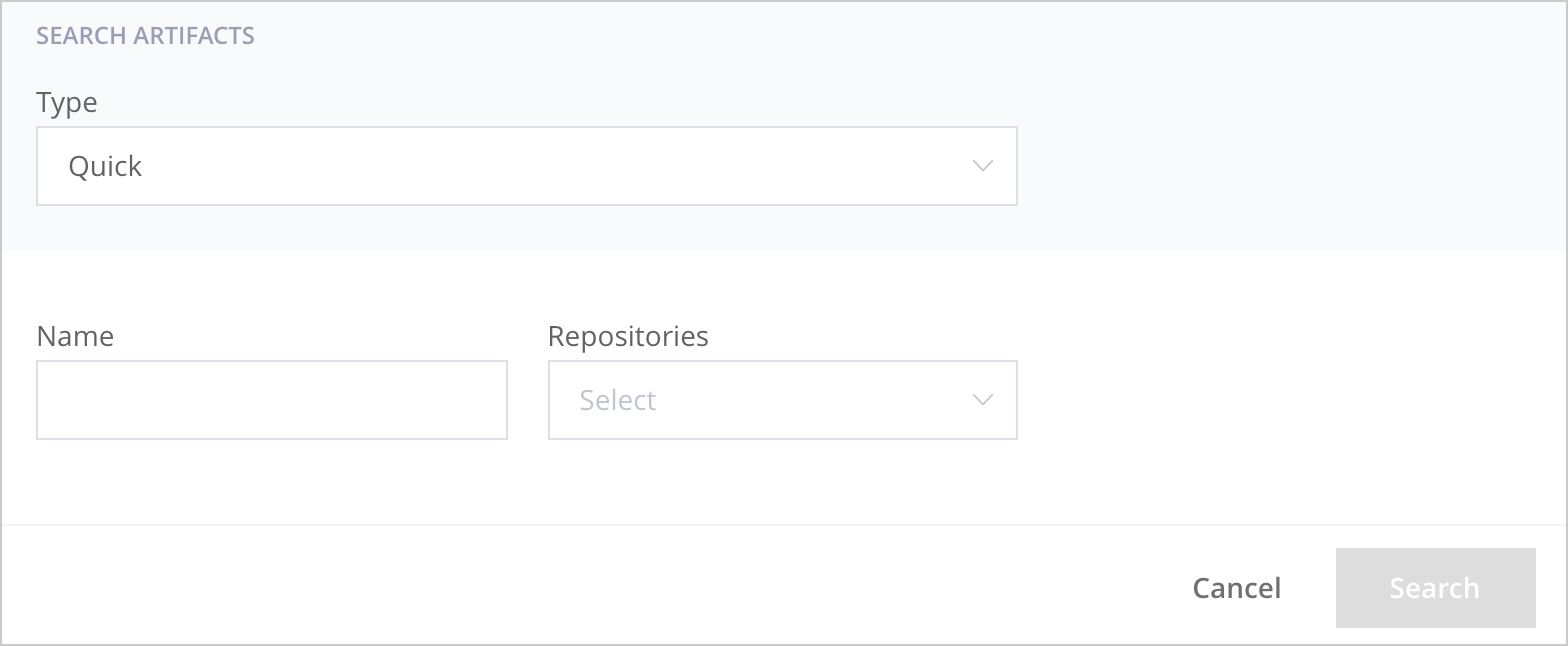
-
From the Type menu, select Quick. Quick search options are displayed.
-
Configure as needed and run your search. You can specify the following parameters for your search:
| Parameter | Description |
|---|---|
| Name | Type the name of the artifact. You can use ? and * as wildcards |
| Repositories | Select specific repositories from the Repositories list to narrow down your search |
Package Type Search
Package search enables you to run a search based on a specific packaging type. For each type, you can specify search parameters based on the relevant metadata for the selected package type. For example, Helm search is suitable for searching through Helm Chart repositories.
Under the hood
Package search is based on standard properties that Artifactory attaches to packages according to their type. For example, when searching for NuGet packages, Artifactory is actually matching the search terms to the values for the
nuget.idandnuget.versionproperties that should be attached to every NuGet package.
Limitation
Package search does not currently work on remote repository caches for RubyGems, Debian, and PHP Composer repositories.
To search artifacts by package type:
The following table displays the parameters you may use for each package type:
-
From the left of the search field at the top of the JDP window, select Artifacts.
-
From the right of the search field, click Advanced Search
. Advanced Search options are displayed.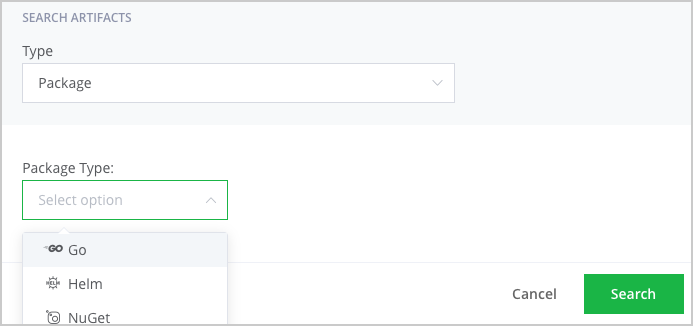
-
From the Type menu, select Package. Package options are displayed.
-
Select a package type to base the search on.
All these search fields support the ? and * wildcard characters.
Package search as an AQL query
For most package formats, package search is implemented as an AQL query. After searching, click the
AQL Querybutton to view the AQL query used in the search. You may also click theCopyicon in the AQL code snippet to copy the query to your clipboard.
Limit search to specific repositories
When limiting search to specific repositories, you can select repositories with the corresponding package type. Package search depends on those repositories having the correct layout. Searching through repositories with the wrong layout will have unpredictable and unreliable results.
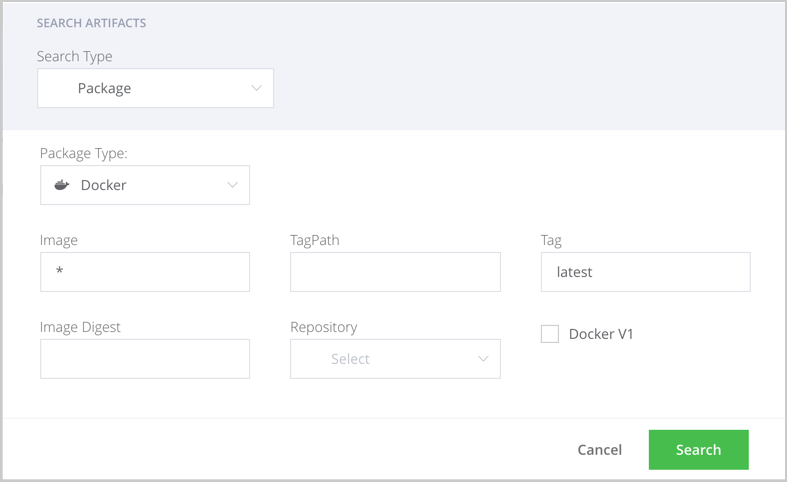
The example below shows the results of searching for any Docker image with latest in its name:
Property Search
Note
The Property Search requires an Artifactory Pro license and above.
You can search for artifacts or folders based on properties assigned to them, whether they are standard properties assigned by Artifactory, or custom properties which you can freely assign yourself.
To run a property search:
-
From the left of the search field at the top of the JDP window, select Artifacts.
-
From the right of the search field, click Advanced Search
. Advanced Search options are displayed.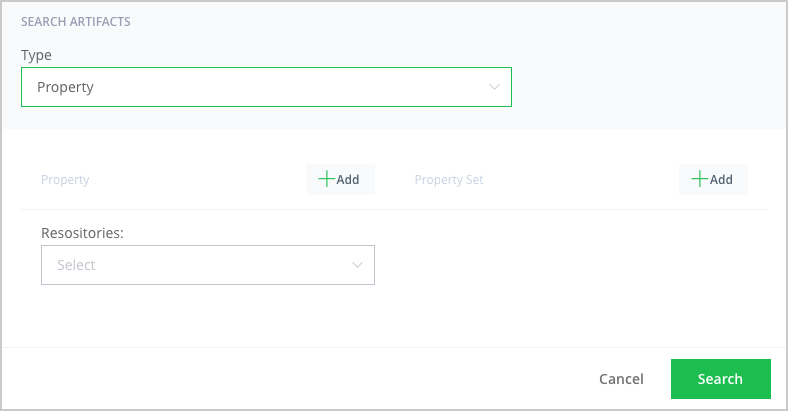
-
From the Type menu, select Property. Property search options are displayed.
-
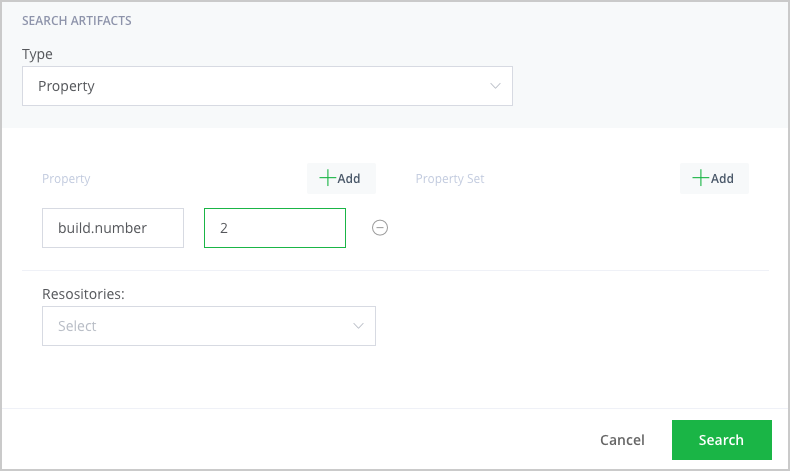
Click Add Property and in the Key field, type the name of the property to search for, or select one from the list provided.
-
In the Value field, set the value you are searching for in the specified property.
-
Add more properties to the search use the Add Property as required, then click Search. The search is run. You can repeat this process to specify any number of properties and values for your search.
Wildcards can be used in the Property Value field
You can use the
?or*wildcards in the Value field.
Combining Properties and Values
Properties can be combined using the AND operator.
Different values assigned to a specific property can also combined using the AND operator.
This means that only artifacts that meet all the search criteria specified will be found.
The following example shows a search for artifacts that have a build.number property with a value of 2.
Checksum Search
You can search for artifacts based on their MD5, SHA1 or SHA2 checksum value. This can be especially useful if you want to identify an artifact whose name has been changed.
To run a checksum search:
- From the left of the search field at the top of the JDP window, select Artifacts.
- From the right of the search field, click Advanced Search . Advanced Search options are displayed.
- From the Type menu, select Checksum. Checksum search options are displayed.
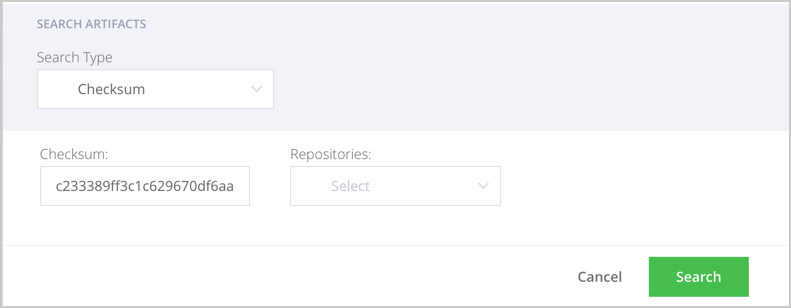
- Copy and paste a checksum, then select a repository to search in and click Search. Wildcard characters are not supported in Checksum Search, so the term entered in the search field must be a valid MD5 or SHA1 value.
The following example shows a search for an artifact using its SHA1 checksum.
Trash Search
Trash Search is a search type that can be selected as part Searching Artifacts.
To run a Trash search:
-
From the left of the search field at the top of the JDP window, select Artifacts.
-
From the right of the search field, click Advanced Search
. Advanced Search options are displayed.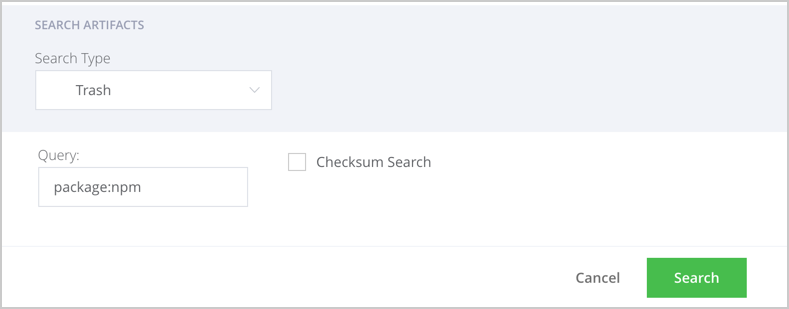
-
From the Type menu, select Trash. The Trash search options are displayed.
-
Enter the artifact's name in the Query field, or select Checksum Search and type the artifact's checksum.
-
Click Search. The search results are displayed.
Release Bundles Search
Note
The Release Bundles Search requires JFrog Distribution be installed with an Enterprise+ license.
The Release Bundles search enables you to search for distributable and received Release Bundles within a specified time page.
To search for a release bundle:
-
From the left of the search field at the top of the platform UI, select Release Bundles.
-
From the right of the search field, click Advanced Search
. Advanced Search options are displayed.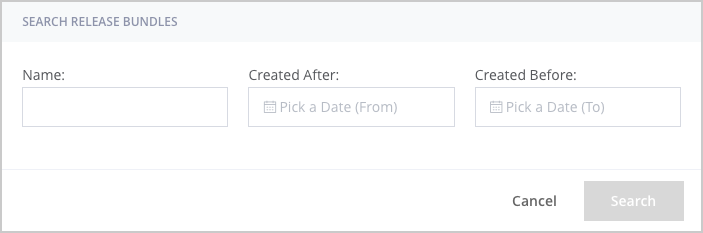
-
Configure Advanced Search options using any of the below parameters.
- Name: Type the name of the Release Bundle.
- Created After: Pick a date after which the Release Bundle was created (start date).
- Created Before: Pick a date before which the Release Bundle was created (end date).
-
Click Search. The search is run and results are displayed below.
Updated 4 months ago