
View Evaluated Policies
If you want to know which policies were evaluated in an evaluation event, you can check the Policy View, which shows a list of the policies evaluated for the application version at a specific gate in the lifecycle.
To view evaluated policies:
- In the JFrog Platform, go to AppTrust > Applications and choose an application.
- In the application sidebar, click Evaluations. In the Evaluation Events table, click an event and the Policy View for that event appears.
Tip: If you are already viewing the Evaluation Events table, click an event and the Policy View for that event.
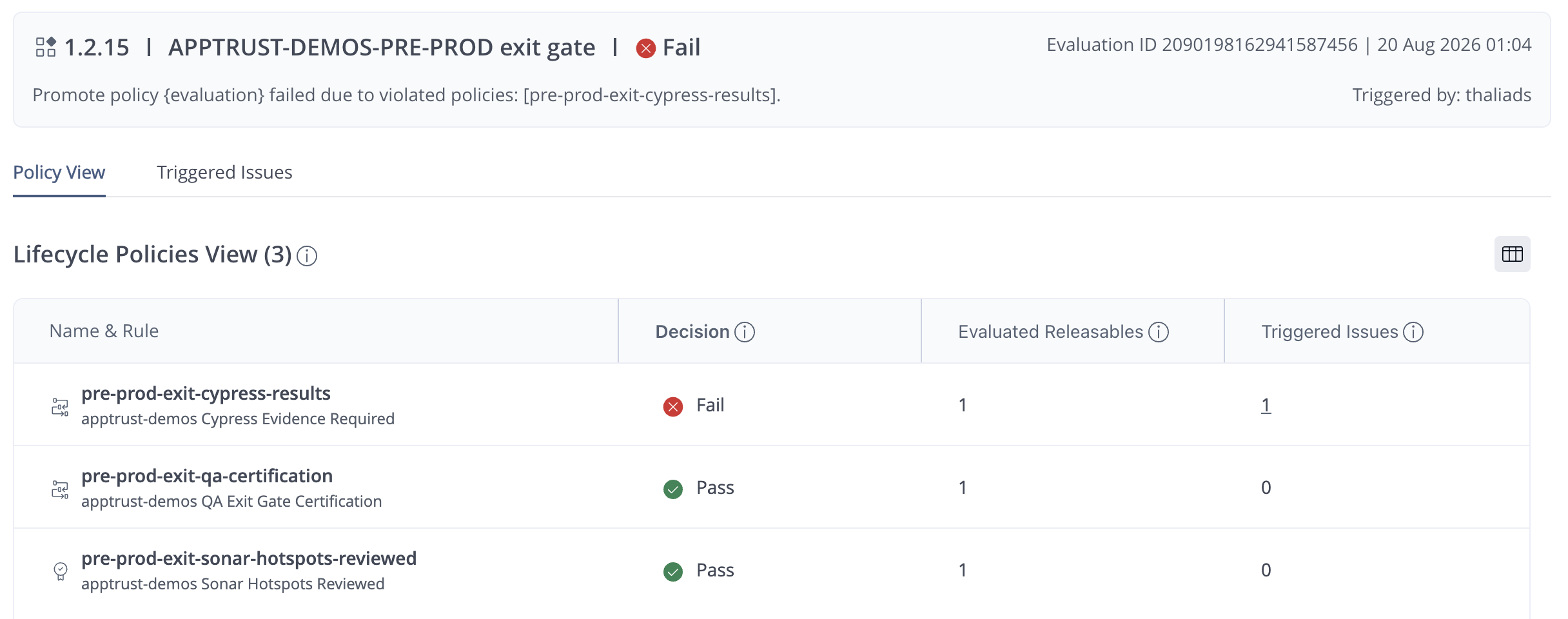
The Lifecycle Policies table lists the policies evaluated for the event you chose and includes the following information:
- Name & Rule: The evaluated policy and rule criteria.
- Decision: The Pass, Fail, or Warning result for the policy.
- Evaluated Releasables: The number of resources in the application version that were evaluated with this policy.
- Triggered Issues: The number of issues detected by applying this policy on the application version. When a policy passed and no issues were triggered, 0 appears.
Policy Evaluation Details
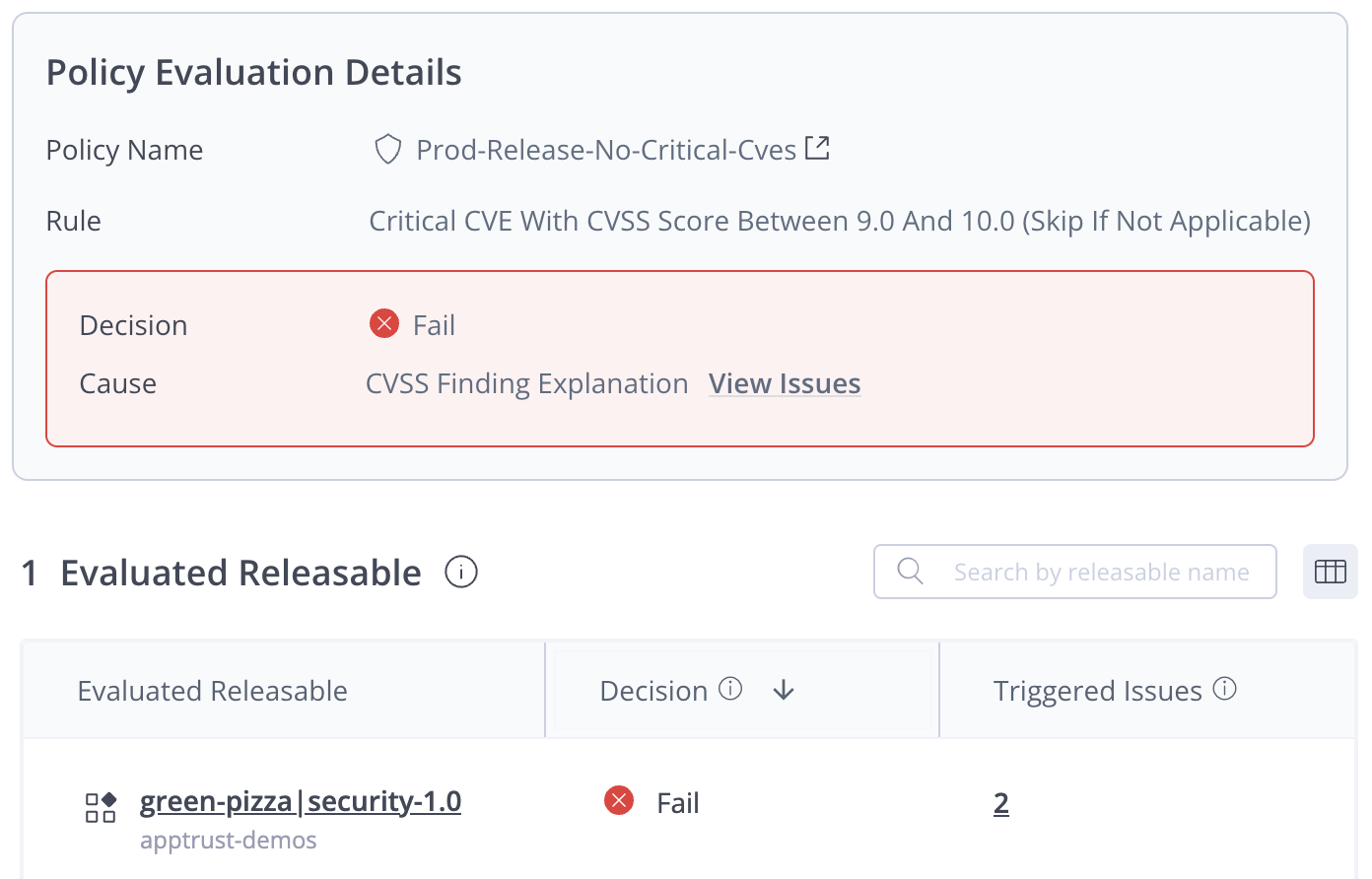
To see more information about the policy evaluation, click the Policy Name. The Policy Evaluation panel opens and displays:
- Policy Name: The name and a link to the full details of the policy.
- Rule: The rule used to create the policy.
- Decision and Cause: A message describing the reason for the decision, for example, “14 Triggered issues were detected in 5/10 releasables”.
- Evaluated Releasables list with decision and issue counts per releasable.
What’s Next?
Learn how to View Triggered Issues.
Updated 27 days ago
Did this page help you?