
Create a Template
You can create a custom template by loading an existing template in the Rego Playground and modifying the Rego, or you can tell the JFrog AI what you need and let it generate the Rego.
This page walks you through a sample flow to create a custom template using JFrog AI. The flow includes the following main steps:
- Go to Rego Playground
- Ask JFrog AI
- Load Input
- Do a Dry Run
- Create Template
The procedures are described in detail below.
Step 1: Go to Rego Playground
To go to the Rego Playground:
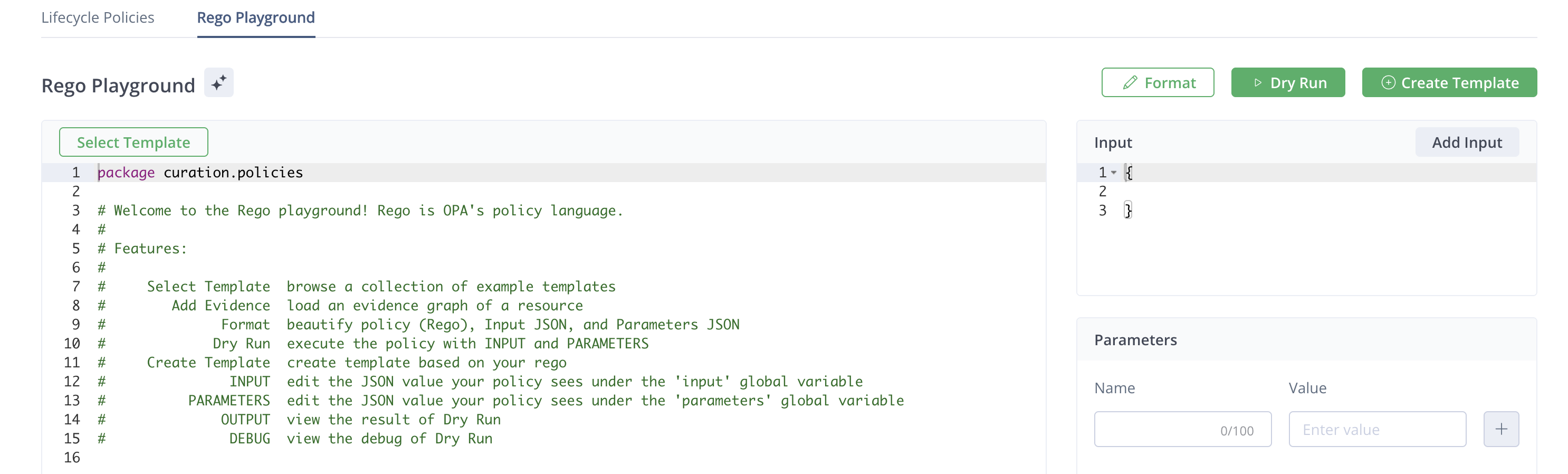
- In the JFrog Platform, go to AppTrust > Lifecycle Policies > Rego Playground.
Step 2: Ask JFrog AI
In this step, you will tell JFrog AI what kind of template you need and ask it to generate the Rego code for the template. You can use the code as is, or you can use it as a starting point for additional coding.
Be sure to provide enough information in your request for the AI to return the correct evidence predicate. For example, mention the kind of document you are verifying, such as a SonarQube report. You can also tell the AI specific items that should be checked in the report.
See Generate Rego Code with AI.
Step 3: Load Input
In this step, you configure the data source to use as your Rego input.
To load input data for Rego:
- In the Rego Playground, click Add Input.
- In the Load Input Data dialogue, under Resource Type, choose Application Version.
- Choose the the Application and the Application Version, and click Load.
The Input data appears in the panel on the right.
Step 4: Do a Dry Run
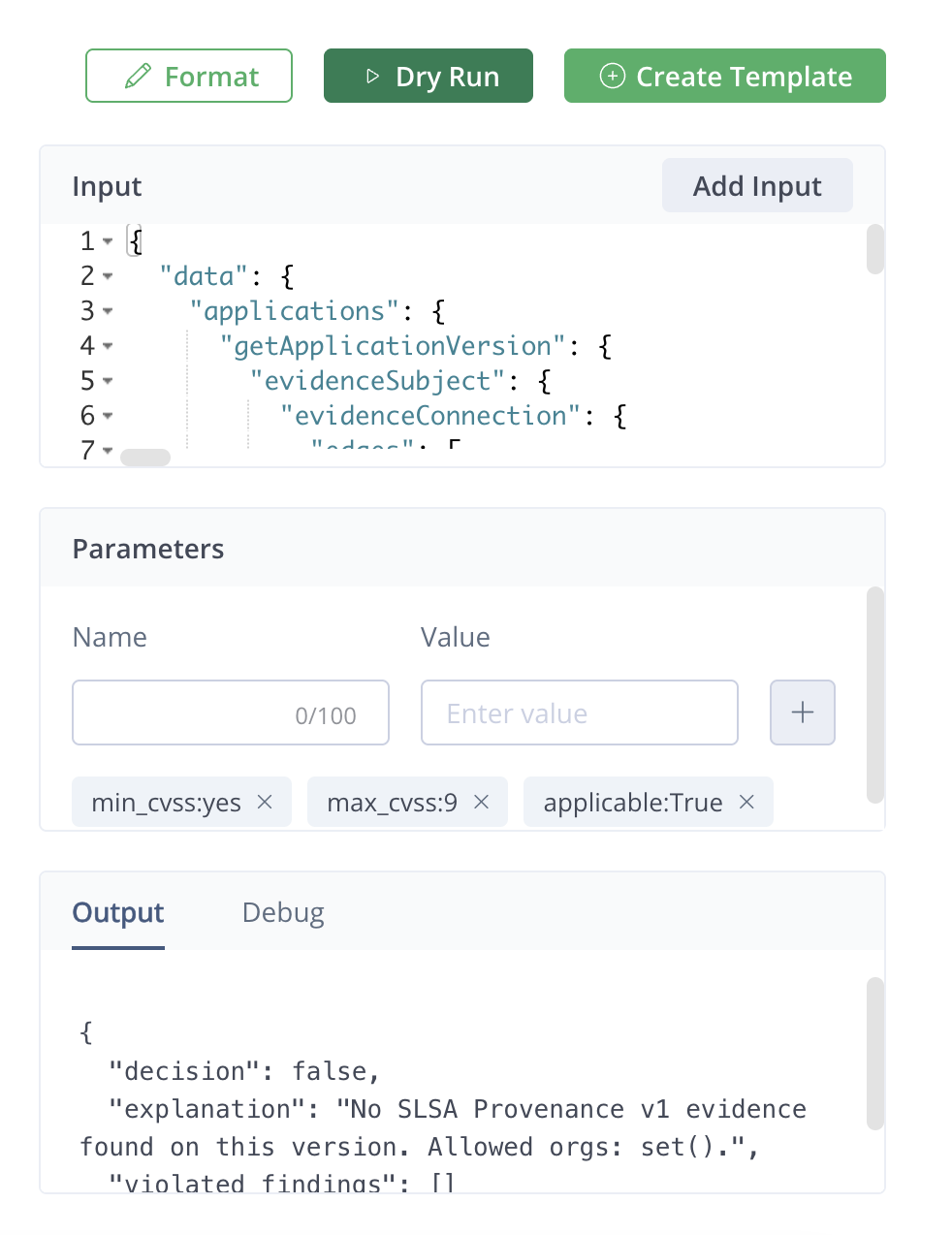
Once you have the Rego code, the parameters, and the input data, you can do a dry run of the validation. This will help you verify that the code is valid for creating a template or to debug any issues that are found.
Before doing a dry run, you may want to ensure that the JSON format is OK. This is optional, but it can help to avoid formatting issues from coming up in the dry run.
To do a dry run of the Rego code:
- (Optional) In the upper right of the Rego Playground, click Format.
- In the upper right of the Rego Playground, click Dry Run.
The output of the dry run appears in the Output pane at the bottom right of the Rego Playground. View the output and, if necessary, debug.
Step 5: Create Template
Once you are satisfied with the Rego code, you can create the rule template.
To create a rule template in the Rego Playground:
- In the Rego Playground, click Create Template. The creation wizard appears in the right panel.
- Declare the parameters to be included in your template. For each parameter, enter a Name, for example,
predicate type, and a Type, for example,string. - Enter information about the template, including:
- Template Name: A unique name, up to 255 characters, identifying your template.
- Template Version: An alphanumeric version of the template.
- Category: Category that the rule will be in. Can be security, legal, operational, quality, audit, or workflow.
- Template Description: (Optional) A few words to help you remember the purpose of this template.
- Click Create Template. To view the new template in the list of templates, click Select Template in the Rego Playground.
What’s Next?
- Learn how to Load an Existing Template into the Rego Playground.
- See the complete reference for Allowed Rego Operations.
Updated 3 months ago