
Generate Rego Code with AI
JFrog AppTrust provides a powerful tool to generate your Rego code using AI. All you have to do is tell JFrog AI what kind of template you need and ask it to generate the Rego code for the template. You can use the code as is, or you can use it as a starting point for additional coding.
Be sure to provide enough information in your request for the AI to return the correct evidence predicate. For example, mention the kind of document you are verifying, such as a SonarQube report. You can also tell the AI specific items that should be checked in the report.
The AI will provide feedback to be sure that it understands what you need, and it will not actually generate the code until you tell it to.
To generate Rego code with JFrog AI:
- In the JFrog Platform, go to AppTrust > Lifecycle Policies > Rego Playground. The Rego Playground page appears.
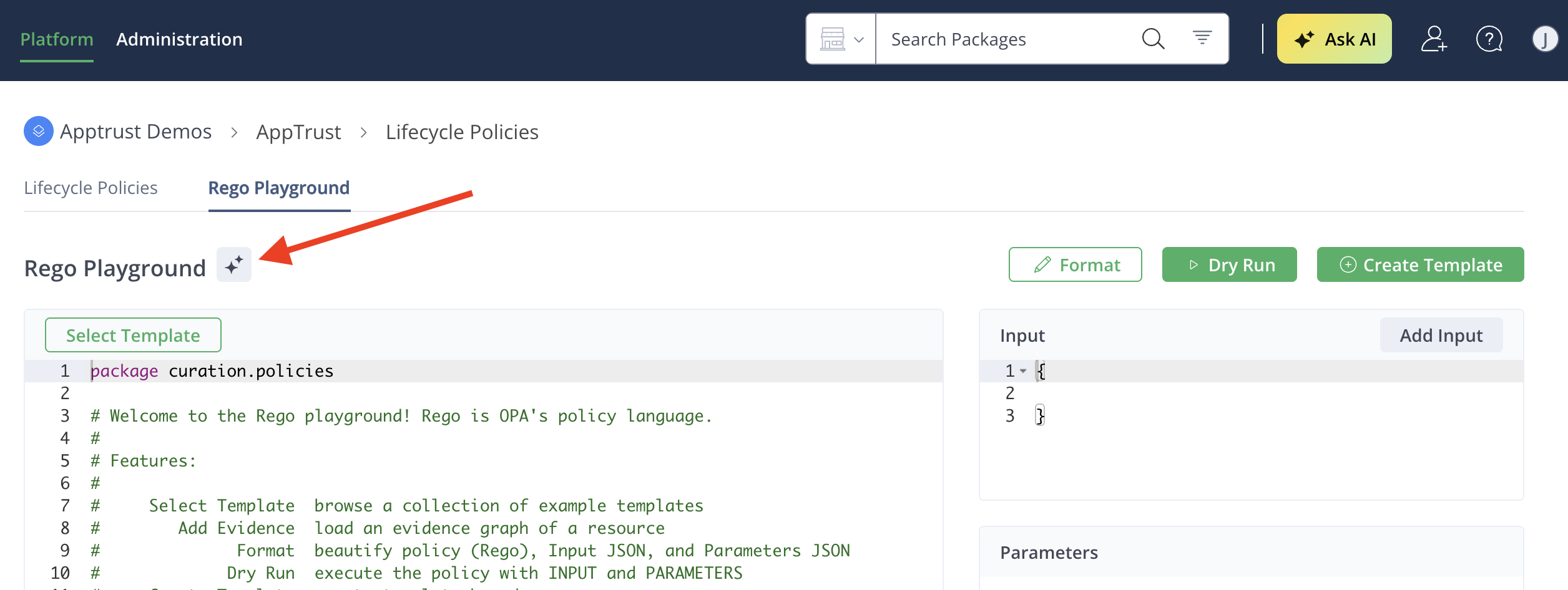
- In the Rego Playground, click the AI icon. The JFrog AI Assistant appears on the right.
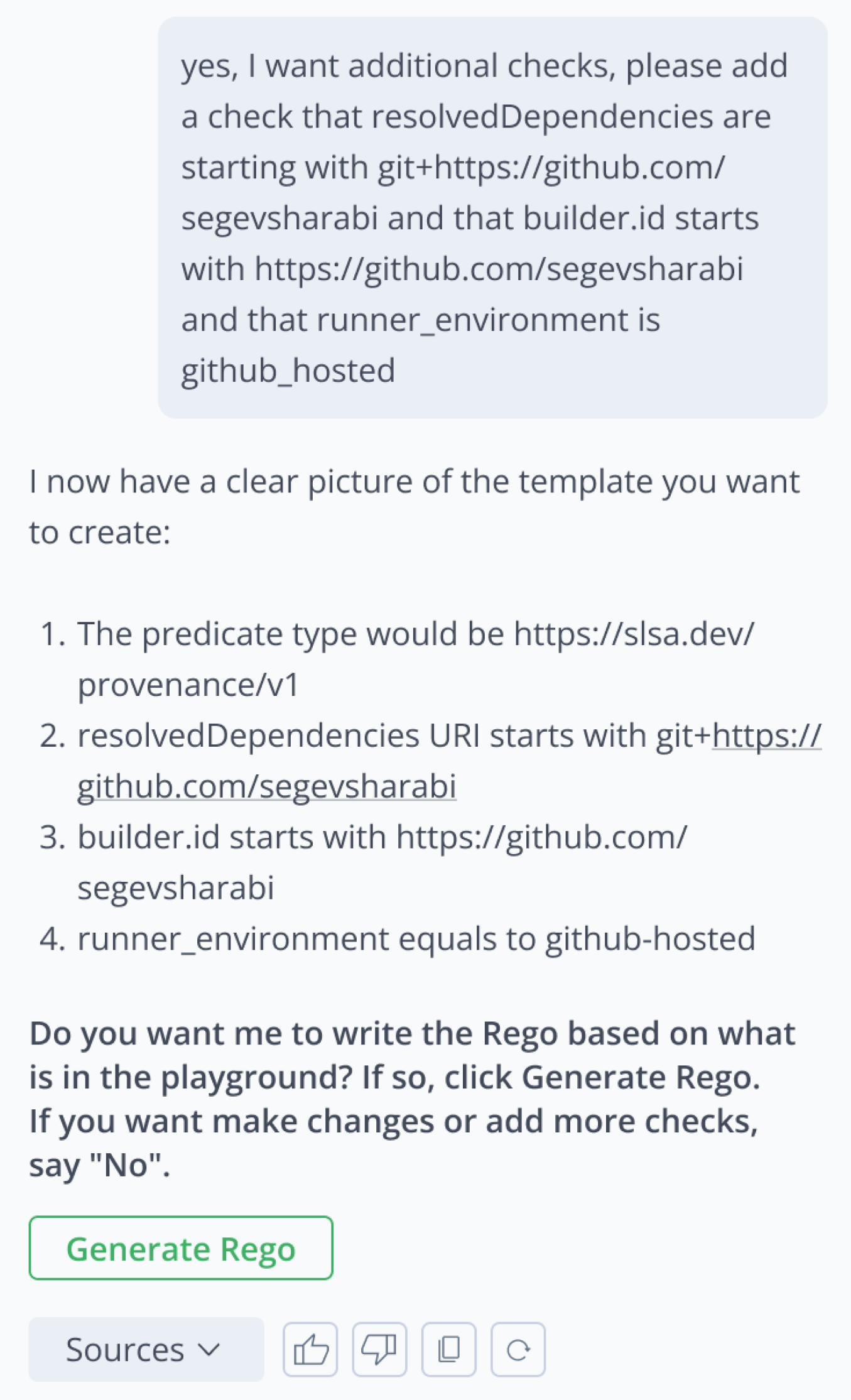
- In the AI Assistant, enter your request. For example:
“Help me create a new rule to verify a SonarQube report per each package in a software version.” - Verify that the AI response makes sense. For example, it returns a predicate that makes sense for your request.
- Respond to any questions the AI asks you, and add any additional validations the template should make. For example, you might ask it to validate that status=”OK”.
- After you have entered all your requirements and are satisfied with the Rego responses, click Generate Rego in the AI panel.
The generated Rego code appears in the Rego Playground editing pane. On the right, the parameters are displayed, for example, min_cvss:yes, max_cvss:9 and applicable:True.
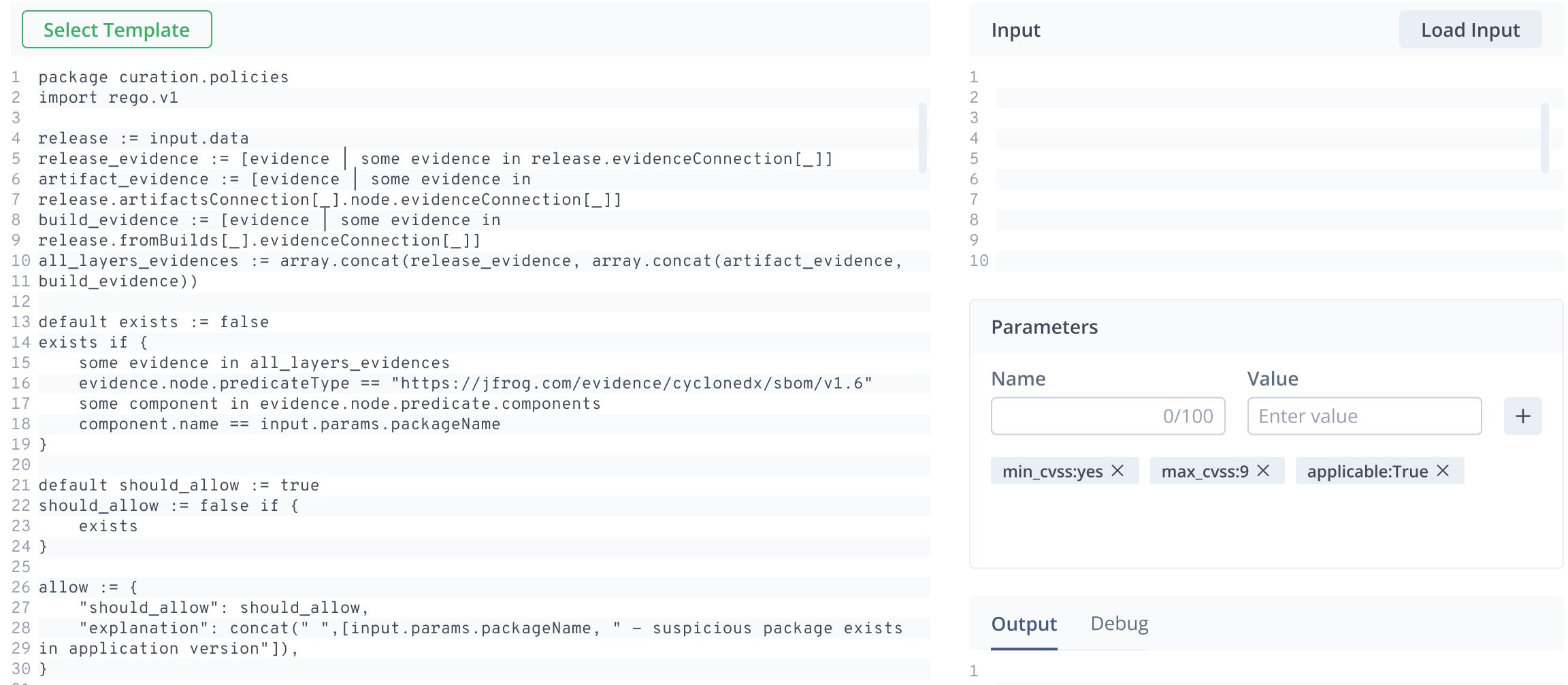
At this stage, you can edit the code manually, you can go back to the AI and ask it to make changes, or you can continue with the creation of your template.
What’s Next?
Once you have your Rego code, you can load input and try a dry run. Learn more about this in Create a Template.
Updated 3 months ago