
Configure a Framework
In the Compliance Catalog in JFrog AppTrust, your AppSec team tailors how the organization enforces compliance.
In the Compliance Catalog, your AppSec team tailors how the organization enforces compliance. The legal language of frameworks and controls meets the engineering language of the checks that JFrog AppTrust actually runs. The catalog maps each high-level control down to the rules that verify it.
AppTrust ships each framework with a pre-built map from controls to rules, so you don’t need to start from scratch. Your job is to tailor that map to your organization:
- Enable the rules that apply.
- Replace rules that need to work against a different tool. Replacements come from your organization’s custom rules.
- Disable anything that doesn’t fit.
It is recommended to activate a framework only after you have reviewed and configured all the rules in all the controls, as described in the procedure below.
- When Active, the framework is available for project administrators to use.
- When Inactive, the framework is invisible to project administrators.
Once a framework has been enforced in a project, the framework can no longer be deactivated.
Events are recorded in the AppTrust Activity Log. For a complete list of events that are recorded, see Activity Log Events.
Prerequisites
- Platform administrator permissions
To configure a compliance framework:
-
In the JFrog Platform, go to Administration > AppTrust Settings > Compliance Catalog.
-
Click anywhere on a framework to open its editing panel. For example, click EU CRA.
-
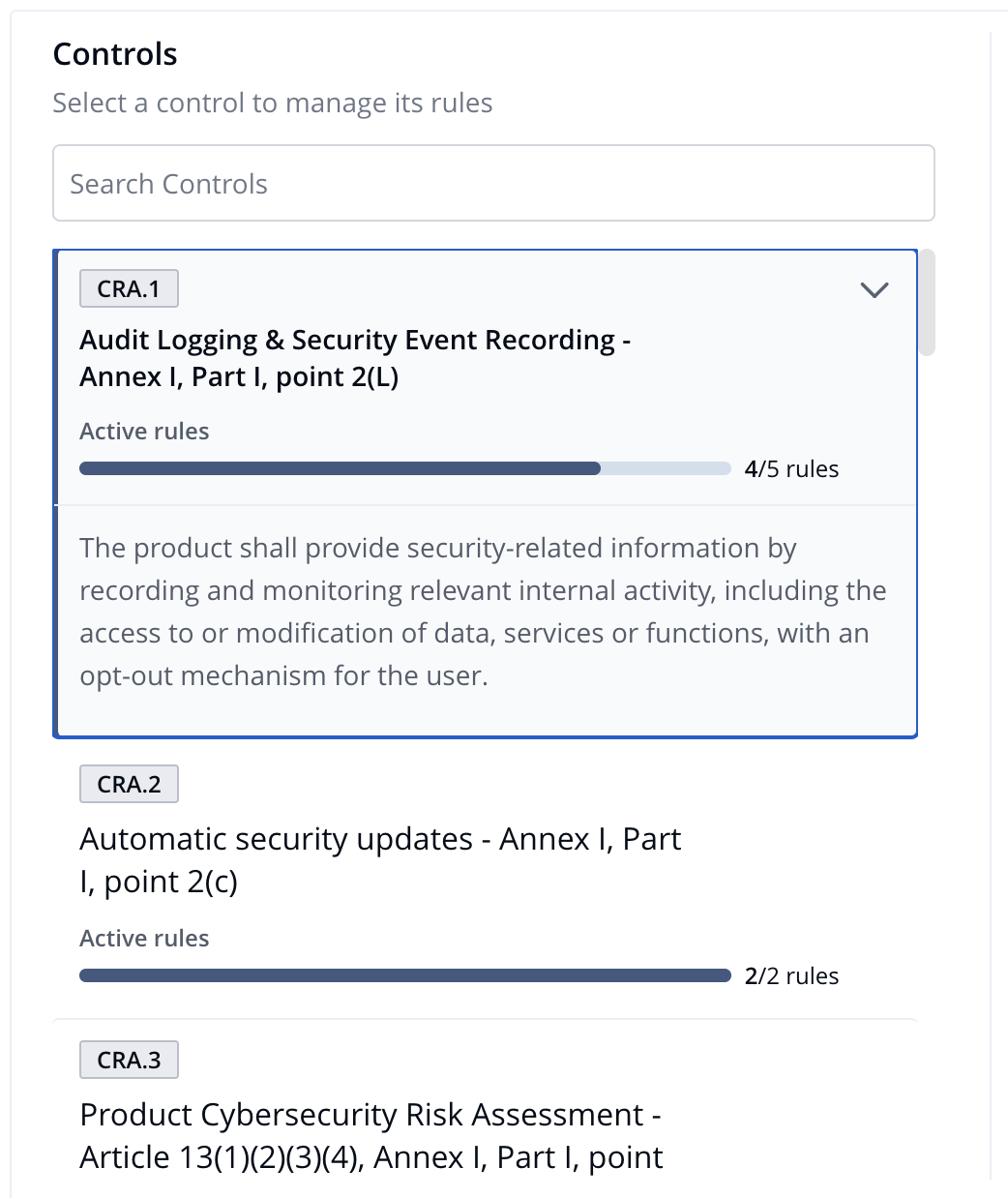
On the left side of the panel, click a control. A description of the control appears under the control headline, and the list of requirements and rules appears on the right. To find a specific control, scroll down or use the Search, then click the control. The controls are searchable by name or ID.
-
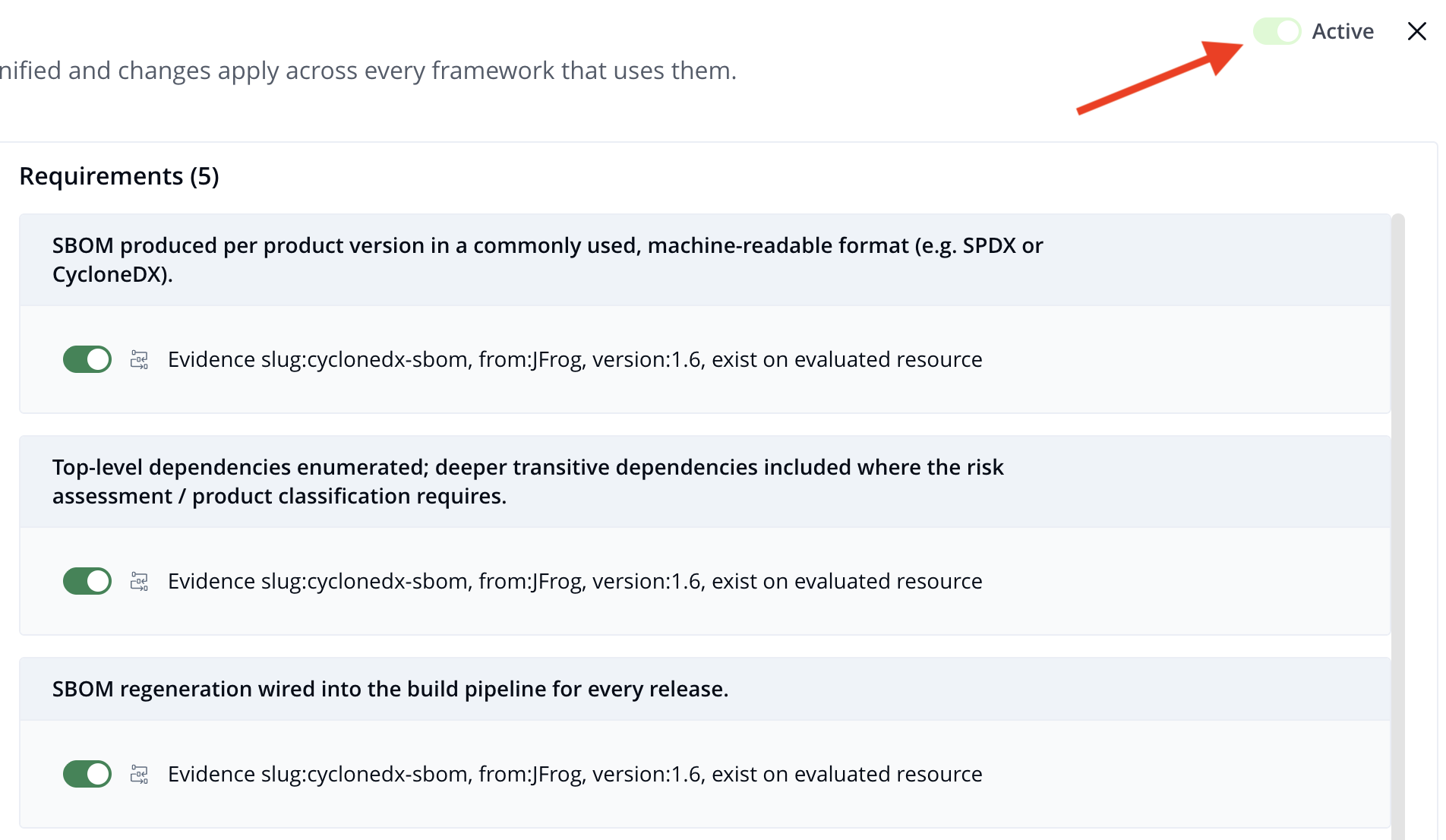
Each control has one or more requirements listed on the right, and each requirement has one or more rules under it. Using the toggle, enable or disable each rule. To see a description of the rule, click the arrow on the right.
Note: Each action you take affects the catalog immediately. If the framework is active, project administrators can see your changes immediately.
-
When you have configured all of the rules in all of the controls, you are ready to activate the framework. On the top right of the Edit panel, use the toggle to activate.
Disable a Compliance Rule
Before you disable a rule, it is important to understand its scope. A rule can be used under multiple controls and even multiple frameworks. Disabling it here removes it from all of those places at once. Once disabled:
- The rule is no longer evaluated against any application in any project.
- Project administrators can’t see the rule in their compliance view.
- Your reason for disabling the rule appears as a tooltip next to the rule for other administrators to see.
In addition, the following conditions apply to rules:
- A rule that has already been enforced in an application cannot be disabled.
- When a project administrator disables a rule, it is disabled only for applications in that project.
To disable a compliance rule:
-
In the JFrog Platform, go to Administration > AppTrust Settings > Compliance Catalog and open the relevant framework.
-
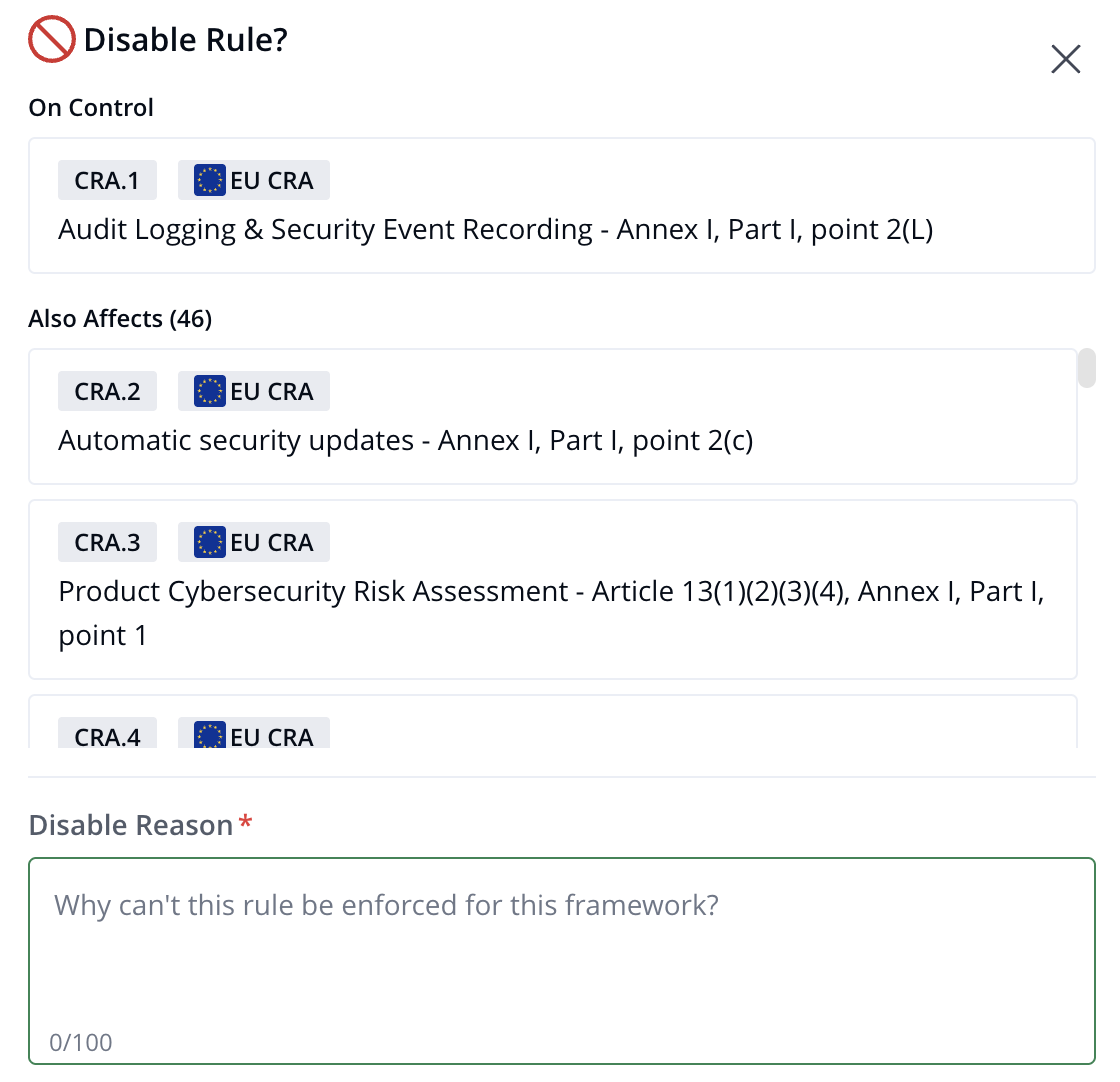
In the Edit Framework panel, go to the relevant control and rule, and click the toggle for the rule to the disabled position. The Disable Rule popup shows the control that this rule is in and all other controls affected by the rule.
-
Enter a reason for disabling the rule and click Disable. The rule is now disabled in every requirement and control where it occurs, and the reason for disabling it appears in every requirement and control where it occurs.
Replace a Compliance Rule
Replace a rule when the intent of the check is right, but the mechanics don’t match your infrastructure. For example, the default rule verifies evidence from one source control system, but your organization uses a different one. Replacing the rule swaps out the technical check while keeping the rule mapped to the same controls, so your alignment with the framework stays intact.
A rule can be used under multiple controls and even multiple frameworks. Replacing it here swaps the rule everywhere it appears at once. The replacement rule comes from your organization’s custom rules that your team has added to AppTrust.
To replace a compliance rule:
-
In the JFrog Platform, go to Administration > AppTrust Settings > Compliance Catalog and open the relevant framework.
-
In the Edit Framework panel, go to the relevant control and rule.
-
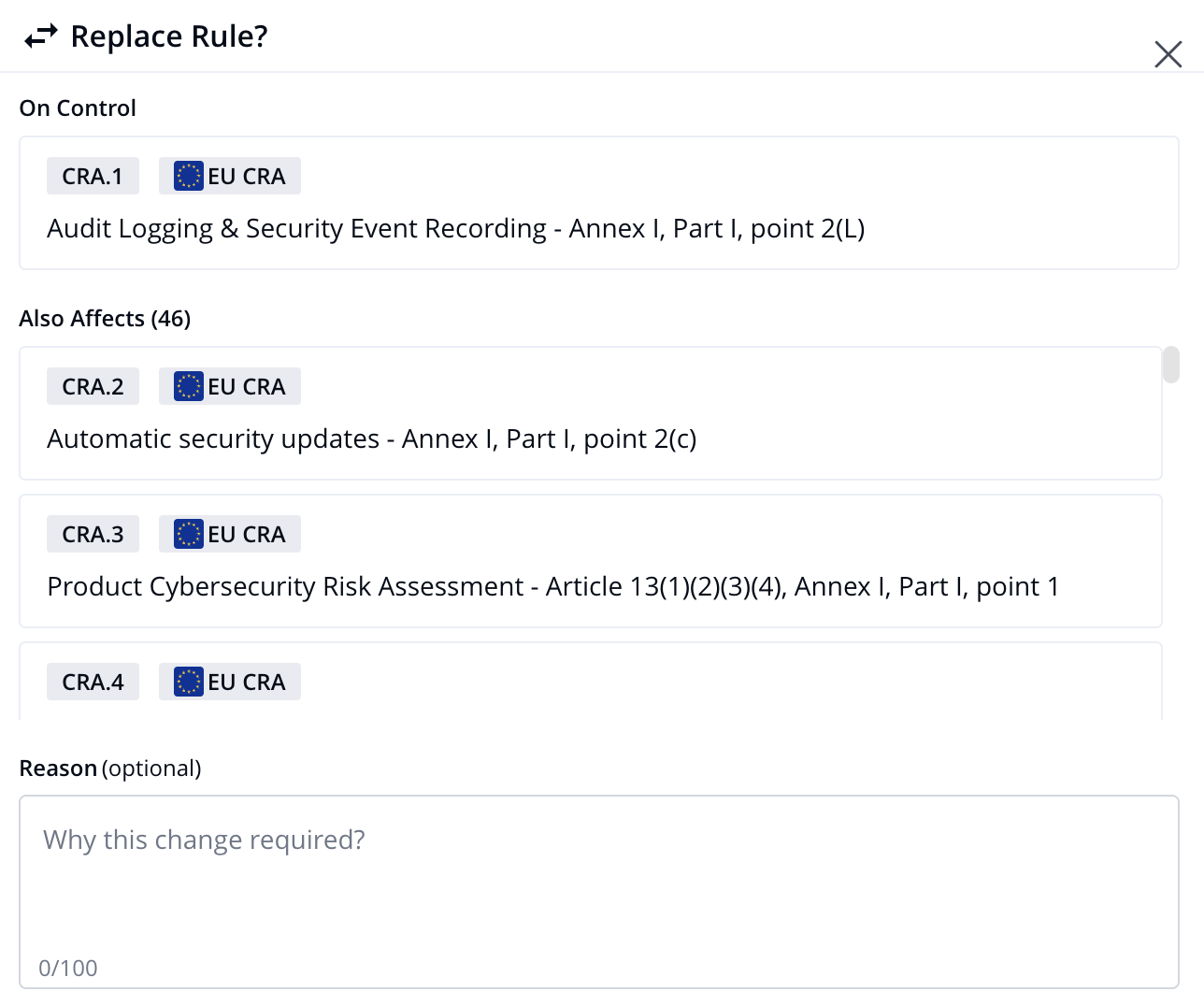
Hover the cursor over the right side of the rule and click Replace. The Replace Rule dialog shows the control that this rule is in and lists all other controls affected by the rule. Review the list so you know the full impact of the change.
-
Enter a reason for replacing the rule (optional), and click Next. The reason is saved in the activity log.
-
In the Replace Rule panel, select a new rule and click Replace. The rule is now replaced in every requirement and control where it occurs, and the reason for replacing it appears in every requirement and control where it occurs.
Tip: If the required rule for your setup doesn’t exist, you can go to the Rules page from this page. The Rules page opens automatically to the AppTrust out-of-the-box rules and enables you to access the template easily and adjust it to your needs.
Reset
You can reset any rule that you have replaced. When you reset a rule, it reverts to the original rule in all controls that used this rule.
What’s Next?
Learn how to Configure Project Compliance.
Updated about 2 months ago