
View Rules
Under the Rules tab in Policies, you can see a listing of all the rules available in JFrog AppTrust, and you can drill down to see the details of any rule.
Under the Rules tab in Policies, you can see a listing of all the rules available in JFrog AppTrust, and you can drill down to see the details of any rule.
To view the list of rules:
- In the JFrog Platform, go to AppTrust > Policies > Rules. The list of rules appears.
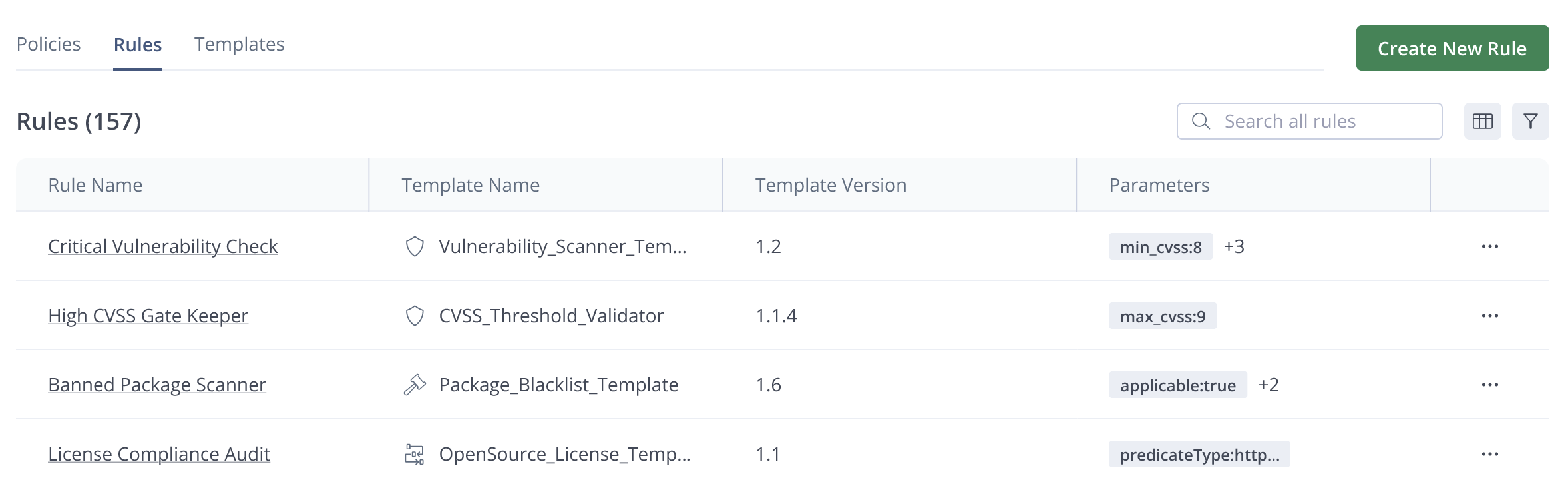
The Rules table includes the following columns:
- Rule Name: A name that briefly and clearly identifies what the rule does.
- Template Name: The name of the template used to create the rule. Hover over the icon to see the template type, which can be one of the following:
- Security
- Legal
- Operational
- Quality
- Audit
- Workflow
- Template Version: The version of the template used. SemVer format is recommended.
- Parameters: The parameters used in the template. The rule supplies specific values for those parameters.
- More Menu (...): Hover over the dots to see the menu. The menu includes View, Edit, and Delete.
To view a rule:
- In the JFrog Platform, go to AppTrust > Policies > Rules. The list of rules appears.
- In the list of rules, find the rule you want to view. If you don’t see it right away, try scrolling down, using the Search, or using the filters.
- On the right side of the rule, click the More icon (...) and click View. Alternatively, click anywhere in the row of the rule. A description of the rule appears with the rule name at the top. The following information is displayed:
- Rule Name at the top of the panel
- Template Configuration, including the symbol for the template type, the template name, and the template version
- Parameter Values
- Rule Description
- Linked Policies
- Creation Date
- Rule Creator: Username
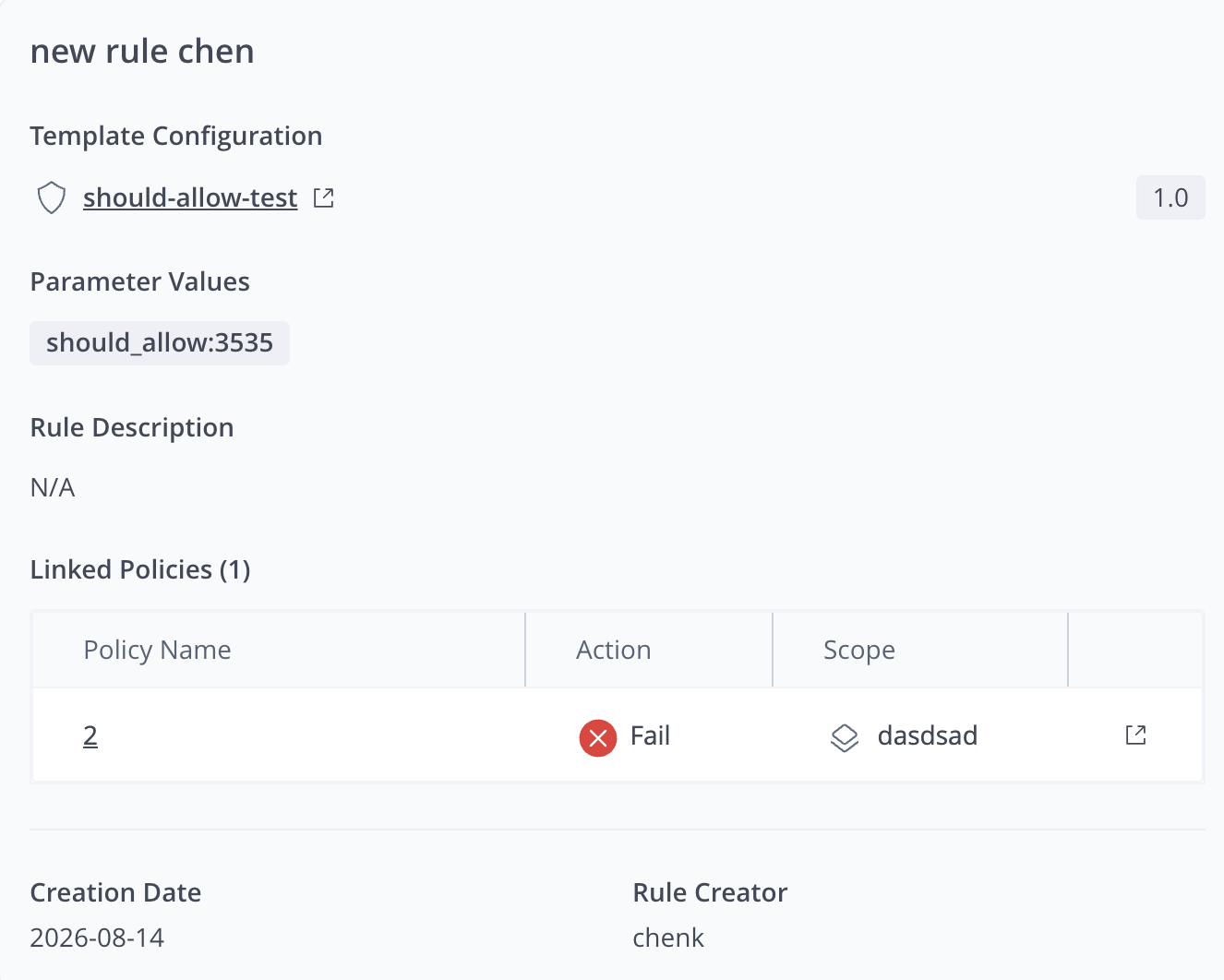
- After viewing the rule details, you can Edit or Delete the rule, or Close the panel without making changes. If you Edit or Delete the rule, you first need to unlink the rule from the policies listed.
Tip: You cannot edit or delete the AppTrust out-of-the-box rules.
What’s Next?
Learn how to Delete a Rule.
Updated about 1 month ago
Did this page help you?