

Edit a Rule
When you edit a rule, the change affects all of the policies that use that rule. Before you edit a rule, review the policies that use the rule and unlink the rule from any policies that should not receive the planned change.
When you edit a rule, the change affects all of the policies that use that rule. Before you edit a rule, review the policies that use the rule and unlink the rule from any policies that should not receive the planned change. To unlink a rule from a policy, choose a different rule for that policy.
Tip: You cannot edit or delete the AppTrust out-of-the-box rules.
To edit a rule:
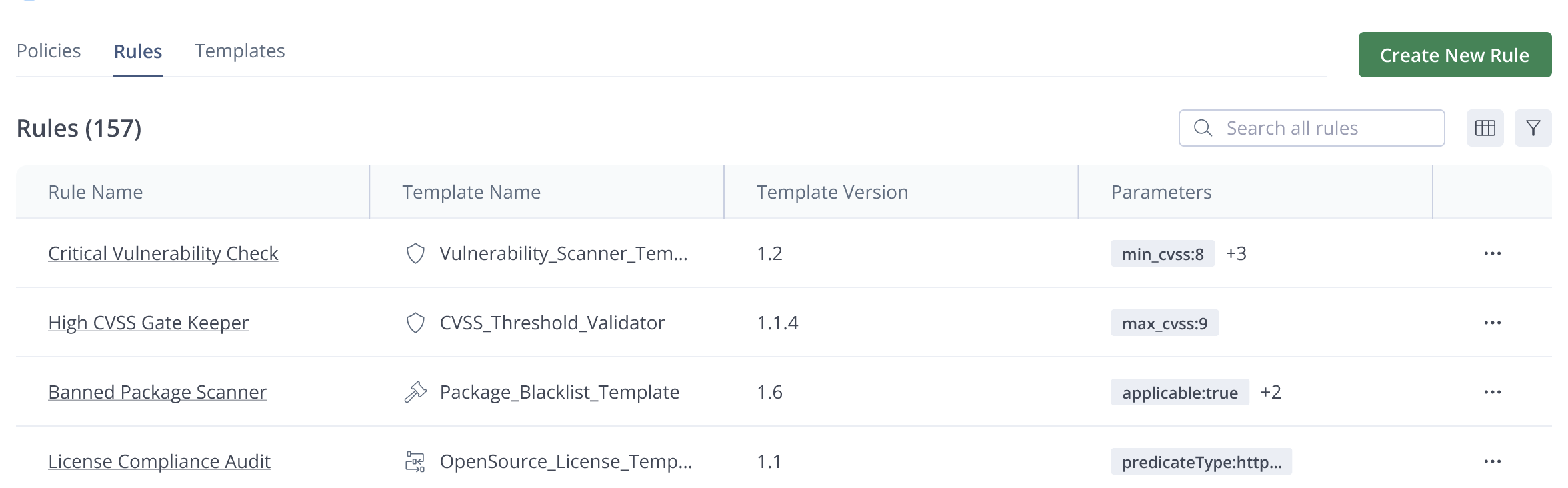
- In the JFrog Platform, go to AppTrust > Policies > Rules. The list of rules appears.
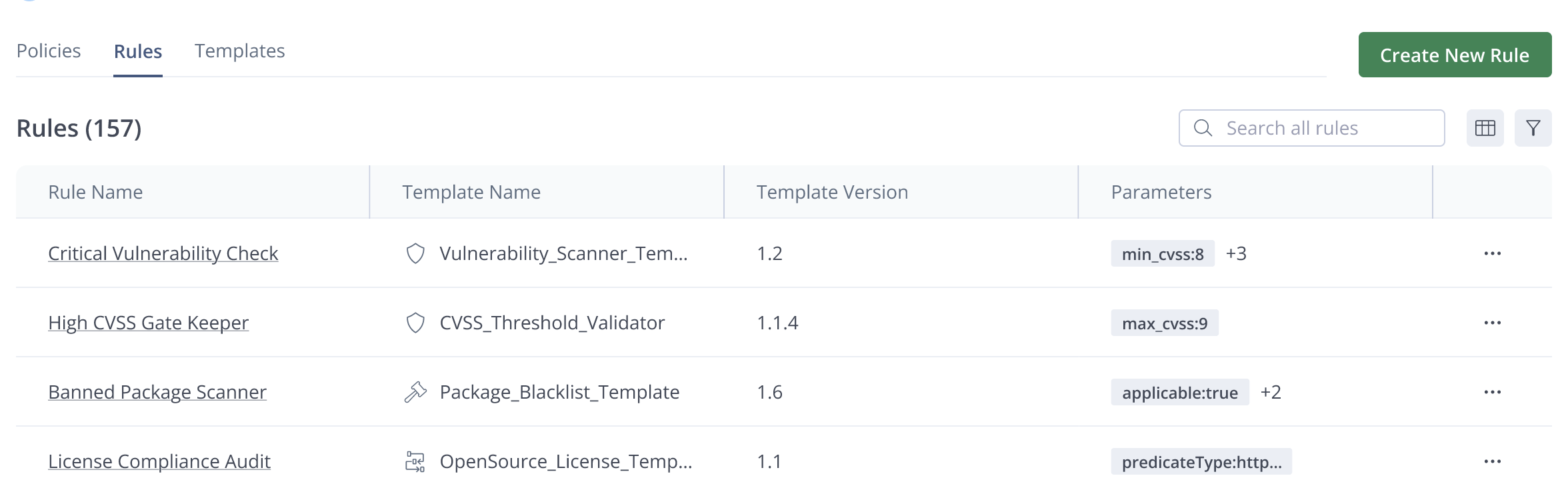
- In the list of rules, find the rule you want to edit. If you don't see it right away, try scrolling down, using the Search, or using the filters.
- On the right side of the rule, click the More icon (...) and click Edit.
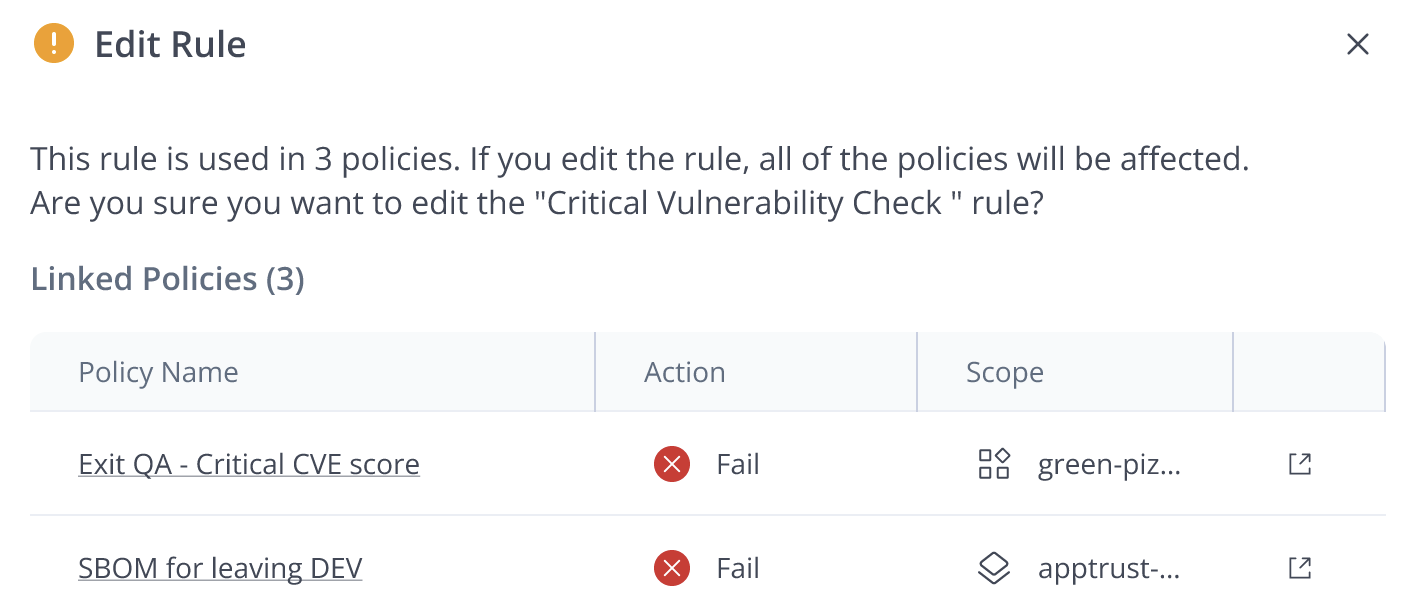
- If the rule is linked to one or more policies, the edits affect all of the linked policies. A popup appears to inform you of that and lists the relevant policies.
-
To unlink the rule from one or more of the policies, click the arrow on the right side of the policy row, or click Cancel and go to the Policies tab to do this.
-
To continue without unlinking policies, click Edit. The Edit wizard opens to Step 1, and you should see the relevant template configuration open.
-
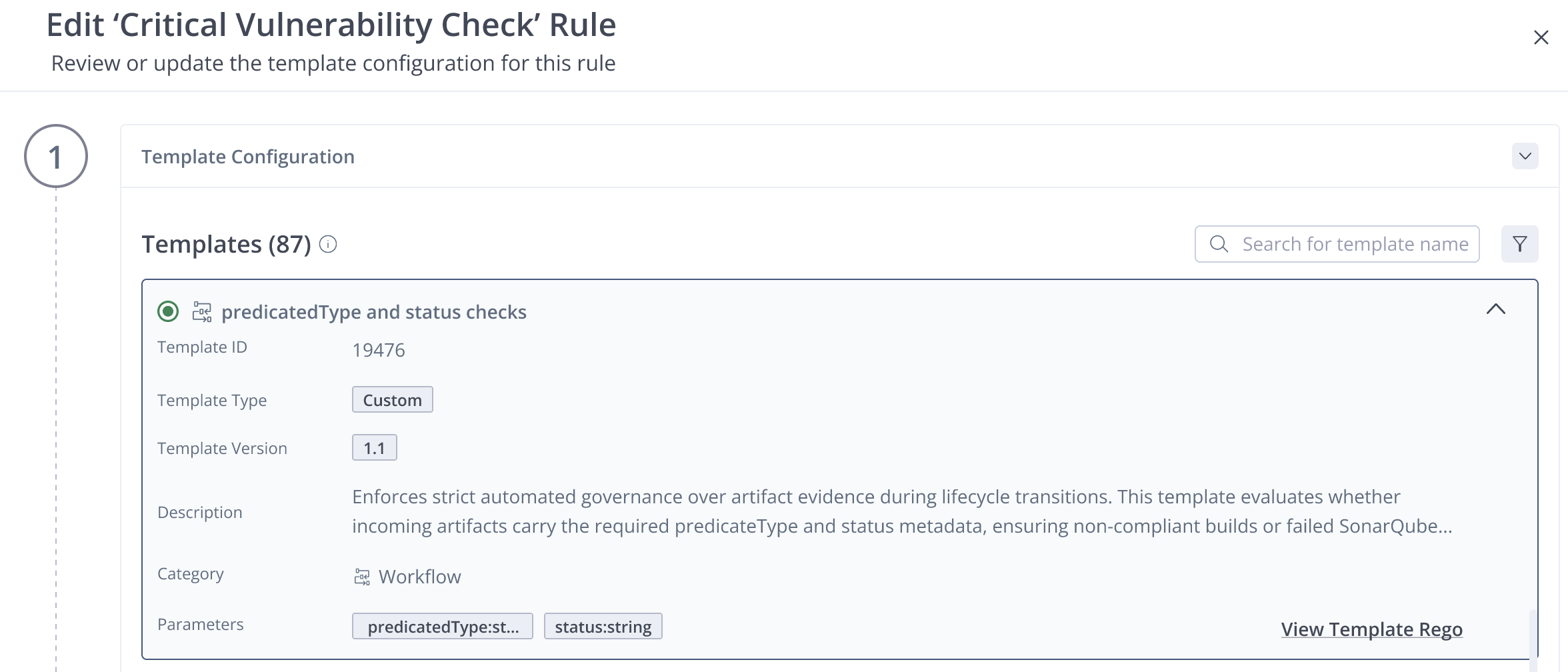
- If you need to change the template for this rule, select a different one and click Next.
- If you need to change the parameter values, change them in Step 2 of the wizard and click Next. (Step 2 in the Edit wizard is like Step 2 in the Create wizard.)
- If you need to change the additional information, change the Rule Name and Description in Step 3 of the wizard, and then click Update Rule. (Step 3 in the Edit wizard is like Step 3 in the Create wizard.)
What's Next?
Learn how to View Rules.
Updated about 1 month ago