View All Evaluations
In the general Evaluations page, you can view all policy evaluations made, including evaluations on application version promotions and repository actions.
In the general Evaluations page, you can view all policy evaluations made, including evaluations on application version promotions and repository actions.
To view a summary of all evaluations:
- In the JFrog Platform, go to AppTrust > Evaluations.
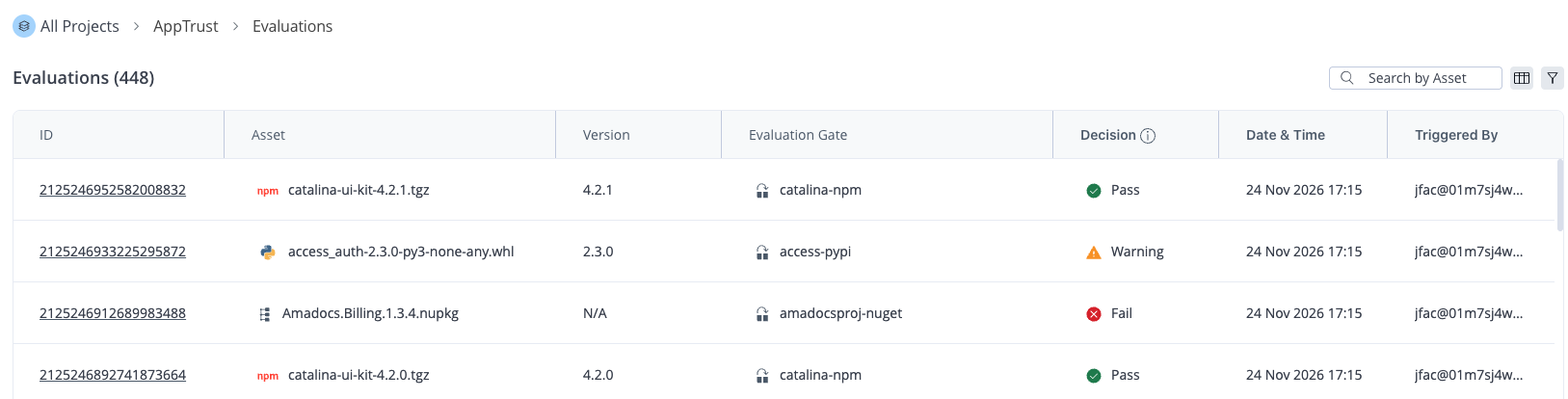
The Evaluations table displays the following columns:
- ID: The unique identifier of the asset evaluated.
- Asset: The item evaluated, which can be:
- Application
- Artifact
- Package
- Version: Version of the asset, for example, the application version or the package version.
- Evaluation Gate: Can be one of:
- Promotion
- Repository
- Decision: The outcome of the evaluation, which can be:
- Pass
- Fail
- Warning
- Error
- Date & Time: Time stamp of the evaluation.
- Triggered by: The user who triggered the evaluation.
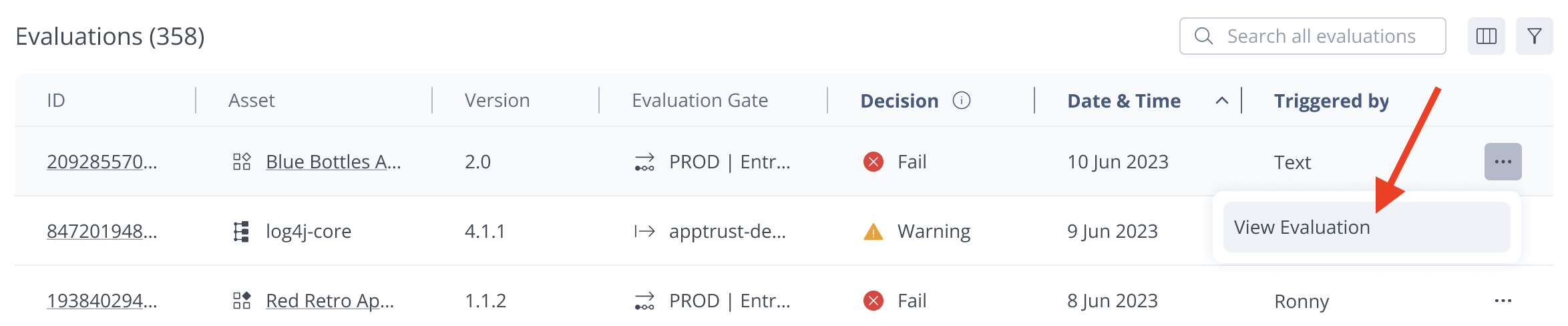
- More menu: Hover the mouse on the far right of a row and three dots appear. Click the three dots to see the menu, which includes:
- View Evaluation
Search and Filters
If you don’t see the evaluations you are looking for in the default display, use the Search and Filter tools to display the evaluations you need.
The filter enables you to filter the display by:
- Asset
- Version
- Evaluation Gate
- Decision
- Date & Time
- Triggered by
To view the evaluation details:
- In the Evaluations table, hover over the far right of the relevant row and click the More menu (three dots).
- Click View Evaluation. A page with the evaluation details opens, and the Policies View tab is selected.
What’s Next?
Learn how you can:
Updated about 1 hour ago
Did this page help you?