

Change Base URL in Federated Repositories
Update the base URL on an active Federation in JFrog Artifactory and re-pair members.
Administrators can change the base URL or Federated base URL in an active Federated repository with remote members. Changing the base URL might be necessary, for example, if the network topology has changed.
Who can perform this task: Platform Administrators
Warning
This feature is available only when all Federation members are using version 7.55.1 or later.
Prerequisites:
- All Federation members are running Artifactory 7.55.1 or later
This topic covers the following tasks:
- Change the Base URL
- Change the Federated Base URL
- Generate New Tokens for Federation Members
- After Changing the Base URL
Decide Which URL to Change
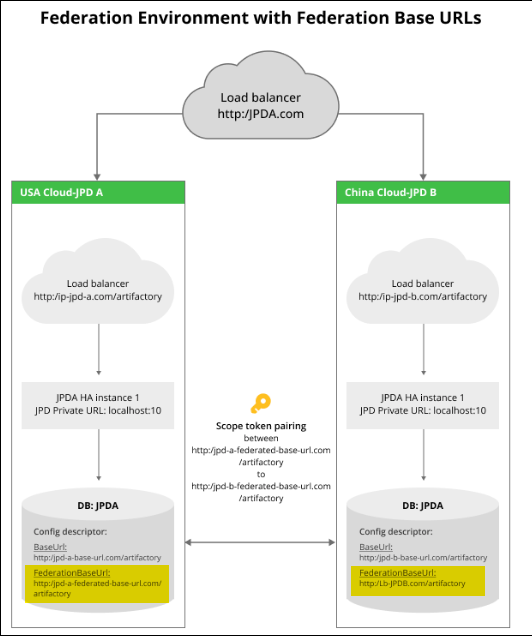
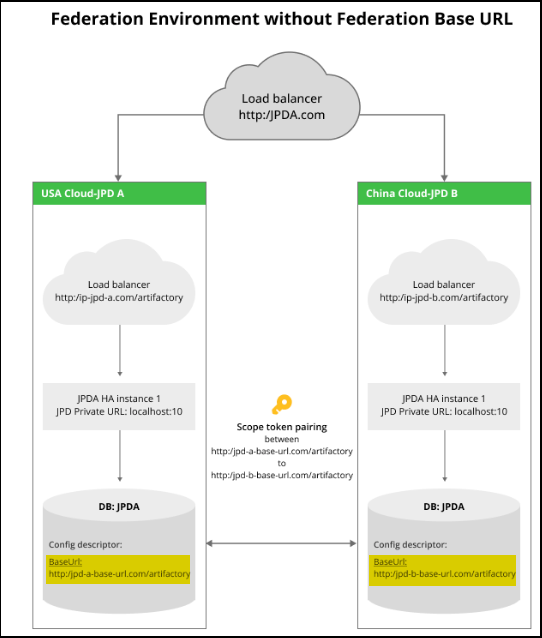
The steps required depend on whether the Federation uses the standard base URL or a special Federated base URL.
If a Federated base URL has been defined, the JPD publishes this address to all Federation members, who then use this address to access the Federated repository on the JPD instead of the standard base URL.
| Your scenario | Procedure |
|---|---|
| Change the standard base URL | See Change the base URL |
| Change the Federated base URL | See Change the Federated base URL |
Change the Base URL
Change the standard base URL used by your JFrog Platform instance.
Note
The custom Base URL is blocked on SaaS platforms and enabled on self-managed platforms.
To change the base URL:
-
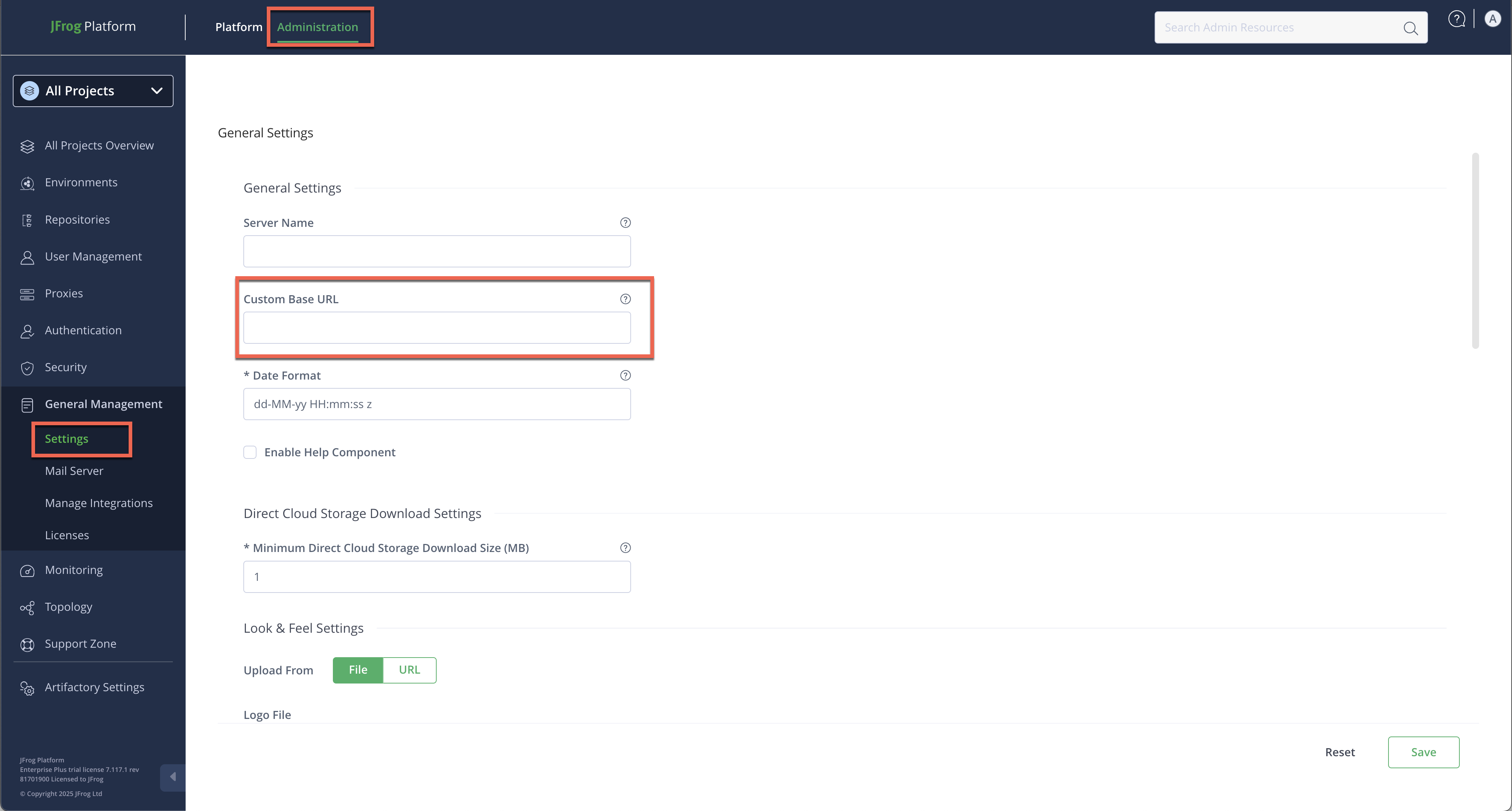
In the Administration module, click General Management > Settings.
-
Enter a new custom base URL.
-
Click Save.
-
The next steps depend on the Federation service in use:
| Source service | Target service | Steps required |
|---|---|---|
| Legacy | Legacy | Generate new pairing token, pair target to source, replace Base URL on target |
| Legacy | RTFS | Generate new pairing token, pair target to source, replace Base URL on target |
| RTFS | Legacy | Generate new pairing token, pair target to source |
| RTFS | RTFS | No new pairing token required. Continue to verification. |
- Verify the functionality of the Federation (see After changing the base URL).
Tip
You can also change the custom base URL using the Update Custom URL Base REST API.
Change the Federated Base URL
Note
The custom Base URL is blocked on SaaS platforms and enabled on self-managed platforms.
If the Federation uses a Federated base URL, make changes directly using the Config Descriptor.
To change the Federated base URL:
-
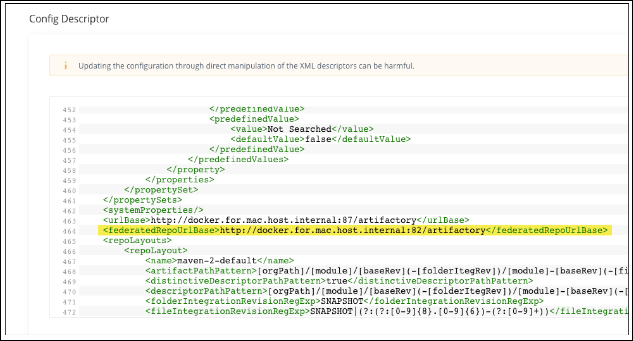
In the Administration module, click Artifactory Settings > Config Descriptor.
-
Search the configuration file for a Federation base URL entry.
-
Make the required changes to the Federation base URL and save your changes.
Generate New Tokens for Federation Members
After changing the base URL or Federated base URL, generate a new pairing token and pair the source and target JPDs.
Warning
Perform this procedure on each remote Federation member that uses the legacy Federation service. This procedure does not need to be performed on members that use the Artifactory Federation Service (RTFS).
To generate new tokens:
- Generate a new token from the source JPD using the Create Pairing Token Platform REST API.
- Pair the target JPD to the source JPD using the new token with the Initiate Pairing Platform REST API.
- Replace the base URL (or Federated base URL) by executing the following POST request against the target JPD:
api/federation/replaceUrlwith the following body:
{
    "oldBaseUrl": "http:/<OLD_BASE_URL>/artifactory",
    "newBaseUrl": "http://<NEW_BASE_URL>/artifactory"
}
Where:
<OLD_BASE_URL>: The current base URL of the target JPD<NEW_BASE_URL>: The new base URL to apply to the target JPD
For example:
{
    "oldBaseUrl": "http://old-jpd.example.com/artifactory",
    "newBaseUrl": "http://new-jpd.example.com/artifactory"
}
After Changing the Base URL
Test the functionality of the Federation after changing the base URL or Federated base URL.
To verify the Federation after changing the base URL:
- In the Administration module, click Platform Monitoring > Federation Status. If you see that the Federation is no longer in sync, there is a problem with the new configuration. This view is also available as the Federation Dashboard.
- (Optional) After verifying that all Federation members have synchronized successfully with the updated base URL, revoke the obsolete key for each remote JPD using the Revoke Token by ID REST API.
Warning
As a fallback, you can change the base URL more aggressively by canceling the Federation, changing the base URL, and then recreating the Federation. However, this has a huge impact on the system since it requires recreating each Federated repository from scratch.
Frequently Asked Questions
This section provides answers to frequently asked questions.
FAQs
Q: How do I know whether to change the standard base URL or the Federated base URL?
A: Check whether a Federated base URL has been defined for your Federation. If it has, the JPD publishes that address to Federation members instead of the standard base URL, so you must change the Federated base URL. Otherwise, change the standard base URL.
Q: Do I need to generate a new pairing token after changing the base URL?
A: It depends on the Federation service on each side. RTFS-to-RTFS Federations require no new pairing token. Any pairing that involves the legacy Federation service requires generating a new token and re-pairing the source and target JPDs.
Q: How do I verify the Federation is healthy after changing the base URL?
A: Open Platform Monitoring > Federation Status (the Federation Dashboard) in the Administration module. If any member shows as out of sync, review your new base URL configuration before proceeding.
Q: What should I do if changing the base URL breaks the Federation?
A: As a fallback, cancel the Federation, change the base URL, and recreate each Federated repository from scratch. This is a high-impact operation, so treat it as a last resort after troubleshooting the pairing tokens and connectivity.
Related Topics
Updated 3 months ago