

Create Your First Federation
Walk through creating a Federated repository, adding members, and verifying artifact synchronization between JPDs.
This topic walks you through creating a Federated repository and adding members to form a Federation. After completing these steps, changes made to artifacts on one site are automatically synchronized to the other JFrog Platform Deployments (JPDs).
This topic covers the following tasks:
Before You Begin
Verify that you have met all setup prerequisites. If you have a self-managed environment, configure a Custom Base URL.
- All items in the Prerequisites checklist are complete
- You have Platform Administrator permissions
Create the Federated Repository
Create a Federated repository and add members from other JPDs to form the Federation.
To create a Federated repository using the Platform UI:
-
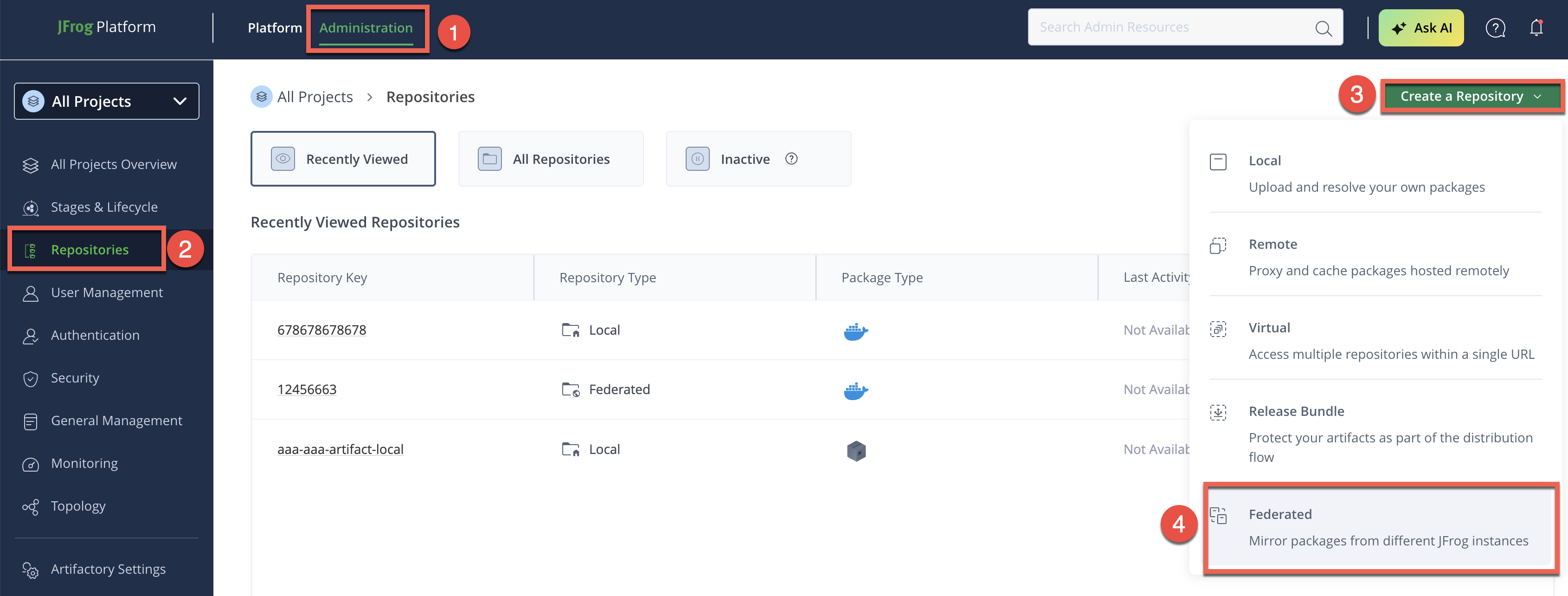
In the Administration module, click Repositories.
-
Click Create a Repository and select Federated.
-
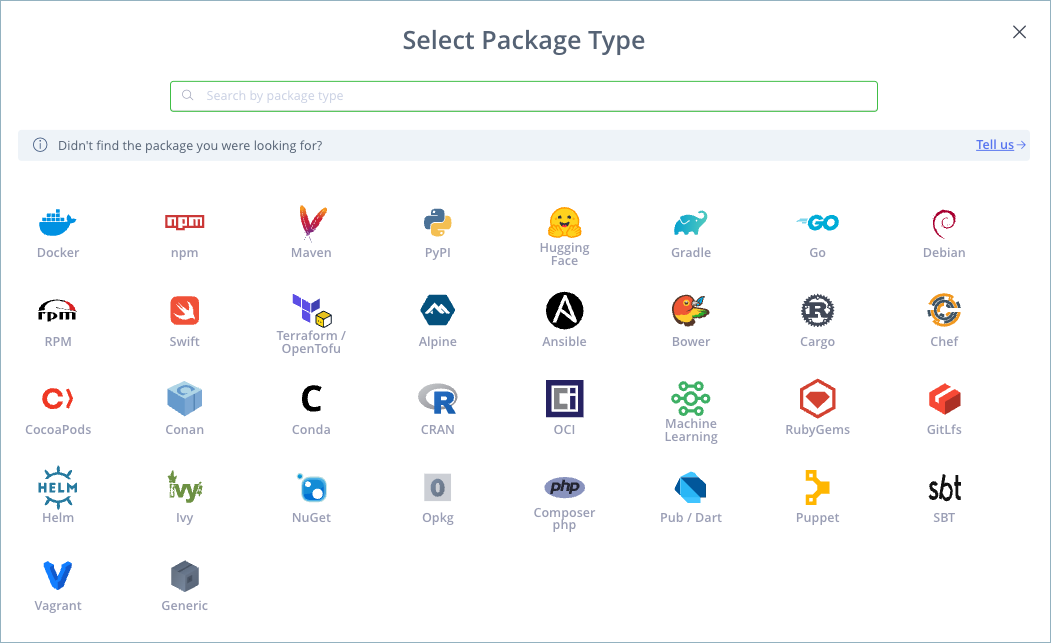
In the Select Package Type window, select the package type.
-
In the Basic tab, configure the basic repository settings, including the mandatory Repository Key that becomes the prefix for the Federated repository on every site. For more information, see Basic Settings for Local Repositories.
Warning
It is mandatory to assign a Repository Key that will be added as the prefix to the Federated repository and displayed on all the sites.
- In the Advanced tab, configure additional repository settings as required. For more information, see Advanced Settings for Local Repositories.
- In the Federation tab, add members to the Federation by selecting repositories on other JPDs. Click Add Repository.
- In the Add Federated Repositories dialog, add members using one of these tabs:
-
Deployments (recommended): If you have JFrog Mission Control installed, select an existing repository on a connected remote JPD. If a repository with the same key doesn't exist on the remote JPD, click Create new to create and add it.
-
URL: If the remote JPD isn't available on the Deployments tab, manually add the full repository URL. If the repository doesn't exist on the remote JPD, it is created automatically. Use the following syntax:
<BASE_URL>/artifactory/<REPOSITORY_NAME>Where:
<BASE_URL>: The base URL of the remote JPD hosting the repository<REPOSITORY_NAME>: The name of the repository on the remote JPD
For example:
http://<IP_ADDRESS>:8082/artifactory/fed117
-
Note
JPDs appear only if you have set up bindings or established a Circle of Trust.
- Click Done. You are returned to the Federation tab.
- Click Create Federated Repository.
Note
When you add a new Federation member, Xray configuration is copied from the repository on the JPD where you add the member to the new member, so configure Enable Indexing in Xray on the source repository before adding members. See Xray Configuration Synchronization and package-type limitations for details that apply when creating your first Federation.
Verify the Result
After creating the Federation, the Federated repositories are automatically displayed in your artifact browser.
To verify synchronization is working:
- Deploy a test artifact to the Federated repository on JPD A.
- Check that the artifact appears in the corresponding Federated repository on JPD B.
- Optionally, navigate to Administration > Platform Monitoring > Federation Status to view the health of the Federation.
Next Steps
Frequently Asked Questions
This section provides answers to frequently asked questions.
FAQs
Q: How do I create a Federated repository using the Platform UI?
A: In the Administration module, click Repositories, then create a repository and select Federated. See Create the Federated Repository for the full step-by-step procedure.
Q: What happens if I don't assign a Repository Key when creating a Federated repository?
A: You must assign a Repository Key — it becomes the prefix for the Federated repository and is displayed on every site in the Federation. The repository can't be created without it.
Q: How do I add an existing repository on another JPD as a Federation member?
A: Use the Deployments tab when the remote JPD is available. Select an existing repository, or click Create new if a repository with the same key doesn't exist. If the remote JPD isn't available on the Deployments tab, use the URL tab and enter the full repository URL.
Q: Why don't any JPDs appear when I try to add Federation members?
A: JPDs only appear in the Add Federated Repositories dialog once you've set up bindings or established a Circle of Trust between them.
Q: How do I verify that Federation synchronization is working?
A: Deploy a test artifact to the Federated repository on one JPD and confirm it appears on the corresponding repository on the other JPD. See Verify the Result for the full verification steps.
Related Topics
Updated 3 months ago