

Use the Federation Dashboard
Monitor your Federated repository health at a glance using the Federation Status dashboard.
Use the Federation dashboard to track the current state of your Federated repositories. The dashboard enables administrators to understand the general health of all repository Federations at a glance.
This topic covers the following tasks:
- View All Repository Federations
- View Federation Members
- Assign Priority to Federated Repositories
- View a Selected Repository Federation
Who can perform this task: Platform Administrators
Note
The Federation dashboard requires Artifactory release 7.104.2 or later with the standalone Artifactory Federation Service installed.
View All Repository Federations
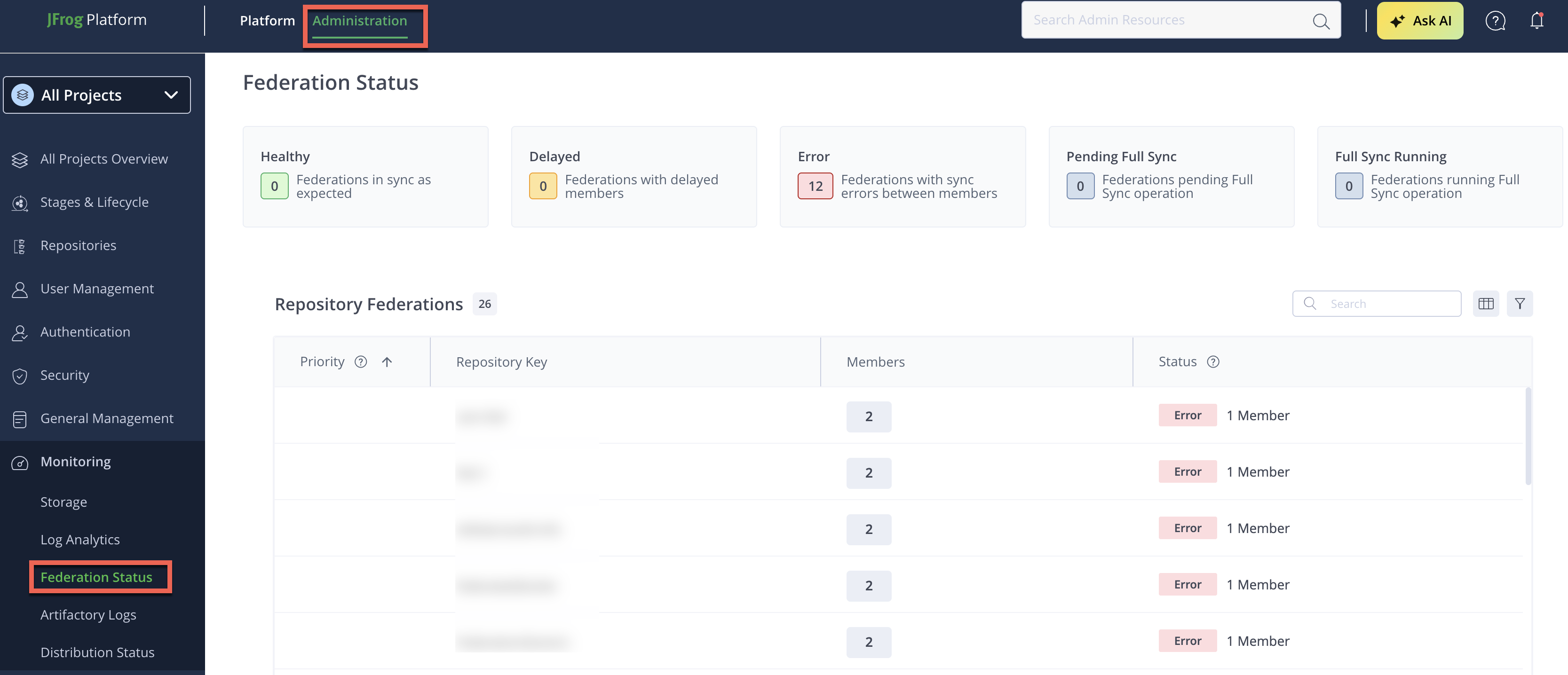
The repository Federation status table shows the current status of every Federated repository on this JPD.
To view the repository Federation status table:
- In the Administration module, click Platform Monitoring > Federation Status.
Status Summaries
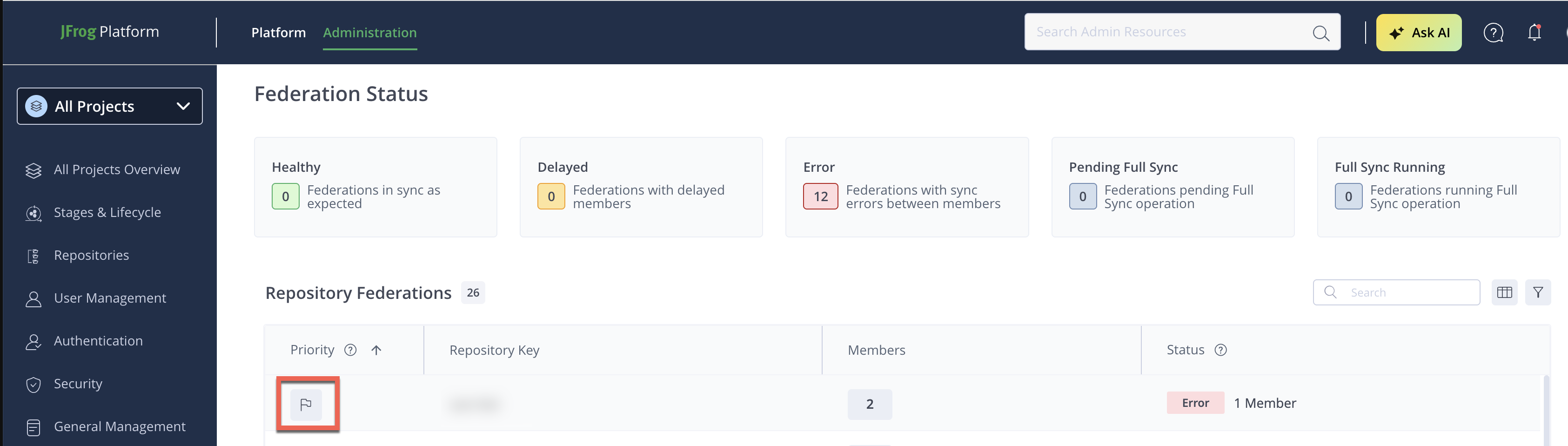
The tiles indicate how many repository Federations on this JPD currently have each status.
| Status | Description |
|---|---|
| Healthy | All members are experiencing timely synchronization of metadata events. A Federation cannot attain this status if one of its members has an error, is involved with a Full Sync operation, or is experiencing delays. |
| Delayed | At least one member has high latency, meaning synchronization of metadata events is taking longer than expected. |
| Error | At least one member has synchronization errors. |
| Pending Full Sync | At least one member is waiting for a Full Sync to be performed. A Full Sync is performed during the initialization process when a Federation is created, and as a way to restore synchronization when regular synchronization and auto-healing are insufficient (for example, if there are purged events that are no longer available to be synchronized). |
| Full Sync Running | At least one member is currently undergoing the Full Sync procedure. |
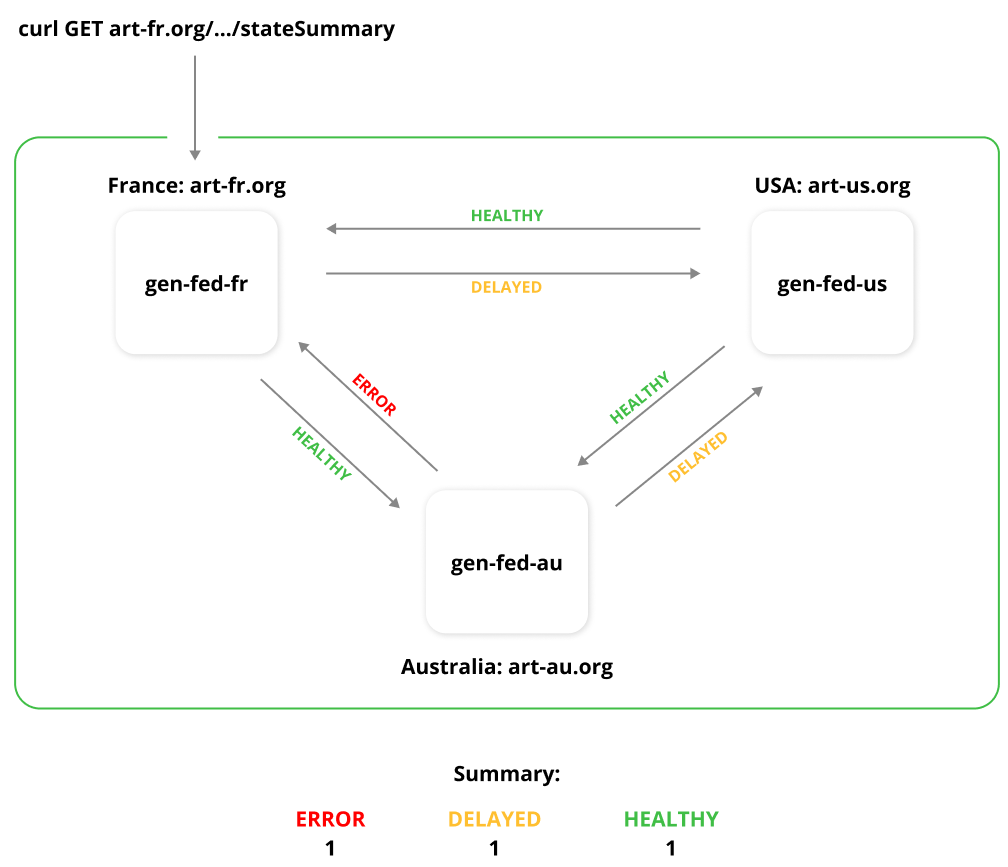
The state of each member is based on an aggregation of all connections federated with the JPD on which this endpoint is run. The aggregation is based on the most severe state. For example, if metadata events sent from Federated repository gen-fed-fr are synchronizing in a timely fashion with gen-fed-au, that connection is HEALTHY. If there is a delay in sending events from gen-fed-fr to gen-fed-us, the aggregated status of gen-fed-fr is DELAYED.
Filter the Table
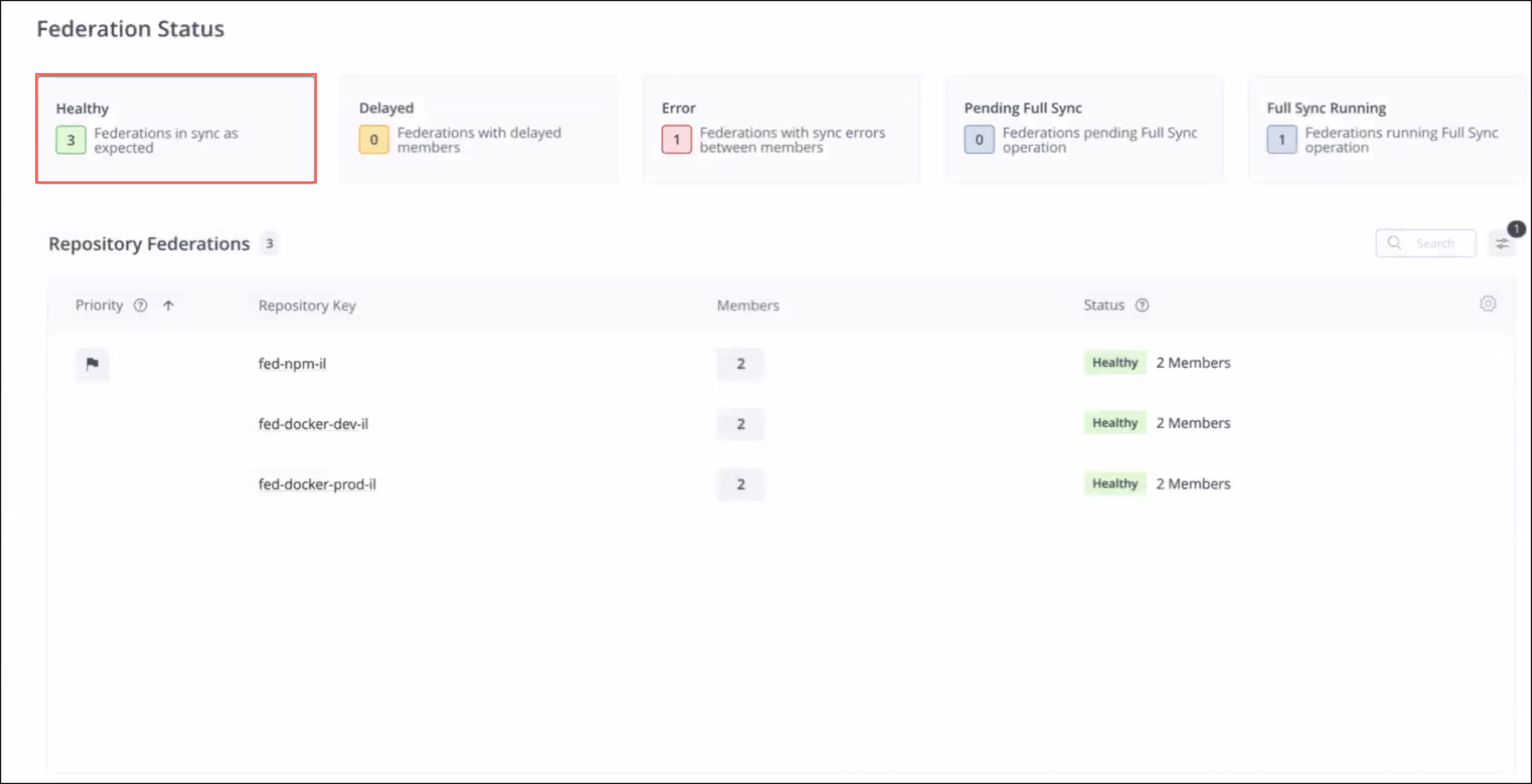
Click one of the status cards to filter the Repository Federations table according to that status. For example, clicking the Healthy card shows only those Federations whose members are all synchronizing events in a timely fashion.
Tip
Click the filter icon
to filter the table according to multiple statuses.
Repository Federations Table Columns
The following table describes the columns in the Repository Federations table.
| Column | Description |
|---|---|
| Priority | A flag icon indicates the Federated repository has been assigned priority to system resources. |
| Repository Key | The repository key of the member on this JPD. |
| Members | The number of members in this repository Federation. |
| Status | The overall status based on the most severe status among its members. For example, if the Federation has 5 members and some are in Error status, the overall status is shown as Error together with an indication of how many members have that status. |
Note
Status severity order, from highest to lowest: Error, Delayed, Pending Full Sync, Full Sync Running, Disabled, Unsupported, Healthy, N/A. For the underlying member state definitions, see Member State Reference.
View Federation Members
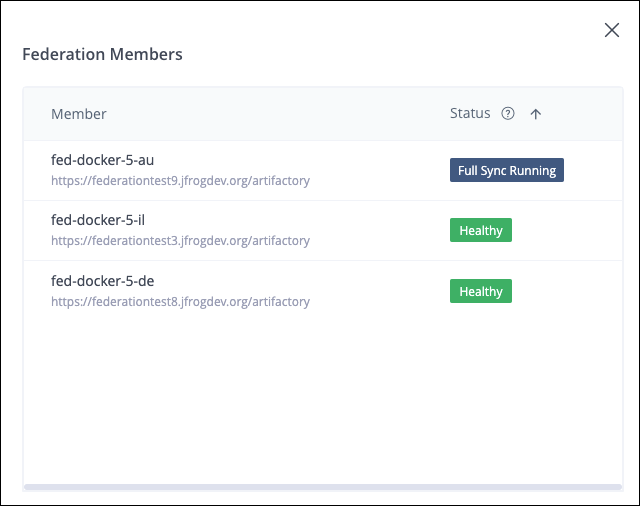
You can view the members of a repository Federation and their current status directly from the Federations table.
To view Federation members:
- In one of the table rows, click the rectangle (under Members column) displaying the number of Federation members to open a popup with a list of the members and their current status.
Assign Priority to Federated Repositories
When you assign priority, you provide the event queue of the selected Federated repository with priority access to system resources to help ensure timely synchronization.
Note
Assign priority sparingly. The limit is 10 repositories or 20% of the total number of repositories, whichever is lower. To prioritize an entire Federation, assign priority to each member separately.
To assign priority:
-
Go to the table row for the repository you want to prioritize and hover over the Priority field. A flag icon appears.
-
Click the flag icon to assign priority.
-
To remove priority, click the flag icon again.
View a Selected Repository Federation
Select a Federated repository from the Federations table to view the status of the connections between this repository and the other Federation members.
To view the status of a selected Federation:
- In the Administration module, click Platform Monitoring > Federation Status.
- Click the name of the repository key belonging to the Federation you wish to examine.
The Federation Status window displays the following information.
- The number of replication tasks currently in progress
- The total number of replication tasks that have failed to complete
For details on the binary transfer lifecycle behind these counts, see Monitoring Binaries Tasks.
Metadata Event Connections Table
The following table describes the columns in the Metadata Event Connections table.
| Column | Description |
|---|---|
| Source | The repository on the source member responsible for sending events. |
| Target | The repository on the target member responsible for receiving events. |
| Status | The current status of the connection between the target and source members. See Monitoring Connection States for the full definitions, including Healthy, Delayed, Error, Pending Full Sync, Full Sync Running, Disabled, Unsupported, and N/A. |
| Latency | The length of time that has passed since the last event that was handled successfully. |
| Queued Events | Total number of events waiting to be sent to the target member. |
Tip
To view the connections between a different source member and the other members, select the source from the dropdown list. An identification icon is displayed next to the selected member for easier identification. Click the x icon to clear the selection and view the connections between all members.
Frequently Asked Questions
This section provides answers to frequently asked questions about the Federation dashboard.
FAQs
Q: How do I view the status of my Federated repositories?
A: In the Administration module, click Platform Monitoring > Federation Status to open the repository Federation status table. See View All Repository Federations for details.
Q: Who can access the Federation dashboard?
A: Only Platform Administrators can view and use the Federation dashboard.
Q: Why does a repository Federation show a Delayed or Error status?
A: Delayed means at least one member has high latency, so synchronization of metadata events is taking longer than expected. Error means at least one member has synchronization errors that require investigation.
Q: What is the difference between Pending Full Sync and Full Sync Running?
A: Pending Full Sync means a member is waiting for a Full Sync to start. Full Sync Running means a member is currently undergoing the Full Sync procedure.
Q: How many repositories can I assign priority to?
A: You can assign priority to a maximum of 10 repositories, or 20% of your total repositories, whichever is lower. See Assign Priority to Federated Repositories for steps.
Related Topics
Updated 3 months ago